
Image Resizer Online
Resize images by pixels or percentage without stretching the aspect ratio.
- Free
- No sign-up
- On your device
How it works
Choose files from your device, drag them here, or paste an image.
Adjust the available settings and inspect your results before downloading.
Download the result or copy your colors. No account or payment is required.
When to use it
Social media posts
Use presets such as Instagram post 1080 × 1080, Story 1080 × 1920 or YouTube thumbnail 1280 × 720.
Websites and blogs
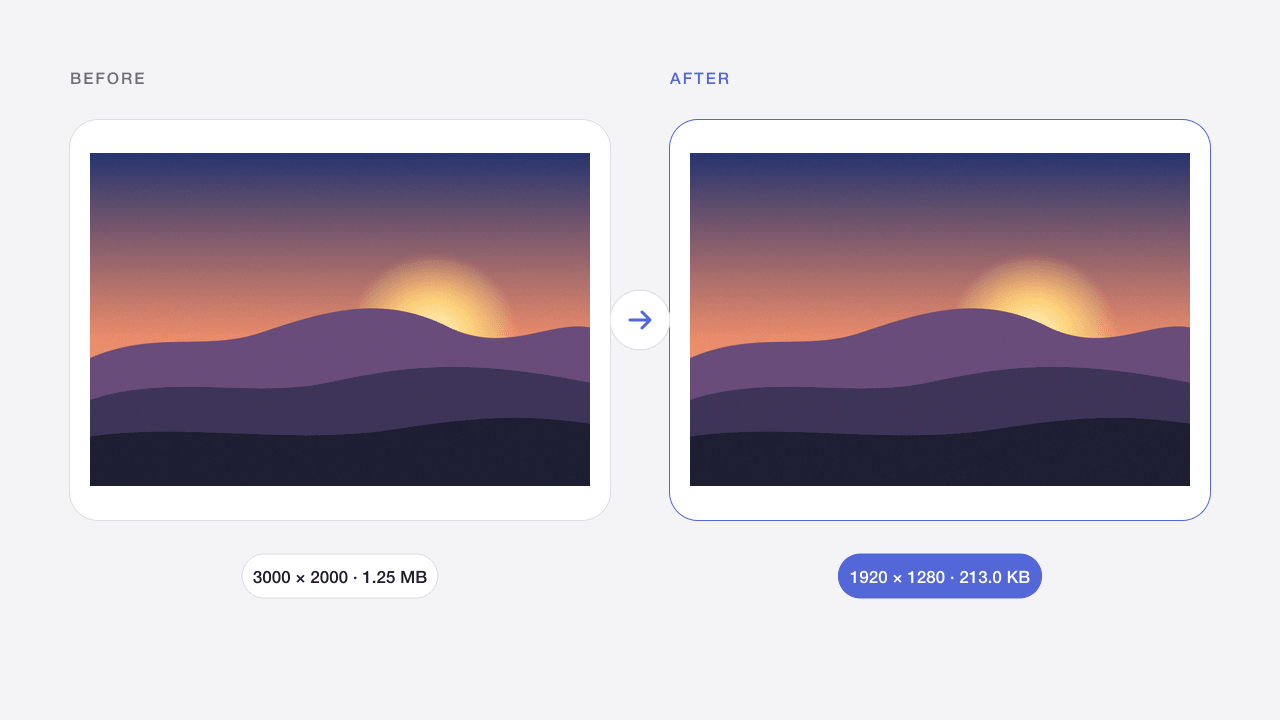
Scale large camera photos to 1920 px or less before uploading to reduce page weight.
Product catalogs
Pad images to the same square size so product grids line up without cutting anything off.
What to expect
Use a maximum width and height, one dimension, or a percentage. Each image keeps its own aspect ratio. The default fits inside 1920 × 1920 pixels and never enlarges a smaller image. Enable enlargement explicitly if needed; resizing does not reconstruct missing detail.
Limits apply to both input and output. Animated images are not supported. Files remain in memory only; reloads clear your work. Smaller batches help on mobile devices.
Frequently asked questions
What is the difference between fit, crop and pad?
Fit keeps the whole image inside your width and height, so one side may be smaller. Crop to exact size fills the size and trims the centered overflow. Pad fits the whole image and adds background to reach the exact size.
Will resizing reduce image quality?
Downscaling uses high-quality Lanczos filtering and usually looks sharp. Enlarging cannot add detail, so small images may look soft; the AI Image Upscaler is better for that.
Can I resize many images at once?
Yes. Add up to 20 images; each one is resized with the same settings, and you can download them together as a ZIP.
How do I keep the aspect ratio?
Choose Fit, Width or Height. The other side is calculated automatically, and the expected output size is shown next to each file before processing.
Are my images uploaded?
No. Image processing takes place in your browser. Files are not sent to Codia and are removed from this workspace when you refresh or leave. Website analytics, when permitted, never contain your images or file names.
Can I process multiple files?
Yes, up to 20 files per batch, within the displayed size limits. Each file is processed separately. Download successful results individually or as a ZIP; a failed file does not block the others.
Will quality and metadata stay the same?
Results depend on the operation and settings. Lossy compression changes pixels; JPG removes transparency. Exports target ordinary 8-bit web images and do not promise EXIF, HDR, original color profiles or 16-bit preservation. Always inspect the result.
Related image tools
Instagram Image Resizer
Crop or pad photos to Instagram post, portrait and Story sizes.
Open tool →JPG · PNG · WEBPImage Compressor Online
Reduce JPG, PNG and WebP file sizes while keeping the original format.
Open tool →PNGPNG Compressor Online
Compress PNG screenshots and graphics while retaining a transparent background.
Open tool →JPG · PNG · WEBPCompress Image to 100KB
Make photos fit an upload limit, with automatic quality and size adjustment.
Open tool →WEBP → PNGWebP to PNG Converter
Convert static WebP files into PNG images with transparency preserved.
Open tool →PNG · WEBP → JPGPNG to JPG Converter
Turn PNG images into JPG photos and choose a background for transparent areas.
Open tool →SVG → PNGSVG to PNG Converter
Export self-contained SVG artwork as PNG at 1×, 2×, 4× or a custom width.
Open tool →JPG · PNG · WEBPColor Picker from Image
Pick pixels from an image and copy HEX, RGB, HSL or CSS color variables.
Open tool →