
Screenshot to Photoshop:
Convert Any Image into an Editable PSD
Upload a screenshot, PNG or JPG and get Photoshop layers you can edit: real type layers, grouped UI elements and separate image layers instead of one flat background. Use the free Photoshop plugin or convert in your browser.
The plugin runs in Photoshop on a computer. On your phone, try the browser version first.
Free on Adobe Exchange · Photoshop 23.2 or later · 5 free AI credits every month
No plugin? Convert in your browser
Built for common creative workflows
What you can convert
Image to PSD for every kind of UI
If you can take a screenshot of it, you can open it as layers in Photoshop. Codia works with PNG, JPG and WebP images of real products and mockups.
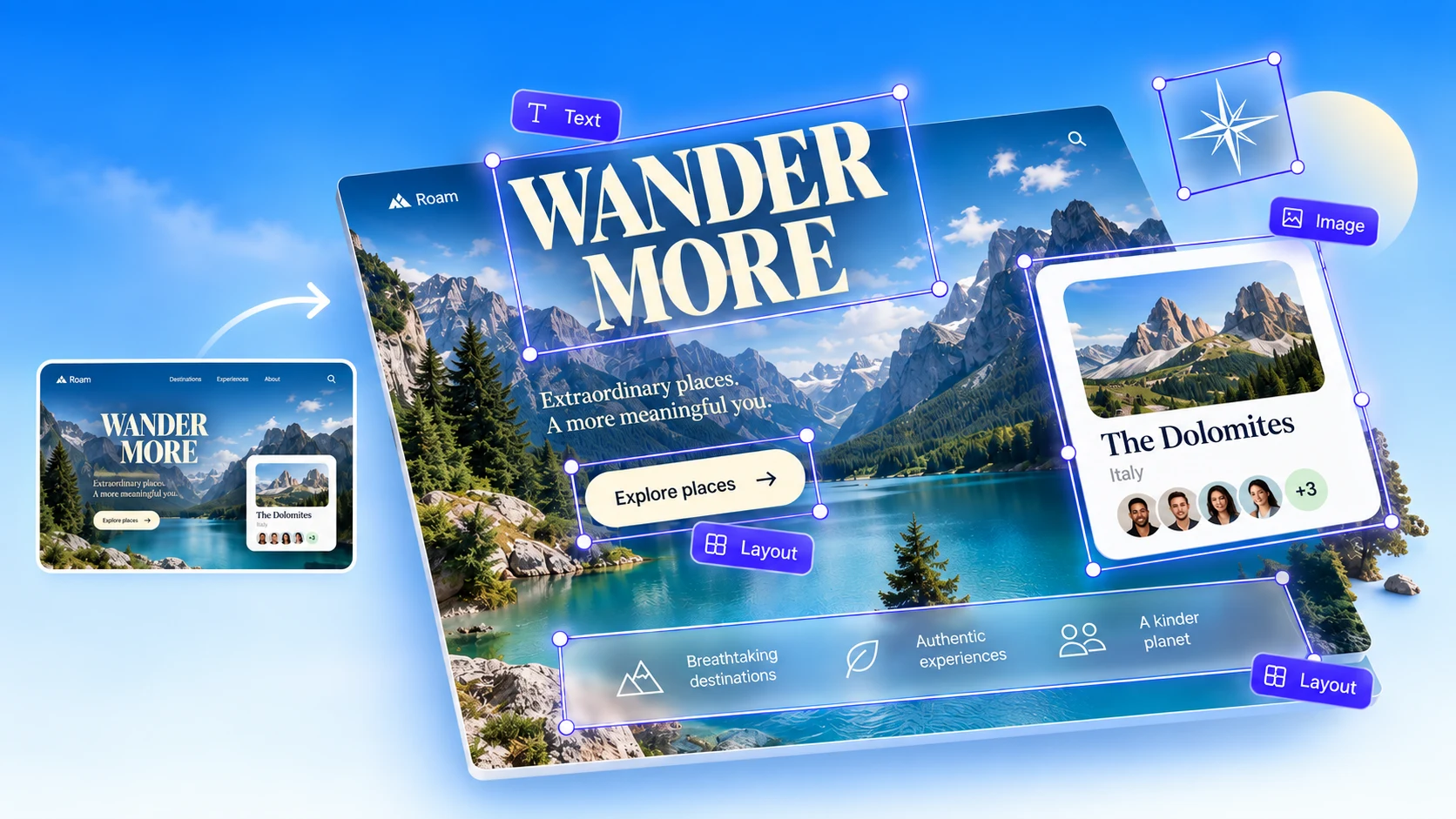
iOS and Android app screens
Rebuild app screens as layered PSDs for mockups, store graphics and presentations.
Websites and landing pages
Turn a captured web page into a layered file you can retouch, restyle or reuse in banners.
Dashboards and admin panels
Tables, charts and sidebars come back as separate layers instead of one merged picture.
Design references and mood boards
Turn a reference screen into layers you can study, recolor and adapt in Photoshop.
Lost PSDs and old designs
Only have a flattened export? Recover an editable, layered version from the image.
PNG, JPG and WebP images
Any UI image works, from a quick screenshot to an exported mockup. Higher resolution gives cleaner text.
How it works
How to convert a screenshot to PSD
Three steps in the Photoshop plugin. Most screens are ready to edit in minutes.
- 1
Install the free plugin
Get Codia AI: Screenshot to Design for Photoshop from Adobe Exchange. It needs Photoshop 23.2 or later.
- 2
Upload your screenshot
Open the plugin panel, sign in with a free Codia account and upload a PNG, JPG or WebP image.
- 3
Edit the generated layers
Codia rebuilds text, UI elements and images as Photoshop layers. Edit type, move groups and retouch as usual.
No Photoshop open?
Upload the image at the top of this page. Codia Studio opens it as an editable canvas; choose Download, then PSD, and open the file in Photoshop.
What you get
Editable Photoshop layers, not a flattened background
A screenshot opened in Photoshop is a single layer. A converted screenshot is a layered document.
Real type layers
Headlines, labels and paragraphs become editable text, so you can change copy without cloning or retyping.
Grouped UI structure
Containers, lists, buttons and cards are rebuilt as a layer structure you can move and restyle.
Images on their own layers
Photos, illustrations and icons are separated from the background instead of being baked into it.
Fonts and multilingual text
Font detection keeps the original look, and text in many languages is recognized, not just English.
A layered PSD from your browser
No plugin needed: upload in Codia Studio and download the result as a PSD file for Photoshop.
Edit PSDs online too
Away from Photoshop? Open layered files in the Codia PSD Editor Online and keep editing in the browser.
Open, rebuild or convert: three ways to get a screenshot into Photoshop
Opening the image is instant but gives you one layer. Rebuilding by hand is editable but slow. Converting gives you both.
| Convert with Codia | Open the image | Rebuild by hand | |
|---|---|---|---|
| Editable text | Yes, real type layers | No, text is pixels | Yes, retyped manually |
| Layers | Grouped, separate layers | One background layer | Built manually |
| Fonts and colors | Detected from the image | Visible only | Matched by eye |
| Time per screen | Minutes, then refine | Seconds | Often hours |
Screenshot to PSD pricing
Start free with 5 AI credits every month. Upgrade for larger screenshots and more credits.
Screenshot to Photoshop FAQ
Answers about converting screenshots and images into editable PSD layers.
More questions? Reach out and we will help.
Contact SupportRelated converters
- Screenshot to FigmaTurn screenshots into editable Figma layers.
- Screenshot to CanvaTurn screenshots into editable Canva designs.
- Screenshot to SketchConvert screenshots into Sketch layers on your Mac.
- PSD Editor OnlineOpen and edit PSD files in your browser.
- PSD to FigmaMove Photoshop files into Figma with layers intact.
- Image to LayersSplit any photo or poster into editable layers.
Convert your first screenshot
to PSD for free
Install the plugin in Photoshop or upload an image in your browser. Every account gets free AI credits each month.
No credit card · Files not used for training · Photoshop 23.2 or later