
HEIC to JPG Converter
Convert iPhone HEIC photos to JPG in any browser, without uploading them.
- Free
- No sign-up
- On your device
How it works
Choose files from your device, drag them here, or paste an image.
Adjust the available settings and inspect your results before downloading.
Download the result or copy your colors. No account or payment is required.
When to use it
iPhone photos on Windows
Windows apps and many websites cannot open HEIC. Convert photos copied from an iPhone to JPG so they open everywhere.
Upload forms and marketplaces
Most upload forms reject HEIC. Convert first, then use Compress Image to 100KB if there is also a size limit.
Sharing and printing
Send JPGs to friends, clients and print services that do not support Apple's photo format.
What to expect
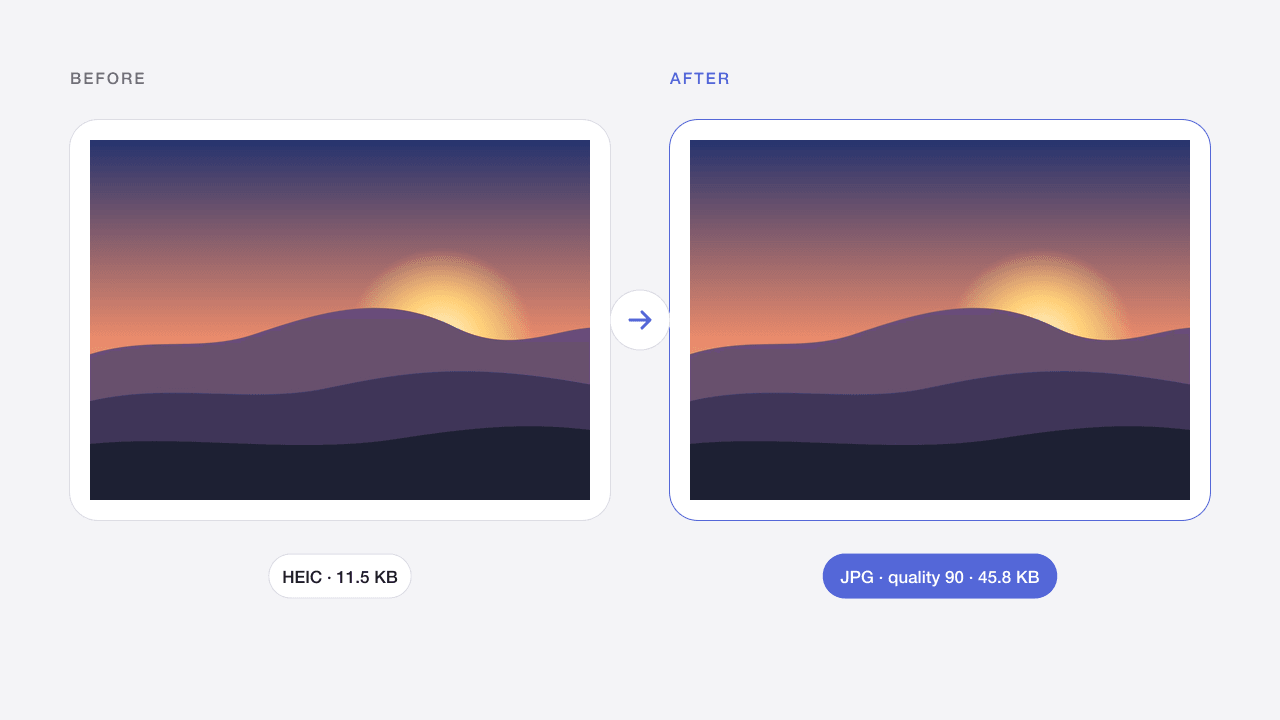
HEIC photos are decoded in your browser with the open-source libheif library, so they also work in Chrome, Edge and Firefox on Windows and Android. Output is JPG at quality 90 by default, with orientation applied. Photos up to 12 megapixels are supported, which covers standard iPhone photos.
Limits apply to both input and output. Animated images are not supported. Files remain in memory only; reloads clear your work. Smaller batches help on mobile devices.
HEIC decoding uses the open-source library libheif (LGPL-3.0).
Frequently asked questions
What is a HEIC file?
HEIC (High Efficiency Image Container) is the photo format iPhones use by default. It keeps files small, but Windows, Android apps and many websites cannot open it.
Are my photos uploaded to convert them?
No. HEIC decoding runs in your browser with libheif compiled to WebAssembly, so photos never leave your device. The decoder is downloaded once, the first time you convert.
Will the JPG keep the photo quality?
At the default quality of 90 the JPG looks the same as the original in normal viewing. The file is usually larger than the HEIC because JPG compresses less efficiently. Lower the quality for smaller files.
Why was my HEIC photo rejected?
Live Photos videos, image sequences and photos above 12 megapixels, such as 48 MP HEIF Max photos, are not supported. Export a standard photo from your iPhone or reduce its resolution and try again.
Are my images uploaded?
No. Image processing takes place in your browser. Files are not sent to Codia and are removed from this workspace when you refresh or leave. Website analytics, when permitted, never contain your images or file names.
Can I process multiple files?
Yes, up to 20 files per batch, within the displayed size limits. Each file is processed separately. Download successful results individually or as a ZIP; a failed file does not block the others.
Will quality and metadata stay the same?
Results depend on the operation and settings. Lossy compression changes pixels; JPG removes transparency. Exports target ordinary 8-bit web images and do not promise EXIF, HDR, original color profiles or 16-bit preservation. Always inspect the result.
Related image tools
PNG to JPG Converter
Turn PNG images into JPG photos and choose a background for transparent areas.
Open tool →WEBP → PNGWebP to PNG Converter
Convert static WebP files into PNG images with transparency preserved.
Open tool →SVG → PNGSVG to PNG Converter
Export self-contained SVG artwork as PNG at 1×, 2×, 4× or a custom width.
Open tool →JPG · PNG · WEBPImage Compressor Online
Reduce JPG, PNG and WebP file sizes while keeping the original format.
Open tool →PNGPNG Compressor Online
Compress PNG screenshots and graphics while retaining a transparent background.
Open tool →JPG · PNG · WEBPCompress Image to 100KB
Make photos fit an upload limit, with automatic quality and size adjustment.
Open tool →JPG · PNG · WEBPImage Resizer Online
Resize images by pixels or percentage without stretching the aspect ratio.
Open tool →JPG · PNG · WEBPColor Picker from Image
Pick pixels from an image and copy HEX, RGB, HSL or CSS color variables.
Open tool →