
Screenshot to Canva:
Turn Any Image into an Editable Canva Design
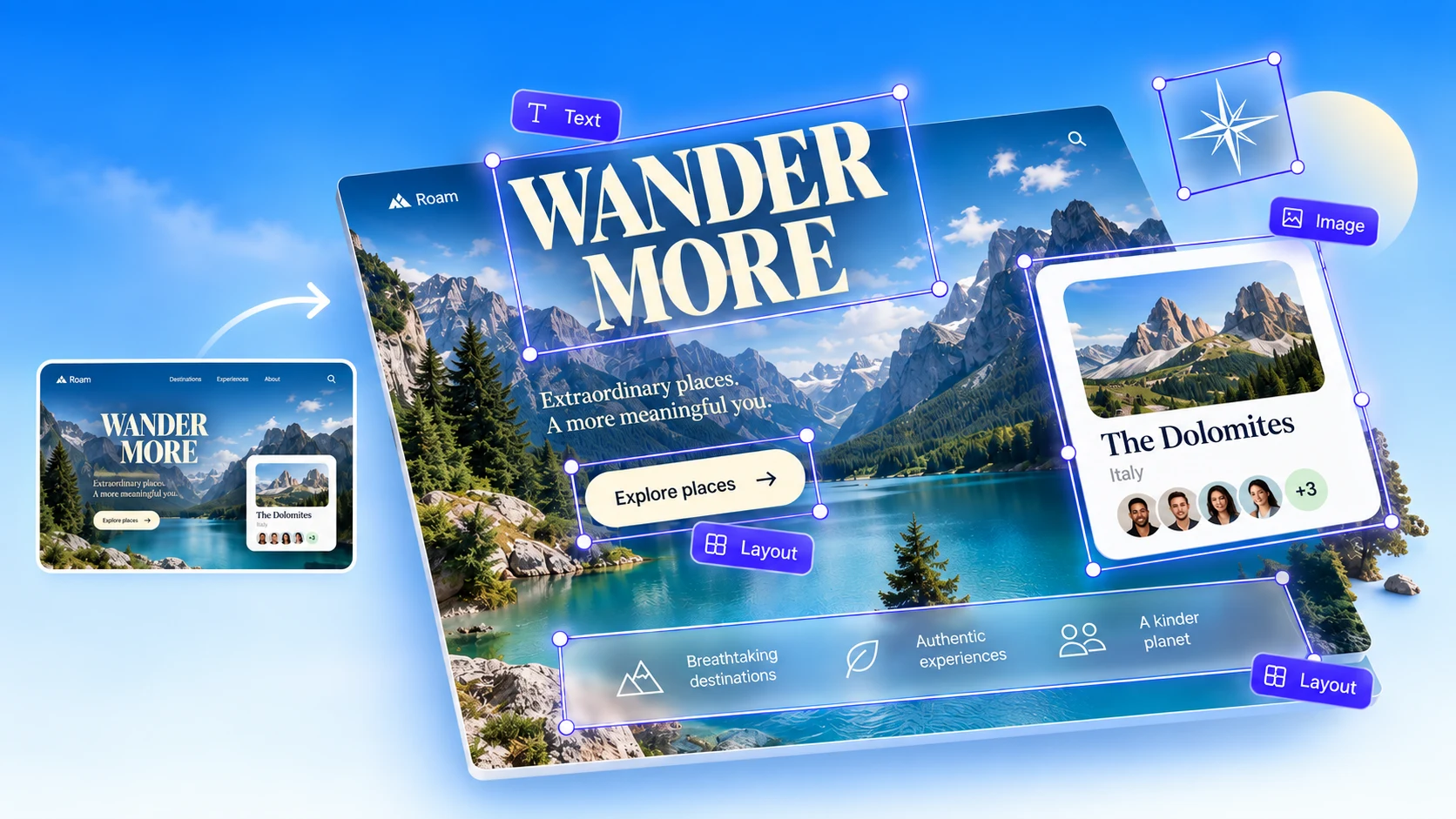
Upload a screenshot, PNG or JPG inside Canva and get a design you can edit: real text in Canva fonts, plus images and graphics as separate elements instead of one flat picture.
Works inside the Canva editor · 20 free AI credits every month · No credit card
Built for common creative workflows
What you can convert
Image to Canva for every kind of design
If you can take a screenshot of it, you can make it editable in Canva. The app works with PNG, JPG and WebP images of web pages, apps, social posts and mockups.
App screens and mobile UI
Rebuild app screens and mockups as Canva designs for pitch decks, case studies and social posts.
Websites and landing pages
Turn a captured web page into an editable layout you can restyle with your own brand.
Dashboards and reports
Recreate charts, tables and report pages as editable Canva elements instead of pasted pictures.
Templates and references you like
Turn a reference design into a starting point you can adapt, with text you can actually change.
Old designs without source files
Lost the original Canva design or file? Recover an editable version from an exported image.
PNG, JPG and WebP images
Any screenshot or exported image works. Sharper, higher-resolution images give cleaner text.
How it works
How to convert a screenshot to an editable Canva design
Three steps, all inside the Canva editor. No export or import between tools.
- 1
Add Codia AI Design to Canva
Open the app from the Canva Apps Marketplace and sign in with a free Codia account.
- 2
Upload your screenshot
Drop in a PNG, JPG or WebP image: a web page, an app screen, a poster or a design reference.
- 3
Edit the design in Canva
Codia places editable text and image elements on your page in their original positions. Change copy, fonts and colors like any Canva design.
What you get
Editable Canva elements, not a flattened image
A screenshot uploaded to Canva is one picture. A converted screenshot is a design you can change piece by piece.
Real, editable text
Headlines, labels and paragraphs come back as Canva text, so you can rewrite copy without retyping the design.
Matched fonts and colors
Each text block keeps its size, weight and color, mapped to the closest font available in Canva.
Images as separate elements
Photos, icons and graphics are placed as their own elements, so you can move, resize or replace them.
Original layout kept
Every element lands where it was in the screenshot, so the page looks the same before you start editing.
Text in many languages
Text is recognized in many languages, not just English, for global marketing and product content.
Works inside Canva
No downloads or file conversions: the result appears directly on your Canva page, ready to share or present.
Upload, rebuild or convert: three ways to get a screenshot into Canva
Uploading is instant but leaves you with a picture. Rebuilding by hand is editable but slow. Converting gives you both.
| Convert with Codia | Upload the image | Rebuild by hand | |
|---|---|---|---|
| Editable text | Yes, editable Canva text | No, text is pixels | Yes, retyped manually |
| Elements | Separate text and image elements | One flat image | Added one by one |
| Fonts and colors | Matched to Canva fonts | Visible only | Matched by eye |
| Time per design | Minutes, then refine | Seconds | Often an hour or more |
Screenshot to Canva pricing
Start free with 20 AI credits every month. Upgrade for larger images and more conversions.
Screenshot to Canva FAQ
Answers about turning screenshots and images into editable Canva designs.
More questions? Reach out and we will help.
Contact SupportRelated converters
- Screenshot to FigmaTurn screenshots into editable Figma layers.
- Screenshot to PhotoshopRebuild screenshots as editable PSD layers.
- Screenshot to SketchConvert screenshots into Sketch layers on your Mac.
- PSD to CanvaBring Photoshop files into Canva as editable designs.
- Canva to FigmaMove Canva designs into Figma with layers intact.
- Image to LayersSplit any image into editable layers online.
Make your first screenshot
editable in Canva for free
Add Codia AI Design to Canva and upload an image. Every account gets free AI credits each month.
No credit card · Files not used for training · Works inside the Canva editor