
SVG to PNG Converter
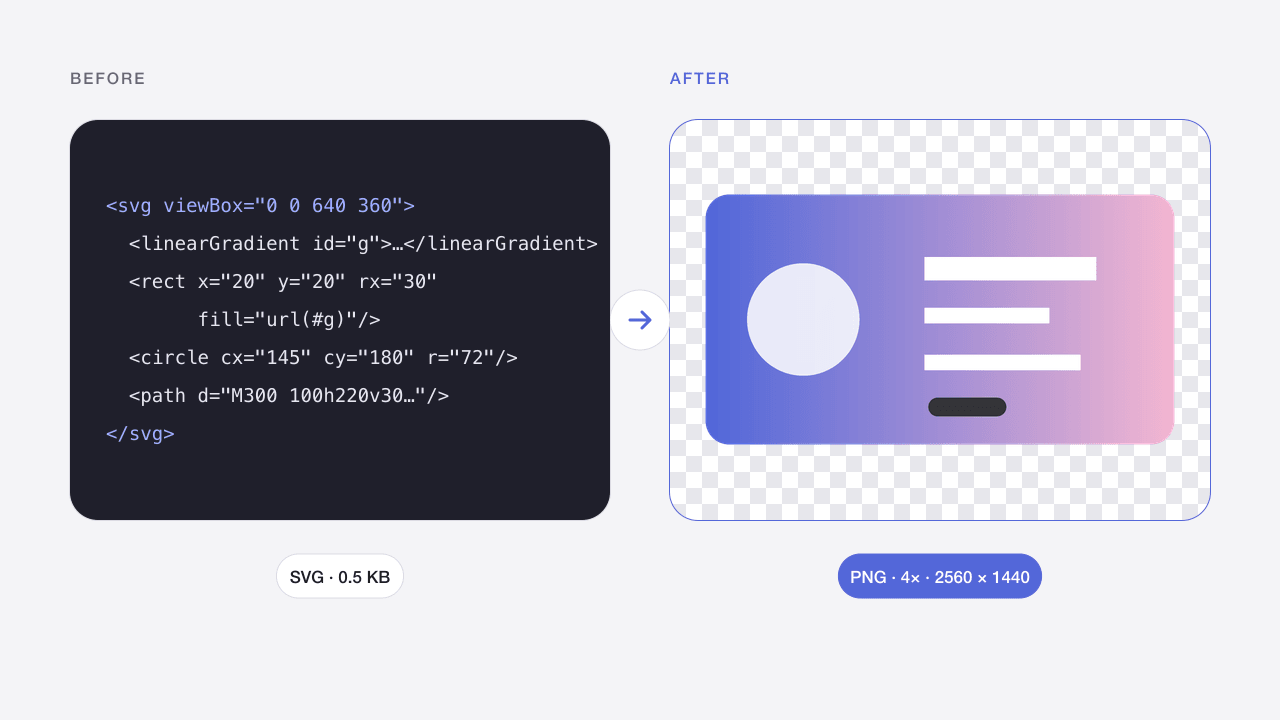
Export self-contained SVG artwork as PNG at 1×, 2×, 4× or a custom width.
- Free
- No sign-up
- On your device
How it works
Choose files from your device, drag them here, or paste an image.
Adjust the available settings and inspect your results before downloading.
Download the result or copy your colors. No account or payment is required.
When to use it
App icons and logos
Export crisp PNGs at 2× or 4× for high-density screens, app stores and favicons.
Slides and documents
Office apps and many content systems handle PNG more reliably than SVG.
Developer workflows
Paste SVG markup copied from code or a design tool and get a PNG in seconds.
What to expect
Choose the export scale or set a custom width. The tool uses the SVG dimensions or viewBox to preserve proportions. If neither is usable, provide a width for a square viewport. External assets, embedded images, scripts and animations are rejected. Text should be converted to outlines when exact typography matters.
Limits apply to both input and output. Animated images are not supported. Files remain in memory only; reloads clear your work. Smaller batches help on mobile devices.
Frequently asked questions
Why does my SVG fail to convert?
For privacy and security, only self-contained SVGs are rendered. Files that link to external images or fonts, or that contain scripts or animation, are rejected with a specific message. Embed images and convert text to outlines in your design tool.
How do I export a high-resolution PNG?
Choose 2×, 3× or 4×, or enter a custom width up to 8,192 px. SVG is vector-based, so larger exports stay sharp.
Why does the text look different after converting?
Fonts that are not installed on your device are substituted. Convert text to outlines (paths) before exporting to get identical results everywhere.
Can I keep a transparent background?
Yes. PNG and WebP keep transparency by default. Choose White, Black or a custom color if you need a solid background, which JPG always requires.
Are my images uploaded?
No. Image processing takes place in your browser. Files are not sent to Codia and are removed from this workspace when you refresh or leave. Website analytics, when permitted, never contain your images or file names.
Can I process multiple files?
Yes, up to 20 files per batch, within the displayed size limits. Each file is processed separately. Download successful results individually or as a ZIP; a failed file does not block the others.
Will quality and metadata stay the same?
Results depend on the operation and settings. Lossy compression changes pixels; JPG removes transparency. Exports target ordinary 8-bit web images and do not promise EXIF, HDR, original color profiles or 16-bit preservation. Always inspect the result.
Related image tools
WebP to PNG Converter
Convert static WebP files into PNG images with transparency preserved.
Open tool →PNG · WEBP → JPGPNG to JPG Converter
Turn PNG images into JPG photos and choose a background for transparent areas.
Open tool →JPG · PNG · WEBPImage Compressor Online
Reduce JPG, PNG and WebP file sizes while keeping the original format.
Open tool →PNGPNG Compressor Online
Compress PNG screenshots and graphics while retaining a transparent background.
Open tool →JPG · PNG · WEBPCompress Image to 100KB
Make photos fit an upload limit, with automatic quality and size adjustment.
Open tool →JPG · PNG · WEBPImage Resizer Online
Resize images by pixels or percentage without stretching the aspect ratio.
Open tool →JPG · PNG · WEBPColor Picker from Image
Pick pixels from an image and copy HEX, RGB, HSL or CSS color variables.
Open tool →