
Crop Image Online
Trim images to a custom rectangle, circle or exact aspect ratio in your browser.
- Free
- No sign-up
- On your device
How it works
Choose files from your device, drag them here, or paste an image.
Adjust the available settings and inspect your results before downloading.
Download the processed image right away. No account or payment is required.
What to expect
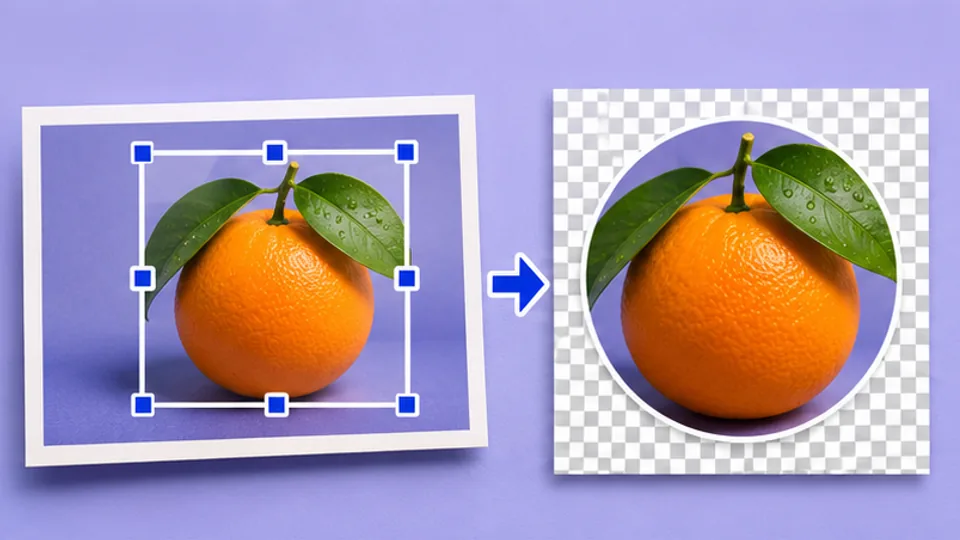
Drag the 8-handle crop frame directly over your photo or type exact X, Y, width and height pixels. Switch between Rectangle and Circle Crop (exported as a transparent PNG) or lock common social ratios such as 1:1, 4:5, 16:9 and 9:16. Everything renders locally in your browser.
Limits apply to both input and output. Animated images are not supported. Files remain in memory only; reloads clear your work. Smaller batches help on mobile devices.
When to use it
Circular avatars and profile photos
Switch to Circle Crop to cut a clean round portrait with a transparent PNG background for avatars, team pages and badges.
Social media aspect ratios
Lock 1:1 for feeds, 4:5 for portraits, 16:9 for YouTube thumbnails or 9:16 for Reels and Stories without guessing dimensions.
Exact pixel-level framing
Enter exact width, height, X and Y coordinates to trim screenshots, UI captures and e-commerce product photos consistently.
Frequently asked questions
Does Circle Crop keep a transparent background?
Yes. Whenever Circle is selected, the cropped image automatically exports as a PNG with transparent corners outside the circle.
Which aspect ratio presets are included?
You can choose Free, Original, 1:1, 4:3, 3:4, 3:2, 16:9, 9:16 and 4:5, or enter exact width and height pixel values.
Can I resize or compress right after cropping?
Yes. After cropping, use Continue with on the result screen to pass the cropped image in memory directly to Image Compressor or Image Resizer.
Are my photos uploaded when I crop them?
No. Cropping uses your browser Canvas locally so your photo never leaves your computer or phone.
Are my images uploaded?
No. Image processing takes place in your browser. Files are not sent to Codia and are removed from this workspace when you refresh or leave. Website analytics, when permitted, never contain your images or file names.
Will quality and metadata stay the same?
Results depend on the operation and settings. Lossy compression changes pixels; JPG removes transparency. Exports target ordinary 8-bit web images and do not promise EXIF, HDR, original color profiles or 16-bit preservation. Always inspect the result.
Related image tools
Image Resizer Online
Resize images by pixels or percentage without stretching the aspect ratio.
Rotate & Flip Image
Rotate or flip one photo or a whole batch locally without uploading.
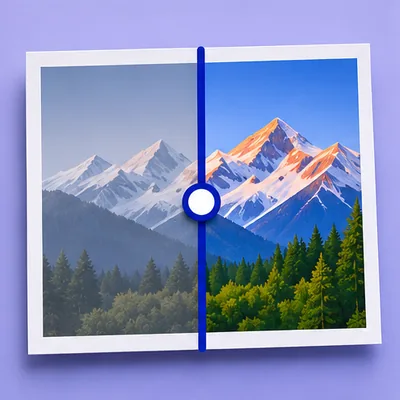
Compare Images Online
Inspect two images with a split slider, side-by-side view or crossfade.
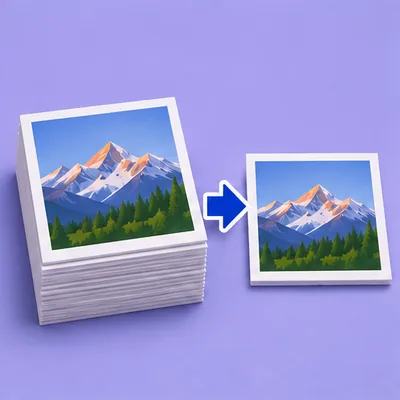
Image Compressor Online
Reduce JPG, PNG and WebP file sizes while keeping the original format.
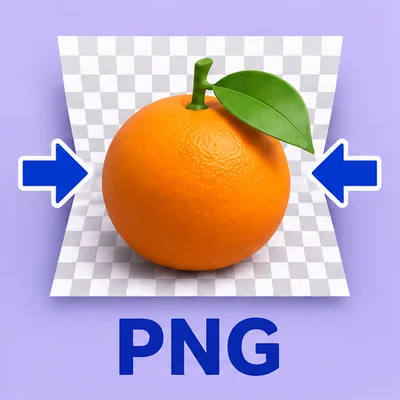
PNG Compressor Online
Compress PNG screenshots and graphics while retaining a transparent background.
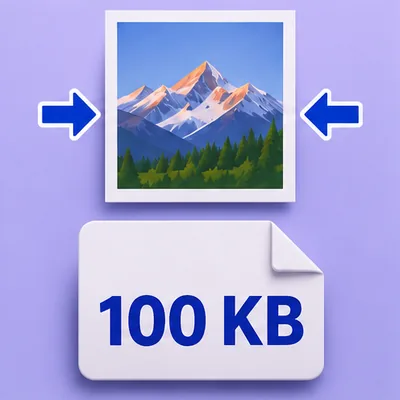
Compress Image to 100KB
Make photos fit an upload limit, with automatic quality and size adjustment.
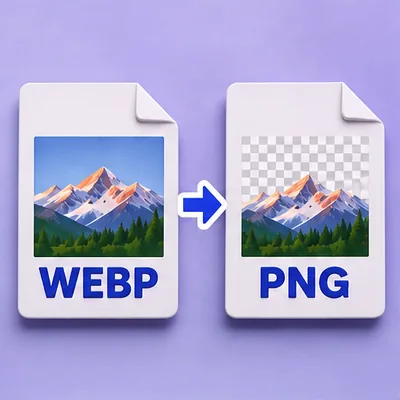
WebP to PNG Converter
Convert static WebP files into PNG images with transparency preserved.
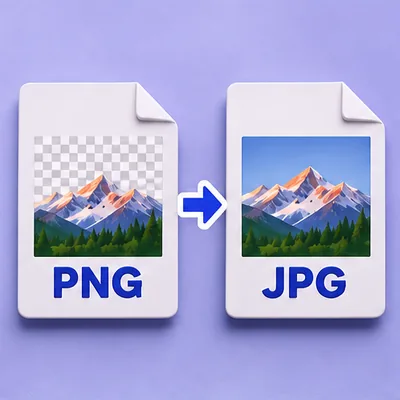
PNG to JPG Converter
Turn PNG images into JPG photos and choose a background for transparent areas.