
Fix garbled AI image text
Fix Garbled Text in AI Images
AI-generated visuals often get letters, labels, and poster copy wrong. Upload the image, type the correct words, and Codia rewrites them in the same style.
No image? Try these:
Real results
Edit Text in Photos Without Rebuilding the Design
Codia changes the words already inside your image, not a text box on top. Type the new copy and AI rewrites it in place while the rest of the image stays the same.
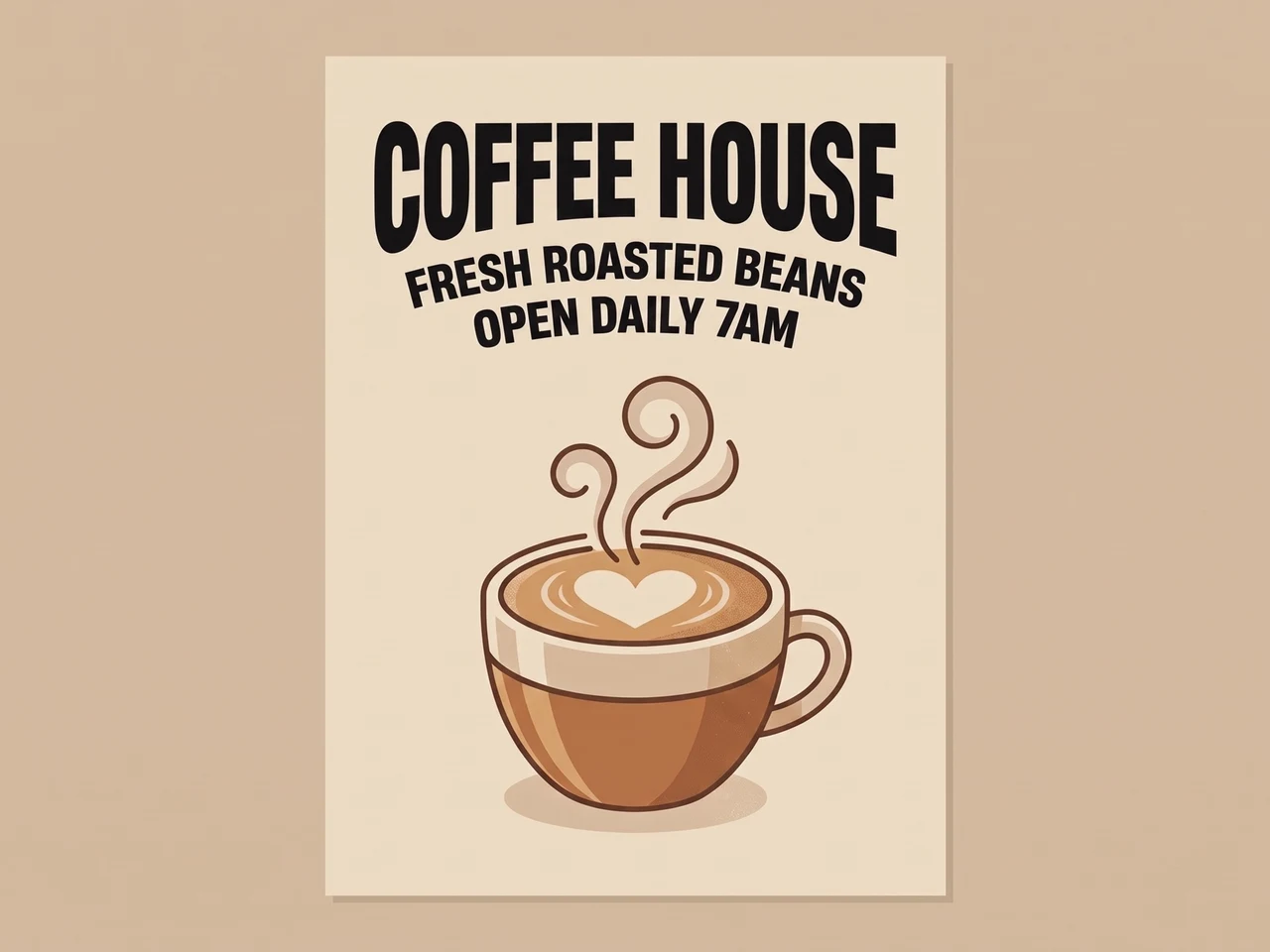 BeforeAfter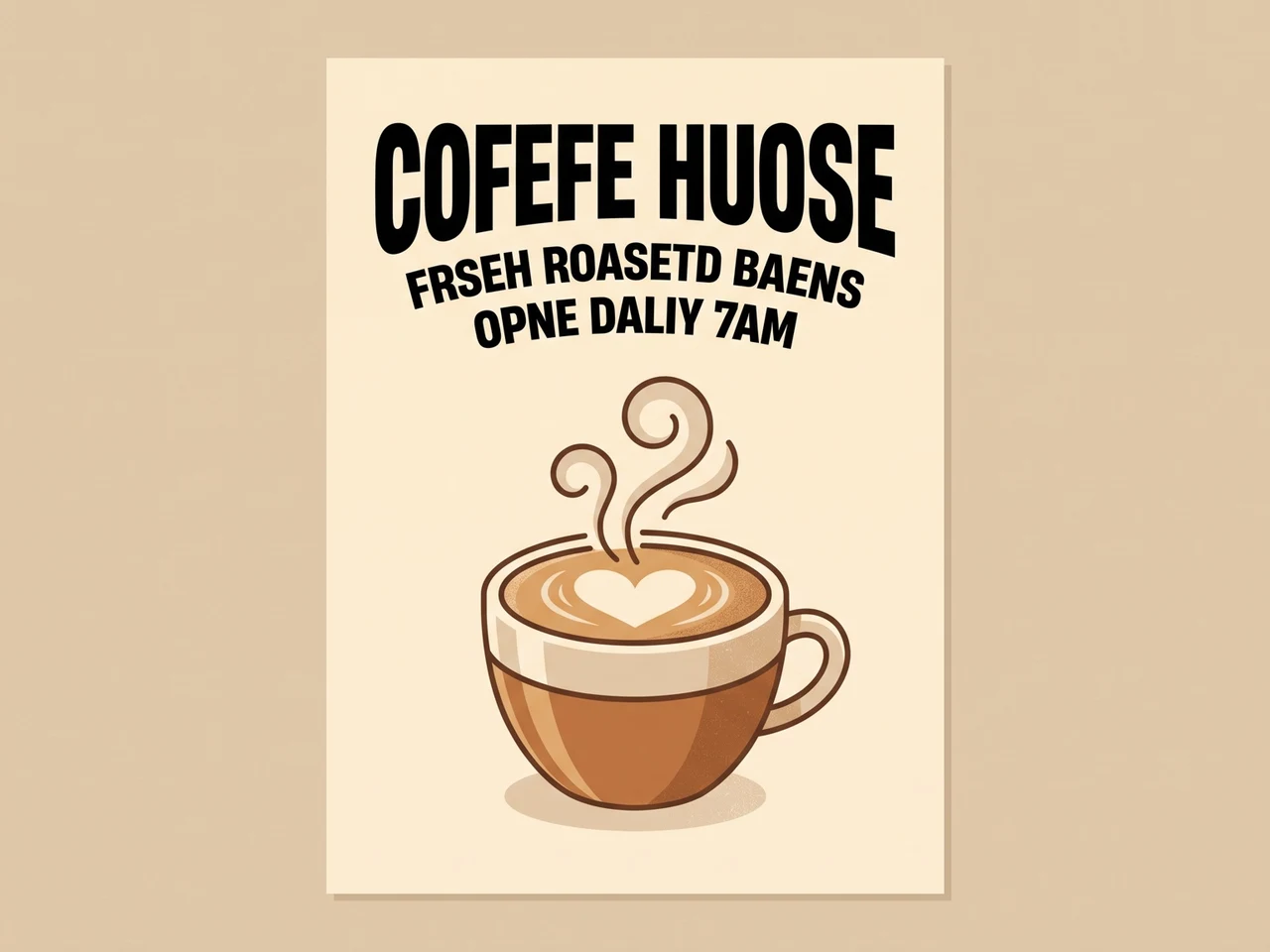
Fix garbled AI text
Misspelled AI lettering rewritten correctly in the same typeface.
 BeforeAfter
Translate an ad
English copy turned into Japanese, layout and style kept.
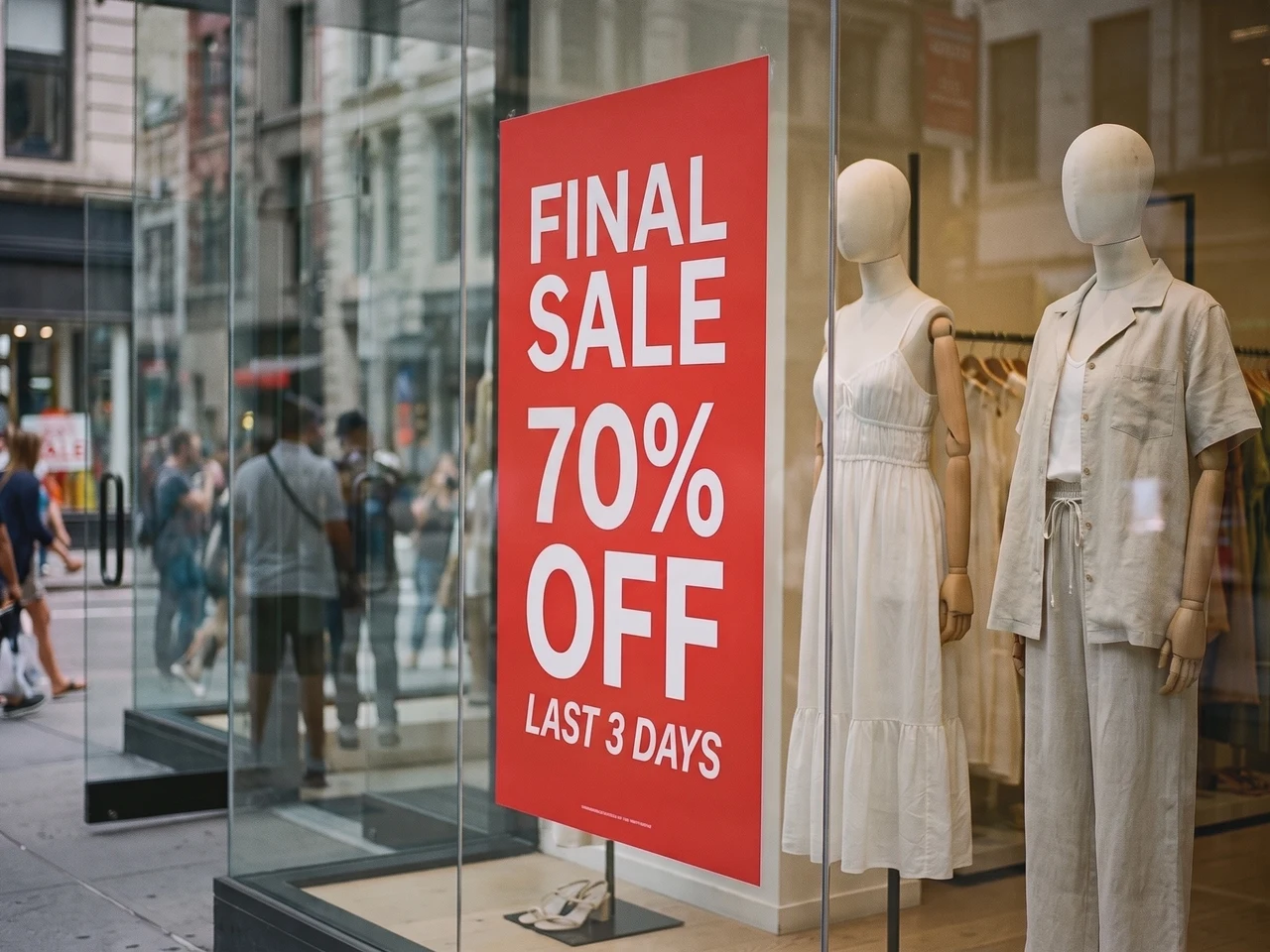 BeforeAfter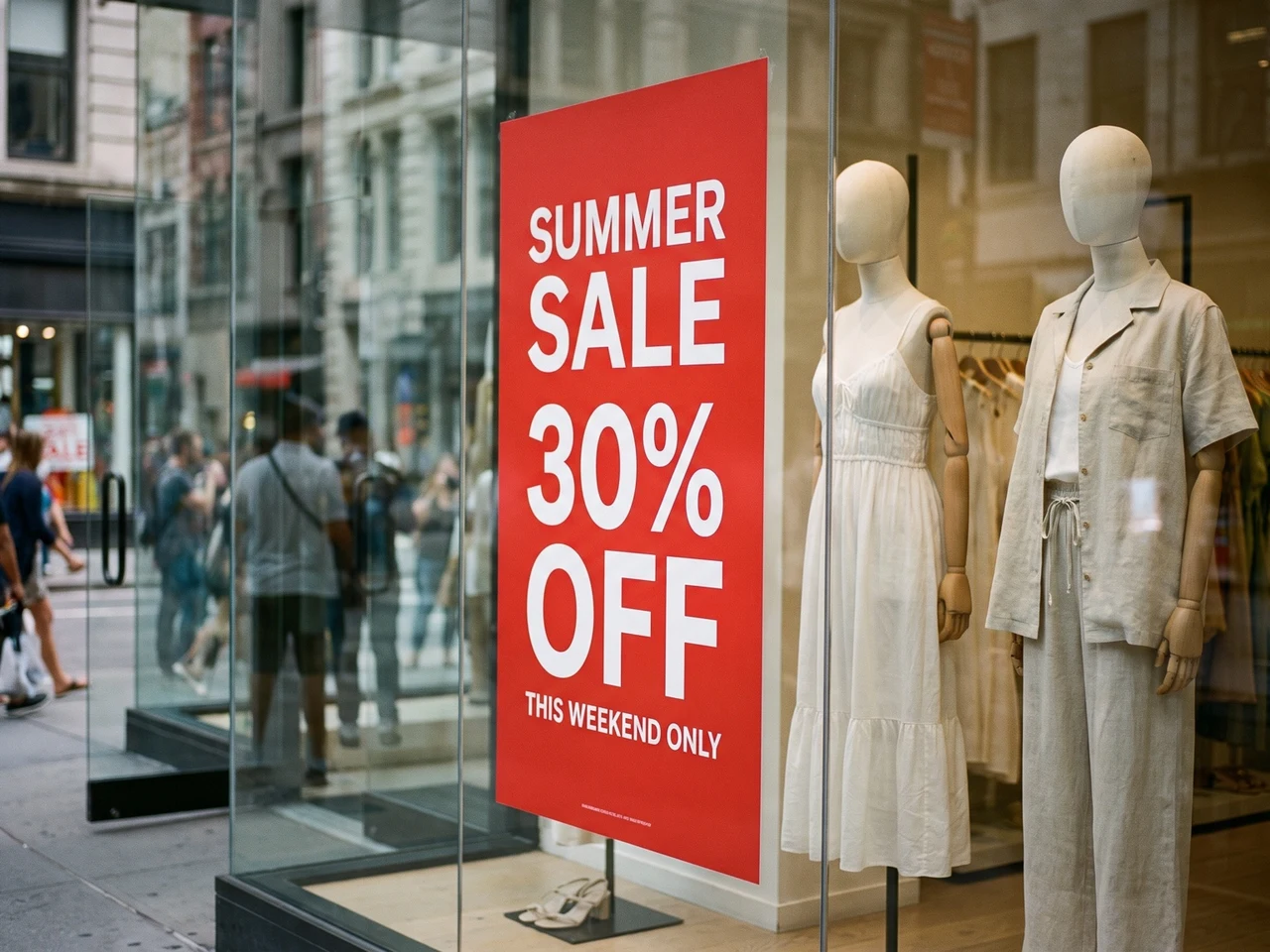
Update a real photo
A new sale on the window poster, lighting and reflections intact.
1:1 text style reconstruction
Codia preserves typography details such as font weight, size, alignment, color, spacing, and hierarchy so edited text still matches the source image.
Recognize text in 108 languages
Work with global image content. Codia recognizes multilingual text across AI images, screenshots, posters, product visuals, and marketing assets.
Transparent PNG and WebP
Logos and stickers keep their transparent background, so the edited file drops straight back into your design.
Need more control? Open it in the full editor
For layer-by-layer edits, open the same image in the Codia Photo Editor to change fonts, colors and positions, then keep retouching with other tools.
Ready to change the text in your image?
Text recognition is free and needs no sign-up. Upload an image to get started.
Edit text in a PDF, then download the whole file
Upload a PDF and pick the pages that need new words. Edit them like any image, and download the complete PDF with those pages swapped in.
Pick the pages to change
Every page shows as a thumbnail. Choose up to 10 at a time.
Edit the words in place
Fonts, colors and layout stay as they are. Only the words change.
Download the complete PDF
Edited pages are swapped in, and every other page keeps its original, selectable text.
 Edited
 Edited
How it works
From flat image text to editable copy
Upload the image
Start with a photo, screenshot, poster, product visual, social creative, or AI-generated image.
Edit the recognized words
Codia finds the text in your image automatically. Type the new words next to each line, or clear a line to remove it.
Generate and download
AI rewrites the text in the original font and style. Compare it with the original, then download the finished image.
AI image cleanup
Clean up the text mistakes AI image models leave behind
Use this page when the composition is strong but the generated text needs human-readable correction.
Correct broken letters
Replace unreadable glyphs, warped words, and misspelled labels with editable text layers.
Repair campaign visuals
Keep the generated poster or ad concept while cleaning up headlines, product names, and calls to action.
Match the original style
Preserve typography direction, hierarchy, color, and spacing so corrected words still fit the image.
Edit text in PDF files
Fix a price, a date or a name on a few pages of a PDF, then download the whole file with every other page left as it was.
Why AI images often need text cleanup
Image generation models can produce convincing layouts while failing at exact spelling and readable typography. Codia helps turn those flawed text areas into editable layers for final production edits.
When to use this workflow
Use it for AI posters, ecommerce concepts, social graphics, mock ads, generated UI shots, and concept art where the image is usable except for broken text.
Pricing
Free to start, pay only when you need more
A 1K edit uses 1 credit, 2K uses 2 and 4K uses 3. Text recognition never uses credits.
Try it free
Text recognition is free, with no sign-up needed. Eligible regions get 1 credit each month for a 1K edit. Sign in to see your available balance.
IP address data: IPLocate.ioPrivacy
Your images stay yours
Edit product shots, posters and screenshots with peace of mind. You decide what stays.
Read our privacy policyNot used to train AI
Your images are used only to make the edits you ask for. We never use them to train models.
Seen only by you
Your uploads and results appear only in your own history, never in a public gallery.
Yours to keep or remove
Delete any edit from your history, or clear it all at once, whenever you like.
FAQ
Photo & Image Text Editor FAQ
Can Codia fix unreadable text in AI-generated images?
Yes. Codia can rebuild visible text areas as editable layers so you can replace unreadable or misspelled words in Studio.
Do I need the original prompt?
No. You can upload the generated image directly. Codia works from the image file and opens the result in Studio.
Can I keep the generated image style?
Yes. The goal is to fix text while preserving the composition, visual context, and typography direction as much as possible.
Can I edit product names and labels?
Yes. Product names, labels, signs, headlines, and callouts are common text areas for this workflow.
How much does it cost?
Text recognition is free, with no sign-up needed. Eligible regions get 1 credit each month for a 1K edit. Sign in to see your available balance. Lite and credit packs unlock 2K; Starter and Pro add 4K output and batch editing. Credit packs never expire.
Do I need an account?
No account is needed to upload an image and see its text recognized. Sign up for free when you are ready to generate the edited image, so your credits can be tracked.
How many credits does an edit use?
An edit at 1K uses 1 credit, 2K uses 2 credits and 4K uses 3 credits, however many text blocks you change. If an edit fails, no credits are used.
Does it keep transparent backgrounds?
Yes. Transparent PNG and WebP images, such as logos and stickers, are returned as PNG files with the transparent background preserved.
Which files can I upload?
PNG, JPG and WebP images up to 20 MB, and PDFs up to 100 MB. Very large images are scaled down to 4096 pixels on the longest side before processing.
Can I edit text in a PDF?
Yes. Upload a PDF, pick up to 10 pages and edit their text. The download is the complete PDF: edited pages are swapped in and every other page stays exactly as it was. PDF editing is part of batch editing, included in the Starter and Pro plans.
Ready to change the text in your image?
Text recognition is free and needs no sign-up. Upload an image to get started.