
How to Open and Edit AI or EPS Files Online Without Illustrator
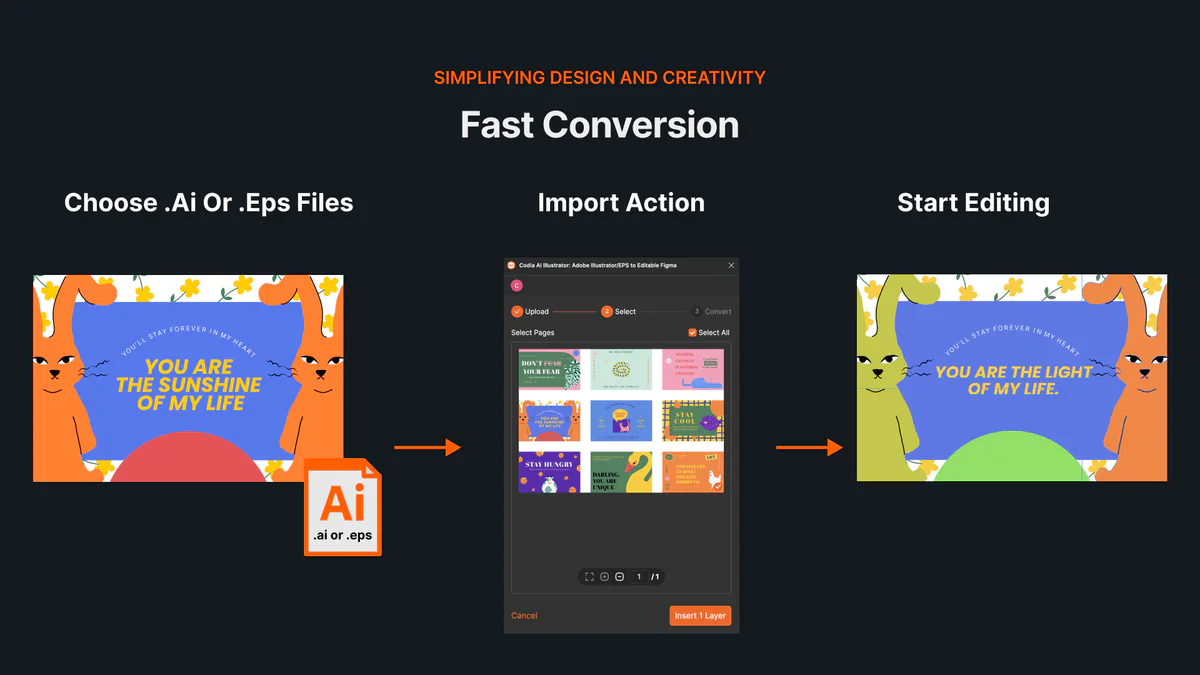
Someone sends you a logo, illustration, or campaign file with an .ai or .eps extension. You only need to review it, recolor a vector, move an element, or continue the design—but Adobe Illustrator is not installed on the current computer.
Many online tools can preview or convert these files. That is different from opening the artwork as a structured design. Codia Illustrator Editor Online imports supported Illustrator content into Codia Studio, where artboards and vector layers can remain separate for the next edit.
Quick answer
| Question | Answer |
|---|---|
| Can I open AI and EPS files in a browser? | Yes. Codia accepts .ai and .eps files. |
| Are vectors editable? | They are imported as independent SVG layers that can be moved, resized, rotated, and recolored. |
| Do I need Illustrator installed? | No. Import and Studio editing run in the browser. |
| Is every Illustrator feature preserved? | No. Anchor-point editing and some Illustrator-specific effects still require Illustrator. |
AI and EPS are not the same
AI is Illustrator's native document format. Modern AI files can include a PDF-compatible representation alongside Illustrator's private editing data. Codia reads that representation, so an AI file should be saved with Create PDF Compatible File enabled. Adobe explains that this option stores a PDF representation inside the AI file.
EPS is an older PostScript exchange format. It remains common for logos, print assets, and stock vectors, but transparency and newer effects may have been flattened when the file was saved. Use AI for active modern artwork when possible; use EPS when that is the source file you received.
How to open and edit an AI or EPS file online
1. Open the Illustrator editor
Go to Codia Illustrator Editor Online. You can start with your own file or one of the sample designs.
2. Upload or drag the file
Choose an .ai or .eps file, or drag it onto the upload area. The same drag-and-drop flow is available on the Codia Studio canvas.
3. Review every artboard
The importer brings all artboards into Studio. Check their size, order, typography, images, groups, opacity, and blend modes before making changes.
4. Edit the imported layers
Supported vectors arrive as independent SVG layers. You can move, resize, rotate, and recolor them. You can also use Studio tools for generative edits, background removal, canvas expansion, and upscaling.
5. Compare and continue
Keep the original file open as a reference and compare important text, gradients, masks, and effects. Then continue in Studio or use Illustrator to Figma when the destination is specifically Figma.
What is preserved—and what to review
Codia aims to preserve artboards, supported text, images, groups, positioning, opacity, blend modes, and independent vector layers. However, Illustrator is a large production application, so an online importer should not be treated as a complete replacement.
Review these areas carefully:
- Missing fonts can change line breaks and text metrics.
- Linked images may be unavailable if they were not embedded.
- Complex brushes, meshes, live effects, clipping, and print-specific color behavior may render differently.
- Vector layers can be transformed and recolored in Studio, but anchor-point path editing remains in Illustrator.
- Keep the original AI or EPS file as the source of record for print production.
Troubleshooting
The AI file will not open. Re-save it in Illustrator with Create PDF Compatible File enabled, then upload the new copy.
Text looks different. Check whether the original font is available and embedded. Outlined text preserves appearance better but is no longer editable as text.
An image is missing. Ask the sender to embed linked assets or package the source correctly before saving.
The file has many artboards. All artboards are imported. Each successfully converted and delivered artboard uses 10 Studio credits, so check the count before starting a large file.
Try it with a real file
Open Codia Illustrator Editor Online, upload a representative AI or EPS file, and compare the imported artboards with the original. Start with a logo or small illustration before moving a print-heavy production file into the workflow.
FAQ
Can I edit an AI file without Adobe Illustrator?
Yes, for supported browser edits. Codia imports PDF-compatible AI content into Studio as artboards and layers. Illustrator is still needed for native anchor-point editing and specialized effects.
Why does my AI file need PDF compatibility?
Codia reads the PDF representation embedded in a compatible AI file. Enable Create PDF Compatible File when saving from Illustrator.
Can I edit EPS files online too?
Yes. Codia accepts EPS files, but results depend on how the EPS was created and whether transparency, text, or effects were flattened.