
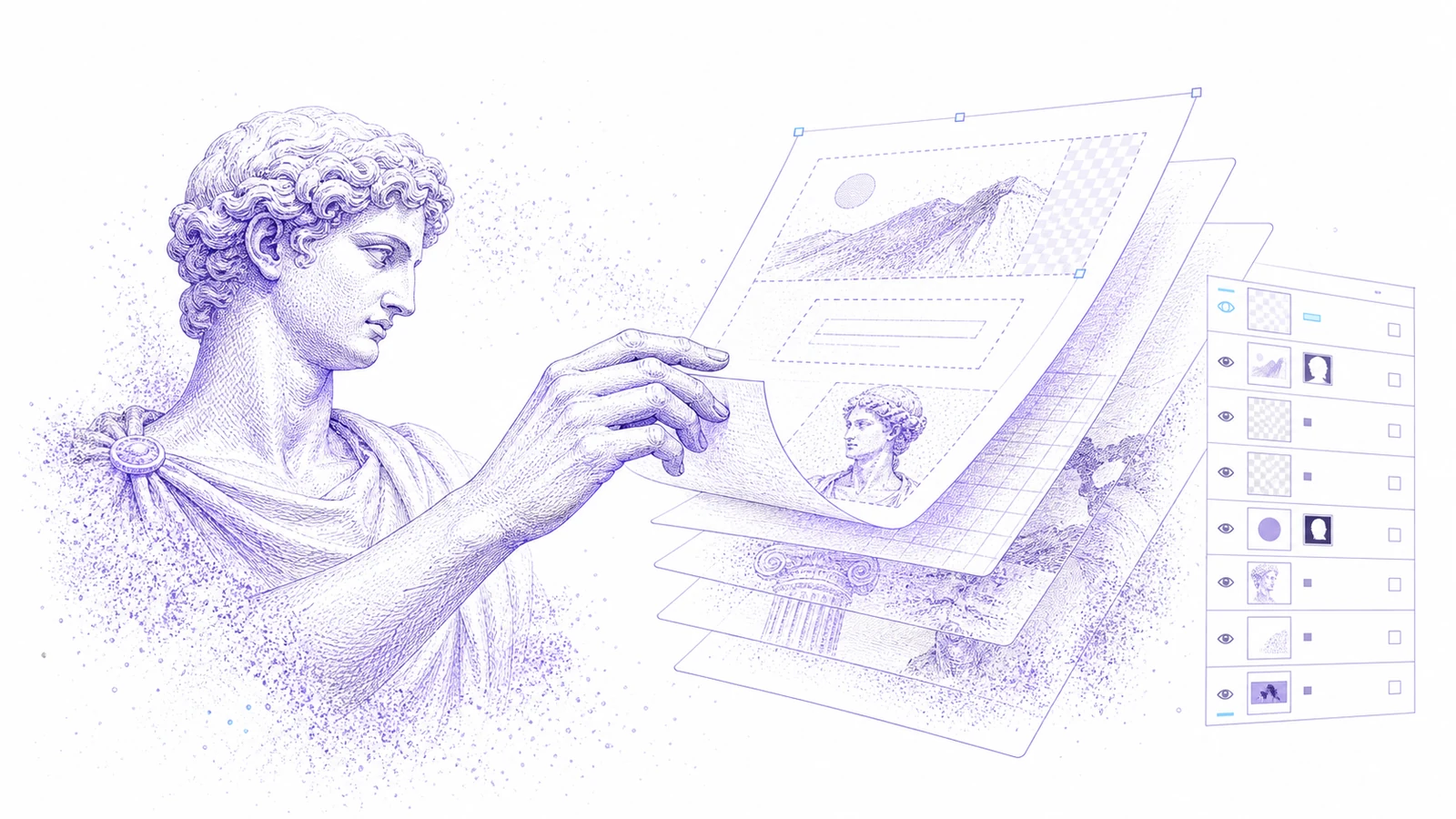
PSD files are still everywhere: agency handoffs, ecommerce templates, ad creatives, brand archives, and product mockups. The problem is that not everyone who receives a PSD has Photoshop installed, licensed, or ready on the right machine.
If the task is small, installing a desktop editor can be more work than the edit itself.
This guide explains when an online PSD editor is enough, what to check before trusting the output, and how Codia PSD Editor Online fits into an AI-assisted workflow.
When Online PSD Editing Makes Sense
Use an online PSD editor when you need to:
- Open a PSD quickly for review
- Change text or simple layout details
- Remove or replace a background
- Generate AI variations from part of a design
- Export a PSD again for handoff
- Let a teammate review a file without Photoshop
- Make lightweight edits on a browser-based machine
This is especially useful for marketing and operations teams that touch creative files but do not live in Adobe tools all day.
What to Check Before Editing
PSD is a complex format. Before you commit to an online workflow, check:
- Are the layers visible?
- Is the text editable?
- Are key images separate from the background?
- Do masks and groups behave as expected?
- Does the output need to go back to Photoshop?
- Are there Photoshop-only effects that may need review?
If the file depends heavily on advanced Photoshop effects, keep a final Photoshop review in the workflow.
Step-by-Step Workflow
1. Upload the PSD
Open Codia PSD Editor Online and upload the .psd file. Codia opens the file in a browser-based Studio canvas where supported layers can be inspected and edited.
2. Review the Layer Structure
Start by checking the layer panel and the main canvas. Identify the text, image, shape, and group layers that matter for the requested edit.
3. Make the Small Edit First
Do not start with a full redesign. Prove the workflow with the smallest meaningful edit:
- Change a headline.
- Replace a price.
- Move a badge.
- Hide a layer.
- Remove a background.
- Generate one AI-assisted visual variation.
4. Export Back to PSD
When the edit is complete, export an editable PSD for the next handoff. If the file is going to a designer, tell them what changed.
5. Review in the Destination Tool
If the final owner will use Photoshop, open the exported PSD in Photoshop for a quick compatibility check. Browser editing is a workflow accelerator, not an excuse to skip final review.
Good Use Cases
Ecommerce Creative Updates
Product cards, sale banners, and marketplace images often need price, copy, or badge updates. Online PSD editing keeps these edits moving without waiting for the original designer.
Agency Handoff Review
Clients and account teams can inspect PSD files, request specific changes, and make simple revisions before escalating to the design team.
AI-Assisted Variations
Codia Studio can help generate variations, clean backgrounds, extend images, or explore alternatives while keeping the PSD workflow connected.
Archive Recovery
Legacy PSDs often need one small update before reuse. Opening the file online can be faster than rebuilding the asset from scratch.
When You Still Need Photoshop
Use Photoshop when you need:
- High-end retouching
- Print-production color control
- Complex smart objects
- Advanced layer effects
- Plugin-specific workflows
- Final prepress review
Codia is best for quick browser access, AI-assisted edits, and layer-aware handoff.
Try It
Upload a file to Codia PSD Editor Online. Start with one simple text or image edit, then export the PSD and verify it in your normal handoff flow.
FAQ
Can I open a PSD online?
Yes. Codia PSD Editor Online lets you upload a PSD, inspect supported layers, edit with AI assistance, and export an editable PSD again.
Does this replace Photoshop?
No. It is a browser-based workflow for quick edits, AI-assisted changes, review, and handoff. Photoshop is still useful for advanced production work.
Can I export back to PSD?
Yes. The workflow is designed to keep a PSD handoff path instead of flattening everything into a bitmap.
What kinds of PSD files work best?
Layered creative files with clear text, image, and shape layers work best. Files with complex Photoshop-only effects should be reviewed after export.