How to Edit Text in an Image Without Recreating the Whole Design
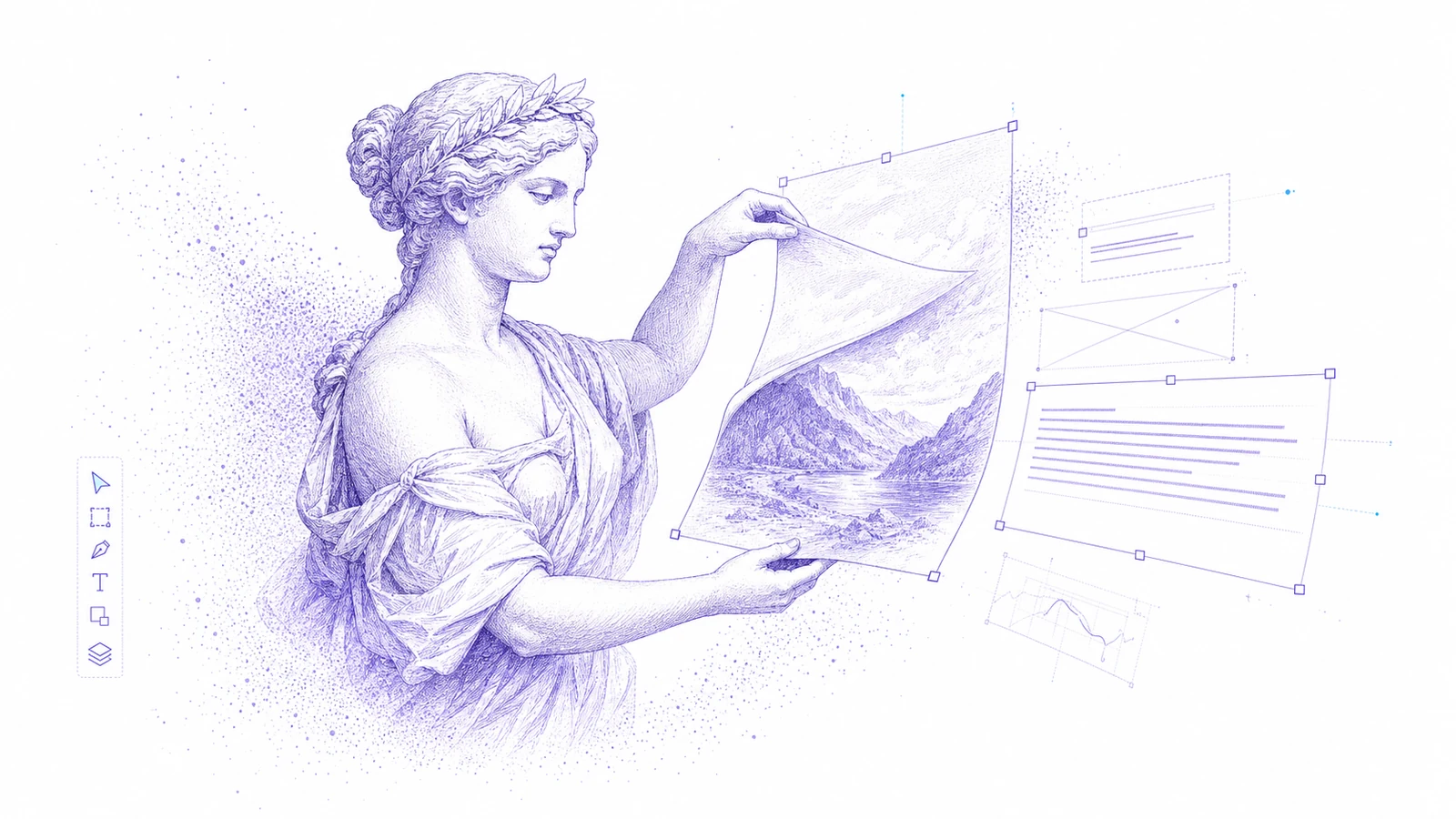
Flat images are easy to share and hard to revise. A teammate sends a PNG and asks for one wording change. A client approves the layout but changes the offer. A localized campaign needs the same design in five languages. If the original design file is missing, a small text edit can become a manual rebuild.
You have three options: paint over the old text, rebuild the design from scratch, or convert the image into editable layers.
The third option is usually the fastest.
The Problem with Painting Over Text
Traditional image editors can cover text with a background patch and place new words on top. That works for simple backgrounds, but it falls apart quickly:
- Gradients and shadows become visible patches.
- New text does not match the original type style.
- Alignment drifts from the source layout.
- Future edits require repeating the same manual cleanup.
- The result remains a flat bitmap.
For production work, you want text that behaves like text.
What "Editable Image Text" Means
Editable image text means the words inside the image become selectable text layers. You can rewrite them, move them, resize them, align them, and style them while keeping the rest of the image visually consistent.
Codia AI Image Text Editor does this by reconstructing the image as design structure. It identifies text, shapes, layout regions, and visual hierarchy, then opens the result in Codia Studio for editing.
Step-by-Step Workflow
1. Start with the Cleanest Source
Use the original exported image if you have it. Avoid files that have been compressed repeatedly by chat apps or social platforms.
Good inputs:
- PNG screenshots
- JPG product images
- AI-generated posters
- Social ad exports
- App store creatives
- Presentation covers
2. Upload to Codia
Open AI Image Text Editor, upload the file, and let Codia create an editable Studio canvas.
3. Select the Text Layer
After reconstruction, click the text you want to change. If the image contains many text regions, start with the business-critical text first: price, product name, date, CTA, headline, or legal disclaimer.
4. Rewrite and Fit
Type the new copy and review the layout. Text often changes length, especially during translation, so check:
- Line breaks
- Font size
- Letter spacing
- Alignment
- Contrast
- Nearby element spacing
5. Export or Continue Editing
If the change is finished, export the image. If the creative needs broader edits, continue in Studio with the reconstructed layers.
Common Use Cases
Change a Product Price
Ecommerce teams often need to update prices or discount labels after the original creative is exported. Editing text layers avoids rebuilding the product card.
Fix a Typo in a Poster
If the visual direction is approved, do not regenerate or redesign the poster. Fix the text layer and keep the approved composition.
Localize a Social Creative
Translation usually changes text length. Editable layers let you adjust the copy and layout without requesting a new source file.
Update App Store Screenshots
Product teams can change feature labels, release notes, and screen captions while preserving the screenshot layout.
Revise AI-Generated Images
AI-generated images often contain broken or blurry text. Convert the image, replace the text, and keep the image that already works.
When This Workflow Is Not Enough
Use a full design tool or ask a designer when:
- The entire layout must change.
- The typography is custom lettering, not normal text.
- The background behind the text is complex and needs retouching.
- Legal or brand review requires source-level precision.
- You need print-ready output with strict color management.
Codia is best when the core image is right and the text needs controlled editing.
Practical Checklist
Before you export:
- Read every word at 100% zoom.
- Check mobile preview size if the image is for social.
- Confirm brand names and numbers.
- Make sure new copy does not touch edges.
- Compare the before and after for accidental layout drift.
Try the Workflow
Open Codia AI Image Text Editor, upload one image, and change one line of text. If that works, you have a repeatable workflow for all the small copy changes that used to require a designer.
FAQ
Can I edit text in a JPG or PNG?
Yes. Codia can reconstruct text from flat JPG and PNG images as editable layers.
Will the edited text match the original style?
Codia attempts to preserve typography, color, size, alignment, and hierarchy. You should still review the final result before publishing.
Can I use this for social ads?
Yes. It is especially useful for changing offers, headlines, prices, dates, and localized copy across ad variants.
Does this replace Photoshop?
No. It replaces the repetitive rebuild step for image text edits. Photoshop or a designer may still be needed for advanced retouching.