AI Image Text Is Garbled: How to Fix Broken Words Without Regenerating the Whole Image
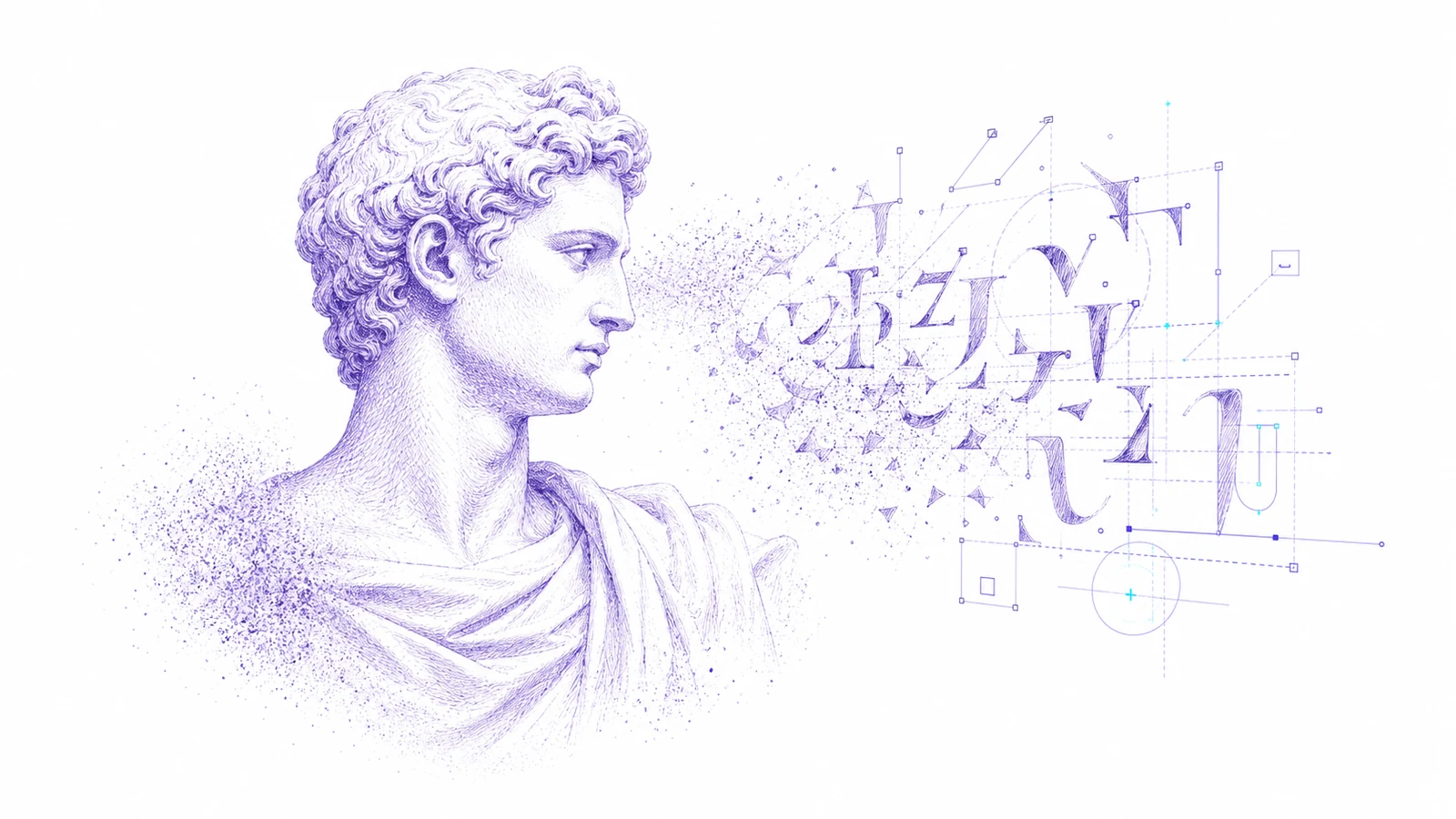
AI image generators are good at mood, lighting, and composition. Text is still a common failure point. A poster looks finished until the headline becomes random glyphs. A product mockup works until the label has three misspelled words. A social ad looks usable until the call-to-action is unreadable.
Regenerating the whole image is the first instinct, but it is often the slowest path. You may fix the text and lose the composition, face, product angle, background, or color palette that made the image worth keeping.
This guide shows a more controlled workflow: keep the image, extract the text as editable layers, fix the copy, and export the final creative.
Why AI Image Text Breaks
Most image models treat letters as visual shapes, not as editable text objects. They can imitate the appearance of typography, but they do not always understand spelling, line breaks, brand names, or multilingual text.
That creates familiar problems:
- Random symbols where words should be
- Misspelled product names
- Blurry small text on packaging or posters
- Words fused into the background
- Text that cannot be selected or translated
- Great composition with one unusable headline
The failure is not only aesthetic. Broken text blocks approval, localization, ad review, and handoff.
When Regeneration Is the Wrong Fix
Regenerate if the whole concept is weak. Do not regenerate if only the text is wrong.
Regeneration is risky when:
- The image already has the right product pose or layout.
- The background, lighting, and framing are working.
- The client approved the visual direction.
- You only need to change a headline, price, date, label, or CTA.
- You need the same creative in multiple languages.
In those cases, treating text as a layer is faster than rolling the image again.
The Better Workflow
1. Upload the Image
Start with the best version of the generated image. Use a clean PNG or JPG when possible. Avoid screenshots of screenshots because compression makes OCR and layer reconstruction harder.
2. Rebuild the Image as Editable Structure
Open Codia AI Image Text Editor and upload the file. Codia analyzes the image, identifies text regions, and rebuilds the visual as editable design layers inside Codia Studio.
This is different from OCR. OCR only reads words. Codia reconstructs text, shapes, and layout so you can actually edit the creative.
3. Fix Only the Broken Text
Select the text layer and rewrite the copy. Common fixes include:
- Replace garbled letters with the intended headline.
- Correct a product name.
- Change a launch date or price.
- Translate the image into another language.
- Adjust line breaks so the new copy fits.
The rest of the image stays intact.
4. Match the Original Style
After rewriting, check font size, weight, color, alignment, and spacing. The goal is not just readable text. The goal is text that still belongs to the original design.
5. Export the Finished Creative
Export the corrected image for social, ads, ecommerce, or presentation use. If the creative needs more iteration, keep working in Studio.
Examples of Text Worth Fixing
This workflow is useful for:
- AI-generated posters
- Product mockups
- Social ad concepts
- Event flyers
- App store screenshots
- Ecommerce product cards
- YouTube thumbnails
- Presentation covers
- Localized campaign images
The common thread is simple: the image is valuable, but the text is not usable yet.
Quality Checklist
Before shipping, check:
- Is every word readable at the final display size?
- Is the brand name spelled correctly?
- Does the new text match the original visual hierarchy?
- Do line breaks still feel intentional?
- Does the text have enough contrast?
- Is the output format right for the channel?
Small text mistakes are easy to miss when the image looks polished. Zoom out and review the final creative at the size users will actually see.
When to Use a Designer Instead
Codia is fastest for controlled text fixes. A designer should still review if the image needs a new art direction, a complete layout change, custom lettering, or strict brand-system compliance.
The best workflow is not "AI replaces design." It is "AI removes the repetitive rebuild step so a human can finish the decision."
Try It
If you have an AI-generated image with broken text, upload it to Codia AI Image Text Editor. Fix one headline first. If the result works, use the same workflow for the rest of the campaign.
FAQ
Can I edit text in an AI-generated image?
Yes. Codia converts image text into editable layers so you can rewrite the words instead of regenerating the whole image.
Is this the same as OCR?
No. OCR extracts text. Codia rebuilds text and surrounding layout as editable design structure.
What if the original text is unreadable?
You can still replace it manually if you know what the text should say. The cleaner the source image, the easier it is to match style.
Can I translate the text?
Yes. Once the text is editable, you can rewrite or translate it, then adjust sizing and line breaks.