
Make picture slides editable, right in Google Slides
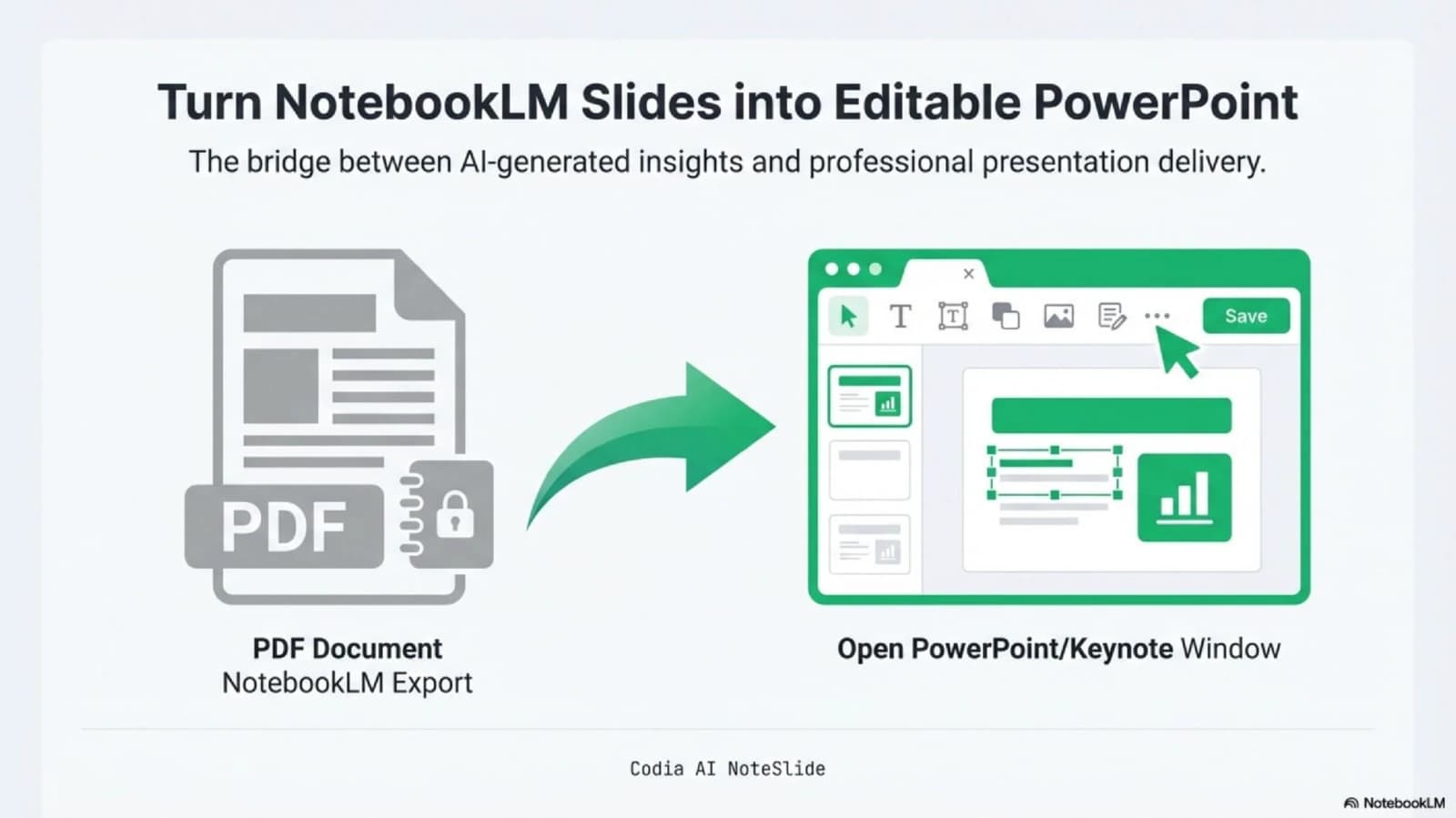
Decks exported from NotebookLM, Gemini Notebook and other AI tools often arrive as one picture per slide. NoteSlide rebuilds each page with native Google Slides text, shapes and images, so you can edit it like any other slide.
- Free to start with 5 credits
- Sidebar in 15 languages
- Your slides never train AI models
How to use it
- 1
Install
Install NoteSlide from Google Workspace Marketplace.
- 2
Open
In a presentation, choose Extensions → NoteSlide → Open NoteSlide.
- 3
Choose
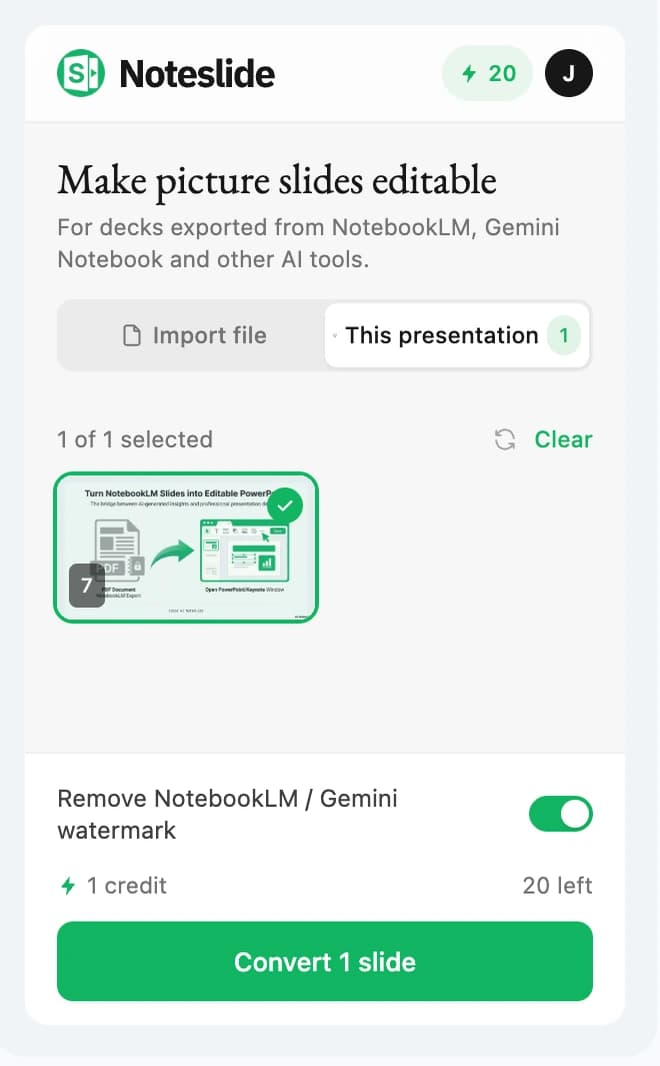
Select the slides or file to convert. You see the credit cost before anything starts.
- 4
Edit
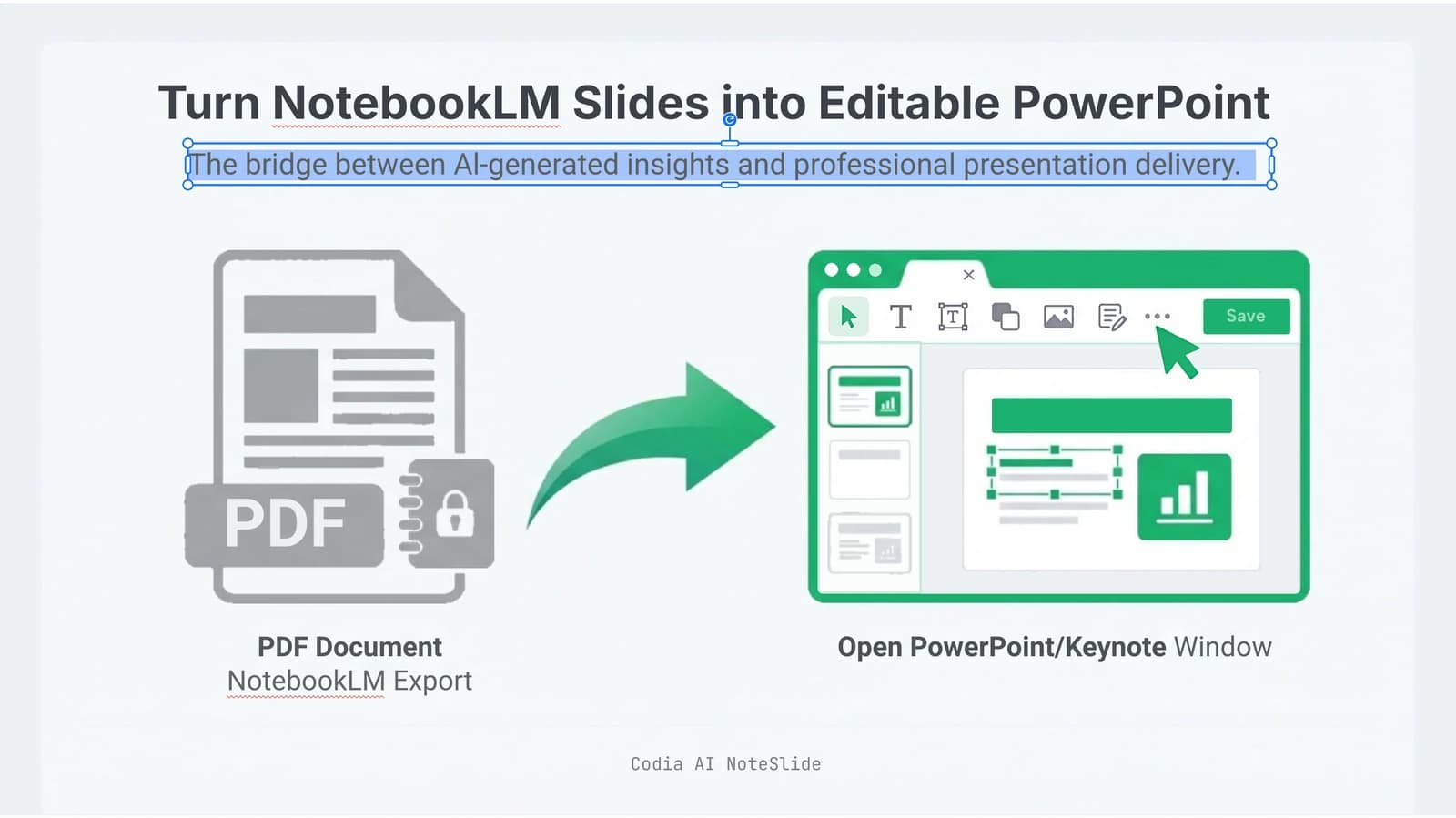
The editable slides appear in your presentation. Click into one and edit the text.
Convert in place
Pick the slides that are just a picture
NoteSlide lists the slides in your open presentation that are a single picture, like NotebookLM or Gemini Notebook exports. Select one, or all of them.
No surprises
See the cost before anything starts
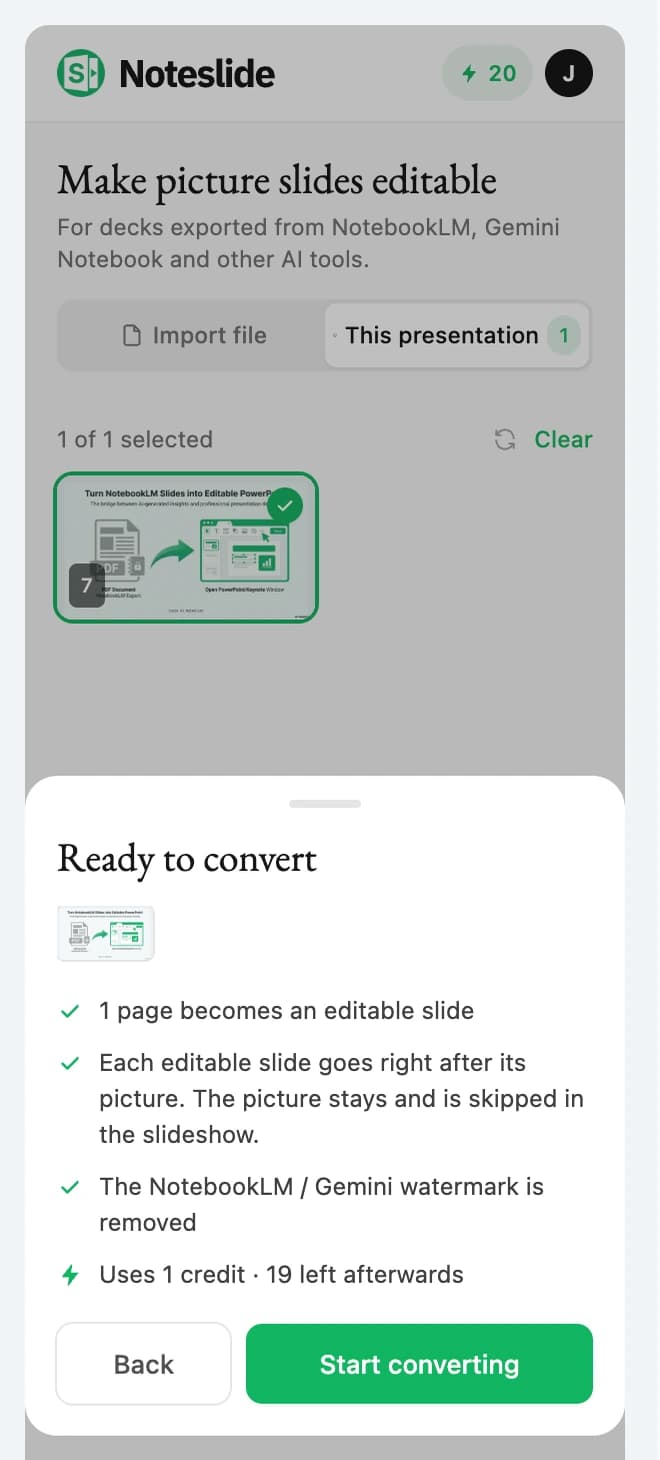
Every conversion shows its credit cost first. Each editable slide goes right after its picture, and the picture stays, skipped in the slideshow.
Real text
Edit it like any other slide
Text, shapes and images come back as native Google Slides objects you can retype, restyle and translate. The NotebookLM or Gemini Notebook watermark can be removed on the way.
Import files
Bring in a PDF or PowerPoint
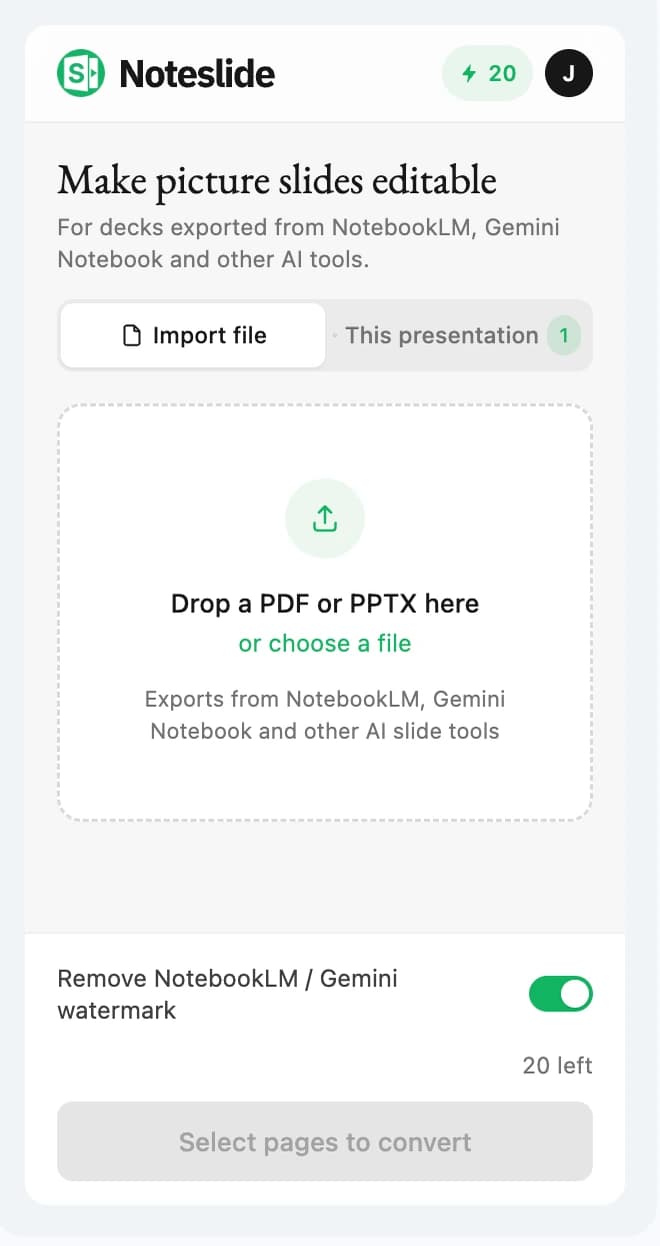
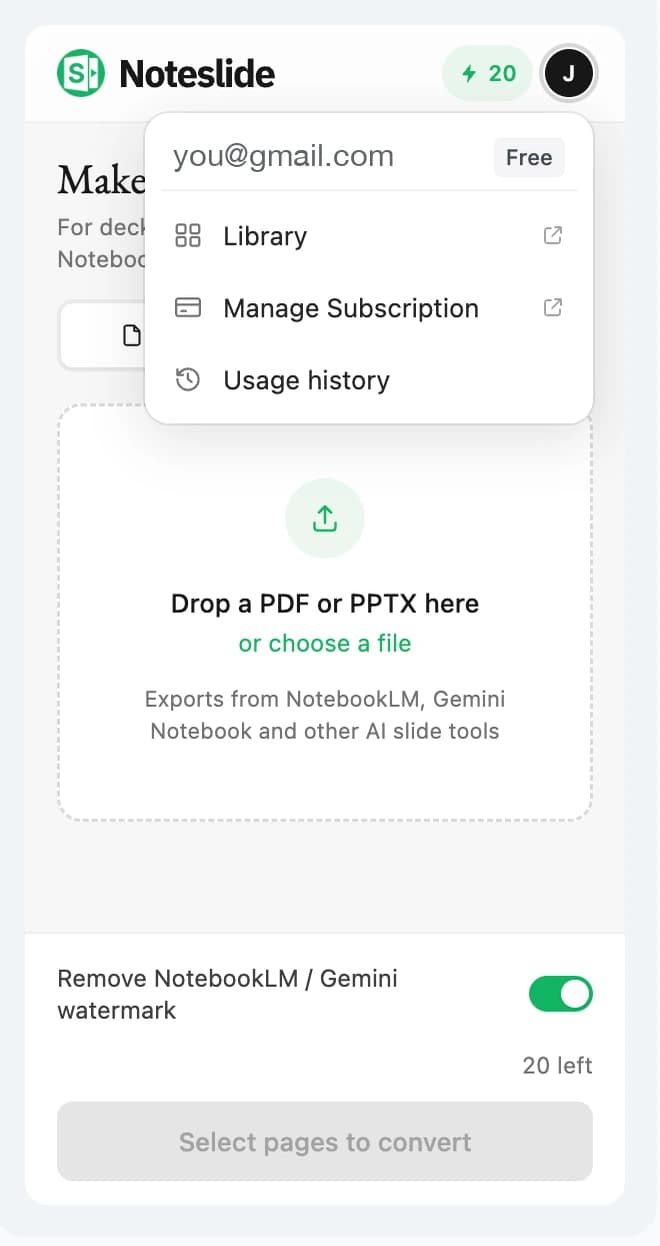
Drop an exported PDF or PPTX into the sidebar to get a new editable presentation in your Drive. Your library, plan and usage history are one click away.
Permissions and your data
NoteSlide asks Google for these permissions and uses each one only for the purpose listed:
- Only the slides or file you choose to convert are uploaded, over HTTPS, to NoteSlide’s conversion service. Each upload is stored under a unique, unguessable link and is not listed anywhere.
- We do not sell Google user data, use it for advertising, or use it to train AI models.
- You can delete converted slides in NoteSlide at any time, ask us to delete your account at privacy@codia.ai, and remove NoteSlide’s access in your Google Account permissions.
NoteSlide’s use and transfer of information received from Google APIs adheres to the Google API Services User Data Policy, including the Limited Use requirements.
See, edit, create and delete your Google Slides presentations
Reads the open presentation to find picture-only slides and inserts the converted slides into it. It also opens the temporary presentation NoteSlide created from the converted file, to copy its slides.
See, edit, create and delete only the Google Drive files you use with this app
Creates the new presentation when you import a file, and the temporary presentation it copies slides from. It cannot see your other Drive files.
Display and run third-party web content in prompts and sidebars inside Google applications
Shows the NoteSlide sidebar inside Google Slides.
See your primary Google Account email address and associate you with your personal info
Signs you in to your NoteSlide account with your Google identity, so conversions are saved to it and charged to its credits.
Pricing
Free to start: a new NoteSlide account includes 5 credits. Converting costs 1 credit per output slide, and the sidebar shows the cost before you confirm. Monthly and annual plans add more credits.
See plansQuestions
Which slides can NoteSlide convert?
Slides that are a single picture covering the page, such as exports from NotebookLM or Gemini Notebook. Slides that already have editable text are not listed.
I am signed in to several Google accounts. Why does NoteSlide ask me to switch?
Google runs add-on sidebars as the browser’s default account. If the presentation is open in another account, NoteSlide asks you to open it with the default account, or to use a browser window signed in to one account, so it never signs in or charges the wrong account.
Which languages are supported?
The sidebar is available in 15 languages, and converted text stays editable in scripts such as Chinese, Thai and Arabic.
How do I uninstall NoteSlide?
In Google Slides, choose Extensions → Add-ons → Manage add-ons, then remove NoteSlide. To revoke its access, open your Google Account permissions page.