
Convert GPT Image Slides into
Editable PowerPoint
ChatGPT and GPT Image can create strong slide visuals, but the output is usually a flat image. NoteSlide turns those PNGs, screenshots, and image PDFs into editable .pptx files with real text, shapes, and layouts.
Click to upload images
Slide screenshots, photos or scans in JPG, PNG or WebP. Several images become one deck; a PDF or PPTX works too.
No image at hand? Try a sample deck:
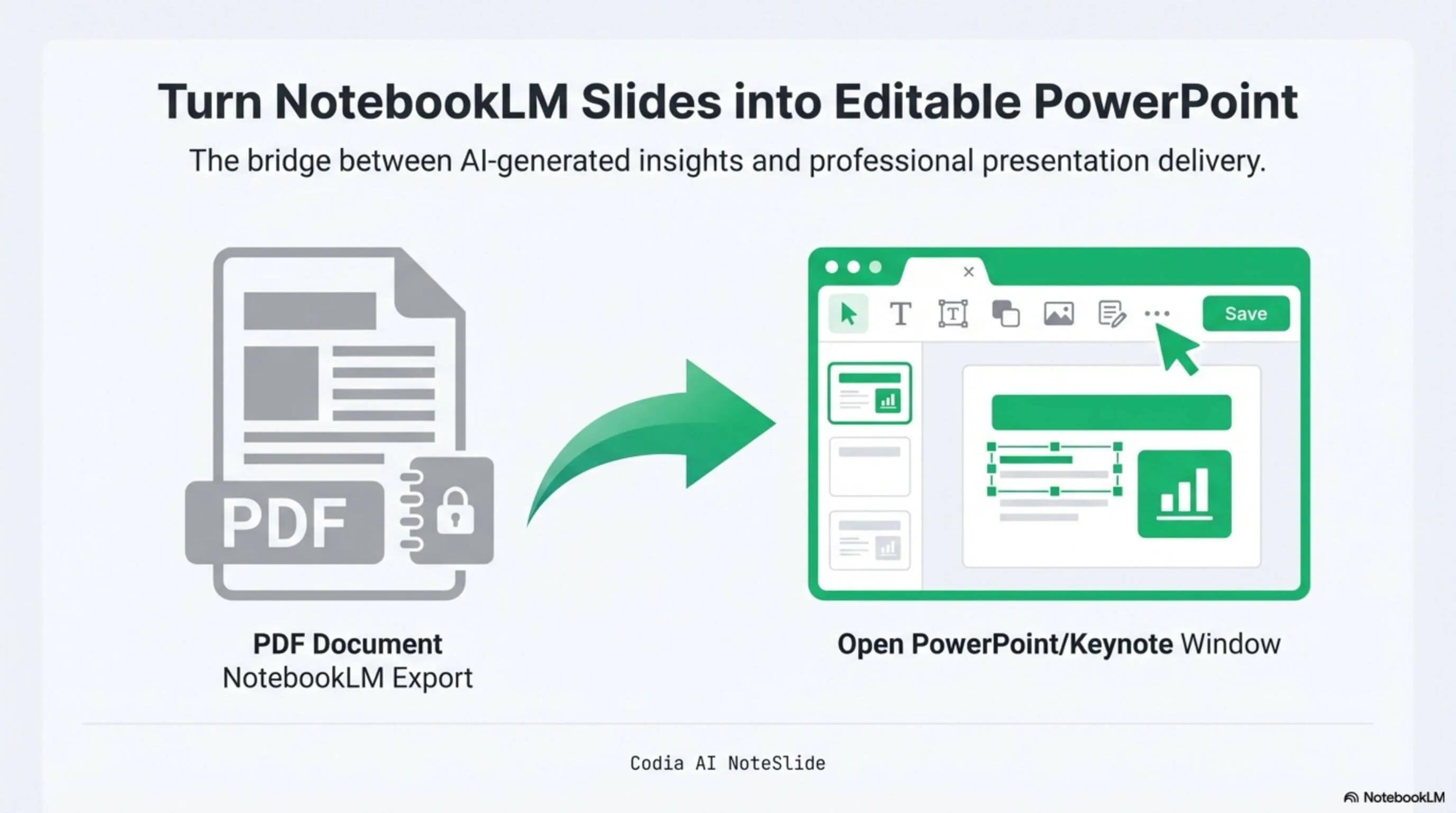
NotebookLM Editability Showcase
A NotebookLM-generated deck converted to fully editable PowerPoint with Codia AI Vision.
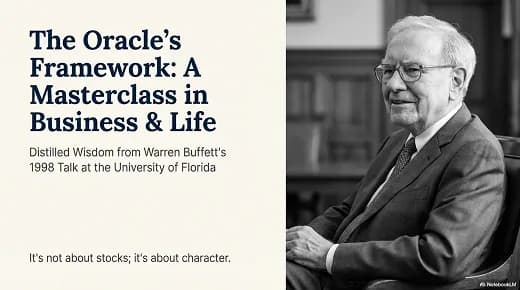
Business Strategy Slide Deck
Editable business strategy presentation rebuilt from a NotebookLM PDF export.
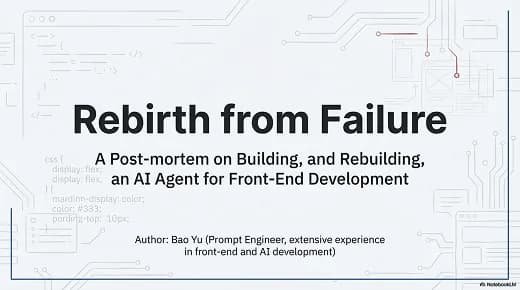
Research Briefing Deck
Academic research briefing converted into a fully editable PPTX deck.
From image to editable deck
Turn a flat GPT Image slide into a PowerPoint file you can revise, translate, and present.
Text and layout reconstruction
AI Vision detects headings, bullets, labels, diagrams, and visual blocks instead of using OCR alone.
Works with real workflows
Open the exported PPTX in Microsoft PowerPoint, Apple Keynote, or Google Slides for team editing.
How it works
A practical workflow from locked image-based slides to a PowerPoint file your team can edit.
- 1
Generate a slide image in ChatGPT
Use ChatGPT, GPT Image, or GPT Image 2 to create a presentation-style visual or slide mockup.
- 2
Save the image or screenshot
Download the PNG, JPG, or WebP file, or capture the generated slide as a screenshot.
- 3
Upload to Codia AI NoteSlide
Drop the image, multiple images, or an image-based PDF into NoteSlide.
- 4
Convert to editable PPTX
Select the slides you want and click "Convert to Editable PPTX" to rebuild the visual as editable elements.
- 5
Edit and export
Download the .pptx and adjust copy, fonts, colors, shapes, and layout in PowerPoint, Keynote, or Google Slides.
Built for real presentation editing
The result is not a screenshot stack. NoteSlide reconstructs the deck as native presentation objects so downstream edits are predictable.
Selectable text
Headlines, bullets, and labels become editable text blocks where possible.
Movable objects
Visual groups, boxes, dividers, and diagram-like elements are rebuilt for downstream edits.
Presentation-ready PPTX
Export a normal PowerPoint file instead of pasting images into a blank deck.
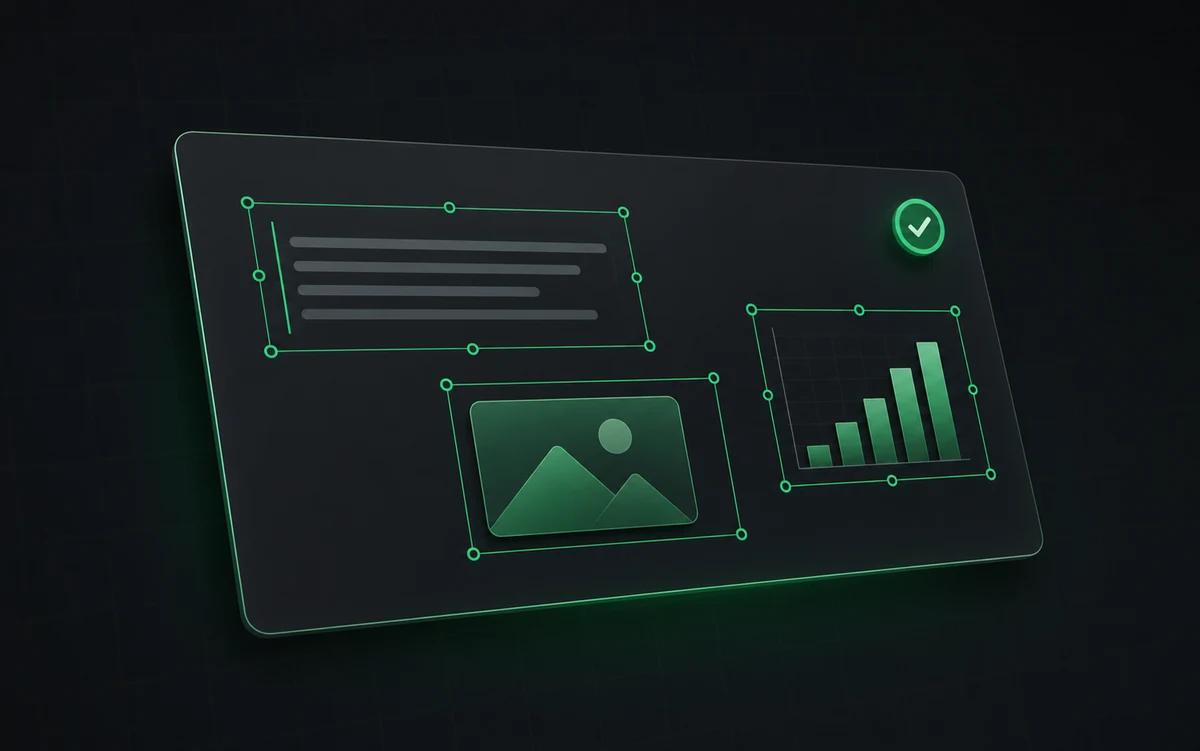
Why GPT Image slides are hard to edit
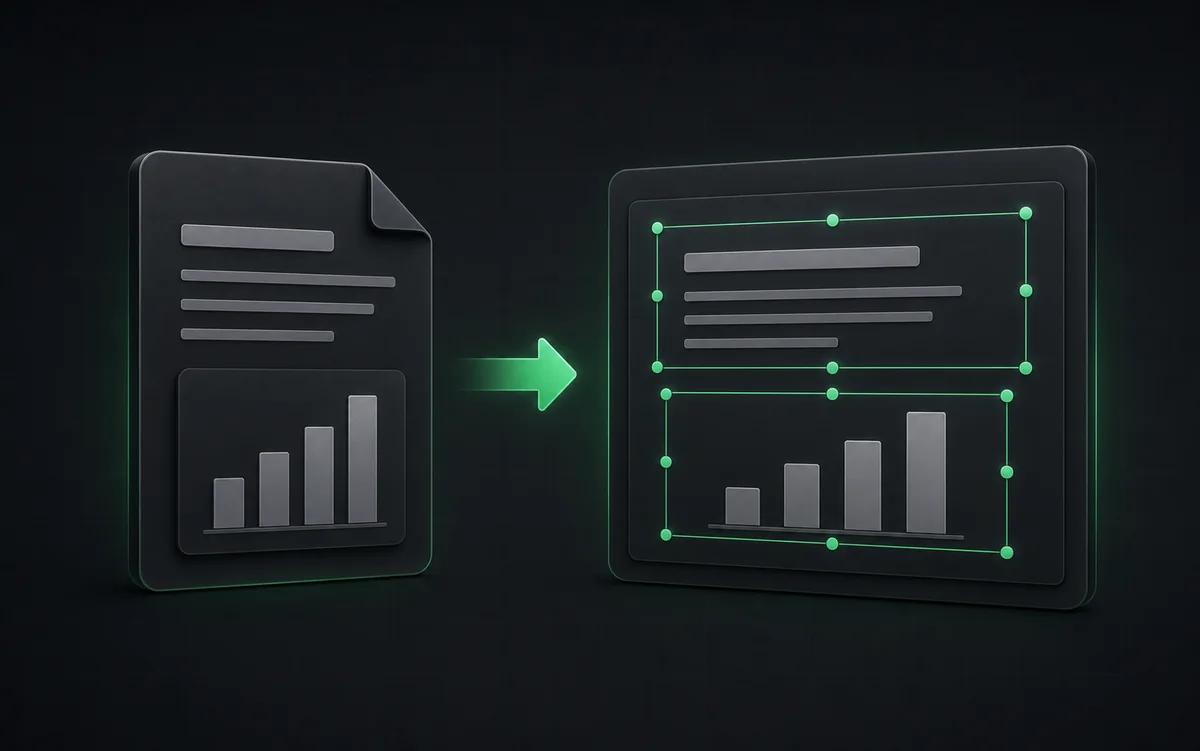
Image models are excellent for quick slide visuals, but they usually return a raster image. PowerPoint sees that output as one picture, so you cannot click a headline, fix a bullet, change a color, or move a diagram block without manually rebuilding the slide.

How NoteSlide turns the image into PPTX
NoteSlide runs Codia AI Vision over the uploaded image or image-based PDF. The model reads the slide structure, detects text and visual regions, and writes a new PowerPoint file with editable elements. You keep the direction created by ChatGPT while gaining normal presentation editing controls.
Best results for GPT Image conversion
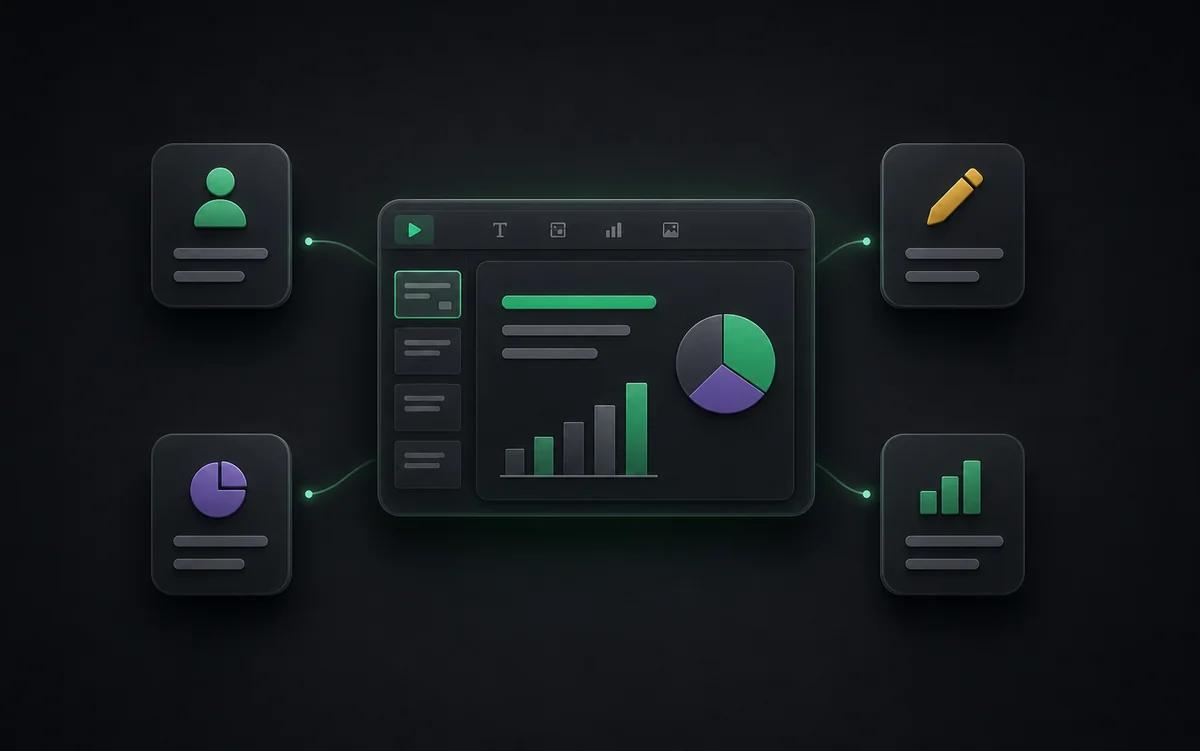
Use the highest-resolution image available, avoid heavy blur or tiny text, and upload one image per slide when possible. For multi-slide workflows, export each generated slide image and upload them together so NoteSlide can build one editable deck.
Who this is for
AI slide prototyping
Generate a fast visual direction in ChatGPT, then convert it into a deck your team can edit.
Design-to-deck handoff
Move from an image-model mockup to a PPTX that sales, marketing, or education teams can use.
Localization and polish
Make AI-generated slide text editable so you can translate, rewrite, and apply brand styles.
Content teams
Turn AI-generated briefs into editable slide drafts for marketing, sales, or customer education.
Also known as
People search for this workflow under many names — NoteSlide covers them all:
- gpt image to ppt
- gpt image to powerpoint
- gpt image 2 to pptx
- chatgpt image to powerpoint
- convert gpt image to editable ppt
- ai image to ppt
- make gpt image slides editable
- chatgpt slide image to pptx
Static image vs editable PPTX
| Feature | Codia AI NoteSlide | Static GPT Image slide |
|---|---|---|
| Text editing | Codia AI NoteSlideSelectable PowerPoint text boxes | Static GPT Image slidePixels inside a PNG or screenshot |
| Layout changes | Codia AI NoteSlideMove and resize rebuilt objects | Static GPT Image slideCrop, mask, or regenerate the image |
| Team review | Codia AI NoteSlideShare a normal PPTX in PowerPoint, Keynote, or Google Slides | Static GPT Image slideSend a flat image that reviewers cannot edit |
| Brand adaptation | Codia AI NoteSlideChange fonts, colors, and copy after conversion | Static GPT Image slidePrompt the image model again and hope the layout stays stable |
Conversion quality depends on source image clarity, resolution, and layout complexity.
Frequently asked questions
Can I convert a GPT Image slide to PowerPoint?+
Yes. Upload a ChatGPT or GPT Image-generated slide image, screenshot, PNG, JPG, WebP, or image-based PDF to NoteSlide. Codia AI Vision rebuilds it as an editable PowerPoint file.
Does this work with GPT Image 2 slides?+
Yes. If GPT Image 2 or another image model gives you a flat slide image, NoteSlide can convert that visual into editable PPTX elements instead of keeping it as one locked picture.
Will the text be editable after conversion?+
Yes. NoteSlide detects text regions, headings, bullets, labels, and layout blocks, then reconstructs them as selectable PowerPoint text and shapes whenever the image quality is clear enough.
What GPT Image file formats can I upload?+
You can upload common image formats such as PNG, JPG, and WebP, plus image-based PDFs or screenshots of AI-generated slide designs.
Is this different from an AI PPT generator?+
Yes. AI PPT generators create a new deck from a prompt. NoteSlide starts from an existing image or PDF and rebuilds that exact visual into an editable PowerPoint deck.
Which output formats are supported?+
NoteSlide exports editable PowerPoint (.pptx) files that open natively in Microsoft PowerPoint, Apple Keynote, and Google Slides without loss of structure.
Is my document private?+
All uploaded documents are processed with encryption in transit (TLS) and at rest. Files are not stored beyond the active processing window unless explicitly requested, and uploaded content is never resold, shared, or used to train models.
Ready to make your slides editable?
Upload a NotebookLM PDF or image deck. Codia AI Vision rebuilds it as a fully editable PowerPoint file in seconds.
Upload a GPT Image slide