
NotebookLM is now Gemini Notebook. View the Gemini Notebook version →
Turn NotebookLM Slide Decks into
Fully Editable PowerPoint
NotebookLM exports slide decks as image-based PDFs. Codia AI NoteSlide rebuilds every text block, shape, and layout into a true .pptx file you can edit in PowerPoint, Keynote, or Google Slides.
Click to upload PDF, PPTX or images
Supports PDF or PPTX exported from NotebookLM / Gemini Notebook, or multiple images (JPG, PNG, WebP)
No PDF? Try one of these:
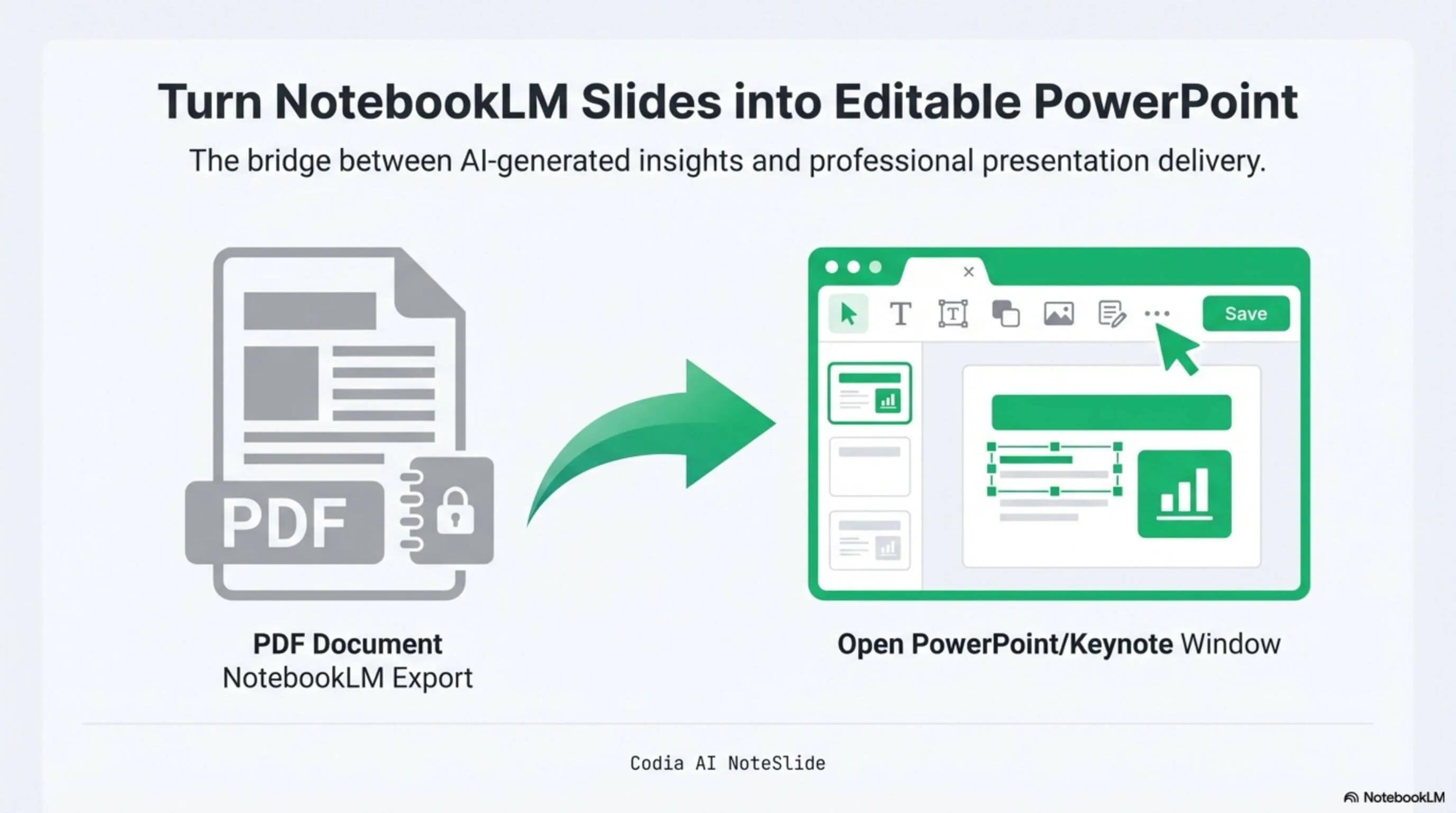
NotebookLM Editability Showcase
A NotebookLM-generated deck converted to fully editable PowerPoint with Codia AI Vision.

Business Strategy Slide Deck
Editable business strategy presentation rebuilt from a NotebookLM PDF export.
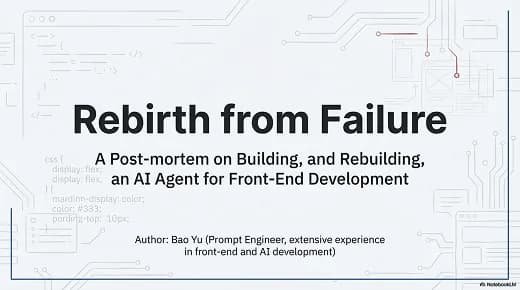
Research Briefing Deck
Academic research briefing converted into a fully editable PPTX deck.
Pixel-perfect rebuild
Layout, typography, and visual hierarchy are preserved with high fidelity.
Real text, real shapes
Every text block becomes editable copy you can restyle, translate, or replace.
109 languages
Convert NotebookLM decks generated in English, Chinese, Japanese, Korean, Arabic, and more.
How it works
A practical workflow from locked image-based slides to a PowerPoint file your team can edit.
- 1
Generate a Slide Deck in NotebookLM
In NotebookLM, open the Studio panel and click "Slide Deck" to generate slides from your sources.
- 2
Download the PDF
Once the deck is generated, download the NotebookLM PDF to your computer.
- 3
Upload to Codia AI NoteSlide
Open Codia AI NoteSlide and drag the NotebookLM PDF into the upload area.
- 4
Select slides and convert
Pick the slides you want converted, then click "Convert to Editable PPTX".
- 5
Export PowerPoint
Click "Export PPTX" to download a fully editable .pptx file. Open it in PowerPoint, Keynote, or Google Slides.
Built for real presentation editing
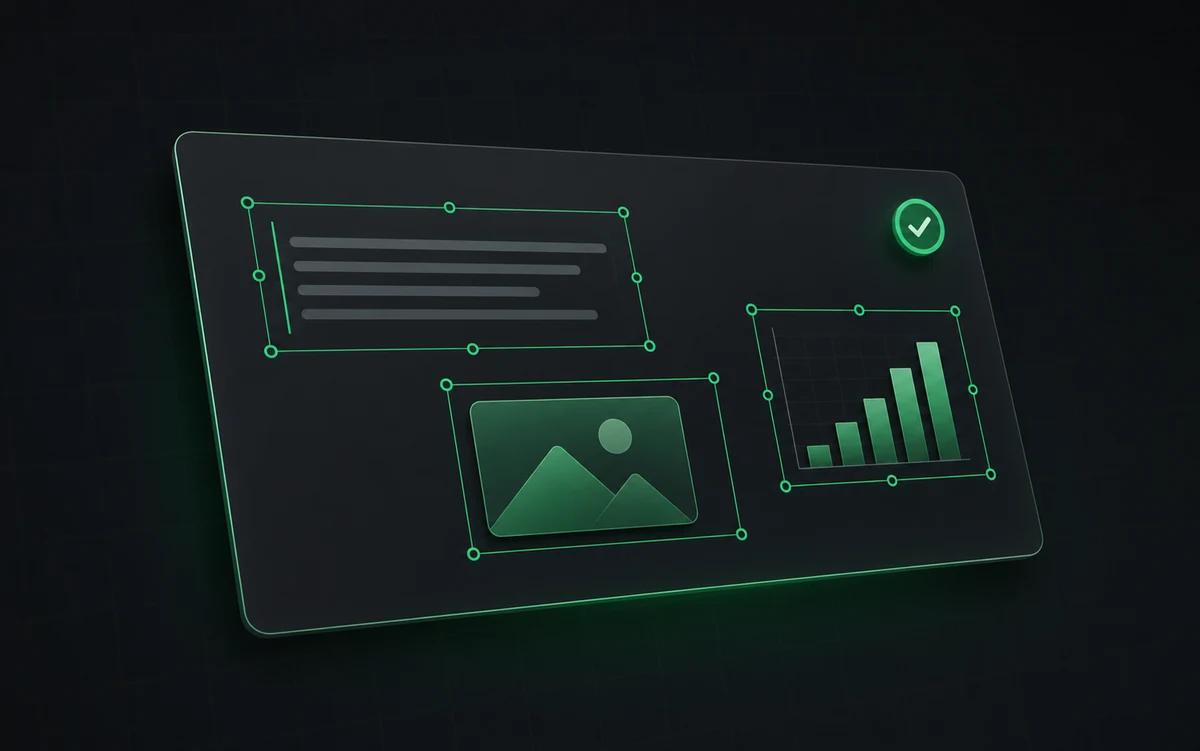
The result is not a screenshot stack. NoteSlide reconstructs the deck as native presentation objects so downstream edits are predictable.
Native objects
Text, shapes, and layout blocks become editable PowerPoint elements.
Original layout
The exported deck follows the NotebookLM preview instead of regenerating a new design.
Team handoff
Open the same PPTX in PowerPoint, Keynote, or Google Slides for review.
Why NotebookLM PDFs aren't editable
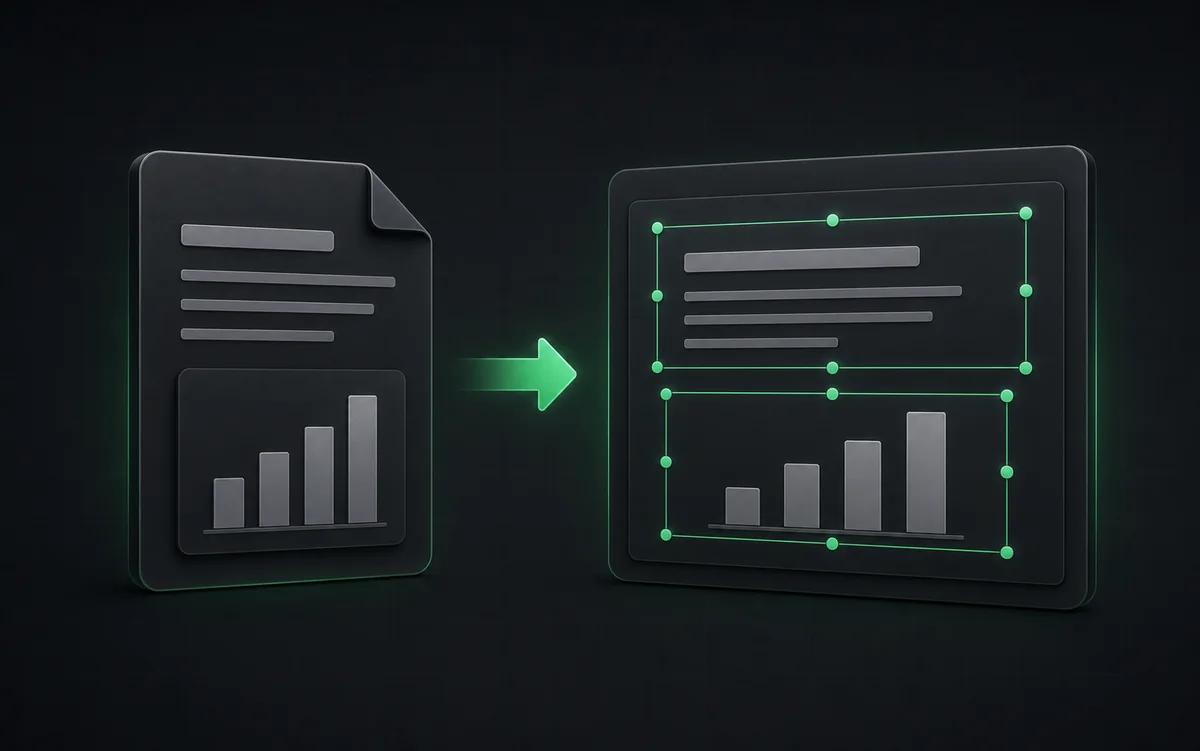
NotebookLM's Slide Deck feature renders each slide as a flat image inside the exported PDF — text characters are pixels, not editable glyphs. Opening that PDF in PowerPoint or Keynote gives you a deck of pictures, not slides you can edit. To restyle, translate, or refine the content, you need to rebuild the slide structure from scratch — or use AI Vision to do it for you.
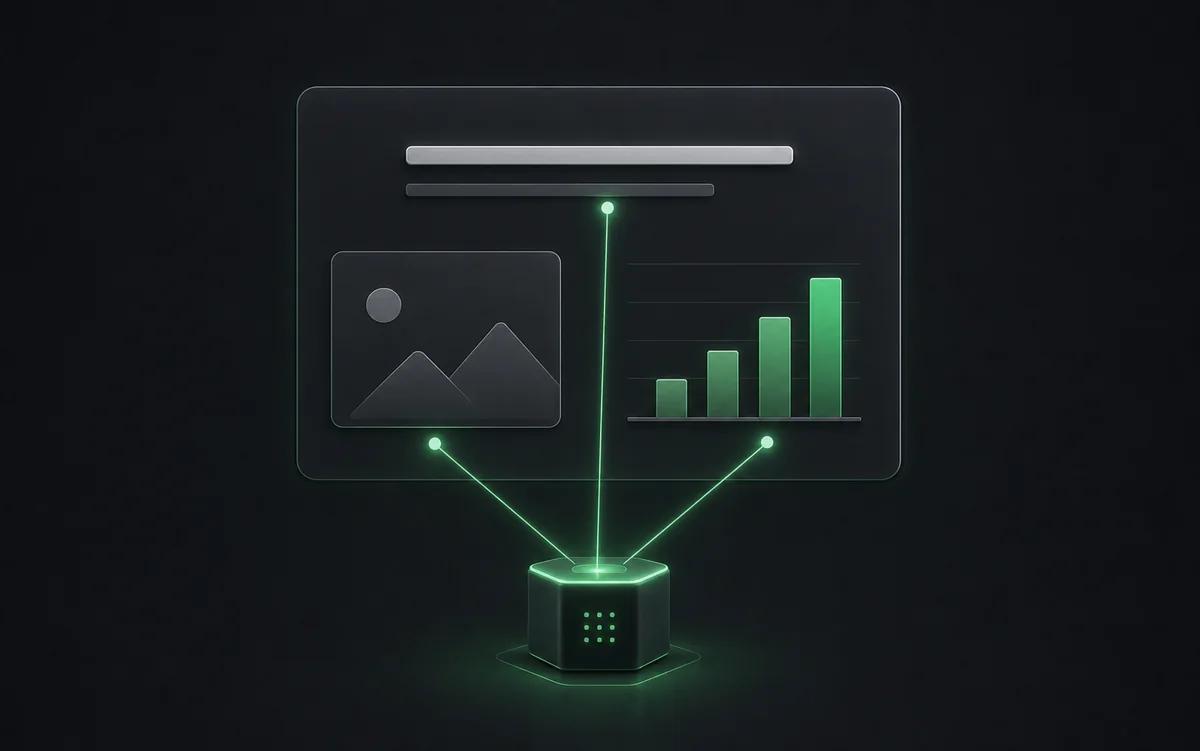
How Codia AI NoteSlide rebuilds the deck
NoteSlide runs Codia AI Vision over every page of the NotebookLM PDF. The model detects text regions, headings, bullets, tables, charts, images, and decorative shapes, then reconstructs them as native PowerPoint elements. The result is a .pptx file that opens with selectable text, real shape outlines, and original imagery in place — ready to edit, translate, or rebrand.
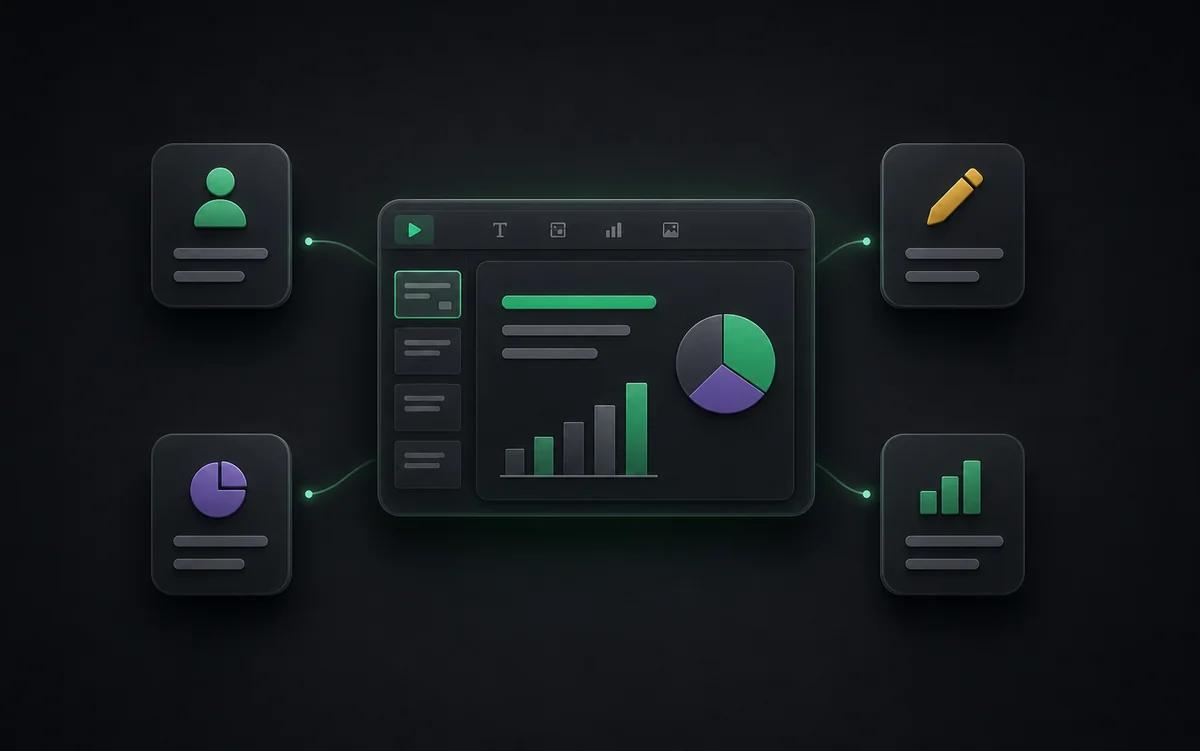
Who uses this workflow
Product managers turning a NotebookLM research brief into a stakeholder review deck. Teachers reusing AI-generated lecture notes as classroom slides. Consultants taking a NotebookLM-sourced summary and shipping it to a client. Researchers preparing conference talks. Sales engineers cleaning up auto-generated decks for proposals.
Who this is for
Research teams
Turn AI-generated literature summaries into editable review decks.
Educators
Reuse NotebookLM lecture slides and adapt them for classroom delivery.
Consultants and operators
Polish AI briefs into client-ready or stakeholder-ready decks.
Content teams
Turn AI-generated briefs into editable slide drafts for marketing, sales, or customer education.
Also known as
People search for this workflow under many names — NoteSlide covers them all:
- notebooklm to ppt
- notebooklm pdf to powerpoint
- convert notebooklm to pptx
- edit notebooklm slides
- notebooklm slides editable
- notebooklm export to powerpoint
Frequently asked questions
Can NotebookLM make a PowerPoint?+
Yes, but not a fully editable one. NotebookLM can generate a slide deck and download it as a PDF or a PPTX, but the PDF is flat images and the native PPTX re-lays out the slides with many elements left as pictures. For a PowerPoint where every text box and shape is editable, upload the NotebookLM PDF to NoteSlide.
Why are NotebookLM slides not editable?+
NotebookLM exports slide decks as rasterized PDFs where text and shapes are pixels rather than editable elements. To edit the text or restyle the layout you need to rebuild the slide structure first, which is exactly what NoteSlide automates.
How do I convert a NotebookLM deck to PowerPoint?+
Generate a Slide Deck in NotebookLM, download the PDF, then upload it to Codia AI NoteSlide. The AI detects text, graphics, and layout and outputs a fully editable .pptx file you can open in PowerPoint, Keynote, or Google Slides.
How do I download slides from NotebookLM?+
Open the slide deck you generated in NotebookLM and choose download from its menu to save it as a PDF; a PPTX option is also offered. Keep the PDF: uploading it to NoteSlide turns it into an editable PowerPoint that stays close to the original design.
Which output formats are supported?+
NoteSlide exports editable PowerPoint (.pptx) files that open natively in Microsoft PowerPoint, Apple Keynote, and Google Slides without loss of structure.
Which languages does NoteSlide recognize?+
NoteSlide recognizes 109 languages, including English, Chinese, Japanese, Korean, Arabic, Hindi, Portuguese, Spanish, French, German, and more, so multilingual decks are converted without switching tools.
Is NoteSlide free to use?+
Yes. The Free plan includes 5 NoteSlide credits. For more monthly capacity, choose a monthly or annual subscription with a larger credit allowance.
How is NoteSlide different from NotebookLM's native PPTX export?+
NotebookLM's native PPTX export regenerates a new AI-styled layout and many elements remain as embedded images. NoteSlide preserves the original layout and rebuilds every text block and shape as fully editable PowerPoint elements.
Ready to make your slides editable?
Upload a NotebookLM PDF or image deck. Codia AI Vision rebuilds it as a fully editable PowerPoint file in seconds.
Convert a NotebookLM PDF