
Gemini Notebook PDF to PPTX,
Fully Editable
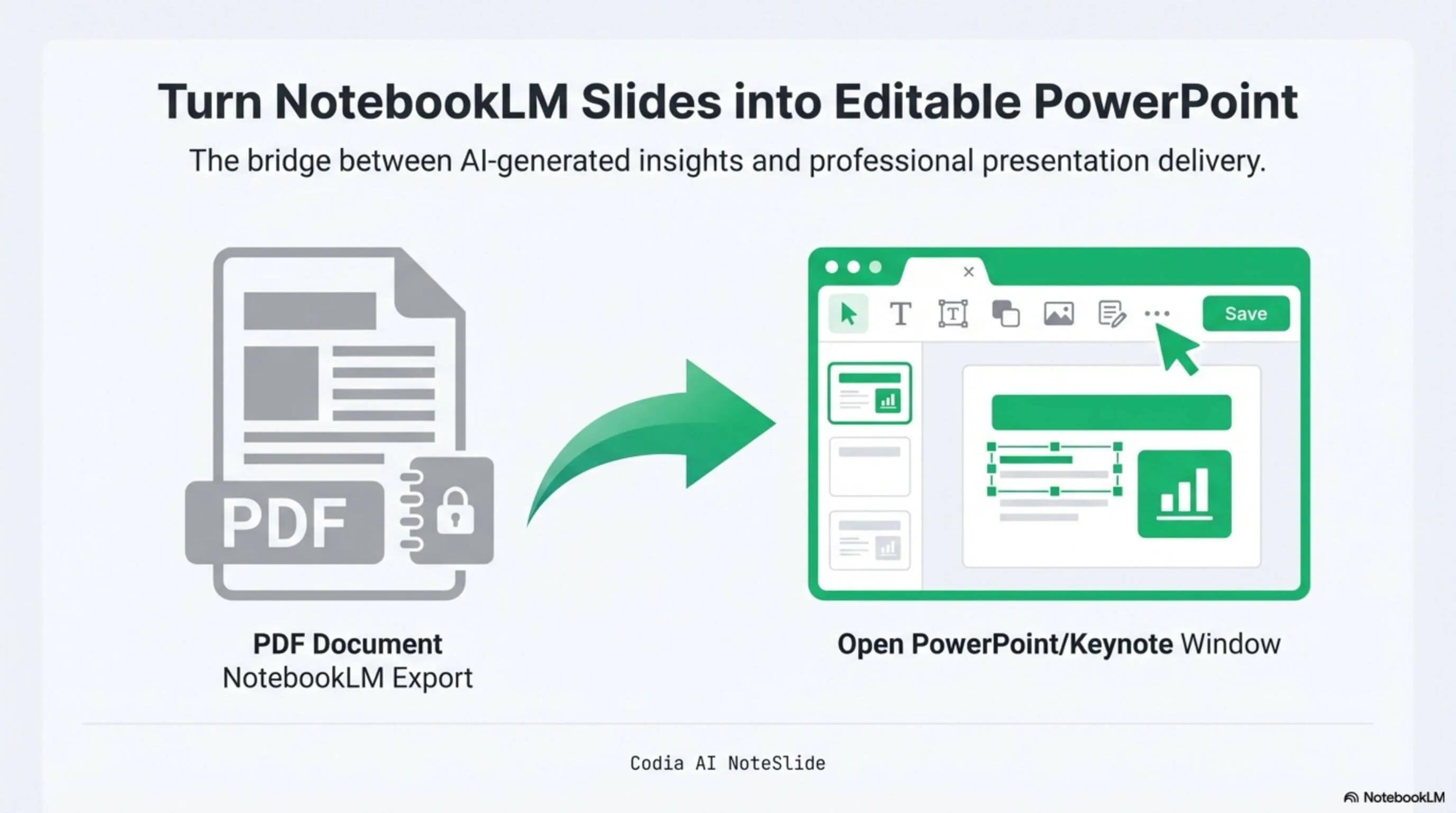
NotebookLM was renamed Gemini Notebook in July 2026. This page focuses on the current PDF export workflow: upload the Gemini Notebook PDF and reconstruct it as an editable PPTX without flattening every page into a screenshot.
Click to upload PDF, PPTX or images
Supports PDF or PPTX exported from NotebookLM / Gemini Notebook, or multiple images (JPG, PNG, WebP)
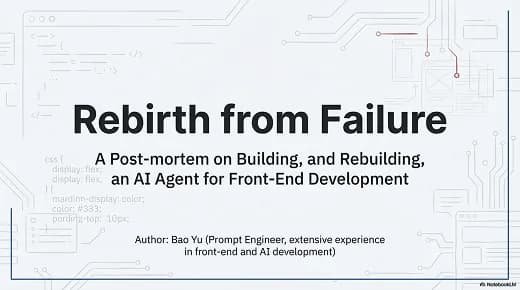
No PDF? Try one of these:

True .pptx output
Open in Microsoft PowerPoint, Apple Keynote, or Google Slides without losing structure.
Layout-faithful
Spacing, alignment, and visual hierarchy survive the conversion.
Flexible PDF workflow
Combine the PDF exports you need and convert them together as one editable presentation.
Built for real presentation editing
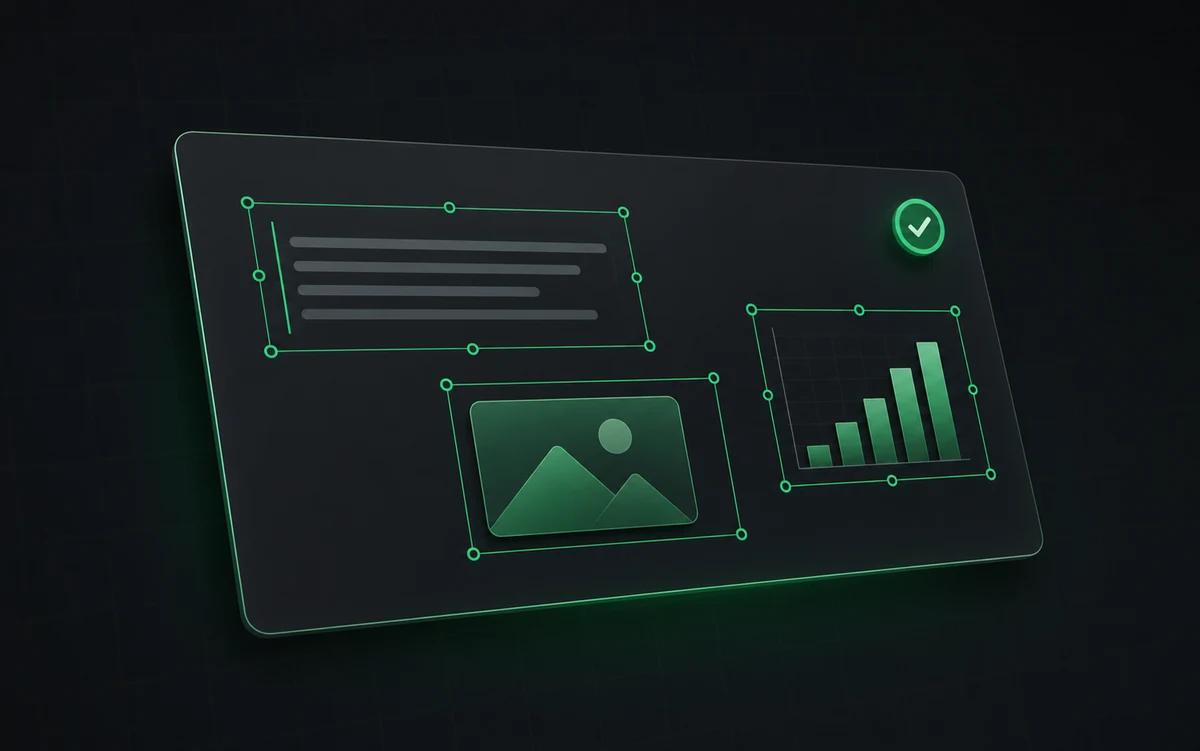
The result is not a screenshot stack. NoteSlide reconstructs the deck as native presentation objects so downstream edits are predictable.
Text recovery
Headings, paragraphs, bullets, and labels are rebuilt as editable text.
Slide structure
Blocks, shapes, and visual groupings are reconstructed for downstream editing.
PPTX workflow
Download a PowerPoint file that fits normal review, edit, and presentation workflows.
Why start with the Gemini Notebook PDF export?
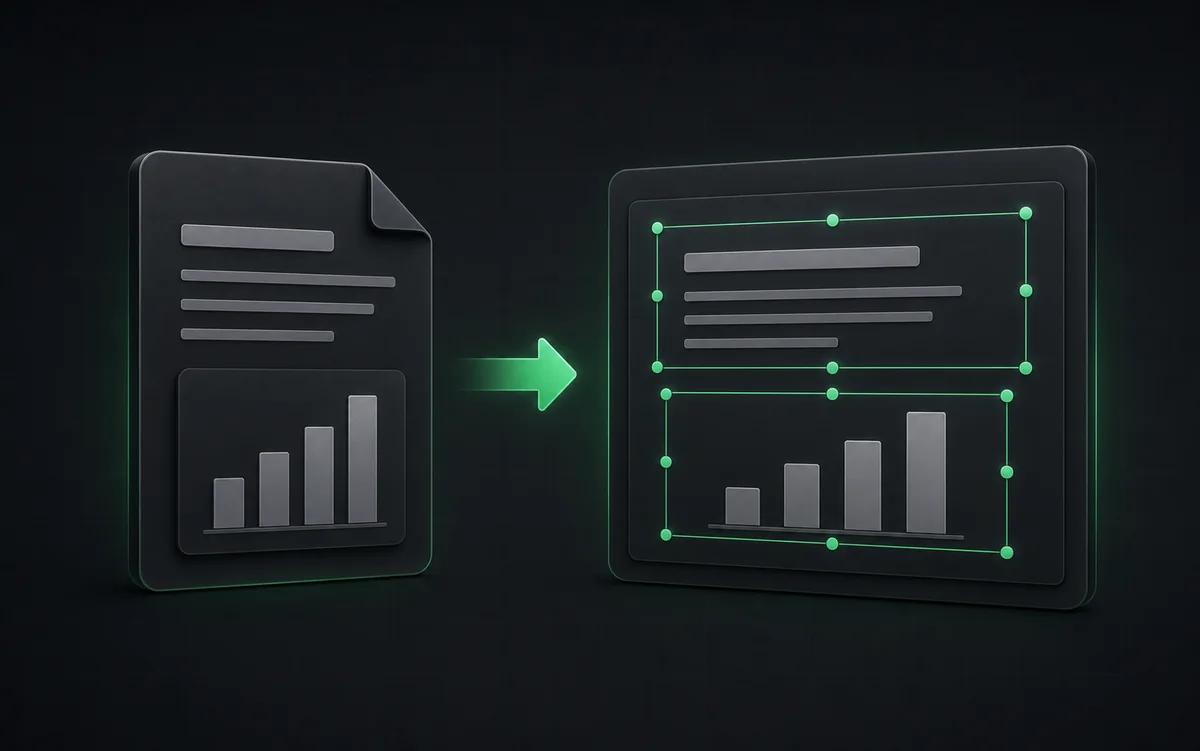
The PDF preserves the slide composition you approved in Gemini Notebook. NoteSlide reads that final visual source and rebuilds the page into editable presentation objects, keeping the conversion workflow predictable.
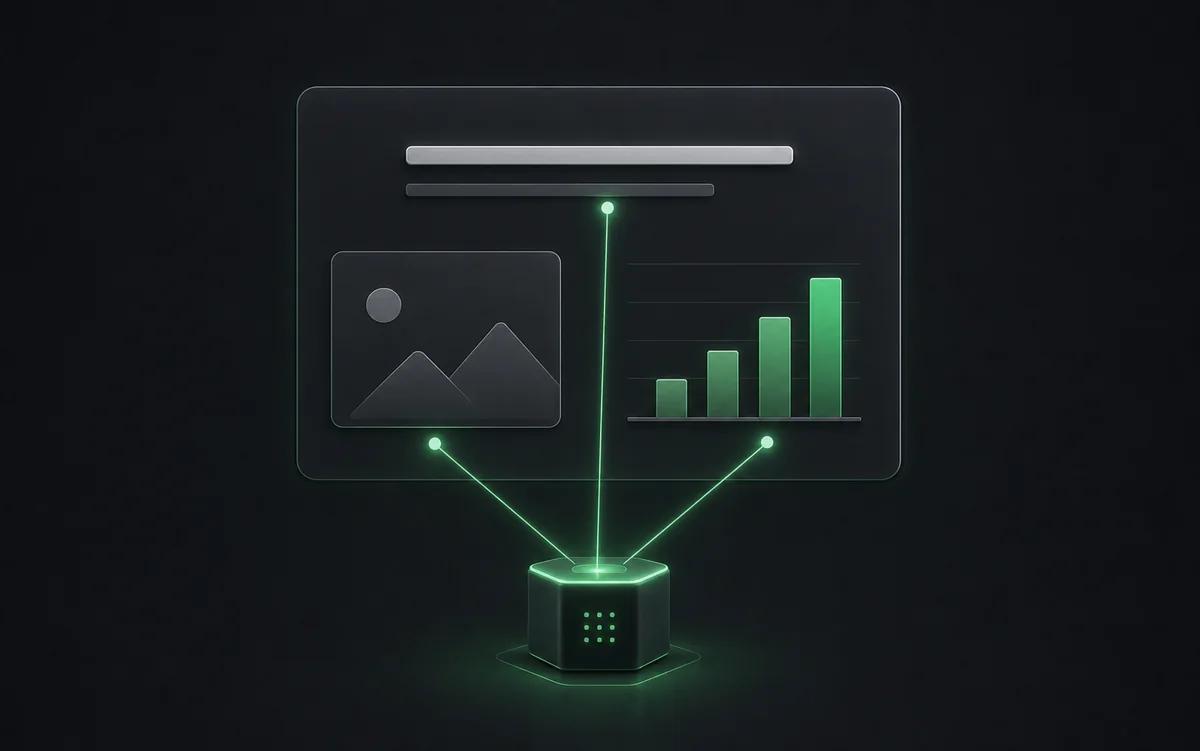
Works on more than just Gemini Notebook
The same AI Vision pipeline handles any image-based PDF: scanned lecture handouts, exported Gamma or Tome decks, photos of whiteboards. Anywhere text is pixels instead of characters, NoteSlide rebuilds the editable version.
Who this is for
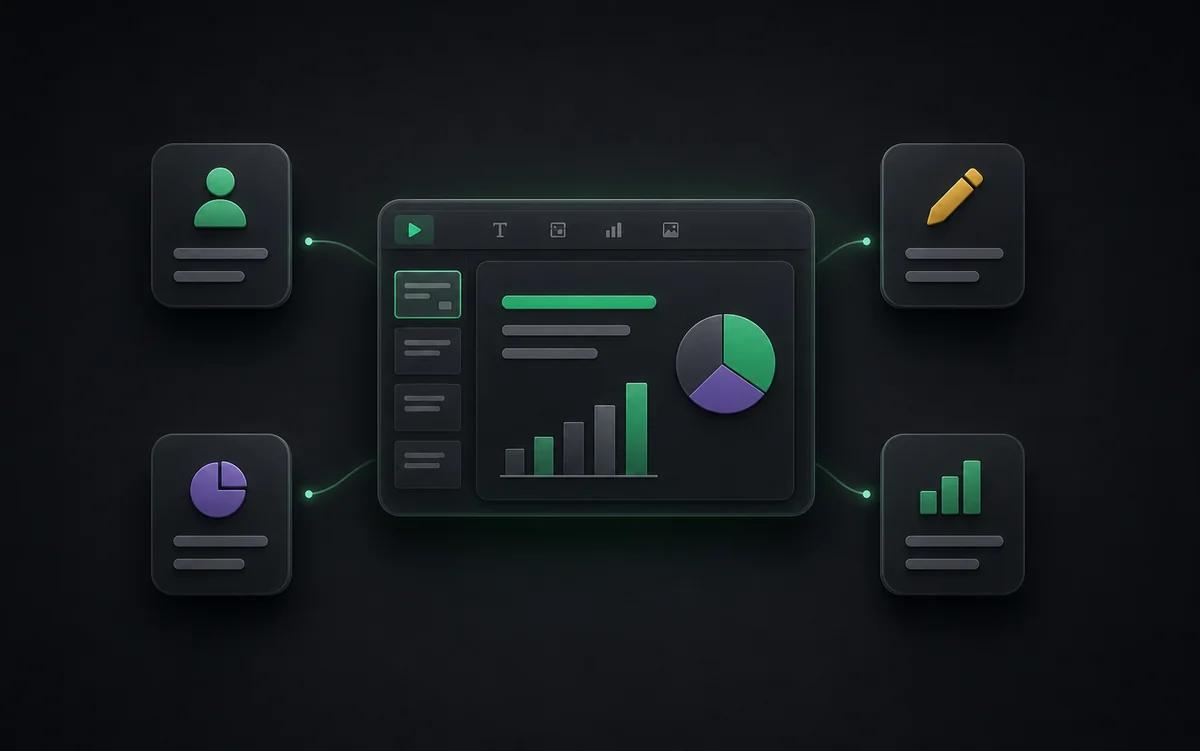
Lost source decks
Recover editable slides when all you have is a PDF export.
Gemini Notebook summaries
Move from generated PDF to a deck you can edit and present.
Training materials
Convert slide handouts into reusable presentation source files.
Content teams
Turn AI-generated briefs into editable slide drafts for marketing, sales, or customer education.
Also known as
People search for this workflow under many names — NoteSlide covers them all:
- gemini notebook pdf to powerpoint
- gemini notebook to pptx
- pdf to editable powerpoint ai
- rebuild gemini notebook deck as pptx
- gemini notebook pptx download
Frequently asked questions
How do I convert a Gemini Notebook deck to PowerPoint?+
Generate a Slide Deck in Gemini Notebook, download the PDF, then upload it to Codia AI NoteSlide. The AI detects text, graphics, and layout and outputs a fully editable .pptx file you can open in PowerPoint, Keynote, or Google Slides.
Why are Gemini Notebook slides not editable?+
Gemini Notebook exports slide decks as rasterized PDFs where text and shapes are pixels rather than editable elements. To edit the text or restyle the layout you need to rebuild the slide structure first, which is exactly what NoteSlide automates.
Which output formats are supported?+
NoteSlide exports editable PowerPoint (.pptx) files that open natively in Microsoft PowerPoint, Apple Keynote, and Google Slides without loss of structure.
Can I convert image-based PDFs or photos of slides?+
Yes. NoteSlide accepts scanned PDFs, image-only PDFs, and JPG/PNG screenshots of slides. AI Vision rebuilds text and shapes from the image content into editable PowerPoint slides.
Which languages does NoteSlide recognize?+
NoteSlide recognizes 109 languages, including English, Chinese, Japanese, Korean, Arabic, Hindi, Portuguese, Spanish, French, German, and more, so multilingual decks are converted without switching tools.
Is my document private?+
All uploaded documents are processed with encryption in transit (TLS) and at rest. Files are not stored beyond the active processing window unless explicitly requested, and uploaded content is never resold, shared, or used to train models.
Ready to make your slides editable?
Upload a NotebookLM PDF or image deck. Codia AI Vision rebuilds it as a fully editable PowerPoint file in seconds.
Upload your Gemini Notebook PDF