
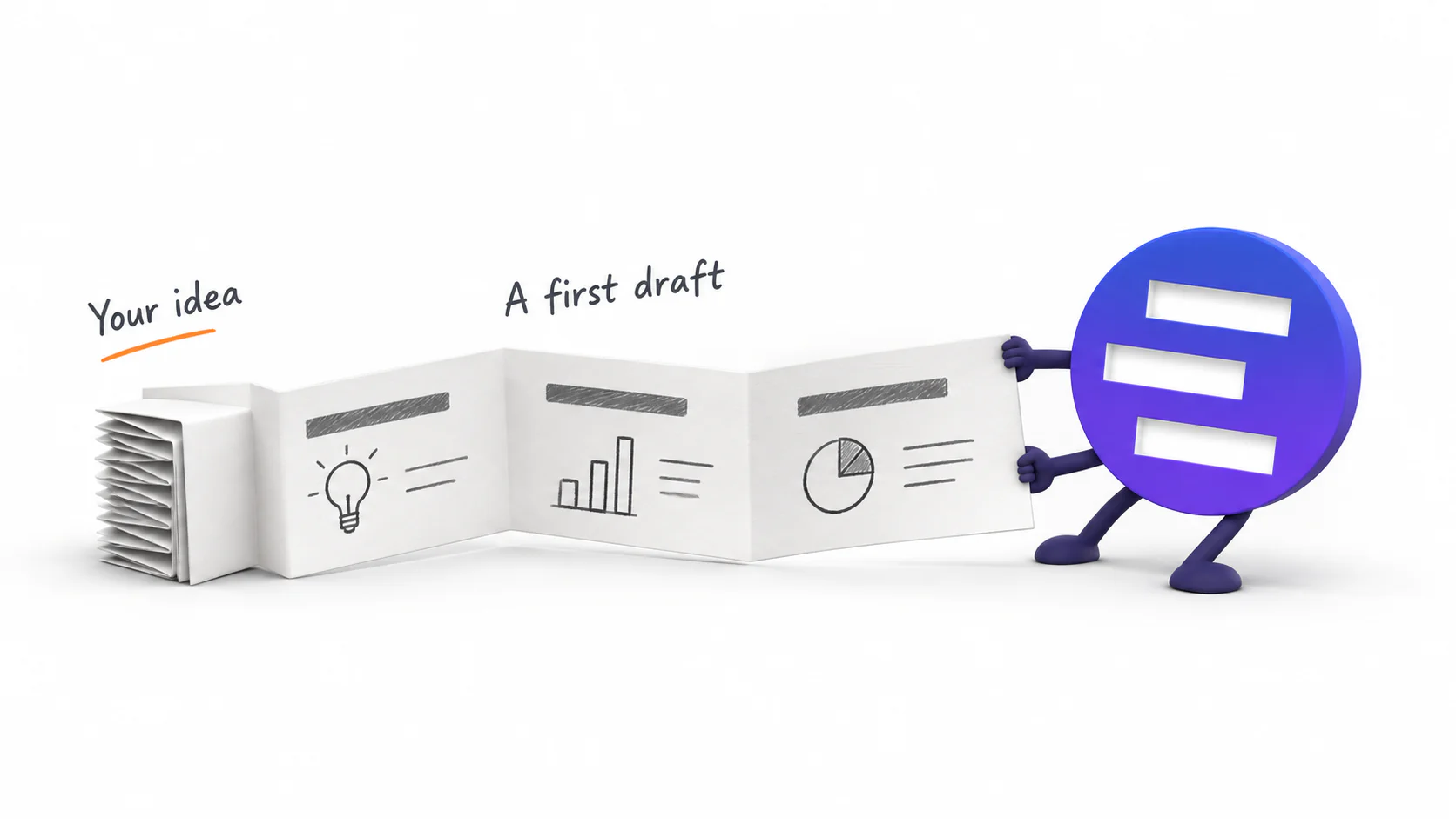
Turn an idea, a document, or a collection of notes into a presentation you can keep editing.
You have the material. A product brief, a research summary, a few pages of notes. Now you need to turn it into a presentation: find the story, decide what belongs on each slide, and give it a visual form that helps people follow along.
NoteSlide now brings AI presentation generation into that workflow. Start with your topic and source material, review an outline, choose a visual direction, and generate a deck you can open and edit. You can also download it as a PowerPoint file.
If you know NoteSlide for converting PDFs and slide images into editable presentations, this adds an earlier starting point. You can now begin before the slides exist.
Start with what you already have
A useful presentation begins with context. Who is it for? What should the audience understand? What should happen after the final slide?
In NoteSlide, you can describe those goals in a brief, paste your notes, add a public webpage URL, or upload source files. Supported file types include Word documents, PowerPoint files, PDFs, Markdown, plain text, and images. Your instructions and selected sources can contribute to the same presentation.
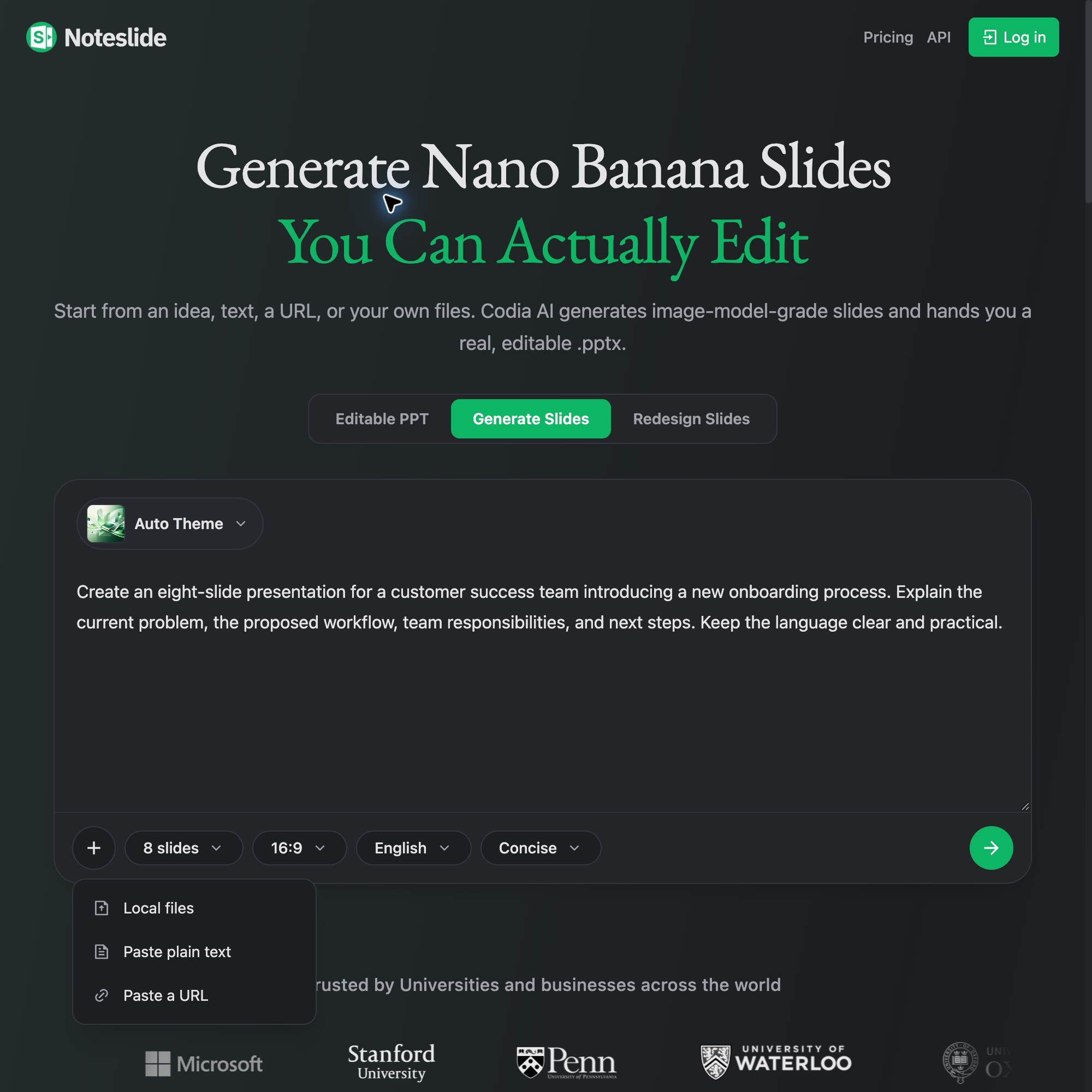 NoteSlide’s English source menu offers local files, pasted text, and a webpage URL.
Add source material using local files, plain text, or a URL.
That gives you several practical starting points:
- A product launch: Bring a product brief and explain which audience the deck needs to reach.
- A project review: Use your notes to introduce the original goal, what changed, and what the team should do next.
- A lesson: Turn teaching material into a sequence of explanations and examples for your students.
- A research briefing: Build a presentation around the question, findings, and implications in your source material.
You do not need a polished outline to begin. A clear brief helps NoteSlide make a more useful first proposal.
For example:
Create an eight-slide presentation for a customer success team introducing our new onboarding process. Use the attached brief. Explain the current problem, the proposed workflow, team responsibilities, and next steps. Keep the language clear and practical. Use only figures provided in the source material.
The audience and purpose give the deck direction. The source material supplies the details you want it to carry.
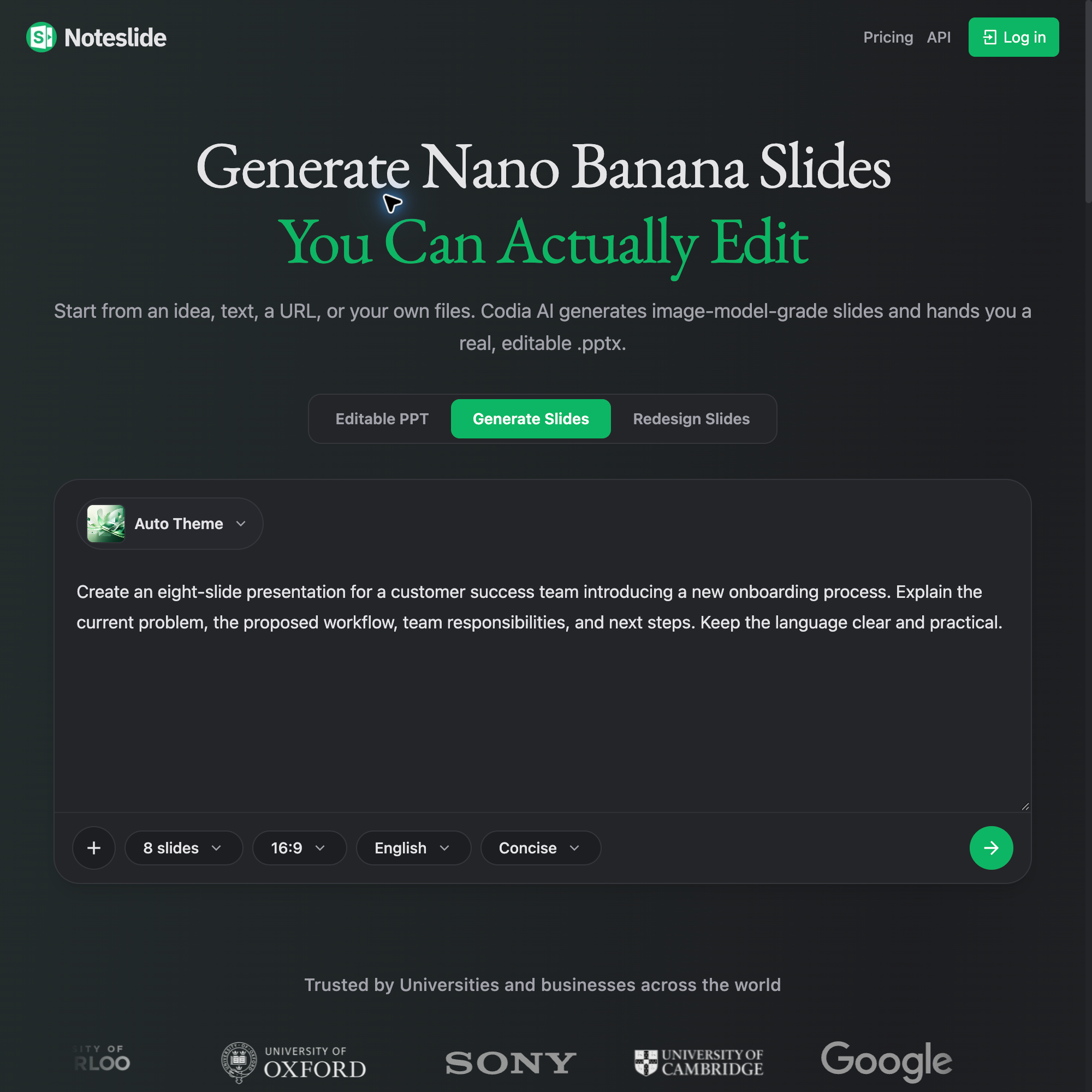 NoteSlide’s generation form with an English onboarding brief, eight slides, a 16:9 aspect ratio, and English output selected.
An example brief in the live NoteSlide interface, with the output language set to English.
Shape the story before generating the deck
NoteSlide first generates an outline. This is your opportunity to check whether the presentation tells the right story before committing to the full set of slides.
You can edit page titles, key takeaways, and page content. Add a missing page, remove a tangent, duplicate a useful structure, or reorder the sequence.
For a product launch, you might move the customer problem ahead of the feature list. For a project review, you might give the lessons learned their own slide. For a lesson, you might place an example immediately after the concept it explains.
These are small changes with a large effect on how the presentation reads. The outline makes them easier to see and act on.
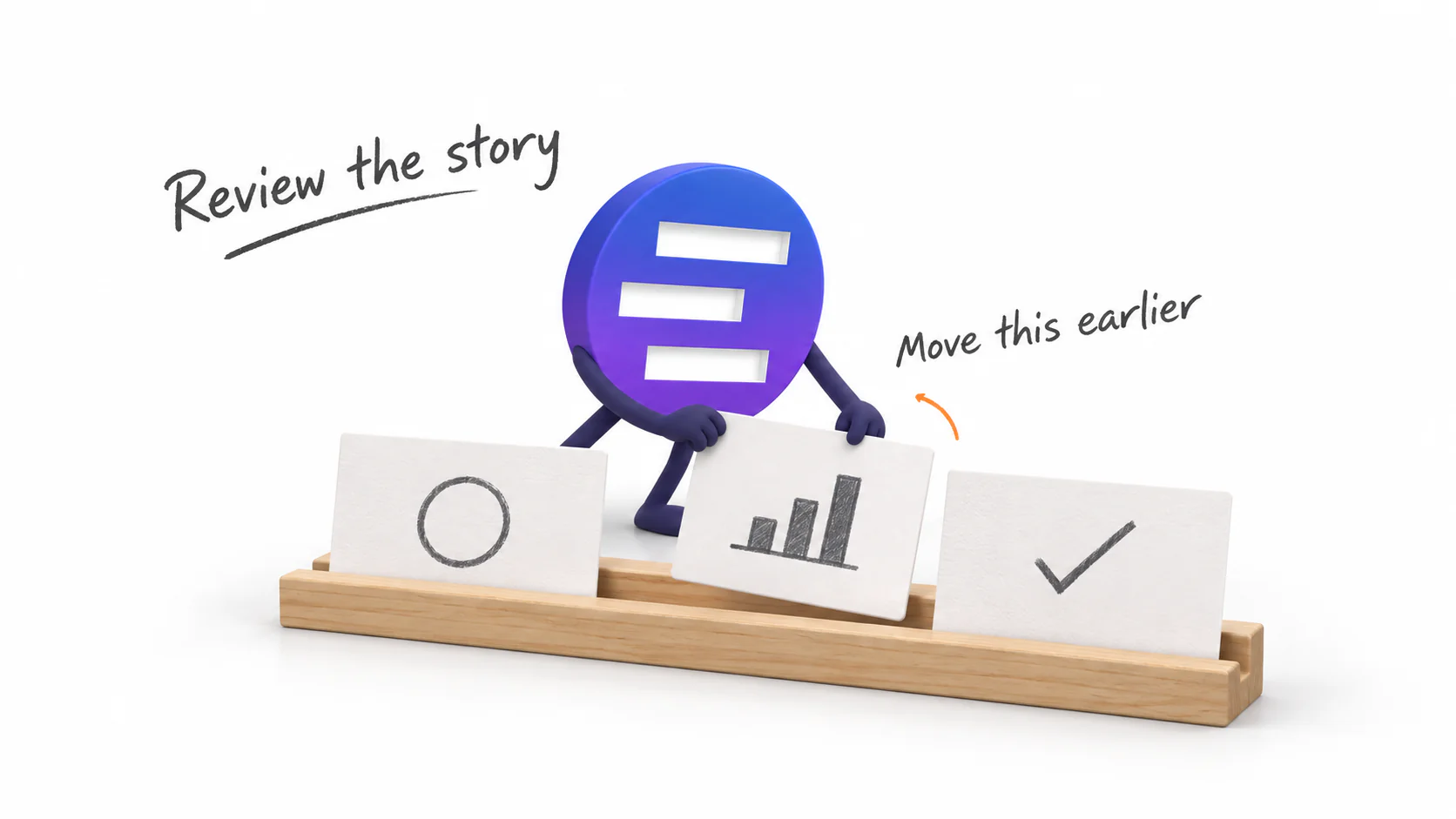 Xiaolan repositions a paper card in a presentation storyboard.
Get the story in order before building out the slides.
Choose the visual direction—and preview it
You can set the output language, slide count, and aspect ratio. Choose a presentation template or use Auto Theme for an AI-recommended visual style.
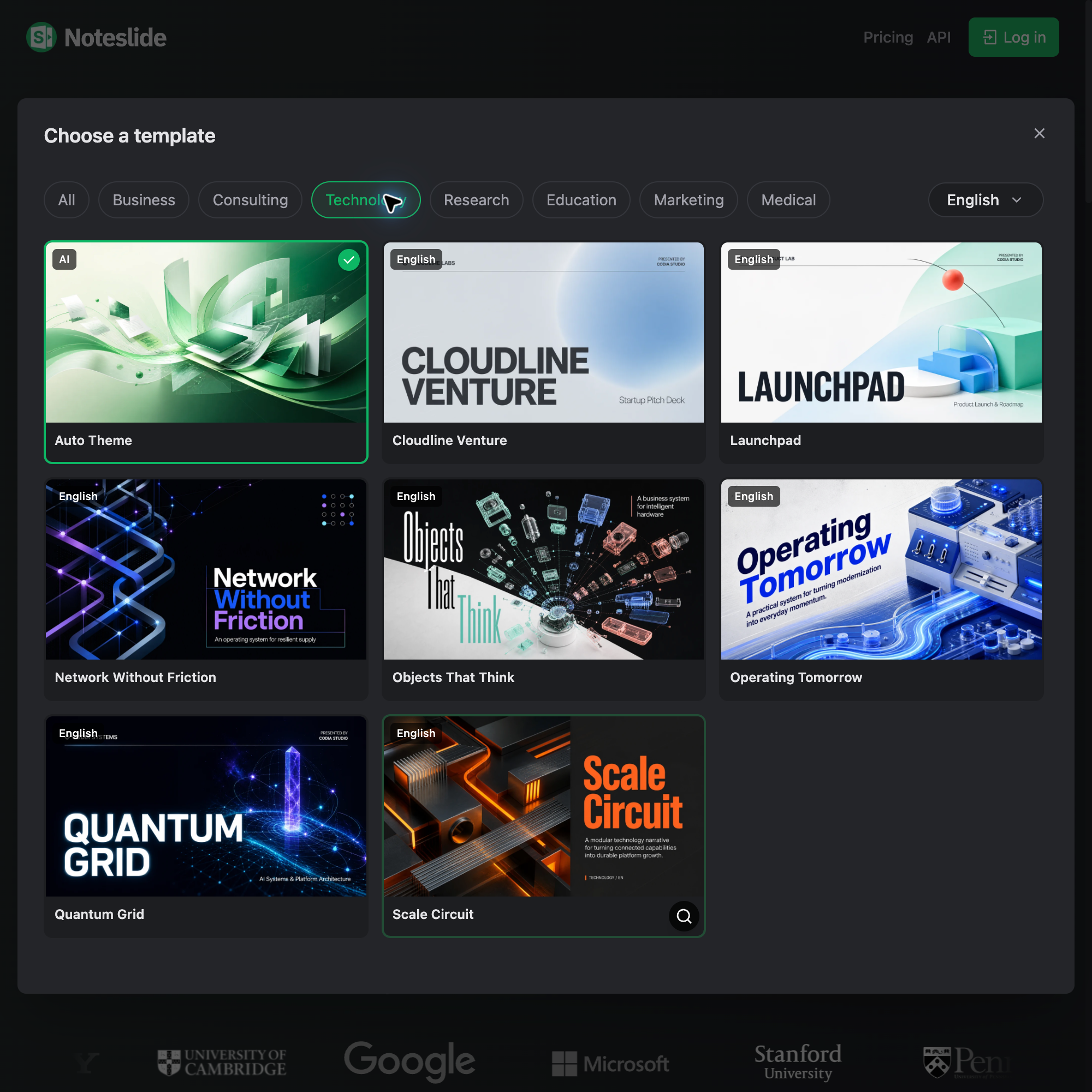 NoteSlide’s English template chooser shows Auto Theme, category filters, and presentation template previews.
Browse template previews by category, or select Auto Theme.
Then decide how to proceed: preview first, or generate the full deck. A preview gives you an early look at the visual direction before you continue with the remaining pages.
Use that moment to ask a few practical questions. Is the content readable at presentation size? Does the style suit the audience? Is the amount of information on each slide appropriate for how you plan to use it?
A deck for a live talk may need more breathing room than a document your audience will read independently. Making that intention clear in the brief—and checking the result—helps you guide the outcome.
Keep editing after generation
Presentations keep changing. A colleague asks for a clearer headline. A launch date moves. You discover that a slide needs one less point and one stronger example.
NoteSlide connects generation to an editable presentation workflow. From the completed task, you can open the editable deck or download an editable PPTX. You can also revise an individual generated page with updated content or instructions and regenerate that page.
The editor lets you work with text and other reconstructed elements, including moving, resizing, and restyling them. That makes the generated deck a starting point for the version you actually want to present.
Some complex visuals may remain image-based. Review important numbers, names, text, and layout before sharing the final file, just as you would with any AI-assisted draft.
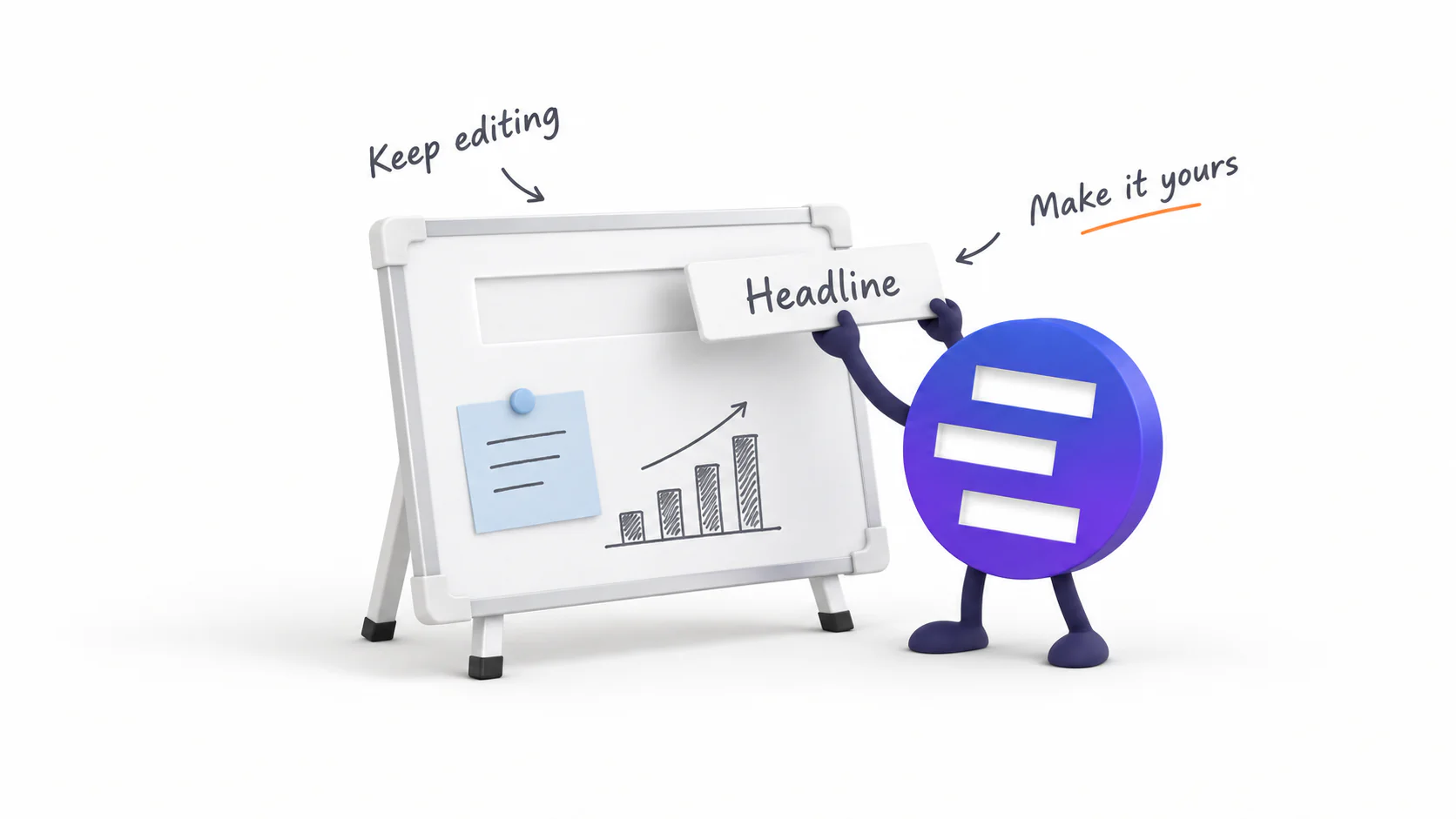 Xiaolan lifts a removable headline tile from a physical presentation board.
The first version gives you something concrete to refine.
Take the presentation into your next step
When you are ready, NoteSlide offers several ways to use the result:
- Editable PPTX: Continue working with the presentation in PowerPoint.
- PDF: Download the generated pages for review or distribution.
- Slide images: Download the generated visuals as an image archive.
One distinction matters: the generation workspace's PDF export uses the pages as generated, while its editable PPTX export reflects the editable deck. Choose the output that matches the version you want to share.
To try the new workflow, open NoteSlide's AI presentation generator, describe your presentation, and add the sources you want it to use. Check the applicable plan limits and displayed credit estimate as you work through the steps.
Start with one real brief. Review the outline. Preview the direction. Then turn the first draft into a presentation that sounds like you.