
Upload here, save to Google Drive
Pick Google Slides on the convert button and allow Google Drive once. When every page is converted, the deck is saved to your Drive as Google Slides by itself. PPTX and PDF exports stay one click away.
Google Slides can't open or insert a PDF. Upload it here: NoteSlide turns every page into an editable slide and saves the deck to your Google Drive as a Google Slides presentation.
Click to upload PDF, PPTX or images
Supports PDF or PPTX exported from NotebookLM / Gemini Notebook, or multiple images (JPG, PNG, WebP)
No PDF? Try one of these:
What you get
Each page of the PDF becomes its own Google Slides slide, built from real text boxes, shapes and images.
Retype, restyle or translate any line in Google Slides.
Positions, colors, shapes and charts follow the PDF page.
Pages with no text layer are read with AI Vision.
The usual workarounds
Google Slides inserts images and imports slides from presentations, not PDFs. So the PDF has to become slides somewhere first, and how that happens decides whether you can edit it.
Save every page as a JPG and add them one by one. Fast for a few pages, but the text is part of the picture.
Text cannot be edited
A PDF converter makes a PowerPoint file you upload and open with Google Slides. Text often lands in one box and the layout shifts.
Layout often shifts
Rebuilds every page from its text, shapes and images, then saves the deck to Google Drive as Google Slides.
Editable and saved to Drive
Two ways in
Pick Google Slides on the convert button and allow Google Drive once. When every page is converted, the deck is saved to your Drive as Google Slides by itself. PPTX and PDF exports stay one click away.
Open Extensions → NoteSlide → Open NoteSlide and drop the PDF into the Import file tab. When it is converted, insert the slides right into the presentation you have open, or save them as a new one. Up to 50 MB and 100 pages.
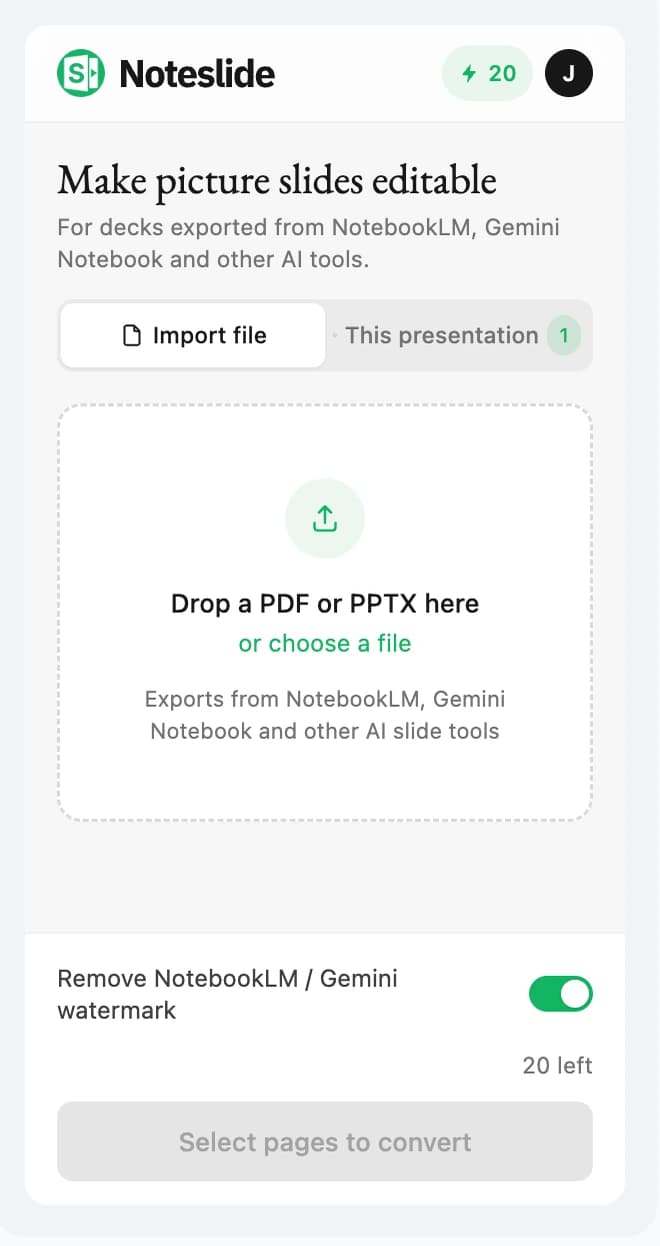
Use the add-on in that presentation. After converting, Insert into presentation puts the editable slides right after the slide you are on, at the presentation's own page size. No extra file is left in your Drive.
Step by step
Four steps from a PDF file to a Google Slides presentation you can edit, share and present.
Drop any PDF into NoteSlide: an exported deck, a report, a worksheet or a scanned handout.
Every page becomes a slide with separate text boxes, shapes and images. Fix anything in the browser editor.
Pick Google Slides on the convert button and allow Google Drive once. The deck is saved to your Drive as Google Slides when converting is done.
Open the new presentation from the link, or add the pages to a deck you already have with the Google Slides add-on.
Who it's for
Put worksheets, handouts and lecture notes into class slides you can mark up and share.
Reuse the charts and findings of a PDF report in your next Google Slides presentation.
Only the PDF is left? Get an editable deck back instead of rebuilding it by hand.
Scanned pages and NotebookLM or Gemini Notebook PDFs become slides with real text.
FAQ
Not as a presentation. Google Slides imports slides from Google Slides and PowerPoint files, and inserts images, so a PDF has to be turned into slides first. NoteSlide does that and saves the result to your Drive as a Google Slides file.
Use the NoteSlide add-on in that presentation: open Extensions → NoteSlide → Open NoteSlide, drop the PDF into the Import file tab and convert it, then choose Insert into presentation. The editable slides go in right after the slide you are on.
Yes. NoteSlide recreates headings, bullets and tables as separate text boxes, so you can click into them in Google Slides and edit, restyle or translate the text.
Yes. Scanned and image-only PDFs, such as NotebookLM or Gemini Notebook exports, are read with AI Vision and rebuilt as editable slides.
Free to start: a new NoteSlide account includes 5 credits. For more pages, choose a monthly or annual plan.
Yes, with the NoteSlide add-on from Google Workspace Marketplace. Its Import file tab takes PDF and PowerPoint files up to 50 MB and 100 pages. When they are converted, insert the slides into the open presentation or save them as a new one.
Your file is processed to build the slides and is never sold, shared or used to train AI models. Saving to Google Drive only asks for access to the files NoteSlide creates, not the rest of your Drive.