
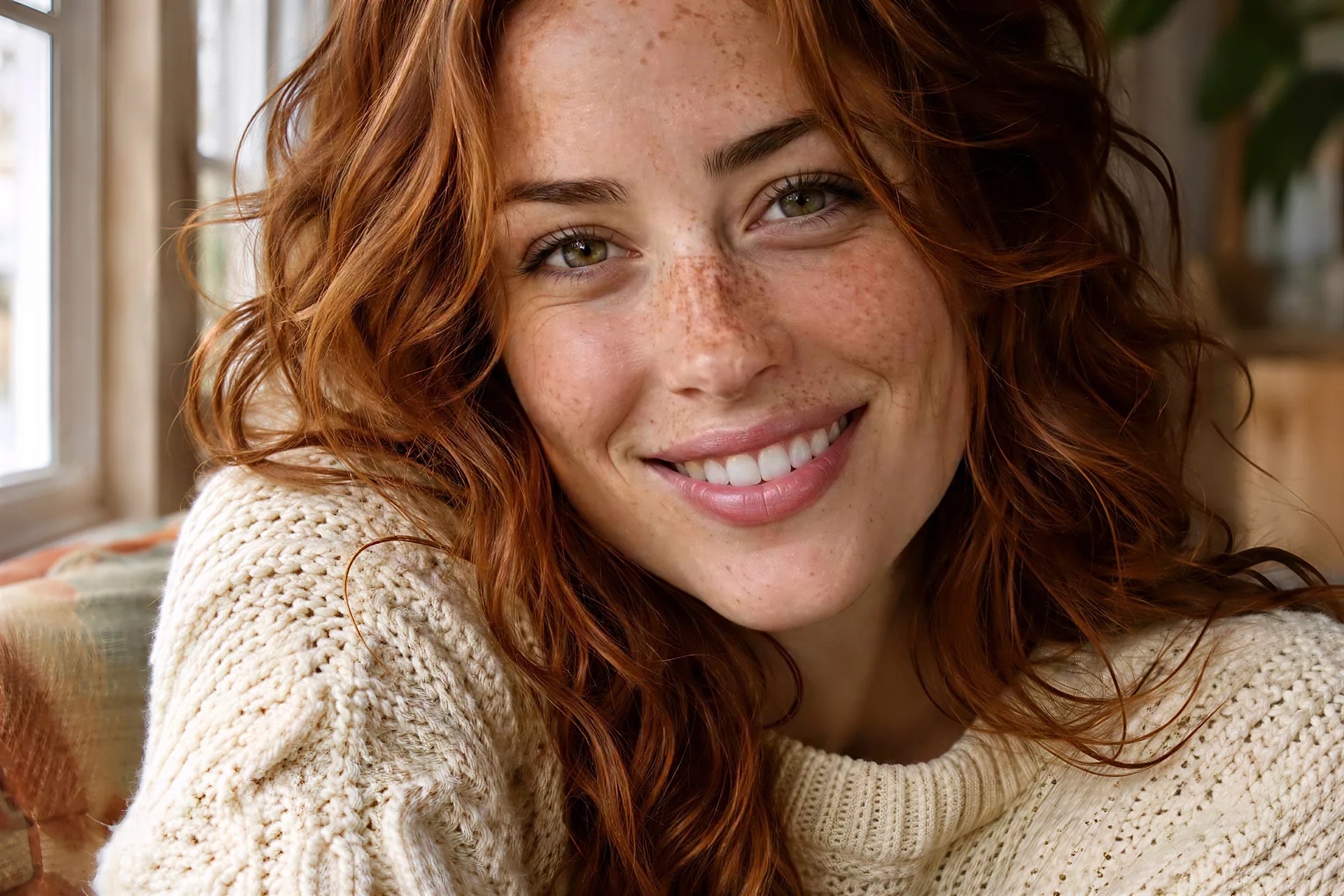
해상도
960 × 640
스크롤하여 개선 결과 확인
이미지 해상도 높이기
이미지 해상도 높이기
저해상도 또는 흐린 이미지를 업로드하고 AI로 선명도를 높인 뒤 Codia Studio에서 결과물을 계속 다듬습니다.
페이지 어디에나 이미지 드롭 가능 · 최대 20장 일괄 처리 · 실패 시 무료
0×
확대, 한 번에 최대 4K까지
0
회당 일괄 처리 이미지 수
0
사진·디테일·텍스트 전용 모델
0
실패 시 차감 크레딧
자세히 보기
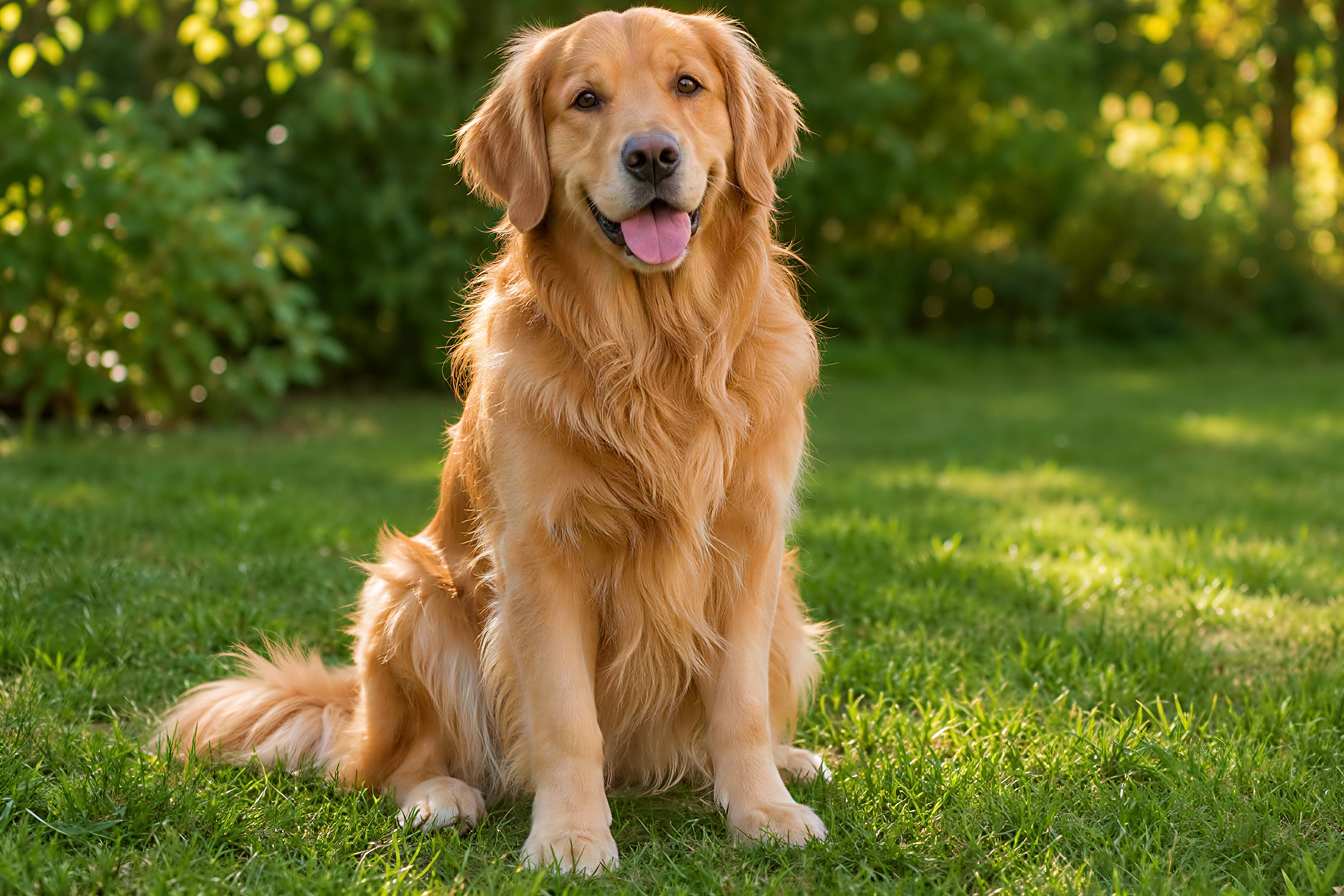
2배 및 4배 AI 이미지 업스케일 디테일 비교
1×
작게 보면 괜찮아 보입니다.
저해상도 사진의 문제는 인쇄하거나 크롭하고 확대할 때 드러납니다.
2×
확대하면 뭉개짐이 보입니다.
왼쪽은 압축 블록과 번짐, 오른쪽은 AI가 재구성한 선명한 구조입니다.
4×
한 올 한 올 살아납니다.
털과 눈, 경계선이 원본으로는 불가능했던 크기에서도 또렷하게 유지됩니다.
얼굴 보존 AI 업스케일러
더 선명하게. 얼굴은 그대로.
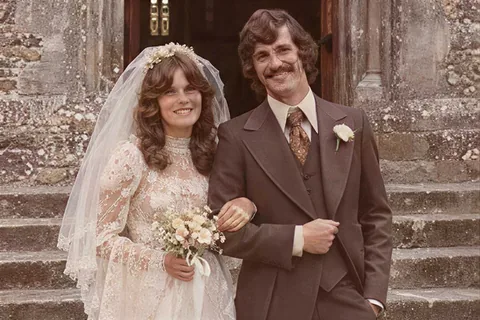
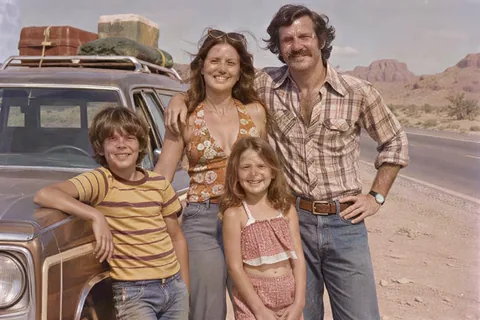
일반 생성형 업스케일러는 얼굴을 다른 사람처럼 다시 그립니다. OptiClear는 눈과 피부를 복원한 뒤 원본과 비교해 달라진 부분을 되돌립니다.
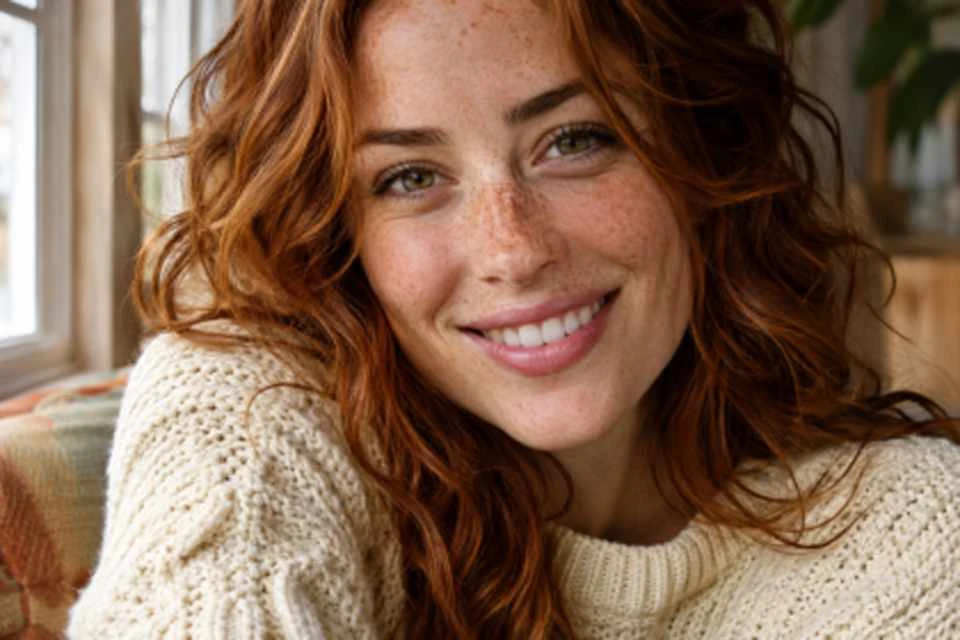
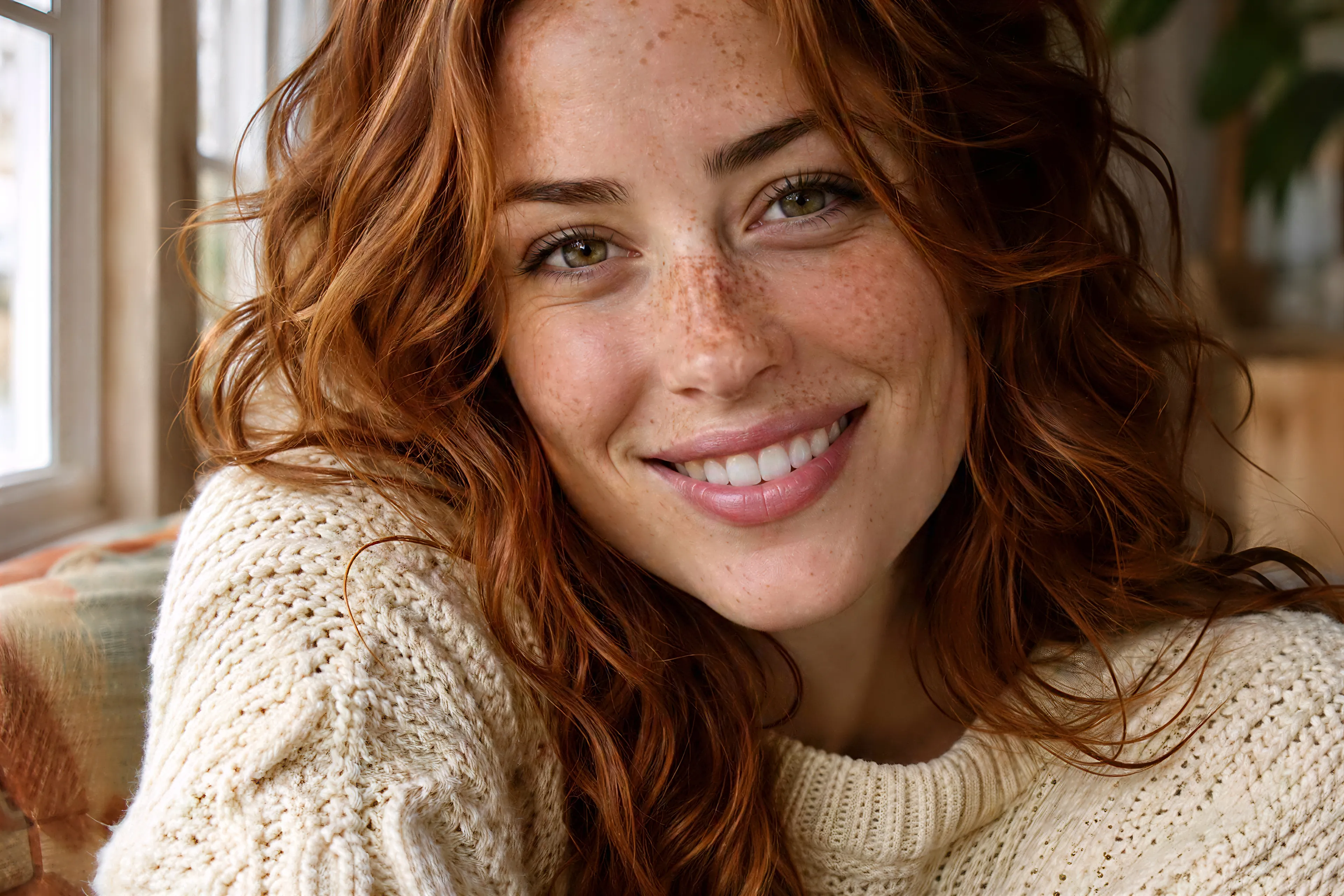
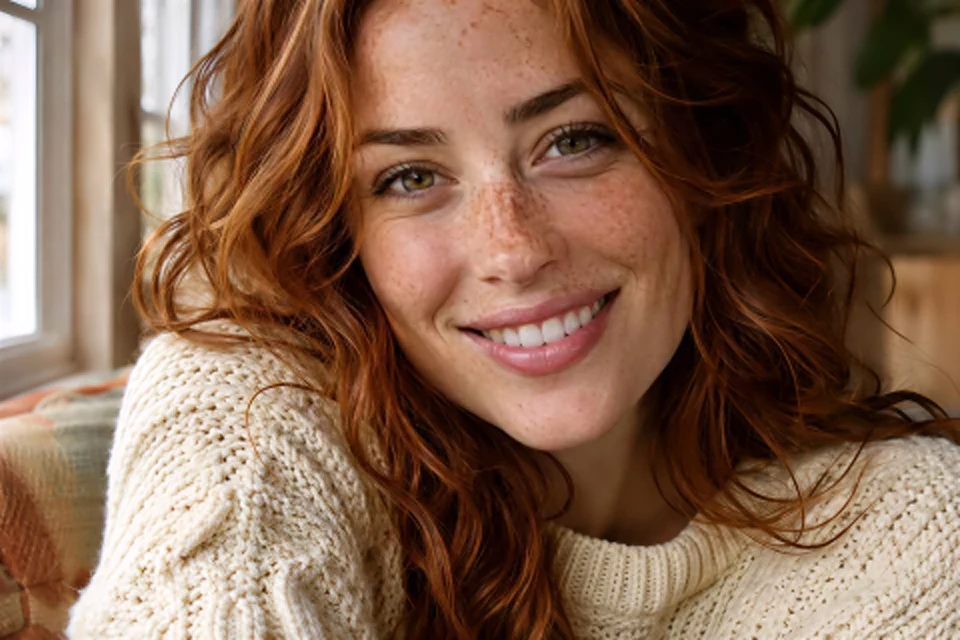 originalFace match (SSIM)0.97
Panel 03 flips between your upload and OptiClear’s result scaled back to the upload’s own detail. If a face had been redrawn, it would jump. The score compares the two faces pixel structure by pixel structure; 1.00 is identical.
No new features
Eyes, nose and mouth keep their shape and place.
Same expression
A half smile stays a half smile. No beauty filter.
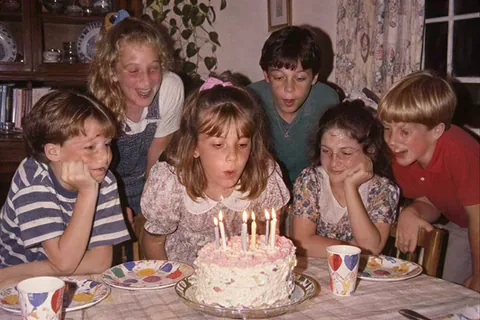
Small faces in group shots
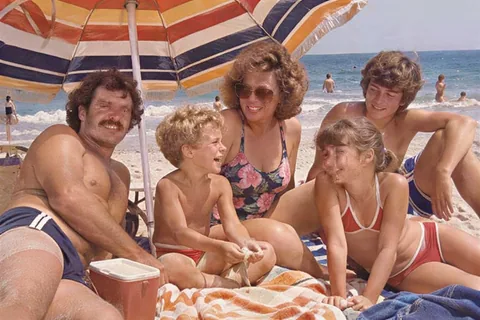
Where most upscalers smear or invent faces, every guest stays themselves.
Glasses, beards, wrinkles
Age and character are details too. They stay.
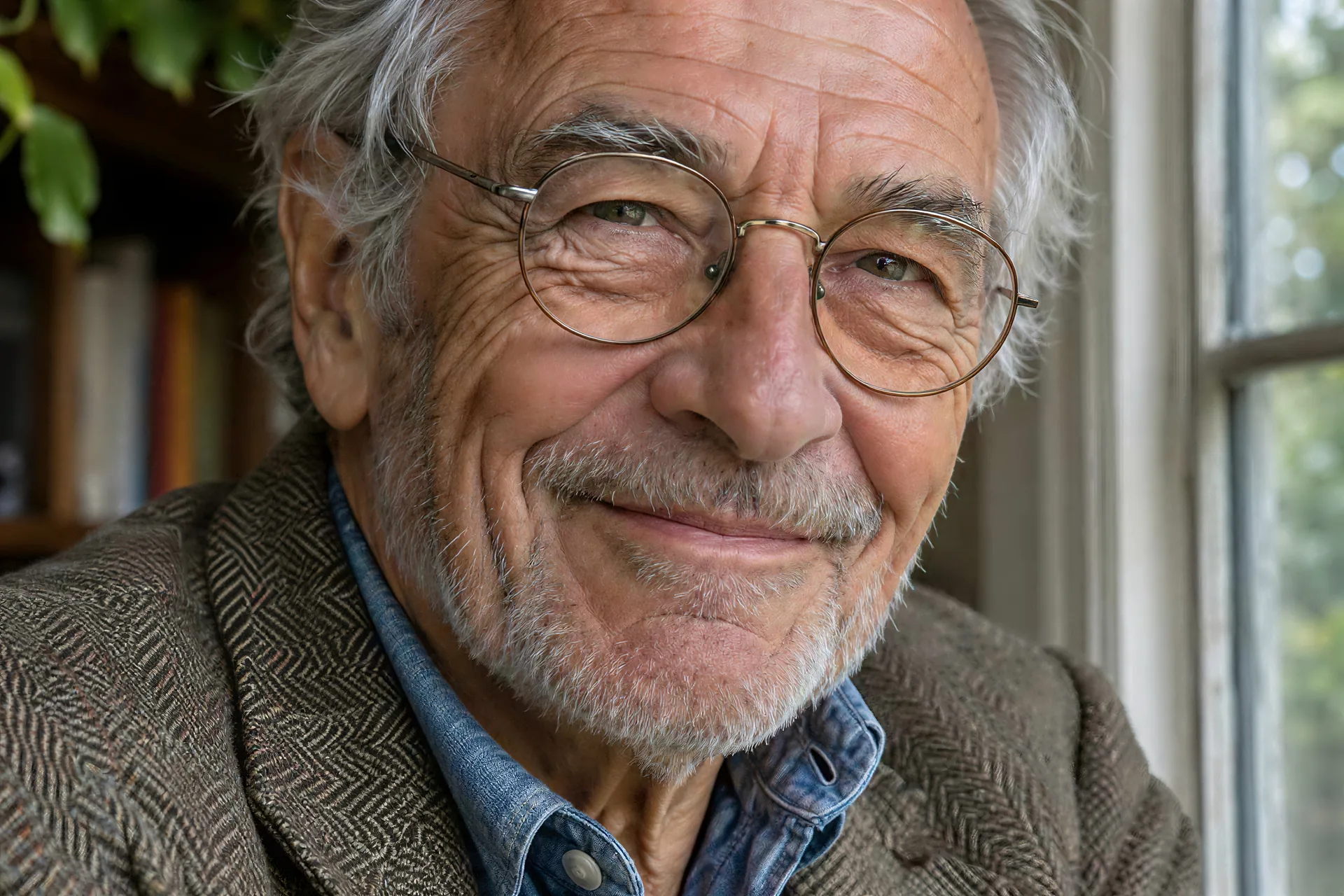 Before · 960×640OptiClear · 3840×2560
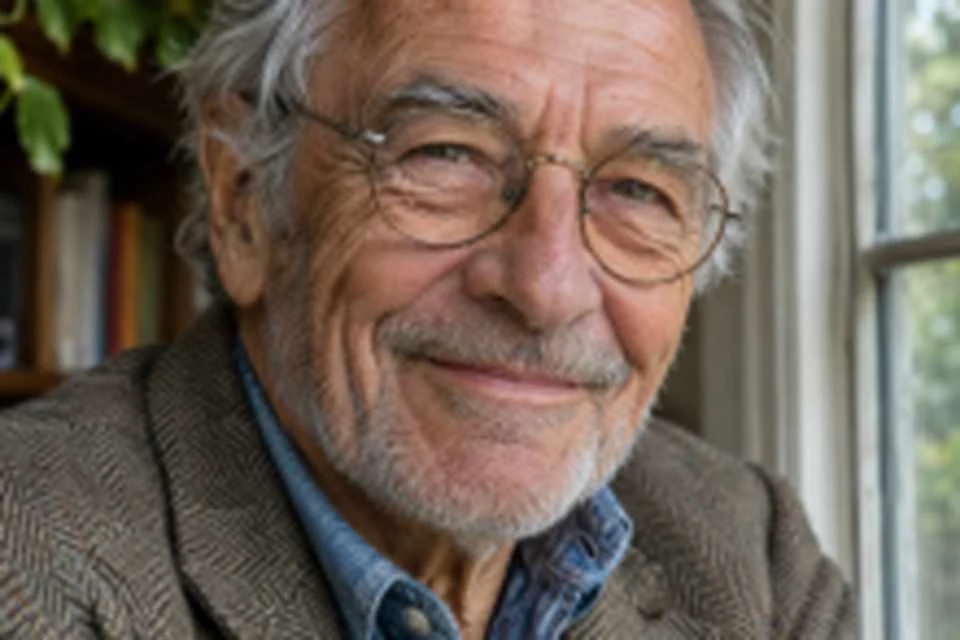
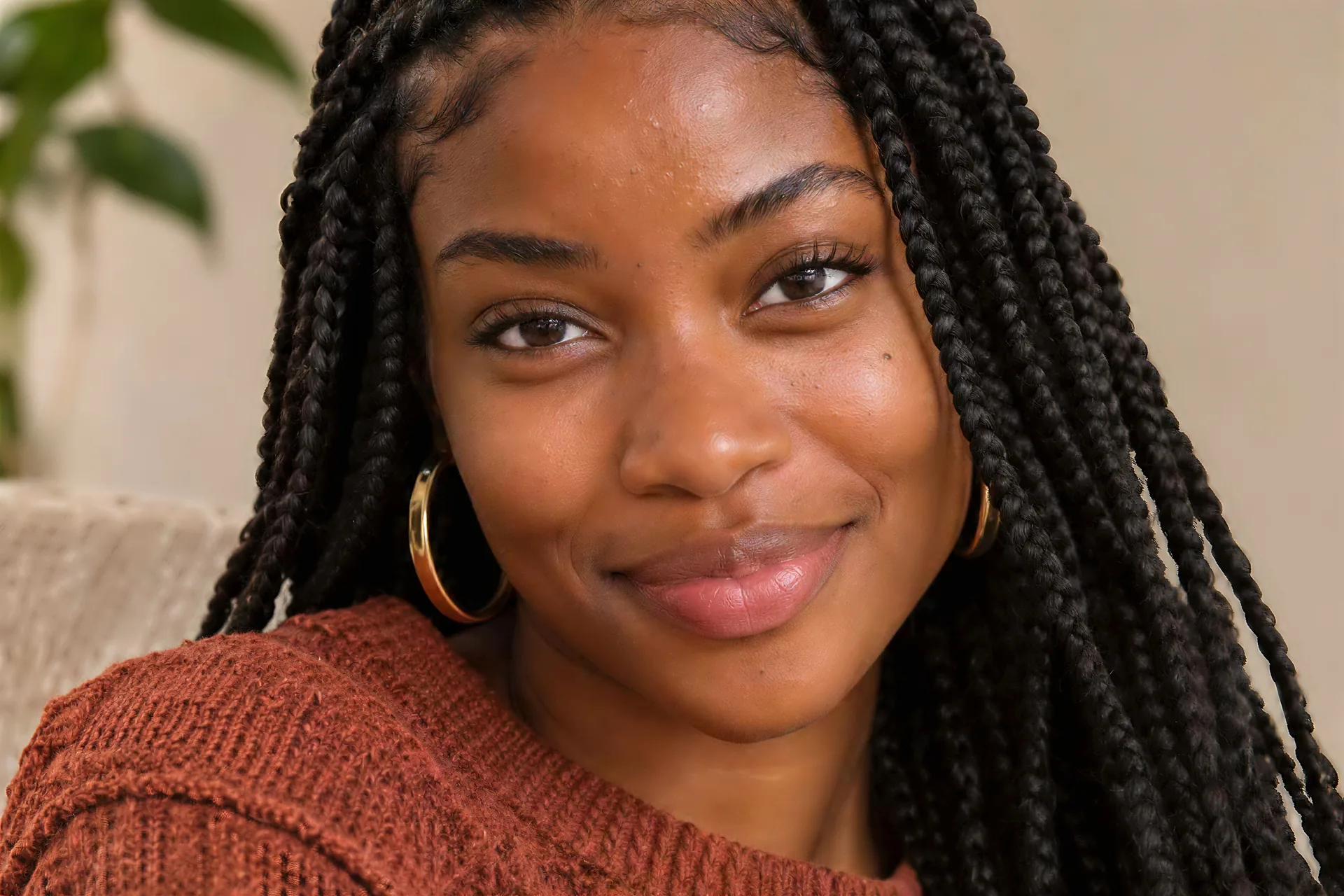 Before · 960×640OptiClear · 3840×2560
 Before · 960×640OptiClear · 3840×2560
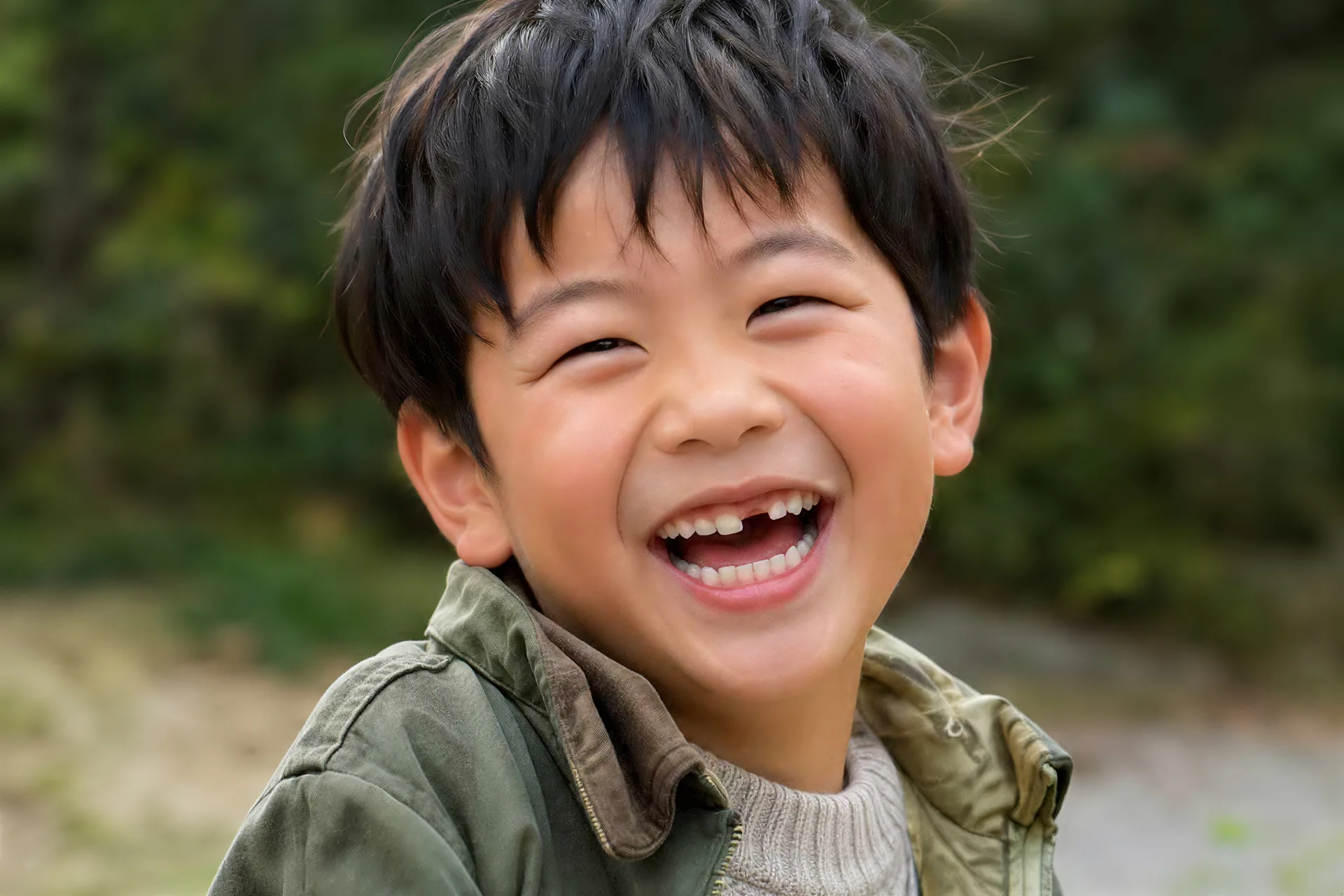
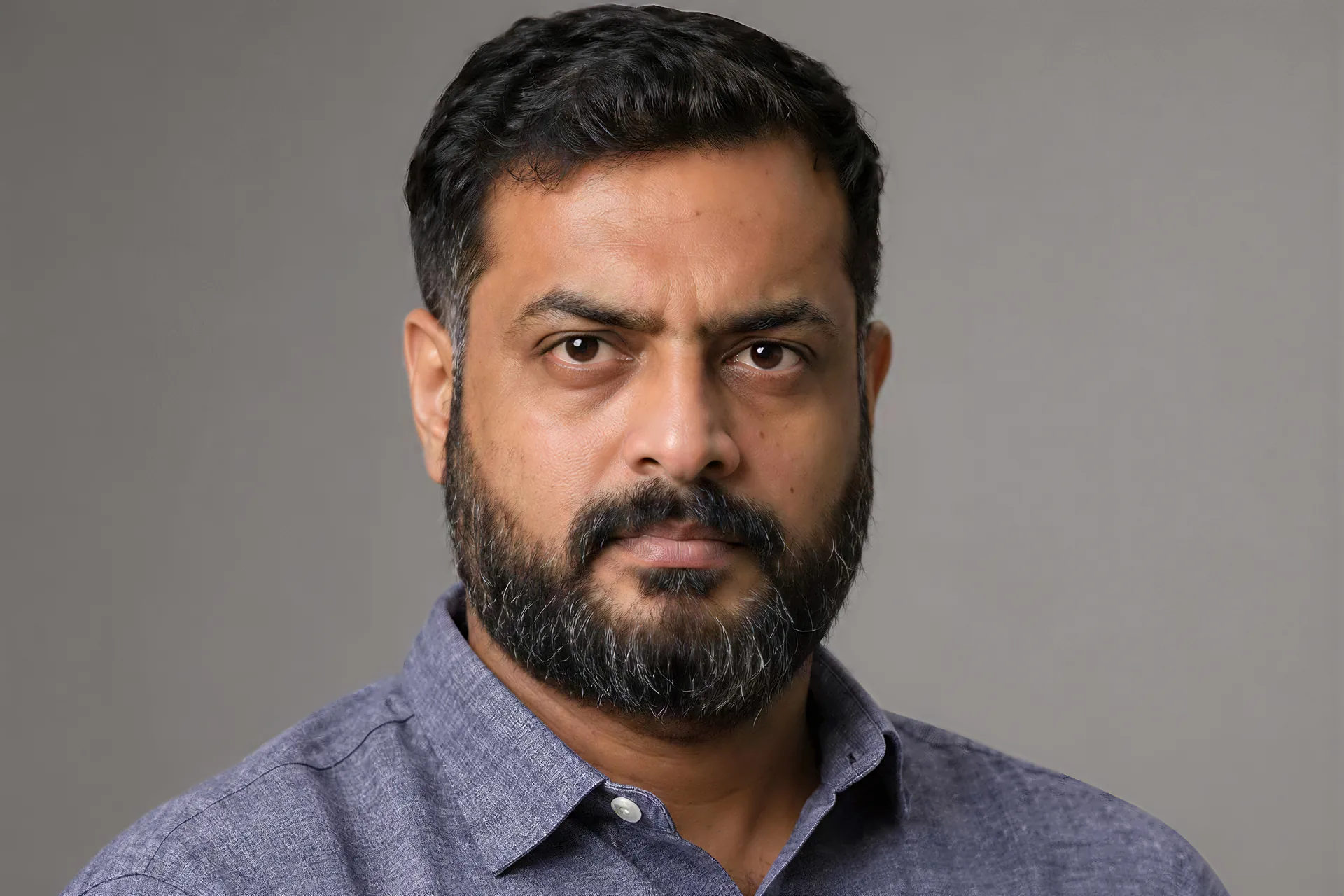 Before · 960×640OptiClear · 3840×2560
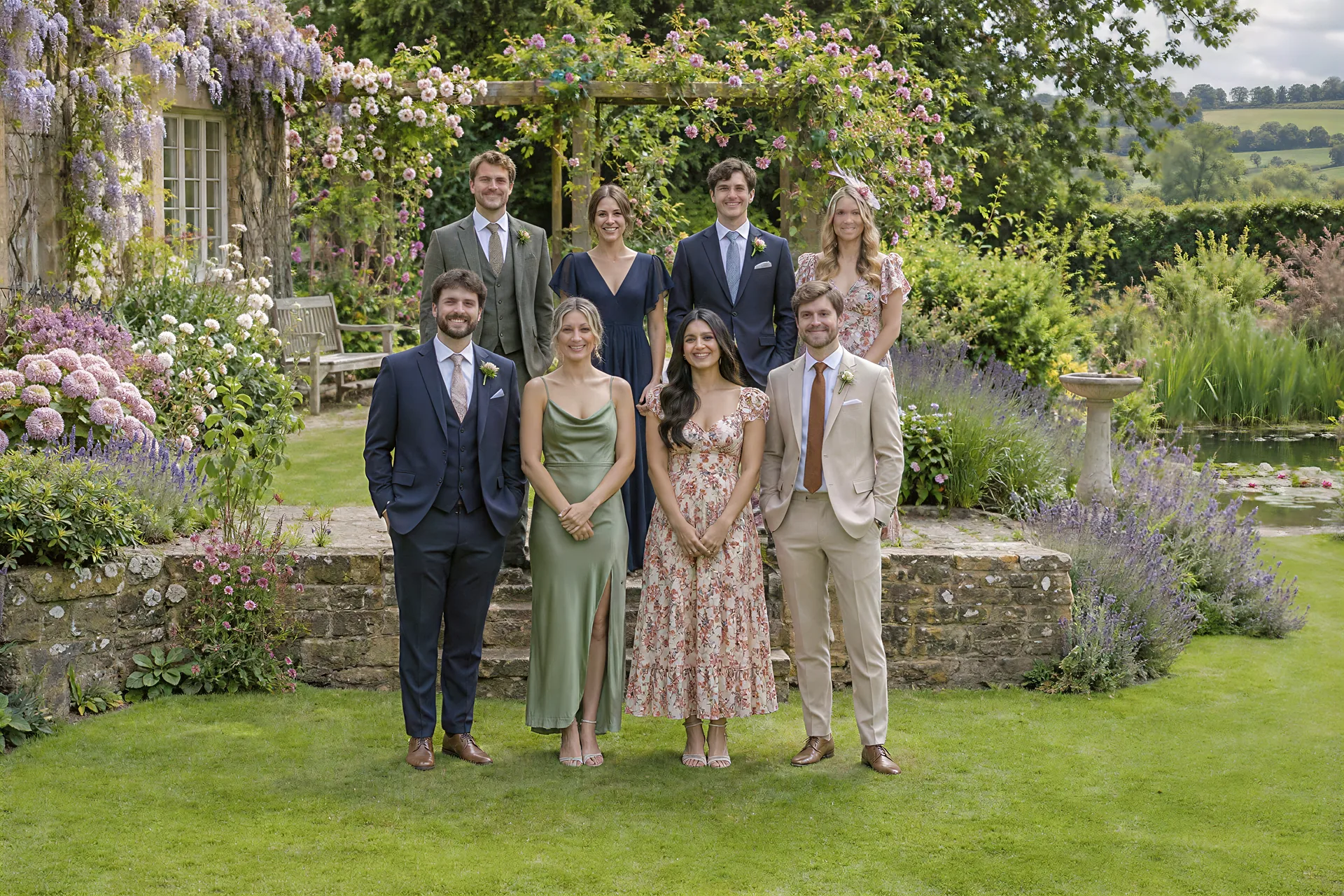 Before · 960×640OptiClear · 3840×2560
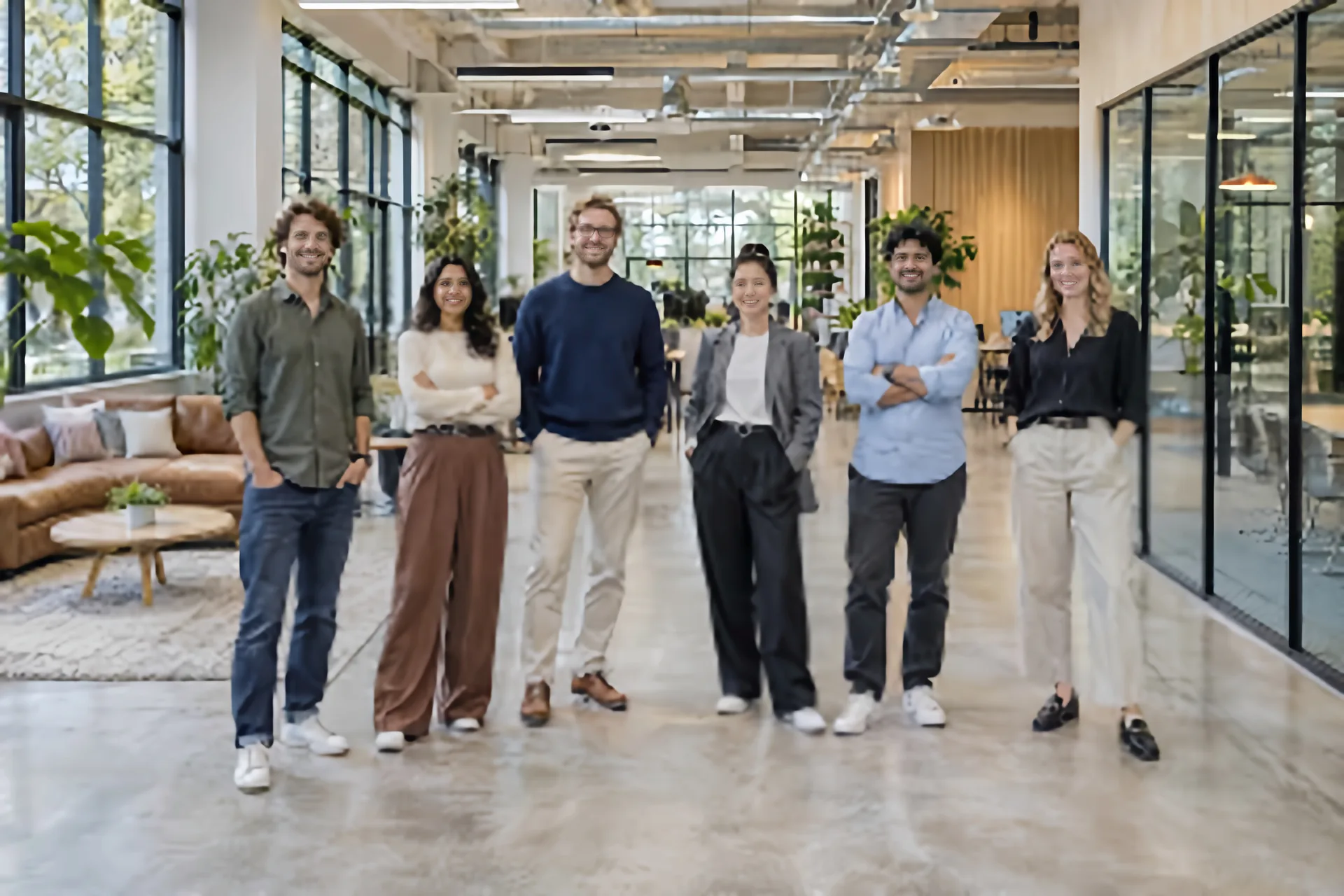 Before · 960×640OptiClear · 3840×2560
모든 사진 유형 지원
상품 사진, 옛날 사진, 일러스트까지 고화질로.
 Before · 960×640OptiClear · 3840×2560
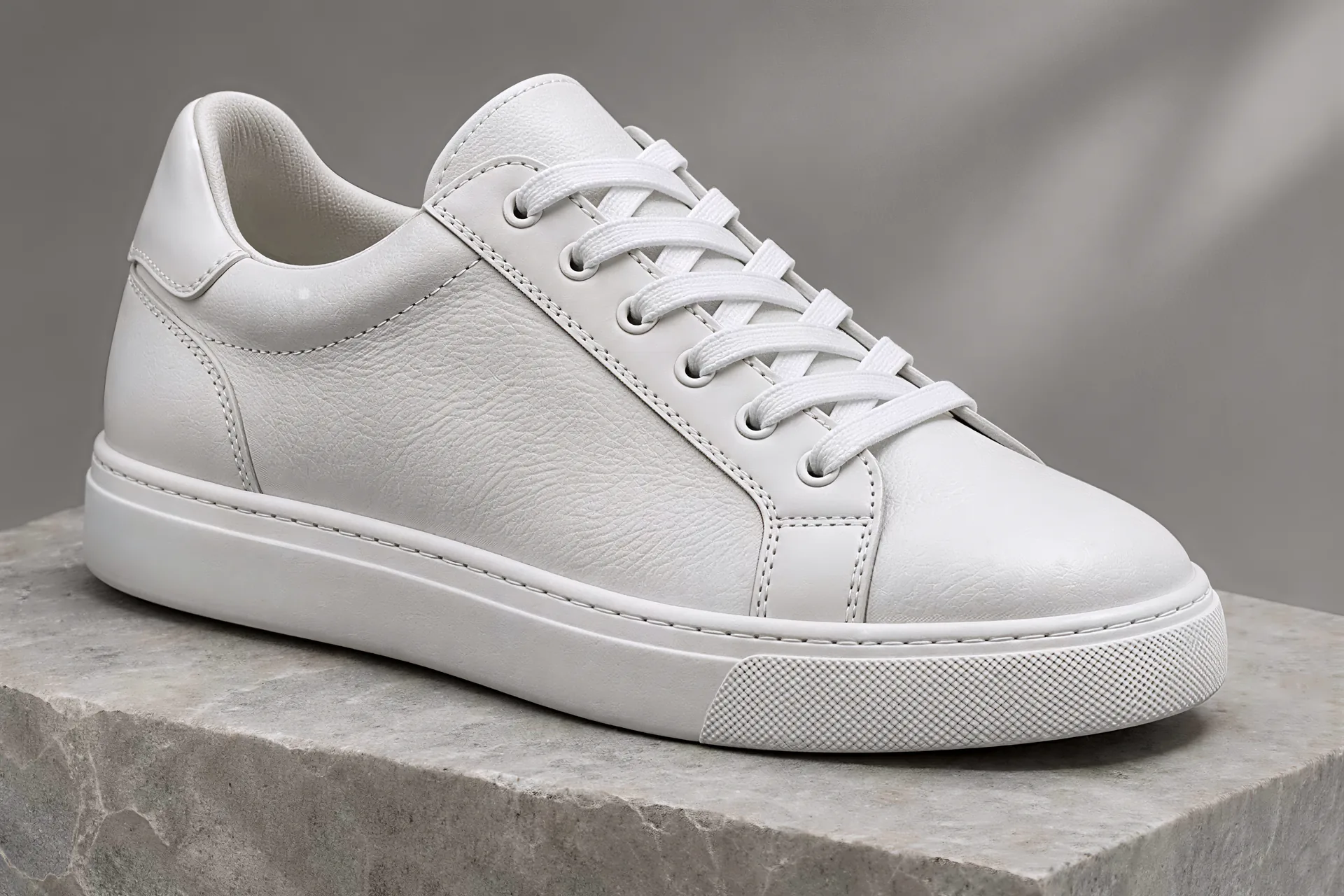
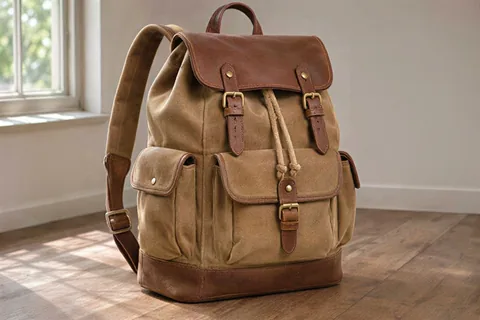
Product
Leather grain and stitching for a product-page zoom.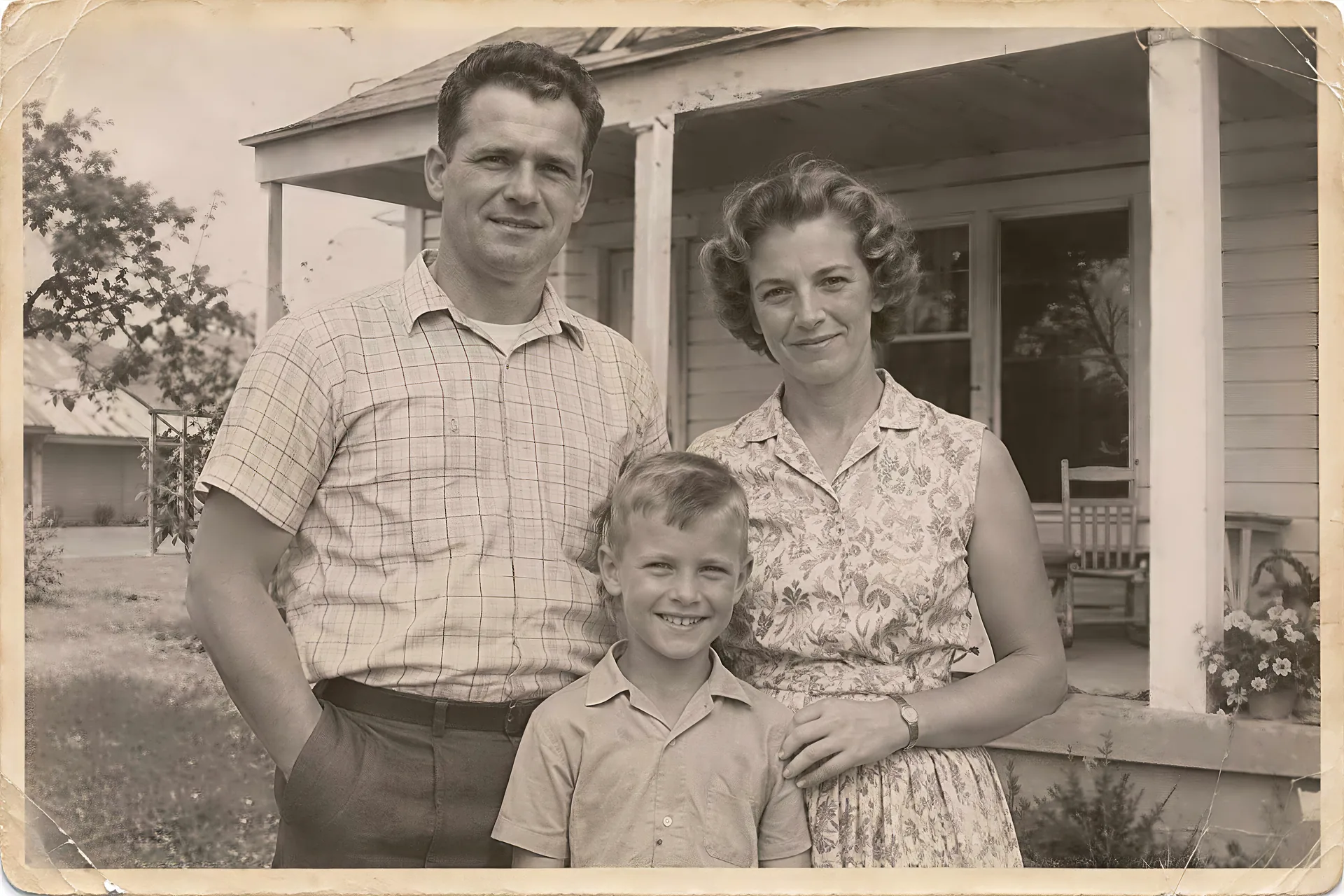 Before · 960×640OptiClear · 3840×2560
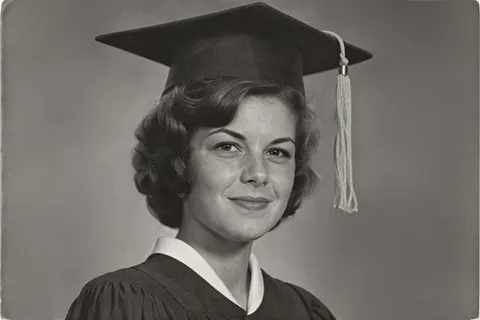
Old photo
Faces and edges come back; the film character stays.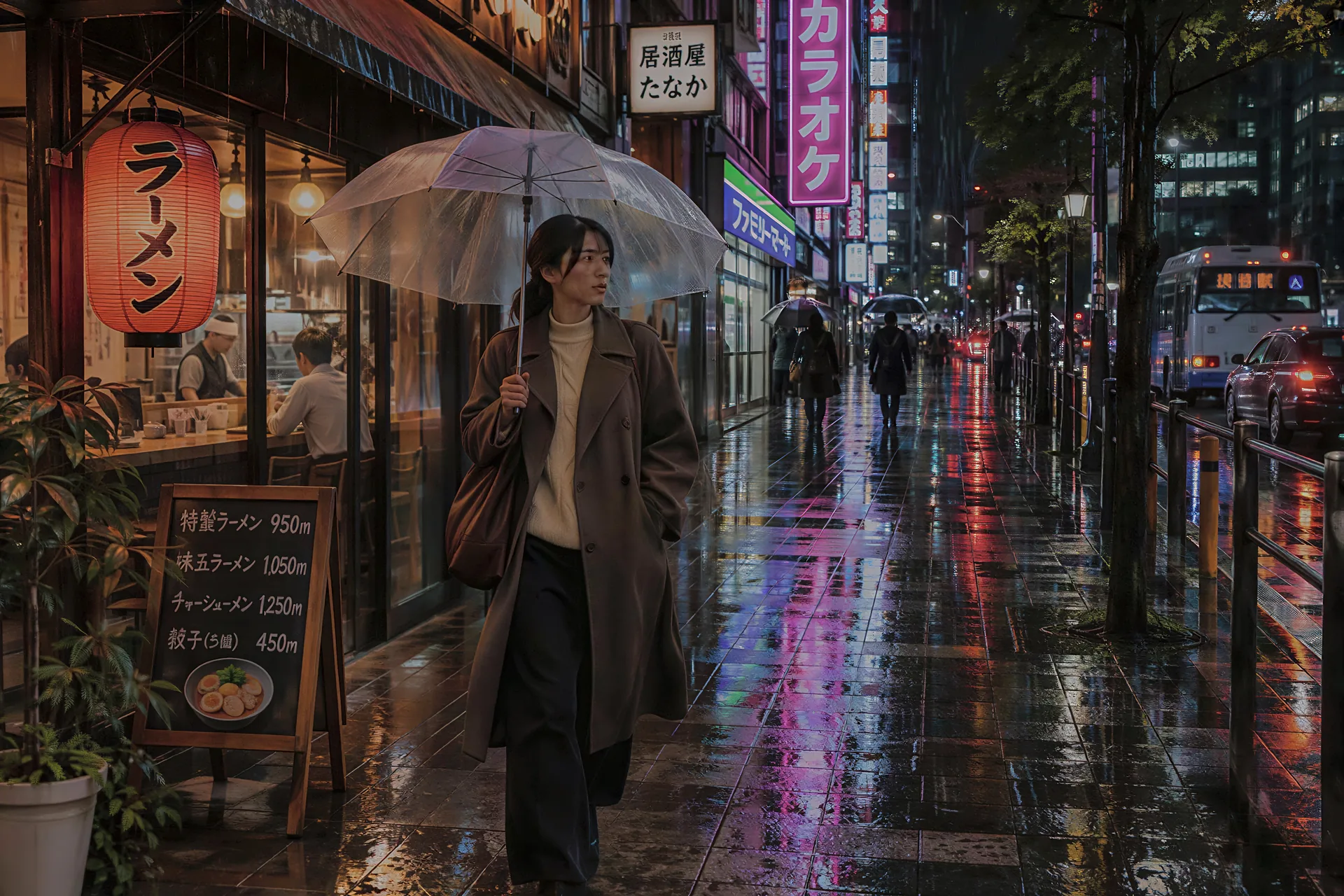 Before · 960×640OptiClear · 3840×2560
Night street
Noise cleaned before enlarging, neon stays crisp.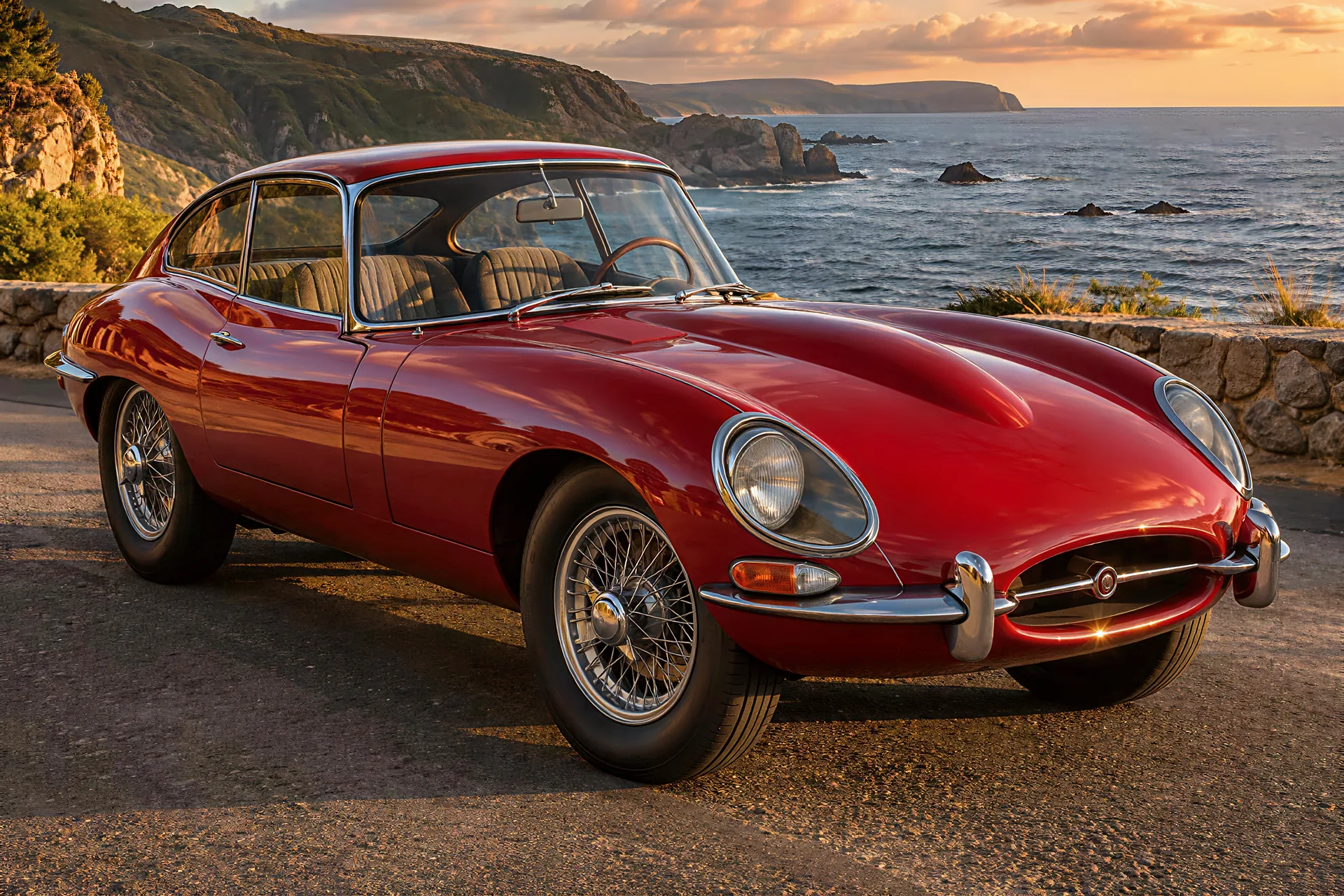 Before · 960×640OptiClear · 3840×2560
Car
Chrome, reflections and paint depth.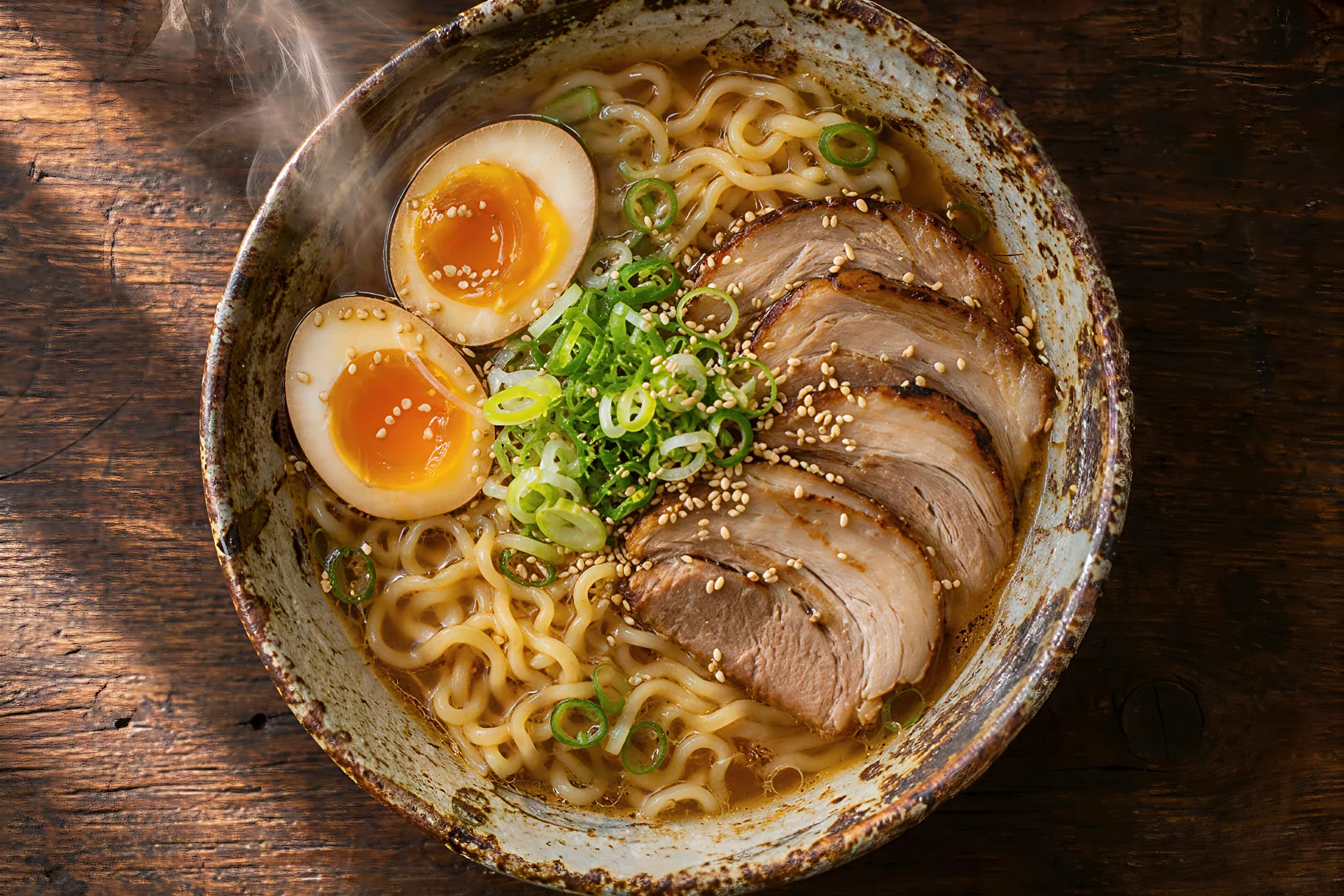 Before · 960×640OptiClear · 3840×2560
Food
Texture that makes a menu photo look edible again.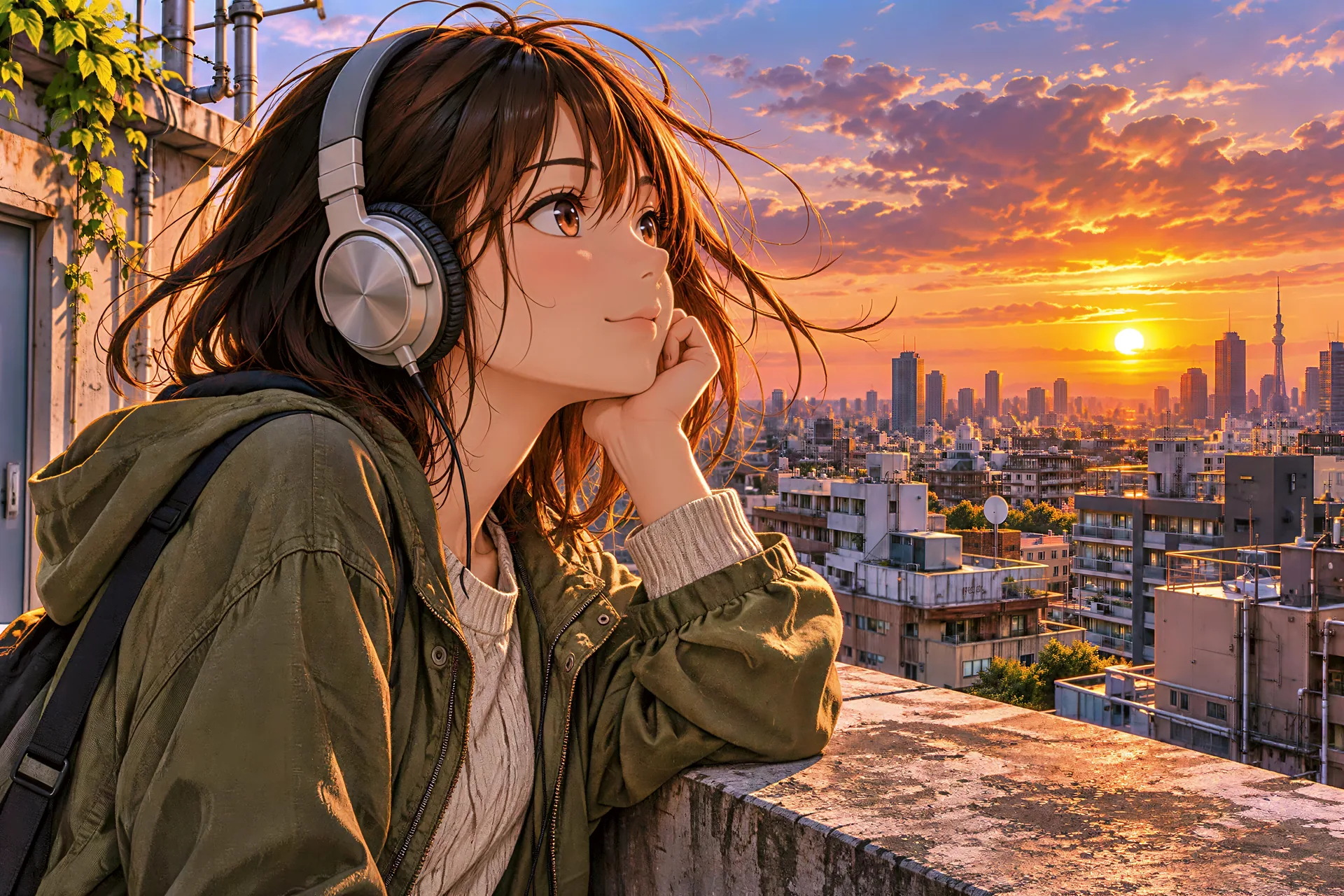 Before · 960×640OptiClear · 3840×2560
Illustration
Clean line art and flat colour, no muddy halos.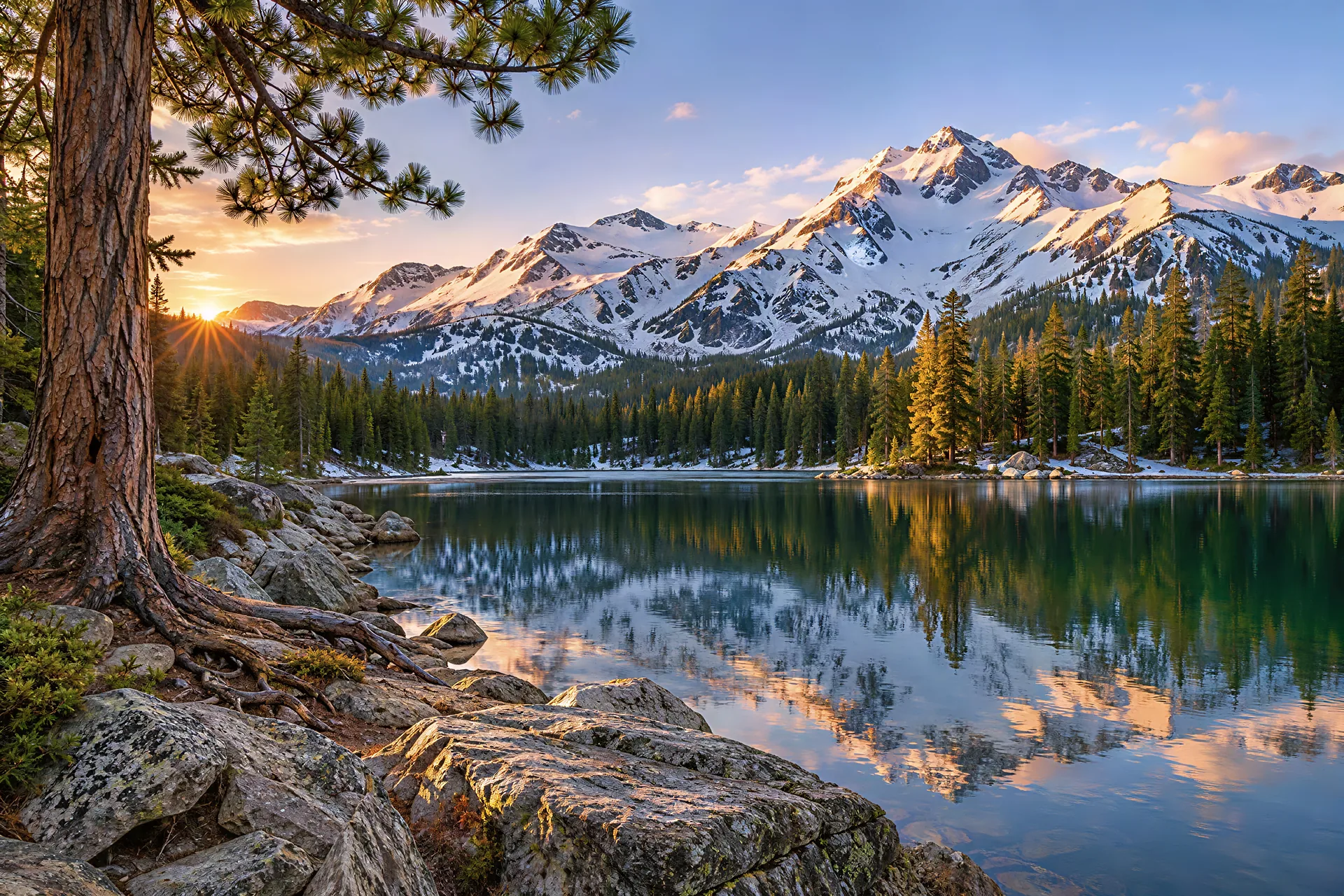 Before · 960×640OptiClear · 3840×2560
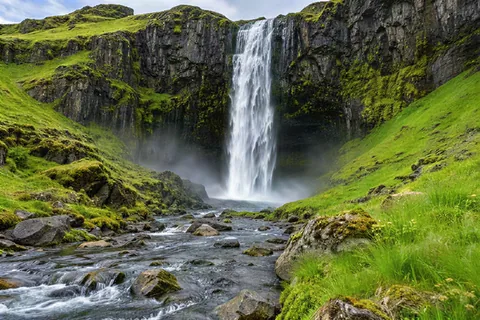
Landscape
Rocks, trees and ridgelines at print size.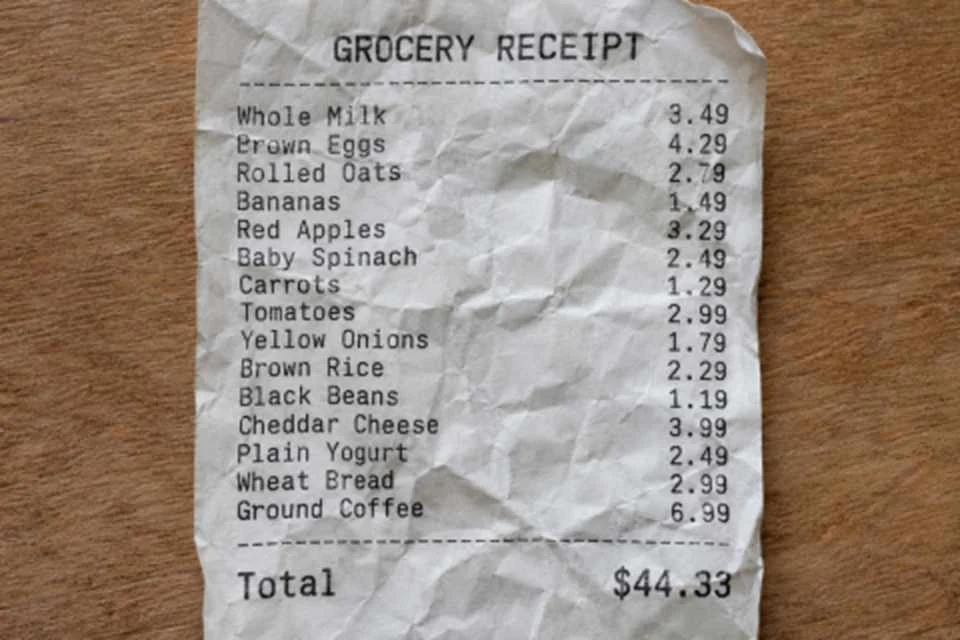
텍스트 및 스크린샷 선명화
작은 글씨도 또렷하게.
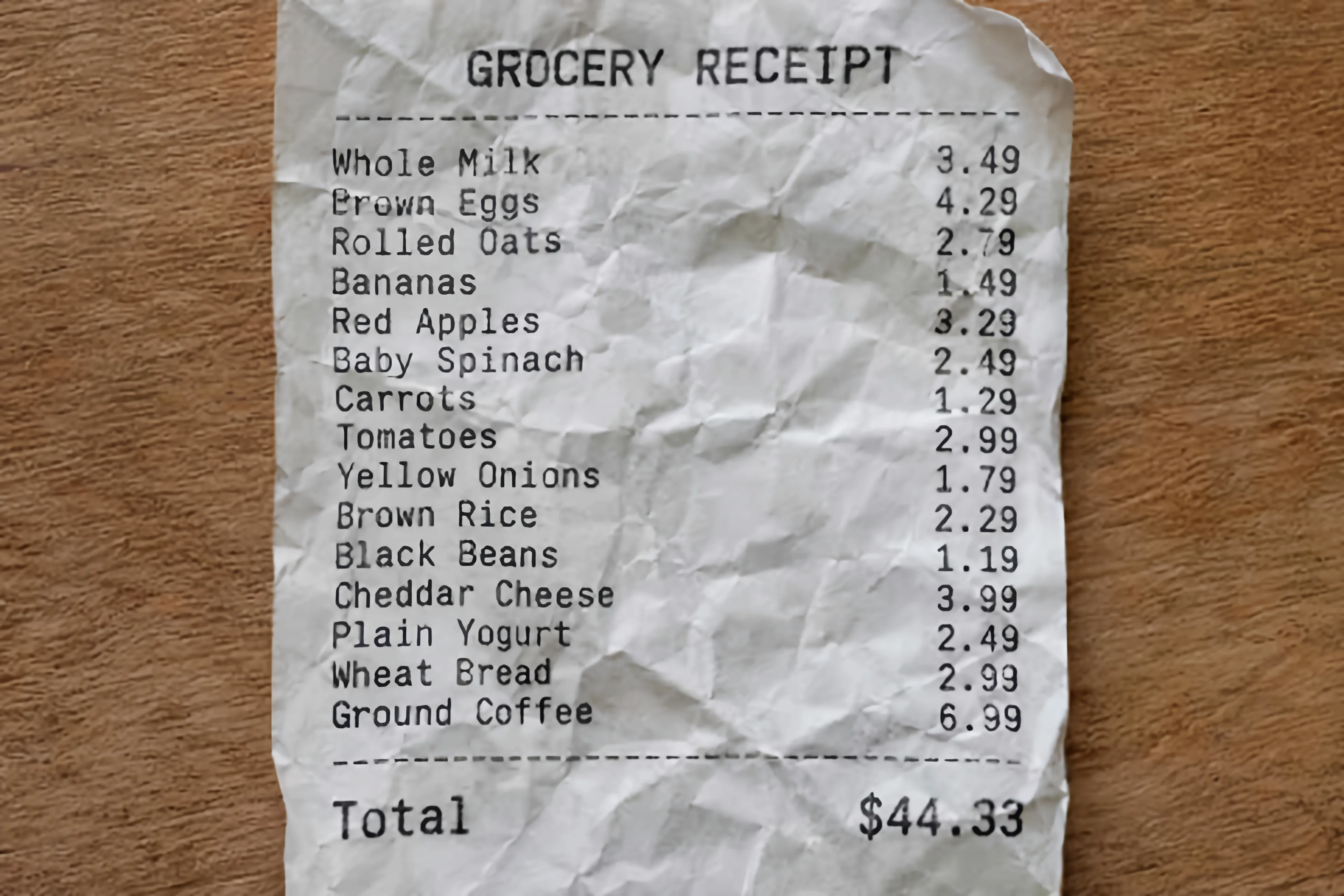
영수증 위로 렌즈를 움직여 보세요. 바깥은 원본, 안쪽은 OptiClear 2배 결과입니다. 텍스트 모델은 기존 획만 살리고 새 글자를 지어내지 않습니다.
일괄 처리
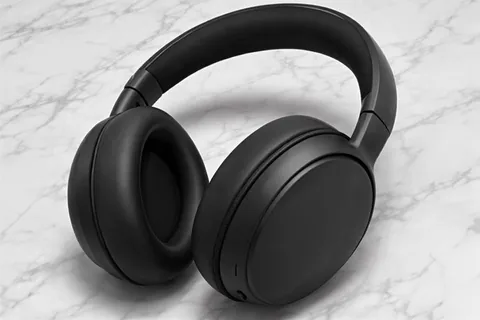
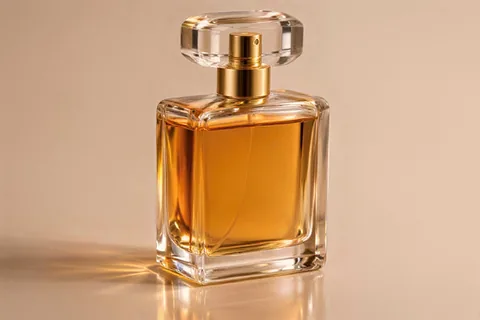
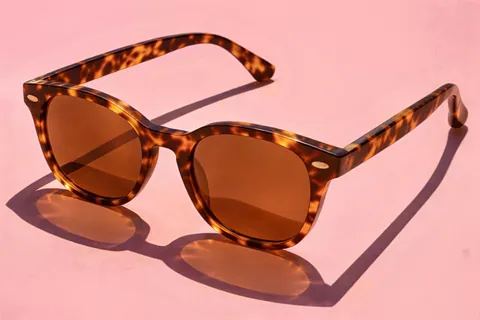
사진 20장을 클릭 한 번으로 일괄 업스케일.
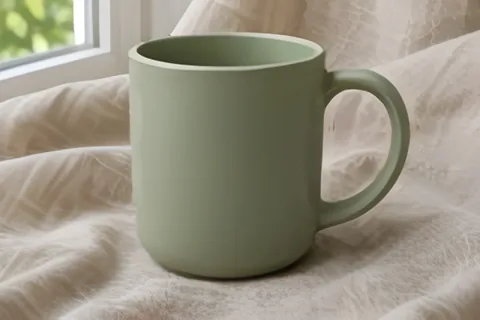
촬영본이나 상품 카탈로그, 스캔 사진을 통째로 올리세요. 같은 설정으로 처리하고 비교한 뒤 ZIP 하나로 다운로드합니다.
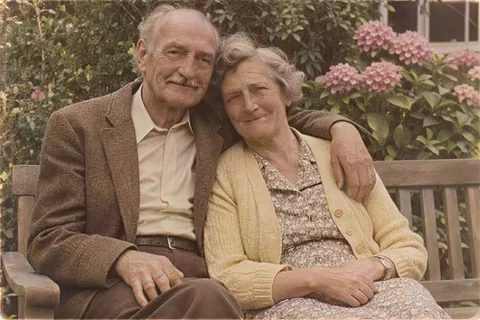
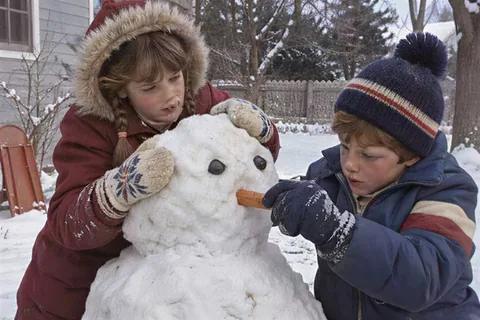
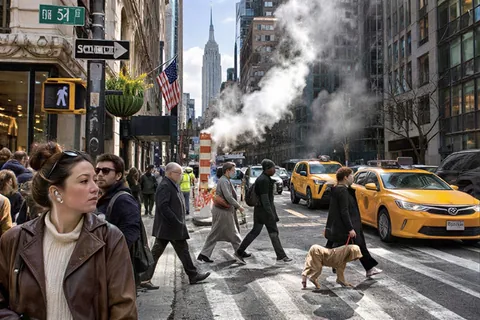
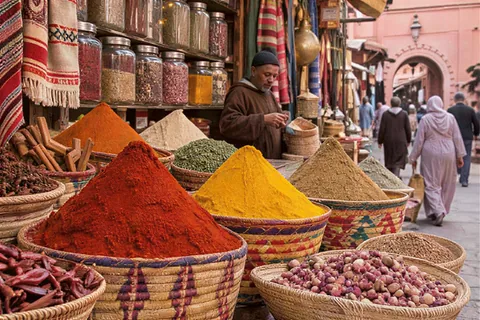
3가지 전용 AI 모델
흐림 유형별 맞춤 AI 업스케일 모델.
Auto가 이미지를 분석해 최적의 모델을 고르며, 디테일 복원이나 텍스트 전용 모델을 직접 선택할 수도 있습니다.
사용 방법
AI로 이미지를 4K로 업스케일하는 방법
1장 또는 최대 20장의 이미지 업로드
브라우저에 JPG, PNG, WebP 파일(장당 최대 30 MB)을 드롭하세요. 인물, 상품 사진, 오래된 사진, 스크린샷 모두 지원합니다.
AI 모델과 2배·4배 배율 선택
Auto로 자동 선택하거나 심한 흐림에는 Pro Recover, 글자와 UI에는 Text & Graphics를 선택해 최대 4K로 확대하세요.
전후 비교 후 개별 또는 ZIP 다운로드
모든 결과를 나란히 비교하고 개별 저장하거나 한 번에 ZIP으로 다운로드하세요. 실패한 작업은 크레딧이 차감되지 않습니다.
무보정 실제 결과
AI 이미지 업스케일 전후 실제 사례.
모든 타일은 저화질 압축 JPEG와 OptiClear 출력 결과입니다. 마우스를 올리거나 드래그해 비교해 보세요.
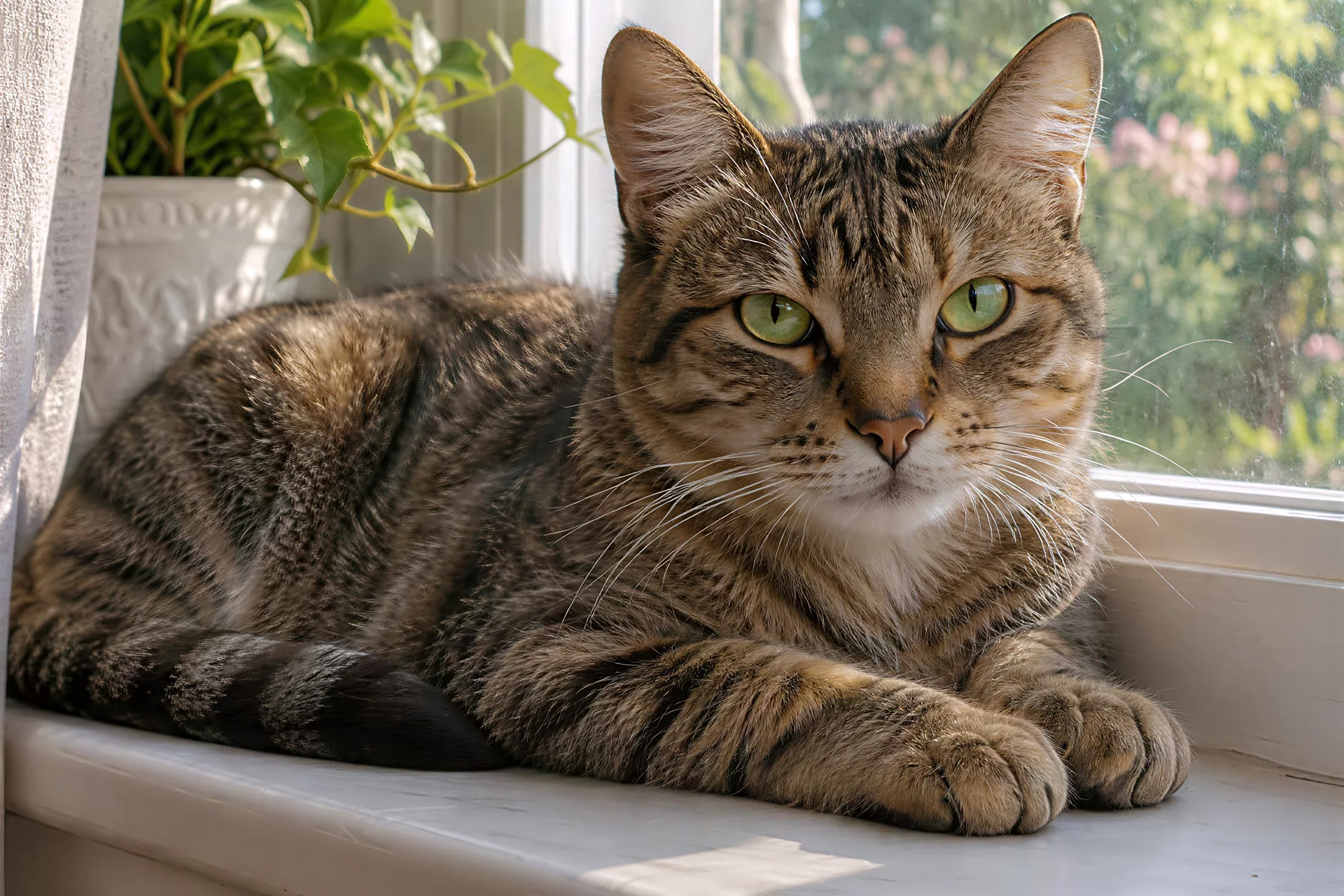 Before · 960×640OptiClear · 3840×2560
Cat
960→3840px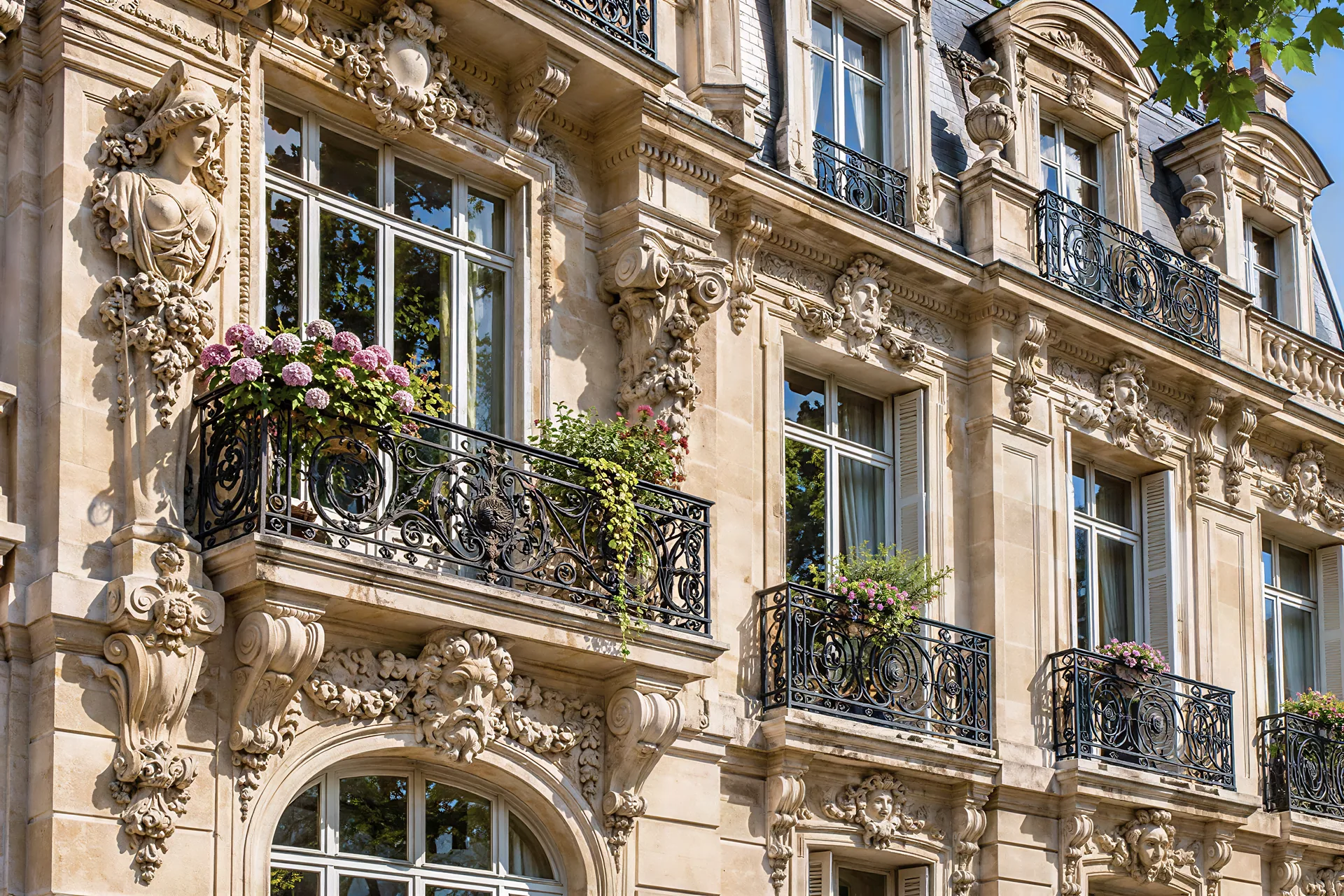 Before · 960×640OptiClear · 3840×2560
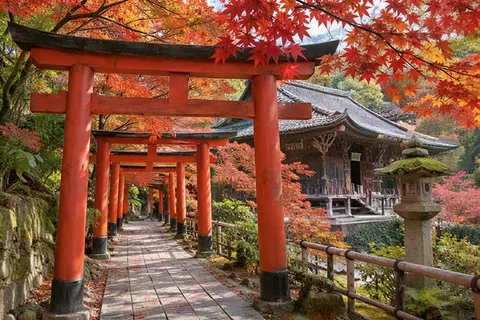
Architecture
960→3840px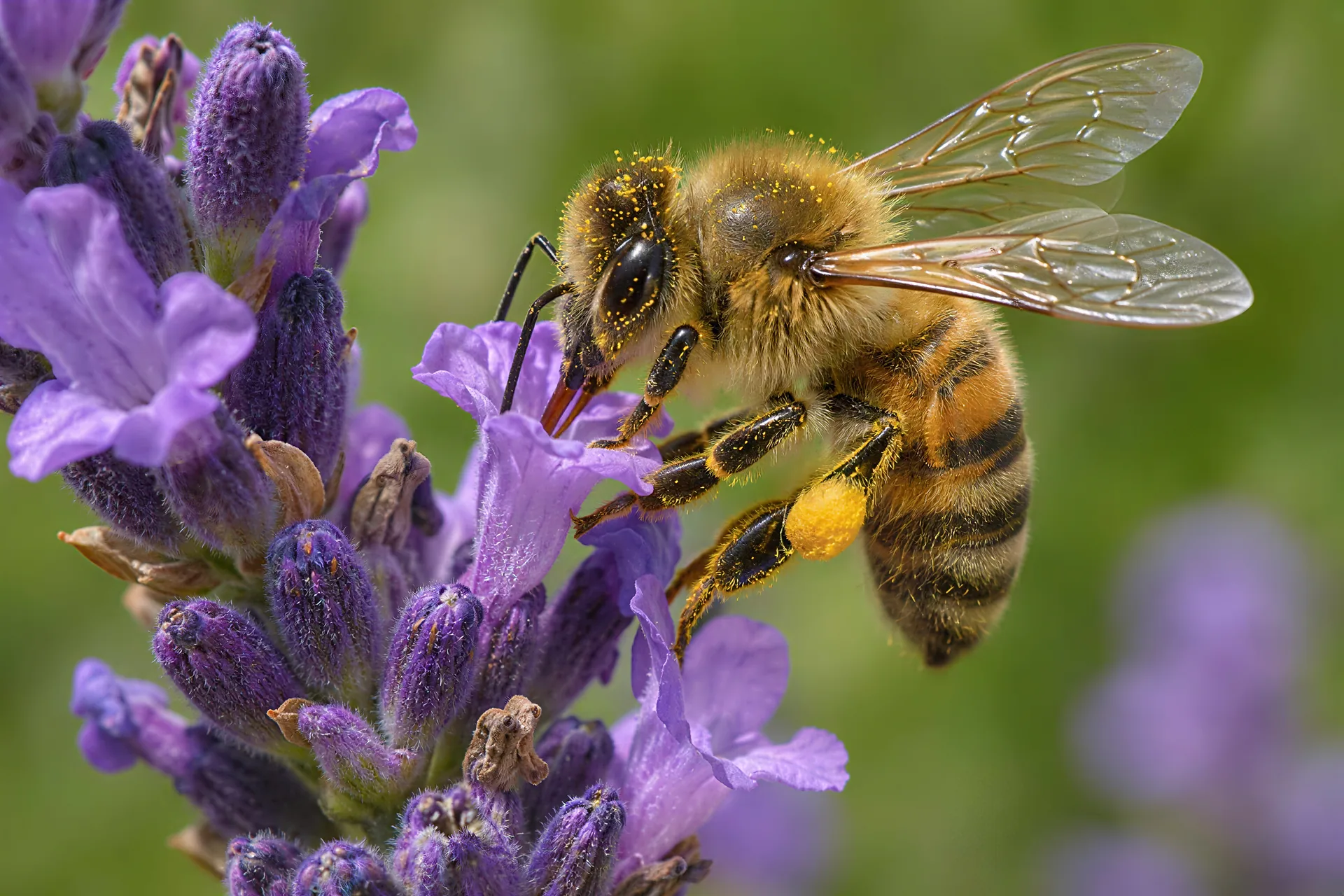 Before · 960×640OptiClear · 3840×2560
Macro
960→3840px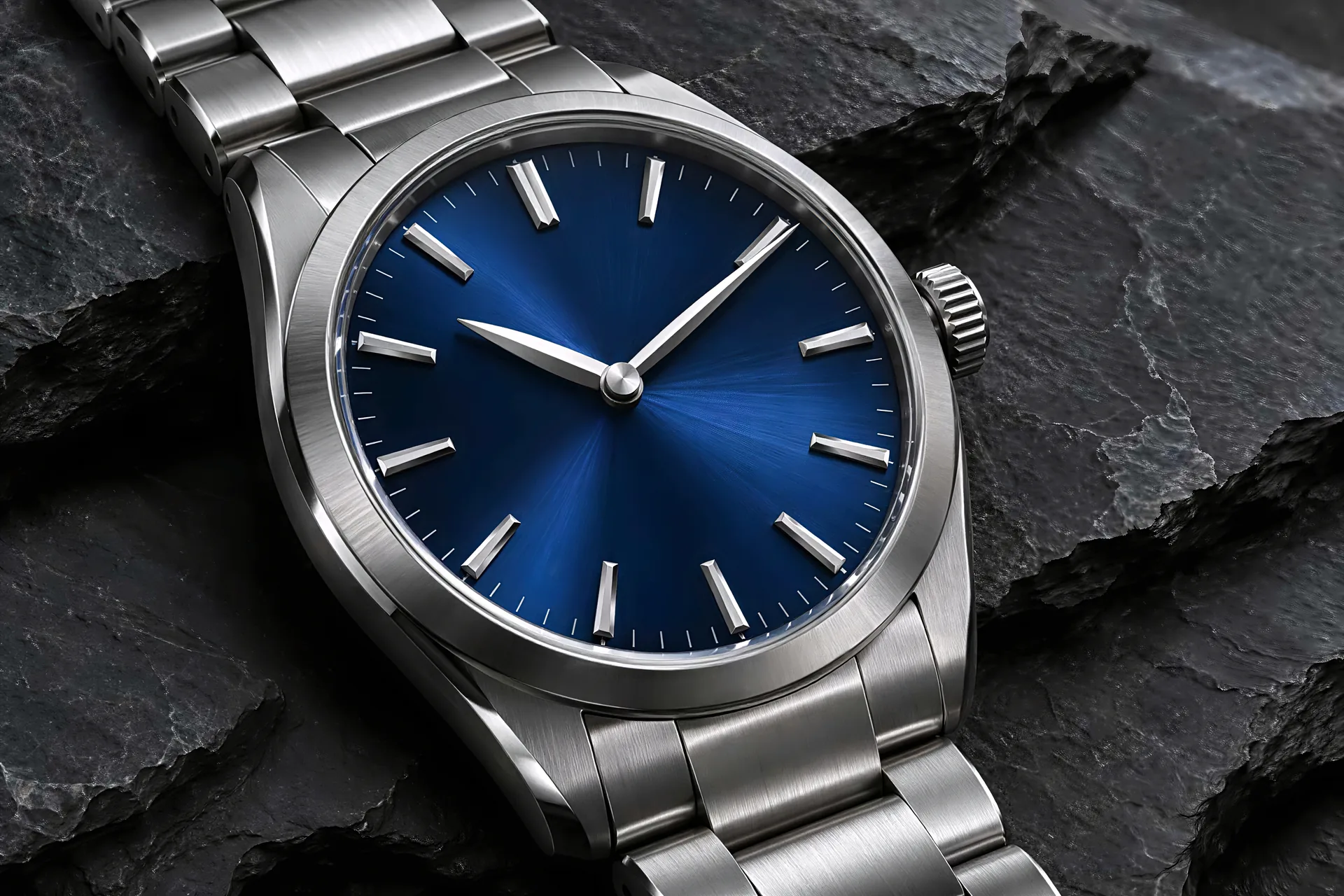 Before · 960×640OptiClear · 3840×2560
Watch
960→3840px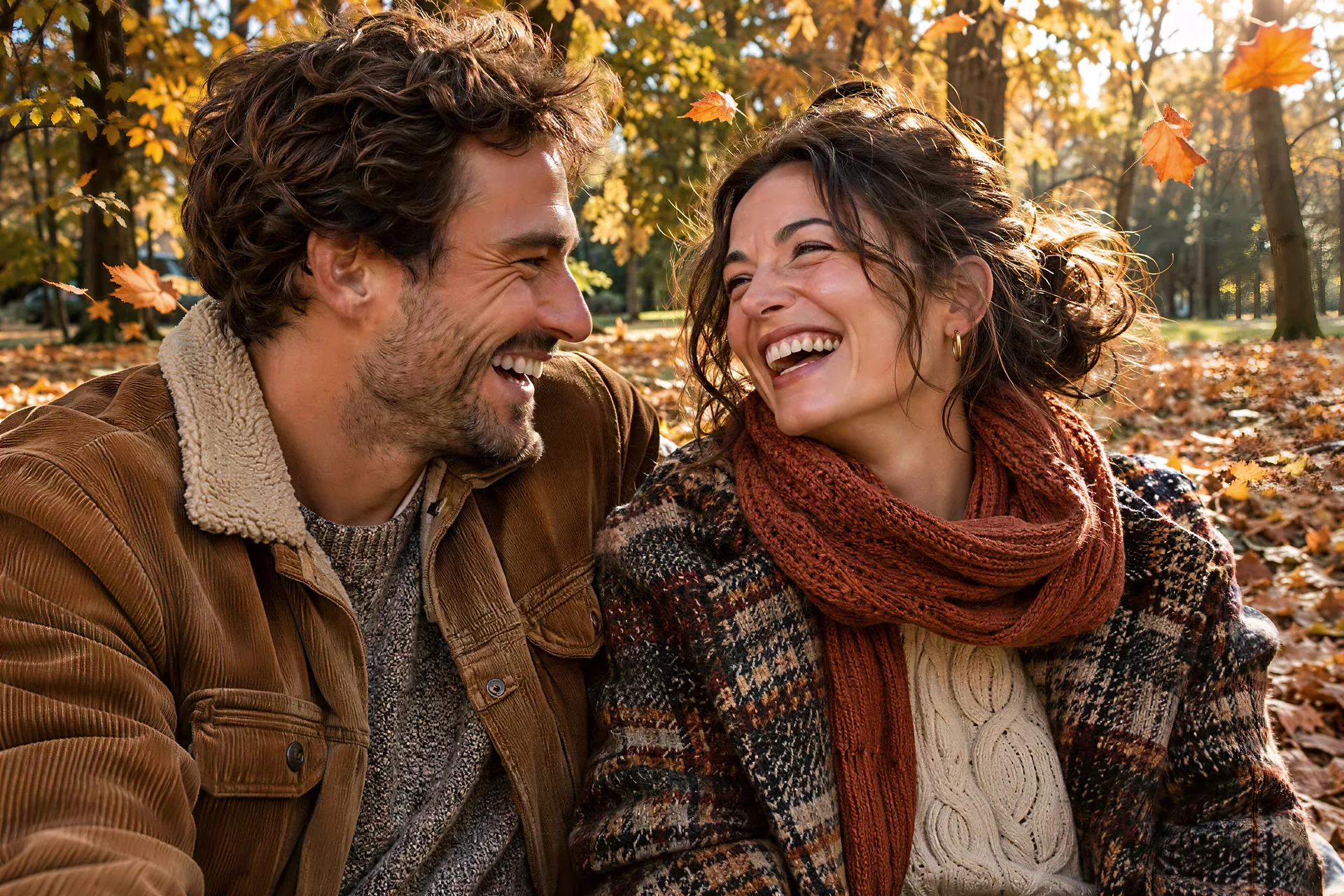 Before · 960×640OptiClear · 3840×2560
Couple
960→3840px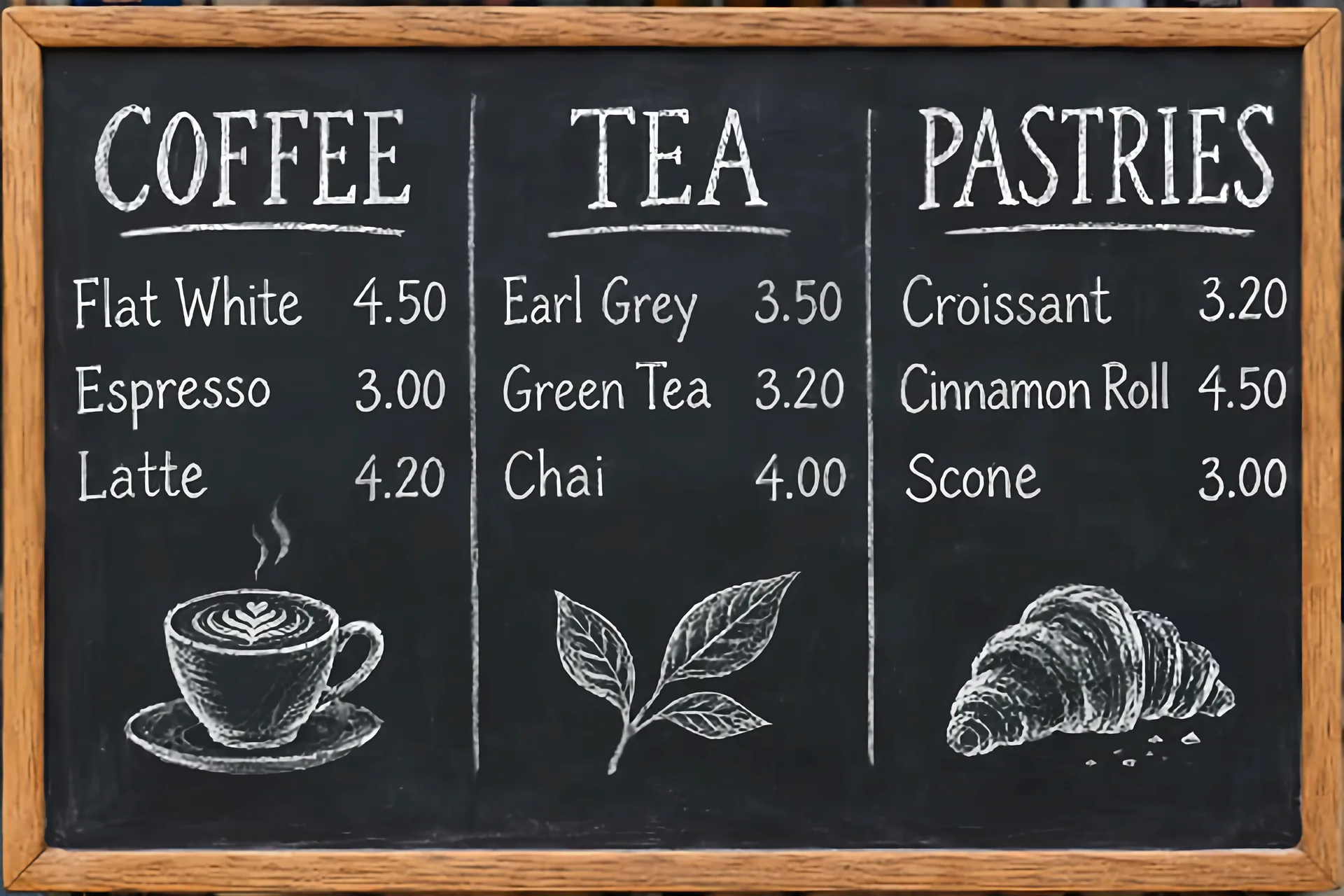 Before · 960×640OptiClear · 3840×2560
Chalkboard
960→3840px이미지 해상도 높이기을 사용하는 이유
부드럽거나 압축되거나 작은 이미지를 제품 페이지, 슬라이드, 포스터, 소셜 그래픽, 디자인 제작에 적합하게 준비합니다.
이미지 해상도 높이기에 적합한 입력 이미지
제품 사진, 스크린샷, AI 생성 이미지, 프레젠테이션 자료, 썸네일, 소셜 그래픽 등 더 선명한 버전이 필요한 이미지에 적합합니다.
관련 Codia 워크플로
레이어 편집, 텍스트 편집, 클린업, 배경 제거, 업스케일, 내보내기로 계속 진행할 수 있습니다.
자주 묻는 질문
이미지 해상도 높이기 FAQ
이미지 해상도 높이기을 온라인에서 사용할 수 있나요?
예. 이미지를 업로드하면 브라우저에서 Codia Studio 워크플로가 열립니다.
AI 단계 이후에도 계속 편집할 수 있나요?
예. 결과는 Codia Studio에 남아 레이어, 레이아웃, 정리, 내보내기를 계속할 수 있습니다.
어떤 이미지 형식을 지원하나요?
JPG, PNG, WebP, 스크린샷, 제품 사진, AI 이미지 등 일반적인 이미지 형식을 업로드할 수 있습니다.