
AI Image Extender
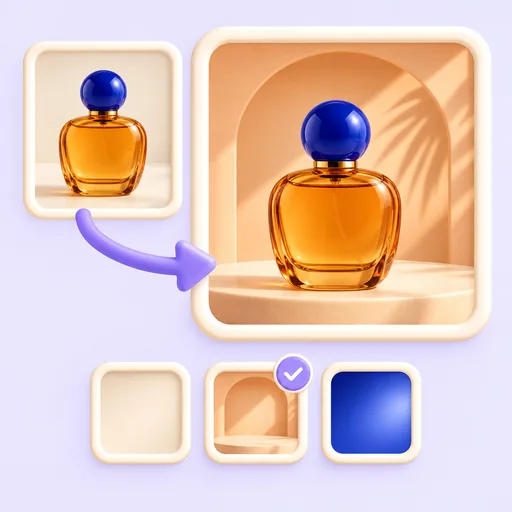
Give a tight shot more room. AI Expand paints new scenery around your photo so it fits a wide banner, a vertical story or a square post, without cutting anything out.
- 8 aspect ratios
- Up to 8,192 px per side
- Nothing to install
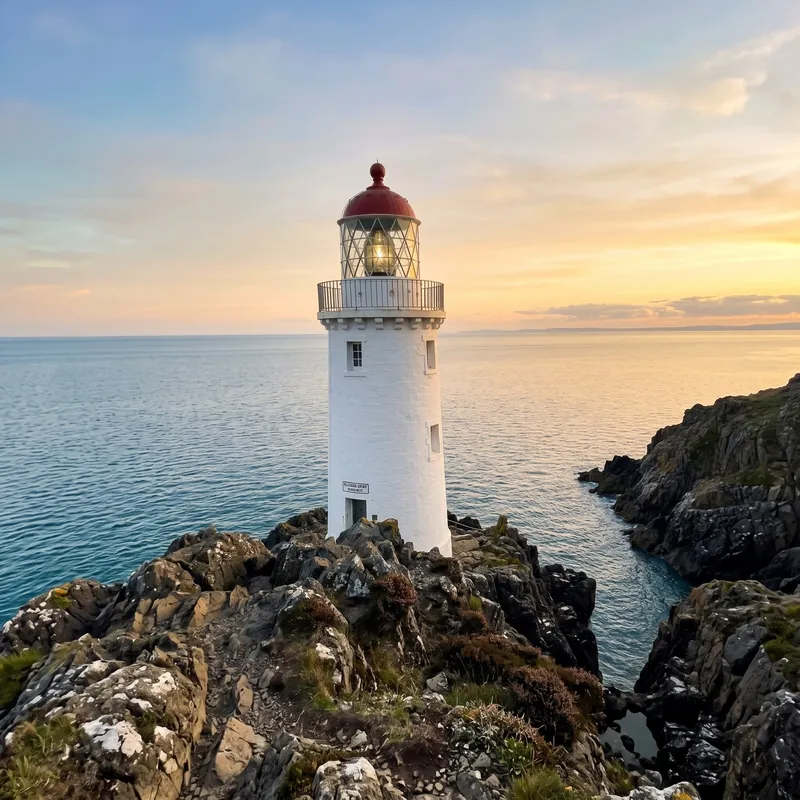 BeforeAfter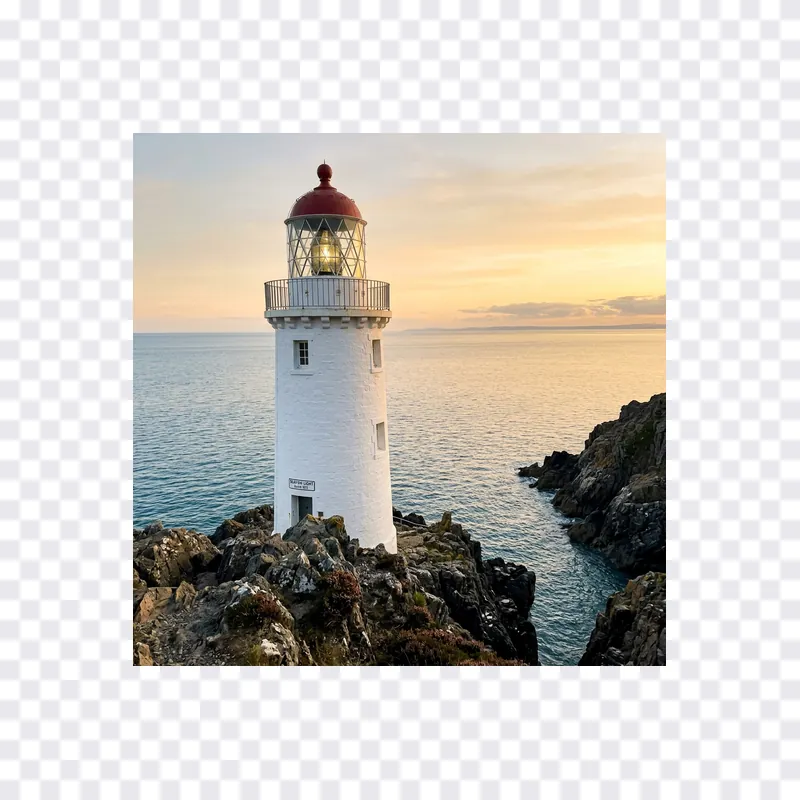
How it works
- 1
Upload your photo
Drop a JPG, PNG or WebP image into the box above. It opens in Codia Photo Editor with AI Expand selected.
- 2
Choose the new size
Zoom out by up to 2x, type an exact width and height, or pick a ratio such as 1:1, 4:5, 16:9 or 9:16. A border previews the new canvas.
- 3
Expand and download
Run AI Expand to fill the border with matching scenery, then crop, add text or export as JPG, PNG or WebP.
What people use it for
Stories and reels
Turn a landscape photo into a 9:16 vertical image without slicing off the sides.
Feed posts
Extend a wide shot to 4:5 or 1:1 so it fills the post instead of shrinking into a thin strip.
Banners and headers
Widen a photo to 16:9 for website heroes, YouTube thumbnails and email headers.
Room for text
Add empty sky, floor or backdrop beside a product so there is space for a headline or price.
Tightly cropped portraits
Uncrop a close-up to bring back the shoulders and some background around the subject.
Prints and frames
Match a photo to a 3:2, 4:3 or 3:4 frame without trimming anyone at the edge.
01
Change the aspect ratio without cropping
Cropping to a new ratio throws part of your photo away. Extending keeps the whole original frame and adds new picture area around it instead. AI Expand offers 1:1, 3:2, 2:3, 4:3, 3:4, 4:5, 16:9 and 9:16, which cover most social, web and print formats.
02
Three ways to set the size
Zoom out enlarges the canvas evenly on every side, from 1x to 2x. Freeform lets you enter an exact width and height in pixels, up to 8,192 pixels per side. Ratio presets add space only where the new shape needs it, so a 16:9 extension widens a portrait photo at the sides.
03
New scenery that matches
The AI continues what is already in the frame: the horizon, the texture of a wall, the direction of the light. This is also known as outpainting or uncropping, and it works best when the edges of the photo show background rather than the middle of a person or object.
04
Tips for natural extensions
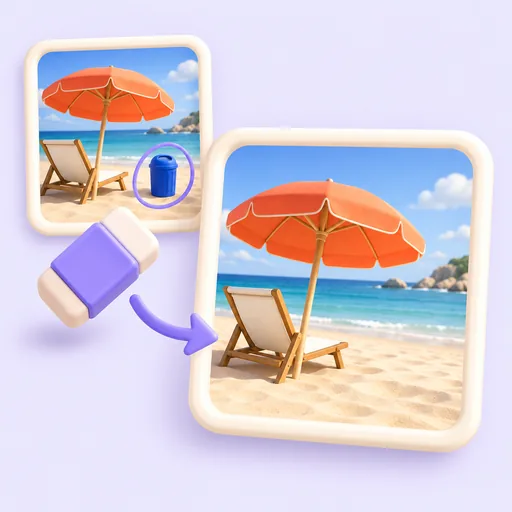
Photos with open backgrounds such as sky, sand, water, grass or plain walls extend most convincingly. For a big change in shape, extend in two smaller steps. If a detail looks off, erase it with Magic Eraser in the same editor.
Frequently asked questions
Quick answers about pricing, privacy and how the editor works. You can also try the free tools first and decide later.
What is an AI image extender?
It is a tool that enlarges the canvas of a photo and uses AI to fill the new area with scenery that matches the original, instead of leaving a blank or stretched border.
How do I change an image's aspect ratio without cropping?
Upload the image, choose the ratio you need, such as 16:9 or 9:16, and run AI Expand. Everything in the original frame stays in the picture, and new background is added on the sides that need it.
Is uncropping the same as outpainting?
Yes. Uncrop, outpainting, image expansion and generative fill around the edges all describe the same idea: generating new picture area beyond the original frame.
How large can the extended image be?
Up to 8,192 pixels on each side. The new size must still contain the whole original photo.
Is the AI image extender free?
Choosing a size and previewing the border is free. Each expansion runs on Codia AI and uses credits from your Codia account, so you will be asked to sign in before the first one.
Are my photos uploaded?
Not when you open them. Photos pass from this page to the editor inside your browser, and free tools process them on your device. A photo is uploaded only when you run an AI tool on it or save the project to your Codia account.
Do I need an account?
No account is needed to open photos and use the free tools. You will be asked to sign in when you run an AI tool or want to keep projects in your account.
Related tools
Ready to edit?
Open the editor on its own and add photos there, or drop them into the box at the top of this page.
Open AI Expand