
AIウォーターマーク削除
AIで画像の透かしを削除
サンプルマーク、下書きオーバーレイ、透かし風の跡がある許可済み画像をアップロードし、Codia StudioのRemove Watermarkを開きます。
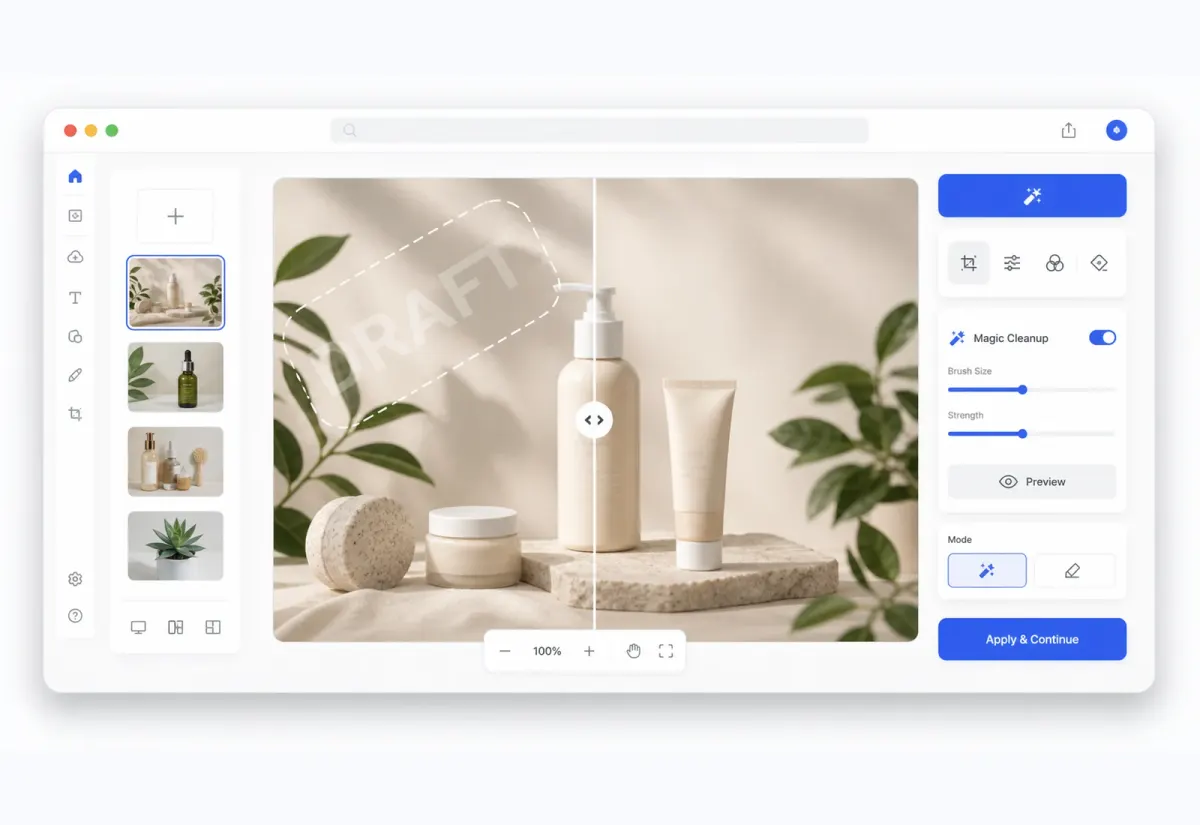
Studioワークフロー
画像を整えて、そのまま編集を続ける
画像はStudioキャンバスで開かれ、クリーンな結果を修正、クリーンアップ、合成、書き出しへ直接つなげられます。
主なメリット
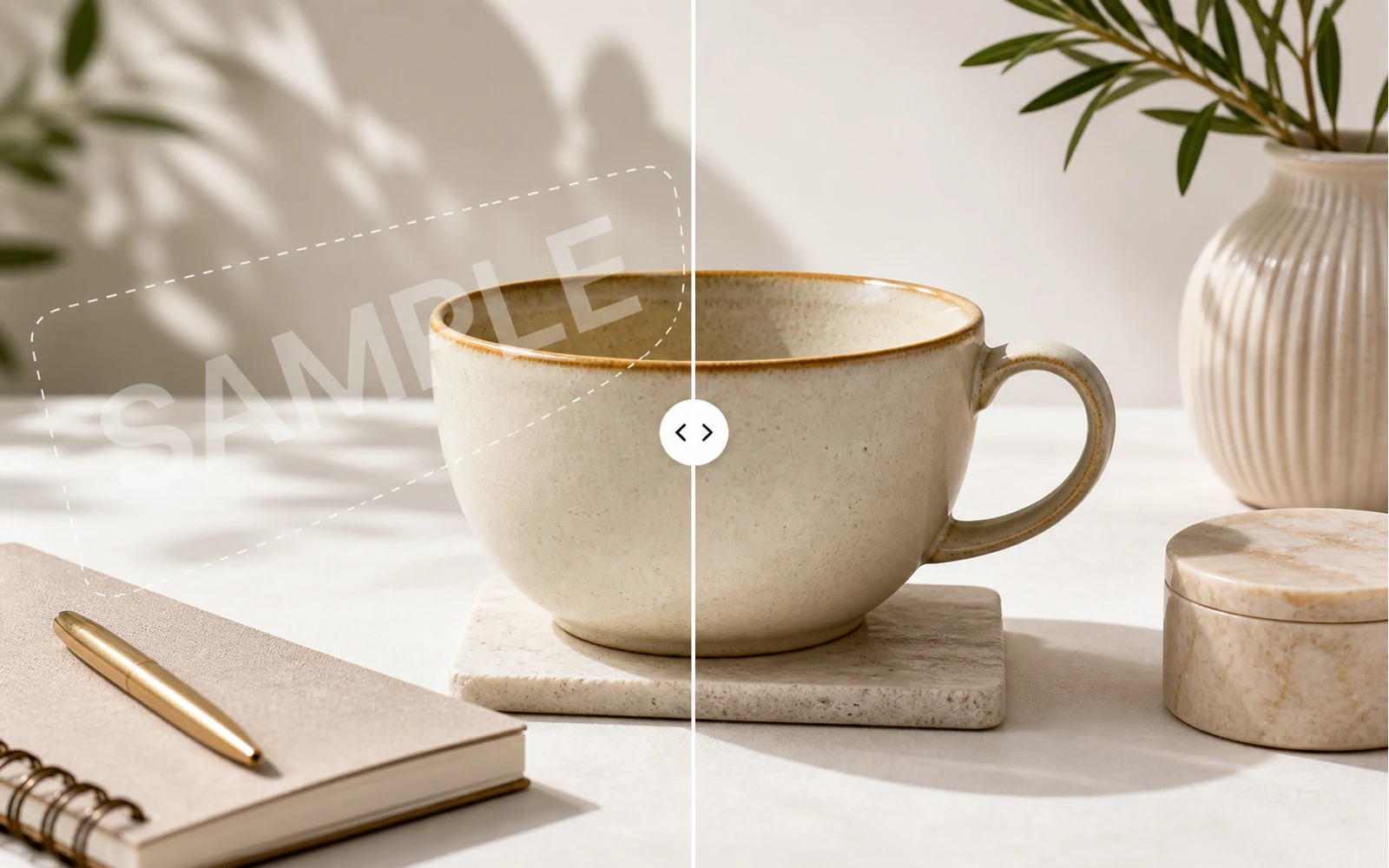
AIで画像の透かしをクリーンアップ
所有または編集許可のある画像から、透かし風オーバーレイ、文字マーク、繰り返しサンプルパターンをAIで検出して整理します。
主なメリット
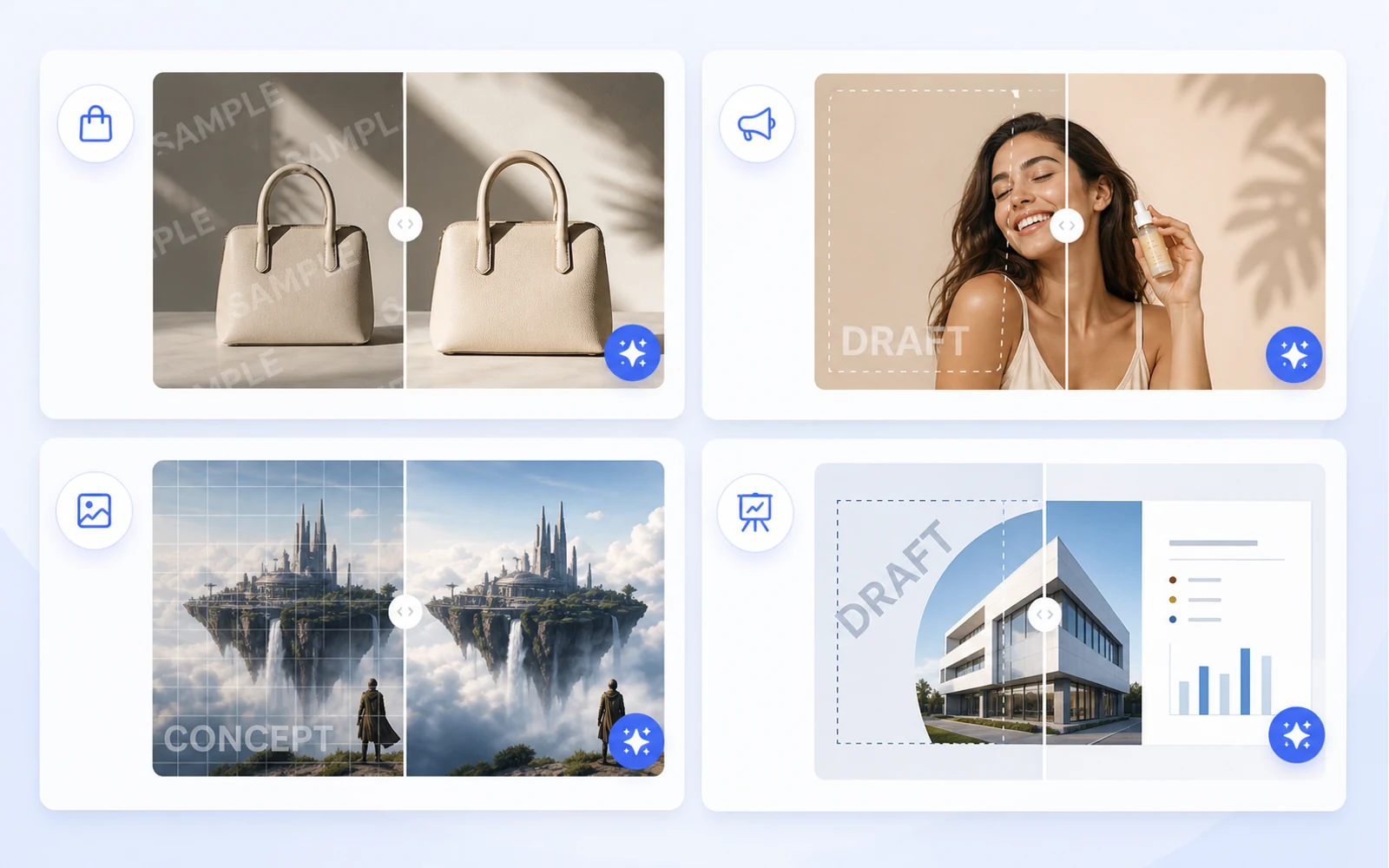
デザイン作業向けにクリーンなビジュアルを準備
許可済みの商品画像、SNSクリエイティブ、モックアップ、AI画像、プレゼン素材を次のレイアウトに入れる前に整えます。
主なメリット
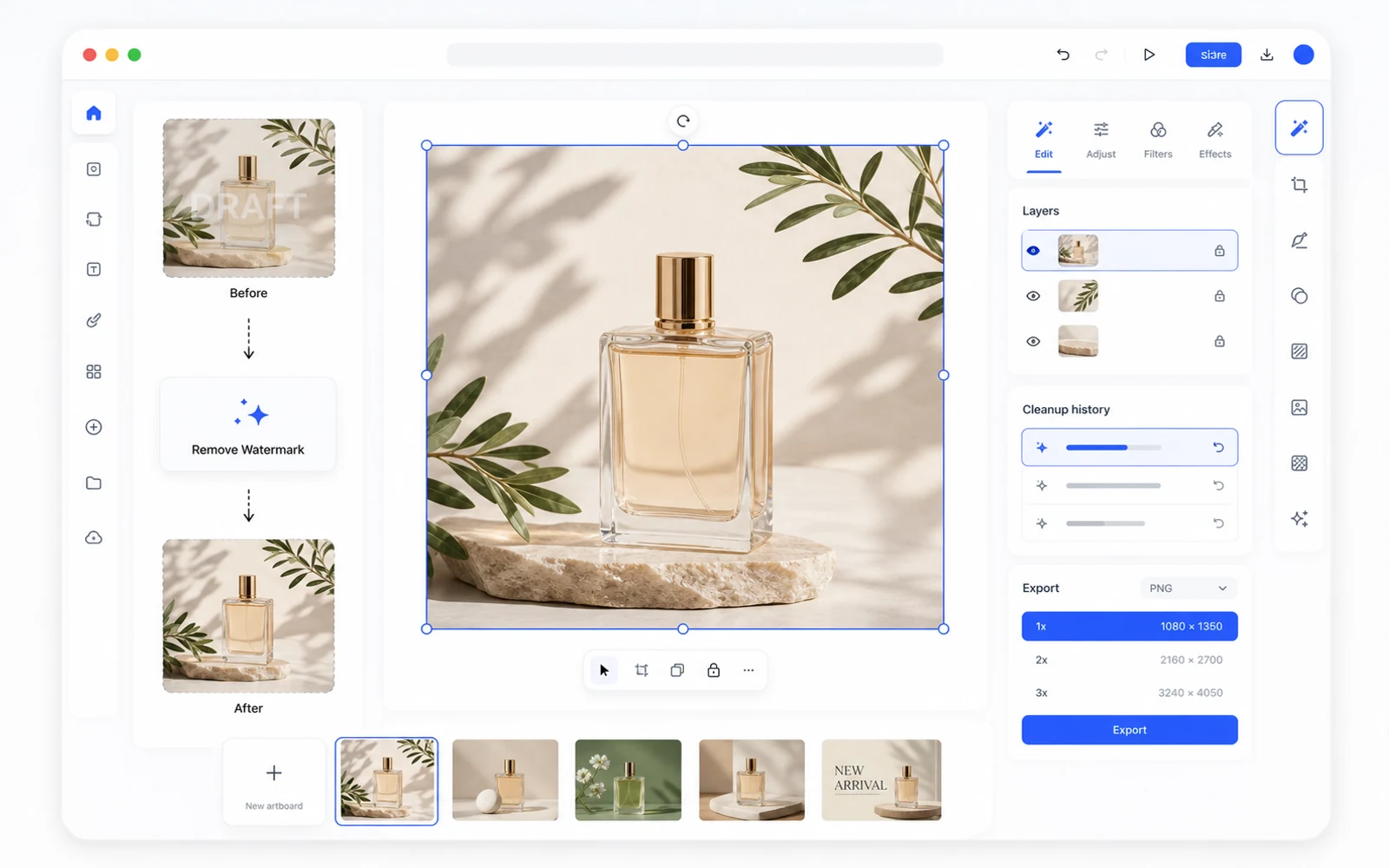
透かし削除後も編集を継続
クリーンアップ後の画像はCodia Studioで開かれ、背景削除、要素編集、バリエーション生成、アップスケール、書き出しを続けられます。
画像をアップロード
JPG、PNG、WebP、スクリーンショット、商品画像、SNSクリエイティブ、AI生成画像から始めます。
Studioで透かしを削除
CodiaはStudioキャンバスを開き、Remove Watermarkツールを選択した状態でクリーンアップを開始できます。
確認、調整、書き出し
結果を確認し、Studioで編集を続けてからクリーンな画像を書き出します。
Related cleanup workflows
More ways to clean up authorized images
Choose the cleanup workflow that best matches the kind of sample mark, draft overlay, or watermark-like artifact you need to review.
Remove watermark from image
Clean sample marks, draft overlays, and watermark-like artifacts from images you can edit.
Remove WatermarkRemove text watermark
Clean repeated text marks and draft labels from authorized images, then refine the result in Studio.
Remove Text WatermarkRemove sample watermark
Clean sample overlays from owned or licensed visuals before using them in production layouts.
Remove Sample MarkFAQ
AIウォーターマーク削除 FAQ
どの画像形式をアップロードできますか?
JPG、PNG、WebP、スクリーンショットなど一般的な画像形式を、コンピューターからアップロードできます。
Codia Studioが開きますか?
はい。このページからアップロードすると、画像が読み込まれ、Remove Watermark機能が選択された状態でCodia Studioが開きます。
透かし削除はいつ使うべきですか?
所有している画像、生成画像、下書き書き出し、サンプルオーバーレイ、または編集許可のある素材に使ってください。許可なく所有権、著作権、帰属表示を削除しないでください。
AIウォーターマーク削除は常に完璧ですか?
結果は画像、透かしの不透明度、質感、重なり方によって変わります。複雑なマークはStudioで追加の調整が必要な場合があります。
透かしを削除した後も編集できますか?
はい。画像がStudioに入った後は、他のAI画像ツールを使い、キャンバスを調整し、整えた結果を書き出せます。