
Introducing Codia Magic Layers: Turn Flat Images into Editable Layers
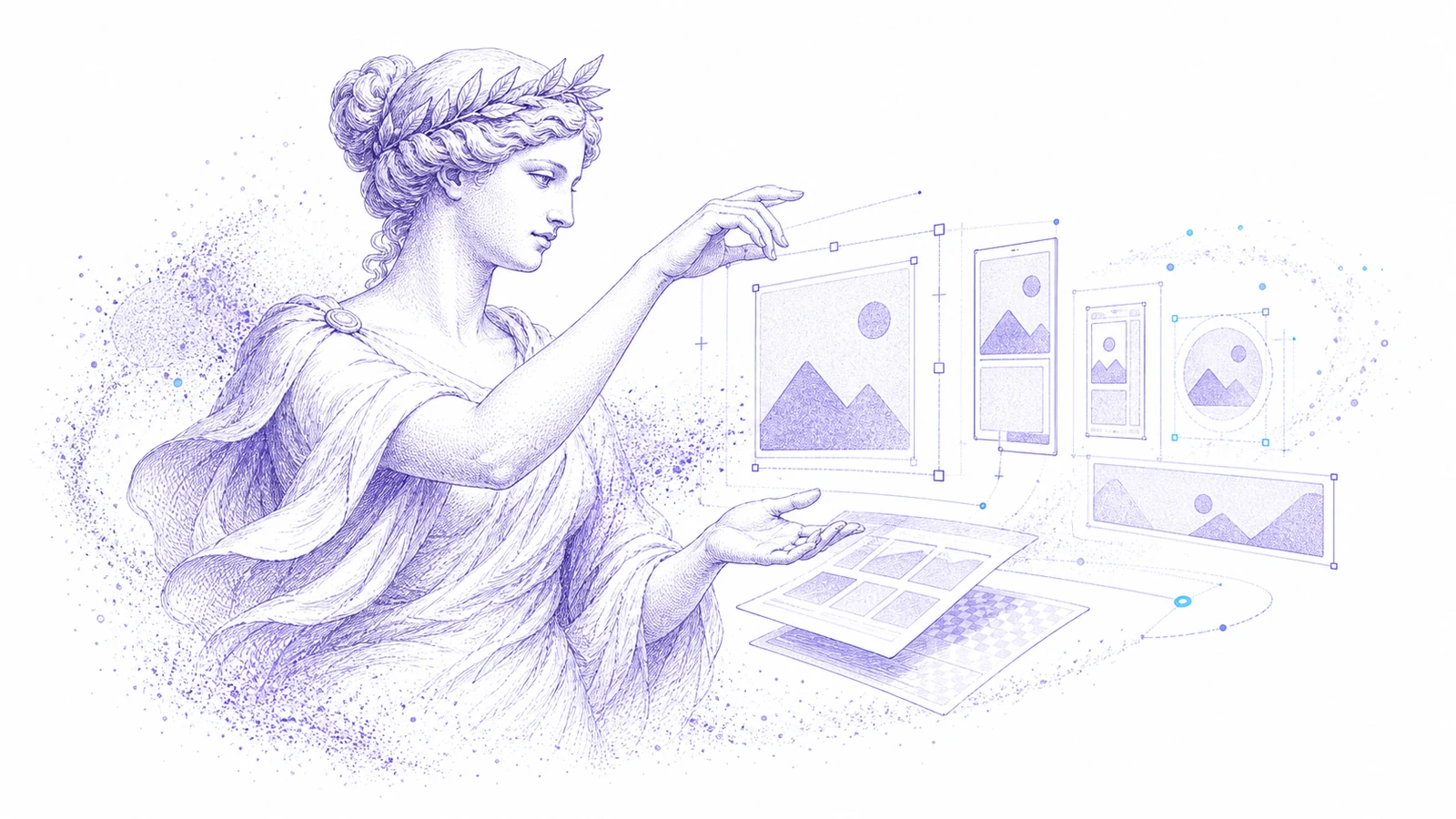
Flat images are everywhere: campaign posters, AI-generated visuals, product mockups, social graphics, screenshots, and exported design assets. They are easy to share, but hard to change.
If one product, person, background, decoration, or text block needs to move, the whole image often has to be rebuilt.
Codia Magic Layers is now available to make that workflow more direct. Upload an image, separate it into editable layers, and change the part you need without recreating the full design.
What Magic Layers Does
Magic Layers turns a static image into a structured editing canvas in Codia Studio.
It is designed to identify and separate visual elements such as:
- Backgrounds
- Foreground objects
- Product images
- People or characters
- Text regions
- Decorative elements
- Poster and campaign components
Instead of treating the image as one locked bitmap, Codia gives you a layer-based starting point for edits.
Why It Matters
Most image editing work is not a full redesign. It is a targeted change.
A marketer wants to replace one product in a hero image. A content creator wants to remove a background object. A designer wants to move decorative elements without repainting the whole image. An AI image user wants to regenerate one part while keeping the rest stable.
Magic Layers gives these teams a way to edit the image by structure, not by manual masking alone.
How the Workflow Works
- Open Codia Magic Layers.
- Upload a PNG, JPG, WebP, poster, screenshot, product graphic, or AI-generated image.
- Codia opens Studio and separates the image into editable layers.
- Select the layer that needs work.
- Move, hide, replace, regenerate, or continue editing the selected element.
The goal is speed and control: change the specific layer that matters while preserving the approved parts of the image.
When to Use Magic Layers
Use Magic Layers when the source is flat but the edit should be layered.
Good use cases include:
- Replace a product inside a campaign image
- Separate a poster into editable parts
- Remove or swap a foreground object
- Move decorations in a social graphic
- Isolate text and visual groups for editing
- Create controlled variations from AI-generated images
- Prepare an asset for further editing in Codia Studio
If the main issue is only text, AI Image Text Editor is more focused. If the source is a Photoshop file, PSD Editor Online is the better starting point. If the target is UI reconstruction, use Screenshot to Figma or Image to Figma.
How It Connects to the New Product Family
Magic Layers is part of a broader Codia push toward editable creative workflows:
- PSD Editor Online helps teams edit layered Photoshop files in the browser.
- AI Image Text Editor helps teams rewrite text inside flat images.
- Magic Layers helps teams separate flat images into editable visual elements.
Together, they cover the practical reality of creative work: sometimes you have the source file, sometimes you only have an exported image, and sometimes the image itself needs to become structured before it can be edited well.
Try Magic Layers
Open Codia Magic Layers, upload one flat image, and make a single targeted edit. If the first layer edit works, you have a repeatable workflow for product swaps, poster revisions, AI image fixes, and campaign variations.
FAQ
What is Codia Magic Layers?
Codia Magic Layers is an image to layers workflow that separates a flat image into editable visual elements inside Codia Studio.
Is Magic Layers the same as background removal?
No. Background removal isolates one subject. Magic Layers separates multiple visual elements so they can be edited independently.
What image types can I upload?
You can upload common image formats such as PNG, JPG, and WebP, including screenshots, posters, mockups, product graphics, and AI-generated images.
When should I use AI Image Text Editor instead?
Use AI Image Text Editor when the main problem is rewriting text inside an image. Use Magic Layers when you need several visual elements separated.