
Restore Old Photos with AI
Scan or photograph an old print, and the AI Old Photo Restorer repairs scratches, creases and fading and brings back facial detail. It can add natural color in the same run, or keep the original black-and-white tones.
- Scratches, creases and fading
- Optional colorization
- Batch up to 20 photos
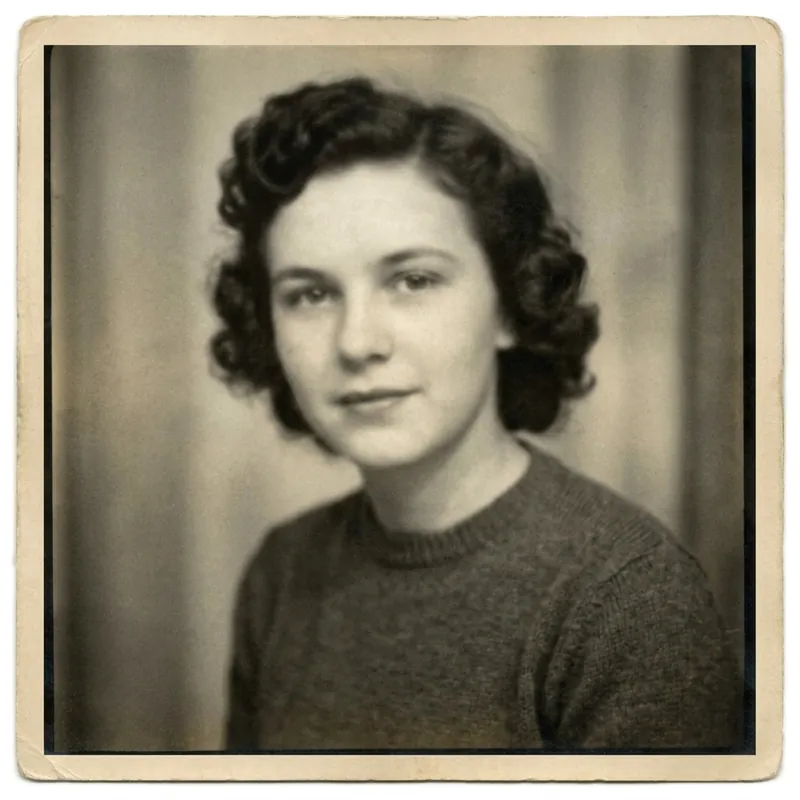 BeforeAfter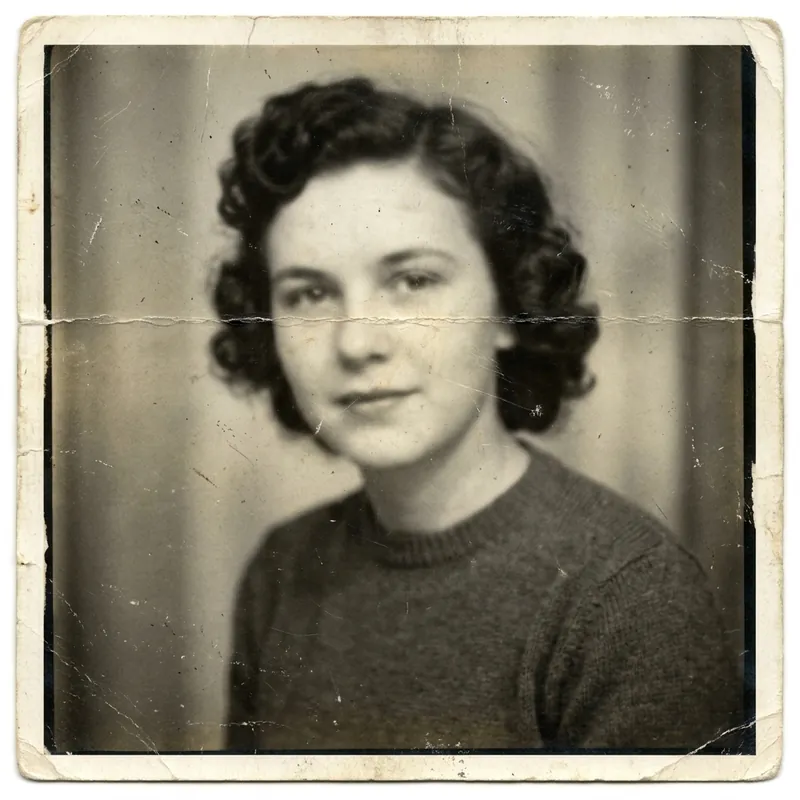
How it works
- 1
Scan and upload
Scan the print or photograph it flat in even light, then drop the JPG, PNG or WebP file into the box above.
- 2
Choose what to fix
Old Photo Restorer opens with Photo Restorer and Photo Colorizer both switched on. Turn off Photo Colorizer to keep the photo black and white.
- 3
Compare and download
Check the restored photo against the original, keep editing if you like, then export it for printing or sharing.
What people use it for
Family history
Repair portraits of parents, grandparents and great-grandparents for family trees and genealogy research.
Memorials and anniversaries
Prepare a clean, sharp photo for a memorial service, slideshow or anniversary celebration.
Gifts and reprints
Restore a treasured wedding or childhood photo before printing and framing it as a gift.
Shoebox archives
Work through a box of scanned prints in batches instead of retouching them one by one.
Local and school history
Clean up historical photos for exhibitions, books and class projects.
Sharing with relatives
Post a repaired photo to the family group chat so everyone can save a copy.
01
What the restorer repairs
Old Photo Restorer is built for portraits with scratches, dust, creases, fading and blurred facial details, including black-and-white and sepia photographs. It works on the whole picture at once, so there is no masking or clone-stamping to do by hand.
02
Photos that restore best
Expect the strongest results on portraits where the face takes up a good part of the frame. Photos with missing corners, large stains, or faces that are very small in a distant group or full-body shot are harder to rebuild, and the AI may have to guess too much detail.
03
Restore a whole album at once
Upload up to 20 scans together and they open in batch mode, where Old Photo Restorer runs on every photo with the same settings. You can then open any of them to touch up details on its own.
04
How to scan old photos for restoration
Wipe the scanner glass and the print, lay the photo flat, and scan at 600 dpi or more. If you use a phone, shoot straight on in soft daylight and avoid glare from glossy paper. Crop away the scanner bed before you restore, so the AI concentrates on the photo itself.
Frequently asked questions
Quick answers about pricing, privacy and how the editor works. You can also try the free tools first and decide later.
How do I restore old photos?
Scan or photograph the print, upload it on this page, and run Old Photo Restorer. It repairs scratches, creases, fading and soft facial details, and you can download the result when it looks right.
Can AI restore badly damaged photos?
It handles scratches, creases, dust and heavy fading well. Large missing pieces, big stains or tiny faces are harder, because the AI has little to work from and may invent details.
Will the restored photo still look like the same people?
The restorer is designed to keep the original people and composition. Because the AI rebuilds lost detail, always compare with the original; if a face looks different, undo and run it again or pick another AI model in the panel.
Can I colorize a photo while restoring it?
Yes. Photo Colorizer is switched on by default next to Photo Restorer, so damage is repaired and natural color is added in the same run. Switch it off to keep the original tones.
Can I restore several photos at once?
Yes. Upload up to 20 photos and Old Photo Restorer runs on all of them in batch mode.
Is photo restoration free?
Uploading and the editor's basic tools are free. Each restoration runs on Codia AI and uses credits from your Codia account, so you will be asked to sign in before the first one.
Are my photos uploaded?
Not when you open them. Photos pass from this page to the editor inside your browser, and free tools process them on your device. A photo is uploaded only when you run an AI tool on it or save the project to your Codia account.
Do I need an account?
No account is needed to open photos and use the free tools. You will be asked to sign in when you run an AI tool or want to keep projects in your account.
Related tools
Ready to edit?
Open the editor on its own and add photos there, or drop them into the box at the top of this page.
Open Old Photo Restorer