
Turn a Screenshot into Editable Figma: A Practical Workflow for UI References
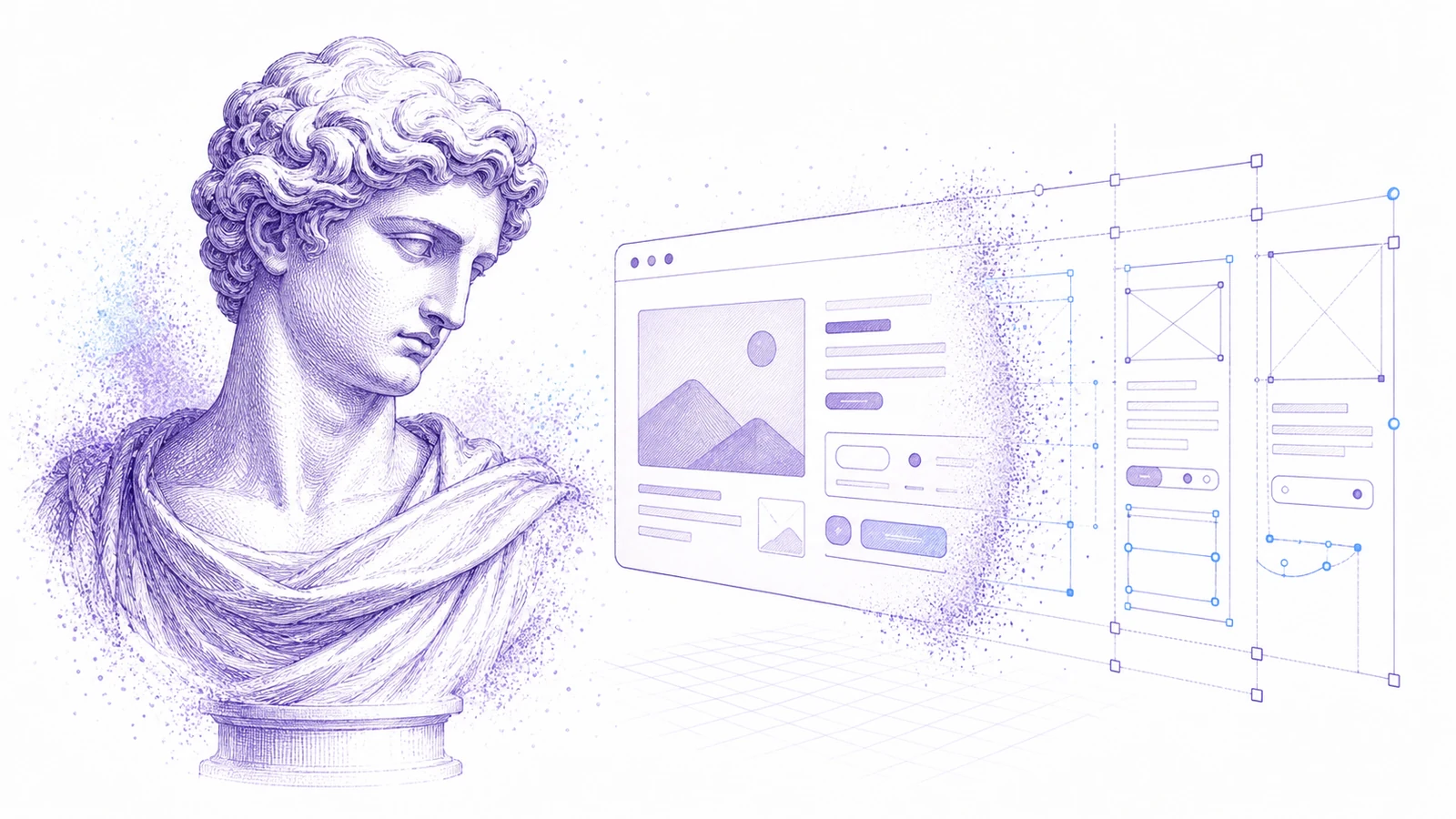
Many design projects begin with a screenshot, not a source file. A stakeholder sends a competitor reference. A client has an old product with no Figma file. A developer needs a quick editable baseline for a UI idea. A designer wants to compare several flows without manually tracing every screen.
Screenshots are not ideal source material, but they are often the source material people actually have.
The goal is not to copy a screenshot blindly. The goal is to turn a static reference into editable structure so you can analyze, adapt, and redesign faster.
When Screenshot-to-Figma Helps
Use Codia Screenshot to Figma when:
- The original design file is missing.
- A production UI no longer matches the source design.
- You need to evaluate competitor layouts.
- A stakeholder gives you a screenshot as the reference.
- You want to rebuild a legacy screen before redesigning it.
- You need a structured starting point for code generation or design review.
It is most useful when the screenshot has clear UI structure: navigation, cards, forms, tables, buttons, icons, and readable text.
Capture Better Screenshots
Input quality matters. Before converting:
- Use the exact viewport you care about.
- Hide browser chrome if it is not part of the UI.
- Remove chat widgets, cookie banners, and popups.
- Capture at a high resolution.
- Avoid compressed messaging-app images.
- Capture each state separately if the UI has overlays or menus.
A clean screenshot gives the conversion model more reliable visual information.
Step-by-Step Workflow
1. Convert the Screenshot
Upload the image to Screenshot to Figma. Codia analyzes layout, text, colors, and UI elements, then produces editable Figma layers.
2. Review the Baseline
Do not treat the output as final. First check:
- Text recognition
- Main layout containers
- Button and input boundaries
- Repeated rows or cards
- Color consistency
- Icon reconstruction
3. Clean the Foundation
Fix the structural pieces that affect everything else:
- Typography scale
- Grid and spacing
- Navigation
- Repeated components
- Main content regions
- Primary and secondary actions
This turns the conversion output into a usable design file.
4. Decide What to Keep
Mark the reference screen in three categories:
- Keep: patterns that work
- Change: parts that need adaptation
- Remove: legacy or competitor-specific details that should not carry forward
This step is what separates redesign from copying.
5. Apply Your Design System
Replace recovered elements with your own components, variables, colors, and typography. The screenshot gives you structure; your system gives it product fit.
Good Use Cases
Legacy UI Redesign
When the old Figma file is missing, convert production screenshots into a baseline, then rebuild with modern components.
Competitive Analysis
Convert several competitor screens and compare layouts, flows, hierarchy, and information density in Figma.
Developer Reference
Developers can turn a visual reference into structured layers before generating or hand-writing frontend code.
Client Direction
When a client sends "make something like this," convert the reference, annotate it, and clarify what they actually mean before designing.
Responsible Use
Screenshot-to-Figma should support analysis, learning, redesign, and internal workflow acceleration. Do not use it to copy another product's protected design wholesale. Use references to understand patterns, then create original work that fits your own product and users.
Try It
Start with one clean UI screenshot and upload it to Codia Screenshot to Figma. If the baseline saves manual tracing time, convert the rest of the flow.
FAQ
Can a screenshot become a real Figma file?
Yes. Codia reconstructs screenshots into editable Figma layers, including text, layout regions, and UI elements where possible.
Is the result perfect?
No conversion is perfect. Treat it as a structured starting point, then clean typography, spacing, and components.
Can I use this for competitor analysis?
Yes, for analysis and original redesign work. Do not copy a competitor's protected design wholesale.
What screenshots work best?
Clean, high-resolution UI screenshots with readable text and visible element boundaries work best.