
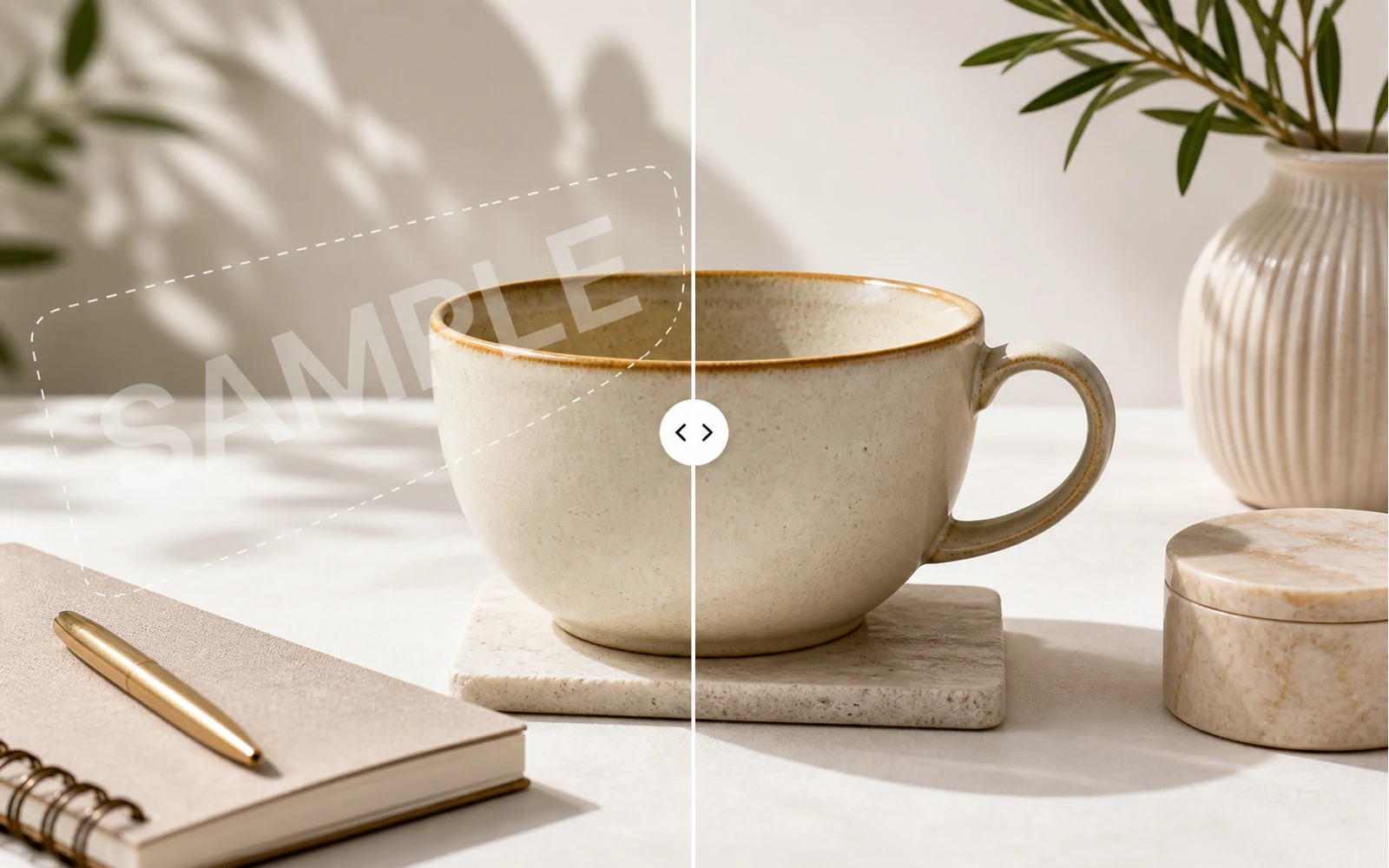
Watermarks are useful when an image is still a draft. They protect previews, mark sample versions, and keep internal assets from being used too early. But once you own the final image or have permission to edit it, that same mark can become the last thing standing between a usable asset and a polished deliverable.
This guide is for that moment: you have an image you are allowed to edit, and you need to remove a watermark, sample label, date stamp, logo overlay, or visual mark without rebuilding the whole file.
A quick boundary before we start: only remove watermarks from images you own, generated assets you created, internal drafts, licensed files, or assets you are explicitly authorized to edit. Do not remove copyright marks, artist signatures, stock-photo previews, or third-party attribution marks without permission.
Why Watermark Removal Is Hard
In most image files, a watermark is not a separate object. It is baked into the pixels.
That means a normal editor usually gives you bad choices:
- Crop the image and lose part of the composition
- Blur or smudge the mark and leave a visible scar
- Cover it with a shape that looks even more obvious
- Recreate the image from scratch
- Ask a designer to repair the file manually
The real goal is simpler: remove the unwanted mark and preserve the surrounding texture, lighting, and structure.
A Better Workflow: Remove, Review, Keep Editing
Codia AI Watermark Remover is built for this workflow. You upload an image, Codia prepares the remove-watermark tool inside Studio, and you can clean the marked area while keeping the image in an editable production space.
That matters because watermark removal is rarely the final step. After the mark is gone, you may still need to crop the image, adjust text, prepare a social version, export a product thumbnail, or combine the image with other design layers.
Instead of downloading a one-off fixed image and opening another tool, you can keep working in the same Studio environment.
When This Helps Most
Use AI watermark removal when the mark is visually interfering with an otherwise useful image:
- A draft overlay on a campaign visual
- A sample label on an internal product mockup
- A timestamp or camera mark on your own photo
- A logo overlay added during a client review round
- A test watermark on an AI-generated concept image
- A temporary approval mark on a design export
The strongest use cases are images where you already have the right to publish the clean version, but the available file still contains a review or production mark.
Step-by-Step: Remove a Watermark with Codia
1. Open AI Watermark Remover
Go to Codia AI Watermark Remover. The page is designed to send your upload directly into Studio with the cleanup workflow ready.
2. Upload the image
Choose a JPG, PNG, WebP, product photo, screenshot, design export, or AI-generated image. For best results, use the highest-resolution version you have.
3. Identify the watermark area
Once the image opens in Studio, focus on the mark you want to remove. If the watermark crosses important details such as faces, text, product edges, or complex textures, work in smaller regions and review carefully.
4. Remove and inspect the result
After cleanup, zoom in and check the repaired area. Look for repeated texture, soft halos, broken lines, or mismatched shadows. A clean result should disappear into the image rather than call attention to itself.
5. Continue editing in Studio
Now you can finish the asset: crop it, resize it, add text, create export variants, or bring the cleaned image into a broader design.
How to Get Cleaner Results
Start with the best source image available. AI cleanup has more context when the image is sharp and large.
Remove one mark at a time if the image has multiple overlays. A focused selection gives the model a clearer job.
Review at the final publishing size. A repair that looks visible at 400% zoom may be invisible in a thumbnail, but a flaw that appears at normal size should be fixed.
Keep the original file. If you need to compare, redo, or prove where the asset came from, the untouched source is still useful.
What Not to Use It For
AI watermark removal should not be used to strip ownership from work that is not yours.
Do not use it to remove stock-photo watermarks from unpaid previews, erase photographer signatures, hide brand marks from someone else's product image, or present third-party content as your own. If you need a clean commercial image, buy the license or get permission from the rights holder.
The tool is for legitimate cleanup: your images, your drafts, your authorized assets.
Try It
If you have a draft image that is ready except for a watermark or sample overlay, open Codia AI Watermark Remover, upload the image, and continue the cleanup in Studio.
The best test is a real asset you already need to publish. Clean it once, then use the same Studio workspace to finish the production version.
FAQ
Can AI remove a watermark from a photo?
Yes, AI can help remove watermarks from photos when you own the image or have permission to edit it. The quality depends on the image resolution, watermark size, and background complexity.
Is it legal to remove a watermark?
It depends on your rights to the image. Removing draft marks from your own work is different from removing copyright or stock-photo watermarks from someone else's work. Only remove watermarks when you are authorized to do so.
Does Codia only remove the watermark, or can I keep editing?
Codia opens the image in Studio, so you can remove the watermark and continue editing, resizing, combining, or exporting the asset.