
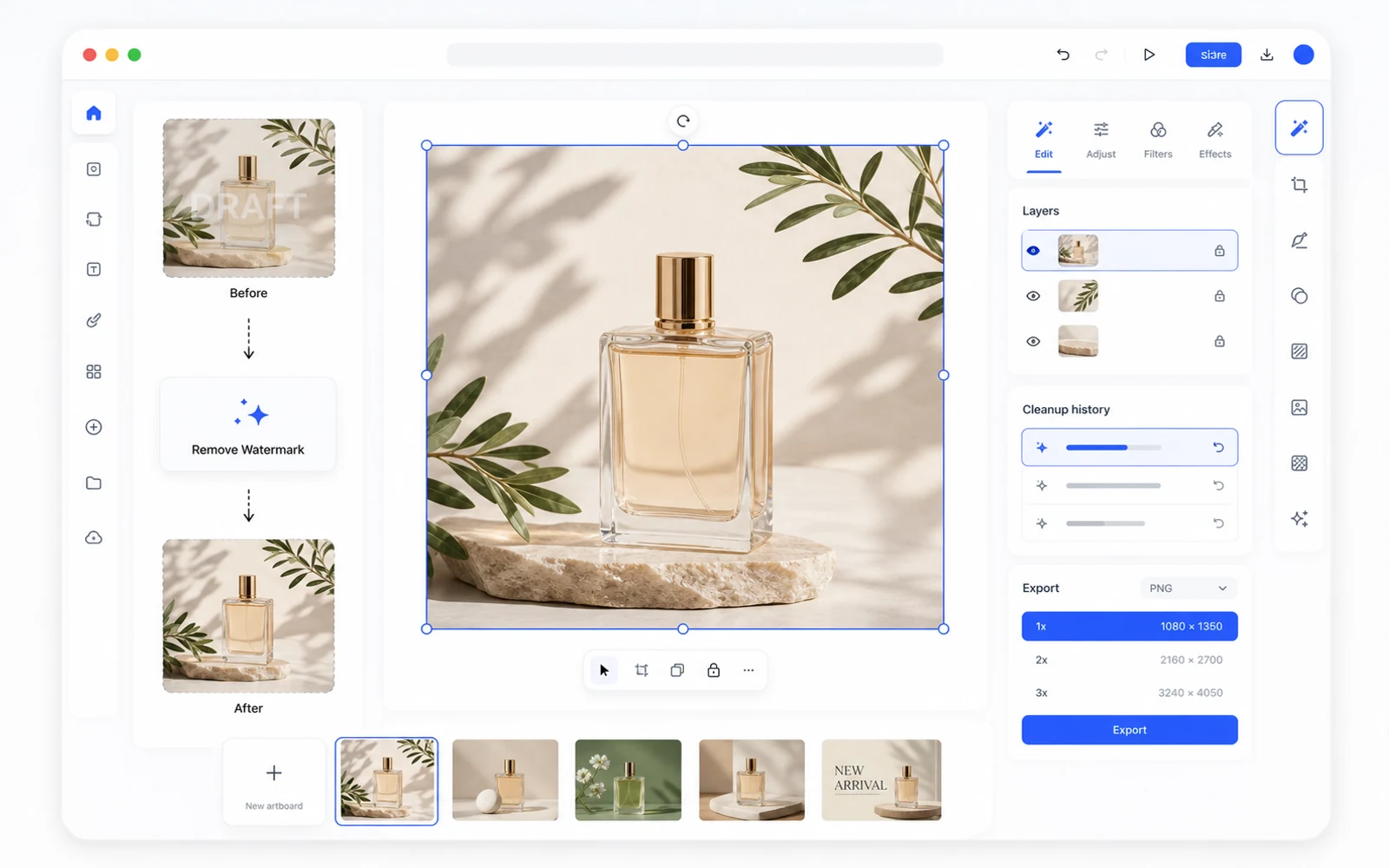
Most watermark remover tools treat cleanup as the whole job: upload an image, erase the mark, download the result.
That can be enough for a quick personal fix. But in real creative work, removing the watermark is usually just one step. The image still needs to be reviewed, cropped, resized, combined with text, exported for different channels, or turned into a design asset for a larger project.
That is why Codia AI Watermark Remover opens the image in Studio instead of stopping at a download button.
The User Problem: The File Is Clean, But the Work Is Not Done
Imagine a common marketing workflow.
You have a campaign image with a draft watermark. You remove the watermark. Now you still need to:
- Crop it for a website banner
- Make a square version for social
- Add localized copy
- Export a high-resolution version for a marketplace
- Keep the original layout available for the next revision
- Share a clean version with a teammate
If the watermark remover only gives you a finished bitmap, you immediately move into another tool. That creates extra downloads, version confusion, and more chances to lose quality.
Cleanup Belongs Inside the Design Workflow
Codia's approach is to treat watermark removal as the beginning of a production step, not the end.
You upload the image from the AI Watermark Remover page. The image opens in Codia Studio with the remove-watermark capability ready. After cleanup, the same canvas is available for the next edits.
This is more useful for teams because the cleaned image stays close to the rest of the work.
What You Can Do After Removing a Watermark
Prepare Publishing Variants
Create sizes for ecommerce listings, ads, social posts, app stores, thumbnails, and presentation slides without leaving Studio.
Combine Cleanup with Text Editing
If the image also contains outdated copy, use the cleaned version as the base for further editing instead of exporting and starting over.
Keep the Visual Direction
When a composition is already approved, you do not want to regenerate the whole image just to remove one mark. Studio lets you preserve the visual direction and fix the production issue.
Share Cleaner Review Versions
Remove internal draft marks before sharing with clients, executives, or external partners. The work looks finished, and the conversation stays focused on the content.
Why This Matters for AI-Generated Images
AI-generated images often arrive with small imperfections: fake signatures, stray symbols, pseudo-watermarks, repeated marks, or artifacts that look like branding but do not belong there.
The old habit is to regenerate the whole prompt and hope for a cleaner version. That can work, but it can also lose the composition, pose, lighting, or product angle you liked.
A better workflow is to keep the strongest generation and clean the unwanted mark. Then continue editing the usable image in Studio.
A Responsible Workflow
This feature is meant for authorized cleanup: your own photos, internal drafts, licensed assets, supplier images you have rights to use, and AI-generated work you created.
It should not be used to remove attribution, copyright notices, stock-photo preview marks, or ownership signals from third-party content. A polished workflow still needs a legitimate source.
Try the Studio-First Approach
Open Codia AI Watermark Remover, upload an image with a mark you are allowed to remove, and clean it in Studio.
Then do one more production task before exporting: crop it, resize it, add text, or prepare a second version. That is where the Studio workflow starts to feel different from a single-purpose watermark remover.