
Mewarnai Foto Hitam Putih dengan AI
Ubah foto hitam putih dan sepia menjadi berwarna secara alami dengan AI. Pewarna Foto memilih warna kulit, langit, dan pakaian yang meyakinkan, dan bisa memperbaiki goresan serta warna pudar sekaligus.
- Hitam putih dan sepia
- Pulihkan dan warnai sekaligus
- Atur warna gratis
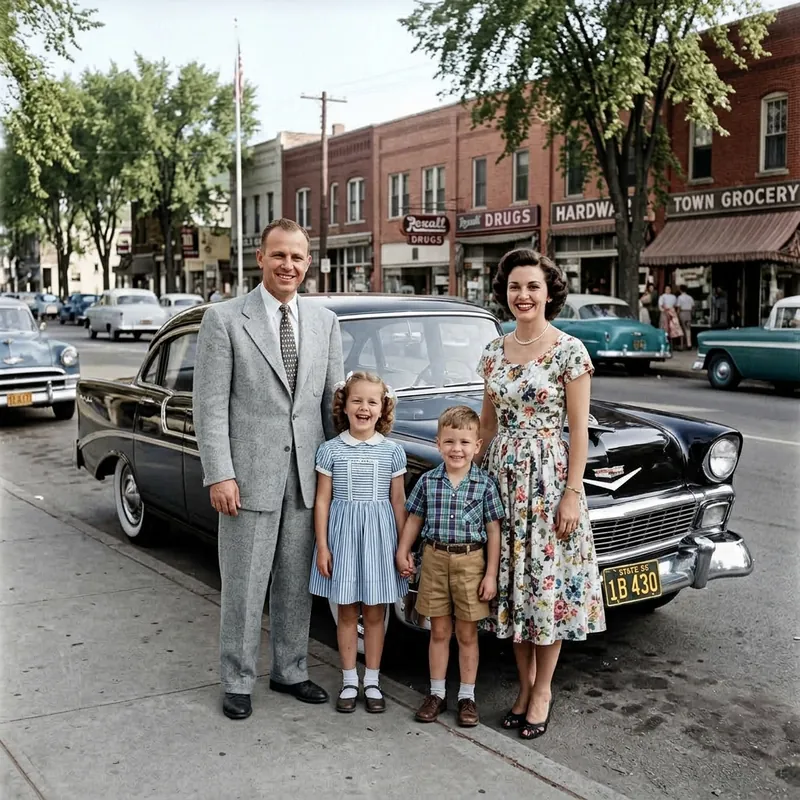 SebelumSesudah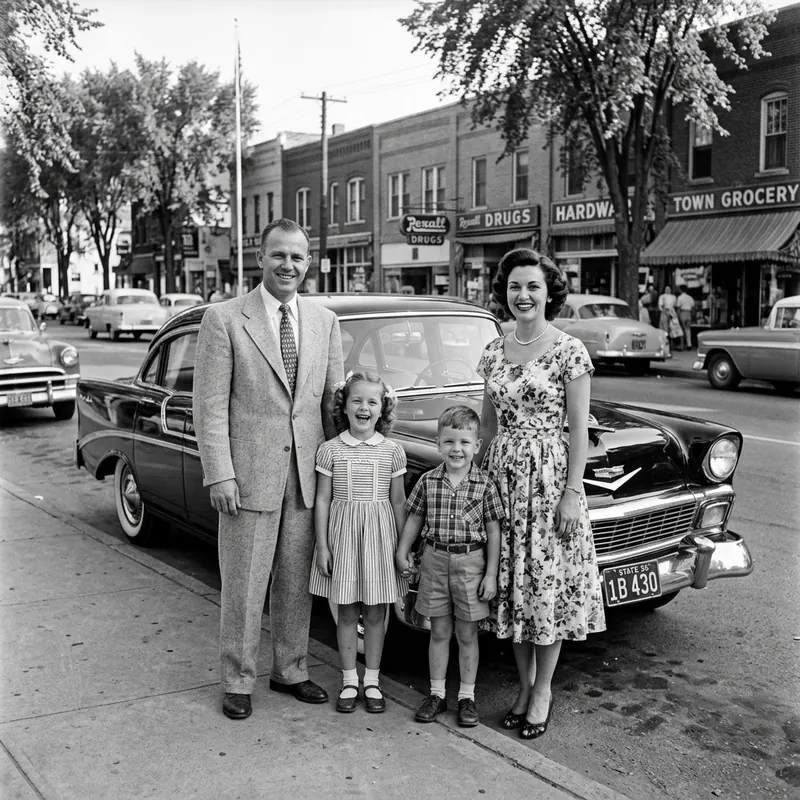
Cara kerjanya
- 1
Unggah foto Anda
Seret hasil pindaian atau foto cetakan ke kotak di atas. Berkas JPG, PNG, dan WebP bisa dipakai.
- 2
Pilih mode
Standar memungkinkan Anda menyalakan atau mematikan pemulihan dan pewarnaan secara terpisah. Lanjutan memulihkan detail dan menambahkan warna sekaligus dalam satu proses.
- 3
Bandingkan dan unduh
Cek foto berwarna dengan aslinya, sesuaikan warnanya dengan alat penyesuaian gratis, lalu ekspor.
Bisa dipakai untuk
Potret keluarga
Lihat kakek-nenek dan buyut dalam warna untuk pertama kalinya, lalu bagikan hasilnya ke keluarga.
Proyek silsilah
Beri warna pada foto di pohon keluarga, album leluhur, dan buku sejarah keluarga.
Pelajaran dan riset sejarah
Hidupkan suasana foto bersejarah untuk presentasi, tugas sekolah, dan buku sejarah daerah.
Film hitam putih
Coba versi berwarna dari foto yang diambil dengan film monokrom atau mode hitam putih di kamera.
Hadiah dan cetakan
Cetak foto pernikahan atau masa kecil yang sudah diwarnai di samping aslinya sebagai hadiah dulu dan sekarang.
Postingan nostalgia
Bagikan foto lama dalam versi berwarna di media sosial dan biarkan pengikut membandingkannya dengan aslinya.
01
Warna alami, bukan sekadar filter
Filter warna membuat seluruh foto bernuansa satu warna. Pewarna Foto mengenali isi gambar, seperti wajah, rambut, langit, dedaunan, kain, dan bangunan, lalu memberi masing-masing warna yang masuk akal sambil mempertahankan detail dan komposisi aslinya.
02
Mode Standar atau Lanjutan
Mode Standar punya sakelar Pemulih Foto dan Pewarna Foto yang terpisah, jadi Anda bisa mewarnai hasil pindaian yang bersih tanpa mengubah hal lain, atau sekaligus memperbaiki kerusakan. Mode Lanjutan memulihkan detail dan warna bersamaan dalam satu proses, cocok untuk cetakan yang pudar dan tergores. Anda juga bisa memilih model AI di panel.
03
Warna adalah tebakan yang cerdas
Foto hitam putih tidak merekam warna aslinya, jadi AI memilih warna yang paling mungkin. Kulit, langit, dan rumput biasanya terlihat benar, tetapi gaun, mobil, atau pintu bercat mungkin aslinya berwarna lain. Kalau Anda tahu warna sebenarnya, ubah setelahnya dengan alat warna dan HSL gratis di editor yang sama.
04
Tips agar hasil lebih bagus
Mulailah dari hasil pindaian paling tajam yang Anda punya, idealnya 600 dpi atau lebih, dan potong tepi serta alas pemindai. Foto dengan wajah yang jelas dan cukup cahaya paling meyakinkan saat diwarnai. Kalau cetakannya rusak, pakai mode Lanjutan atau biarkan Pemulih Foto tetap aktif.
Pertanyaan umum
Jawaban singkat soal harga, privasi, dan cara kerja editor. Anda juga bisa mencoba alat gratis dulu, lalu memutuskan.
Bagaimana cara mengubah foto hitam putih menjadi berwarna?
Unggah foto di halaman ini, pilih mode Standar atau Lanjutan di panel Warnai Foto Hitam Putih, lalu jalankan. AI mewarnai seluruh foto, dan Anda bisa membandingkannya dengan aslinya sebelum mengunduh.
Apakah warnanya akurat sesuai aslinya?
Tidak selalu. AI memilih warna yang realistis berdasarkan apa yang dikenalinya, tetapi tidak bisa tahu warna pasti sebuah gaun atau mobil. Anggap hasilnya sebagai interpretasi yang hidup, dan koreksi warna yang Anda ketahui dengan alat penyesuaian di editor.
Bisakah mewarnai foto sepia?
Bisa. Foto sepia dan cetakan bernuansa warna lain diwarnai dengan cara yang sama seperti foto hitam putih.
Bisakah memperbaiki goresan sambil mewarnai?
Bisa. Biarkan Pemulih Foto aktif di mode Standar, atau pakai mode Lanjutan untuk memulihkan detail dan warna sekaligus dalam satu proses.
Apakah pewarna foto ini gratis?
Mengunggah dan alat dasar editor gratis. Setiap pewarnaan berjalan di AI Codia dan memakai kredit dari akun Codia Anda, jadi Anda akan diminta masuk sebelum yang pertama.
Apakah foto saya diunggah?
Tidak saat dibuka. Foto berpindah dari halaman ini ke editor di dalam browser Anda, dan alat gratis memprosesnya di perangkat Anda. Foto baru diunggah saat Anda memakai alat AI atau menyimpan proyek ke akun Codia.
Apakah saya perlu akun?
Tidak perlu akun untuk membuka foto dan memakai alat gratis. Anda akan diminta masuk saat memakai alat AI atau ingin menyimpan proyek ke akun.
Alat terkait
Siap mengedit?
Buka editor secara terpisah dan tambahkan foto di sana, atau seret foto ke kotak di bagian atas halaman ini.
Buka Warnai Foto Hitam Putih