
Code Generation Options
Generation Modes
Codia offers several code generation modes to fit different use cases:
Standard Mode
Generates a complete component from your design with sensible defaults. Best for most projects.
Component Mode
Breaks down complex designs into reusable components. Each component gets its own file with proper imports and exports.
Page Mode
Generates a full page layout including routing setup, meta tags, and responsive design. Ideal for landing pages and marketing sites.
Configuration Options
Framework Settings
Configure the target framework and its specific options:
interface CodeGenConfig {
  framework: 'react' | 'vue' | 'html' | 'flutter' | 'swiftui'
  styling: 'tailwind' | 'css-modules' | 'inline' | 'styled-components'
  responsive: boolean
  typescript: boolean
  accessibilityLevel: 'basic' | 'wcag-aa' | 'wcag-aaa'
}
Responsive Breakpoints
Customize the responsive breakpoints used in generated code:
| Breakpoint | Width | Description |
|---|---|---|
sm | 640px | Small devices |
md | 768px | Tablets |
lg | 1024px | Desktops |
xl | 1280px | Large screens |
2xl | 1536px | Extra large |
Base Code vs AI Code
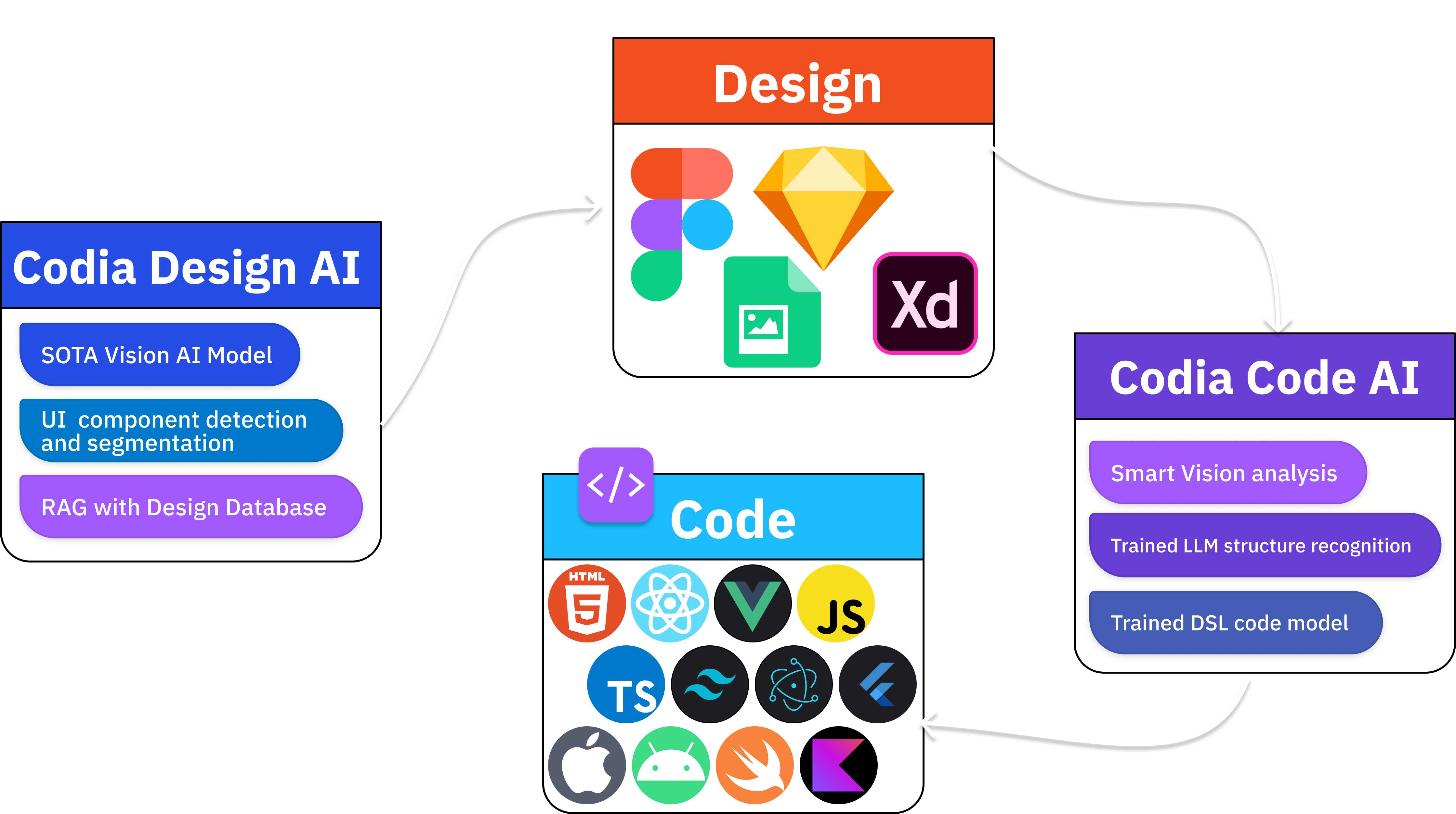
Codia offers two tiers of code generation to suit different needs:
Base Code
Base Code uses a DSL recognition model to generate code quickly. It aims for strong visual fidelity to the design with fast generation speed. However, the code quality is more basic — especially for complex Figma layouts.
AI Code
AI Code produces expert-level code that closely matches what a professional engineer would write. It leverages trained LLMs, smart structure analysis, and vision recognition to deliver high-quality, production-ready code with minimal manual adjustments needed.
How to Choose
- Base Code — Best when you prioritize speed and only need the UI to match the design visually
- AI Code — Best when you need production-quality code that you can build upon and maintain
AI-Powered Capabilities
AI Code brings six core capabilities that set it apart from traditional code generation:
1. Intelligent Layout Recognition
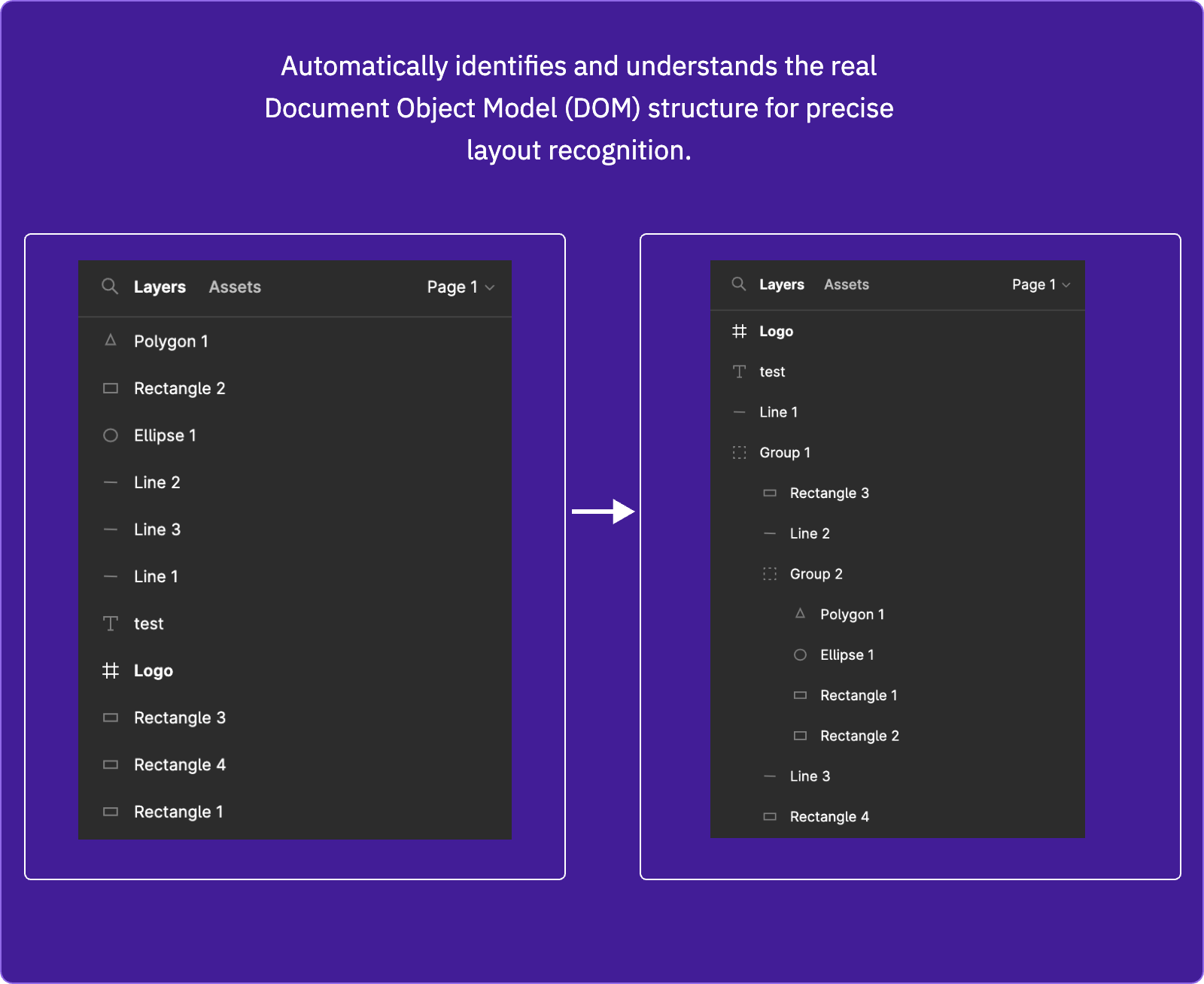
Automatically identifies the real DOM structure of your design for precise layout mapping. Instead of relying on absolute positioning, the AI understands spatial relationships and generates proper semantic layouts using Flexbox and Grid.
2. Intelligent Naming
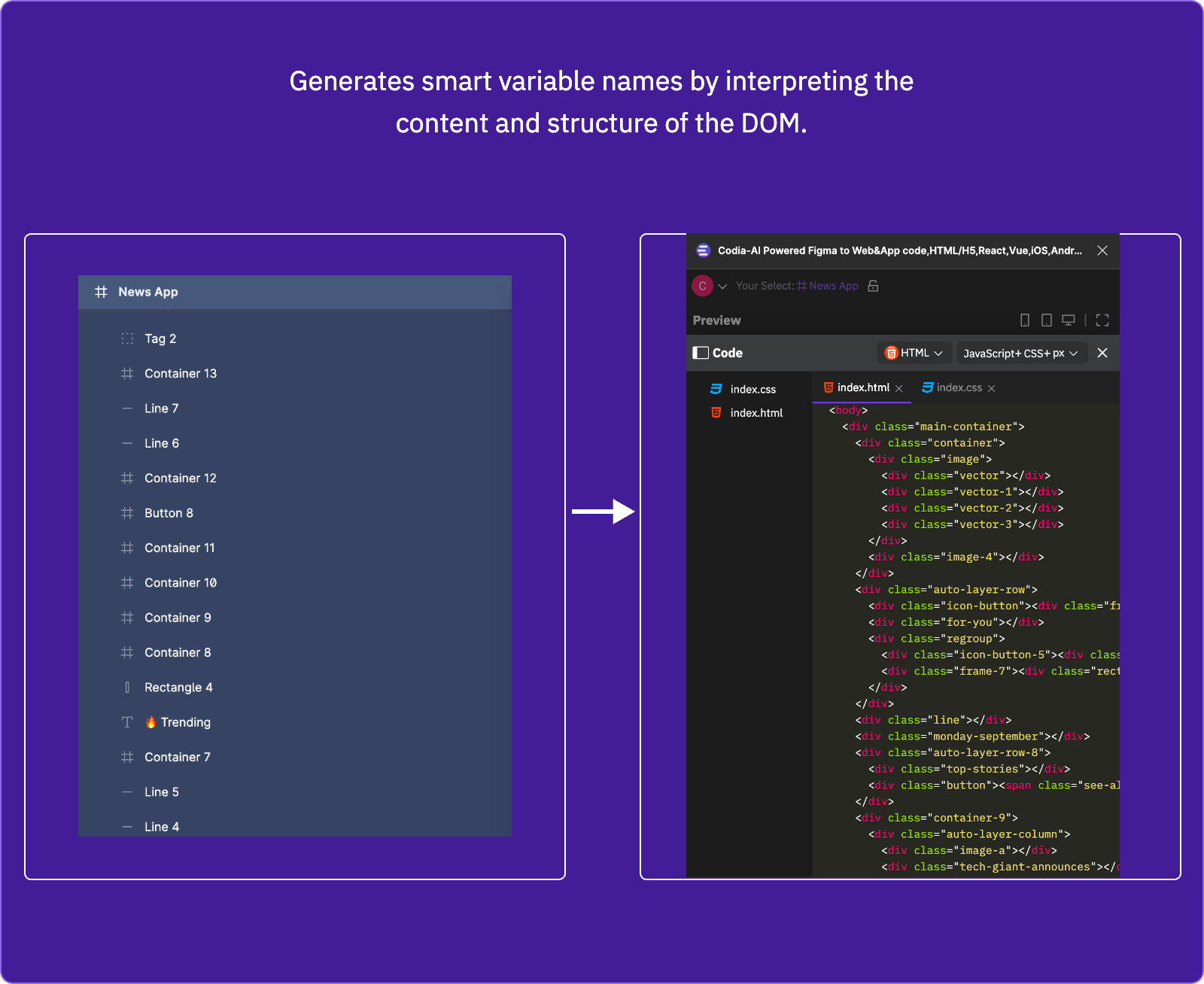
Generates meaningful variable and class names by analyzing the content and structure of each element. The AI uses NLP techniques to produce names like userNameInput or primaryButton instead of generic identifiers.
3. Smart Layer Merging
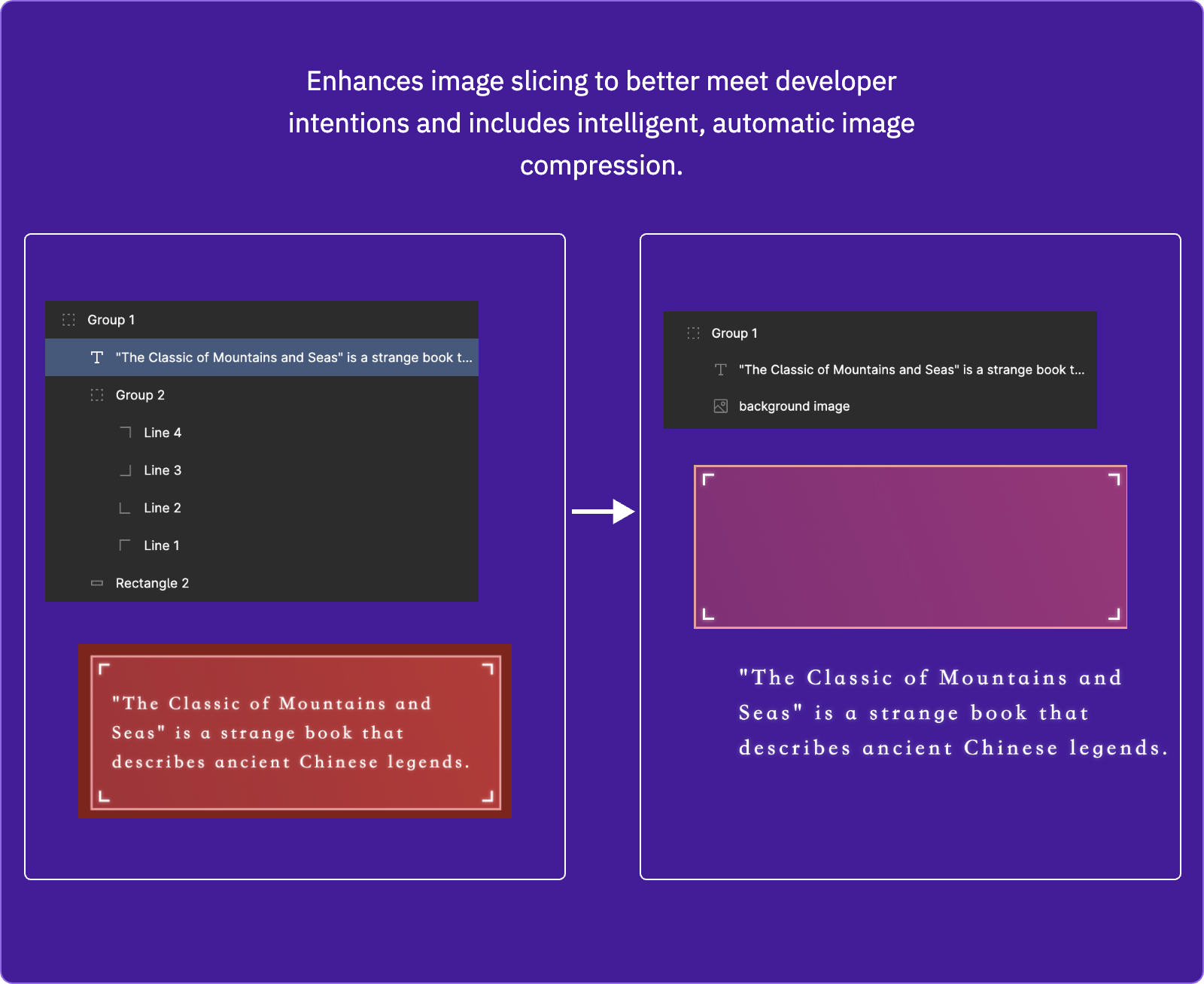
Enhances image slicing to match developer intent and applies intelligent automatic image compression. The AI identifies which layers should be merged into a single asset and selects optimal file formats for each.
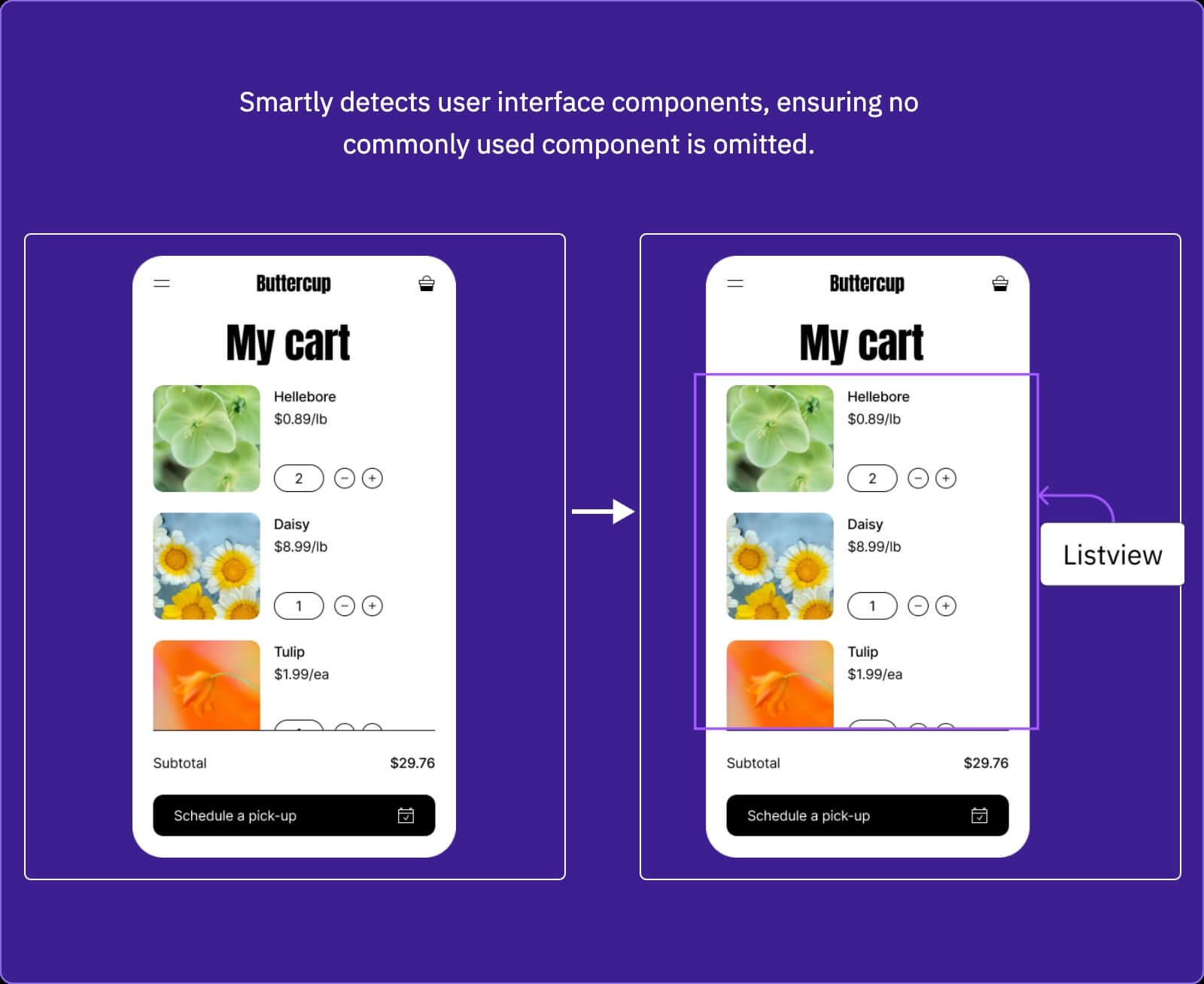
4. Smart UI Component Detection
Detects common UI patterns — buttons, cards, navigation, forms — and generates appropriate reusable components. The AI ensures no commonly used component is missed, even in complex layouts.
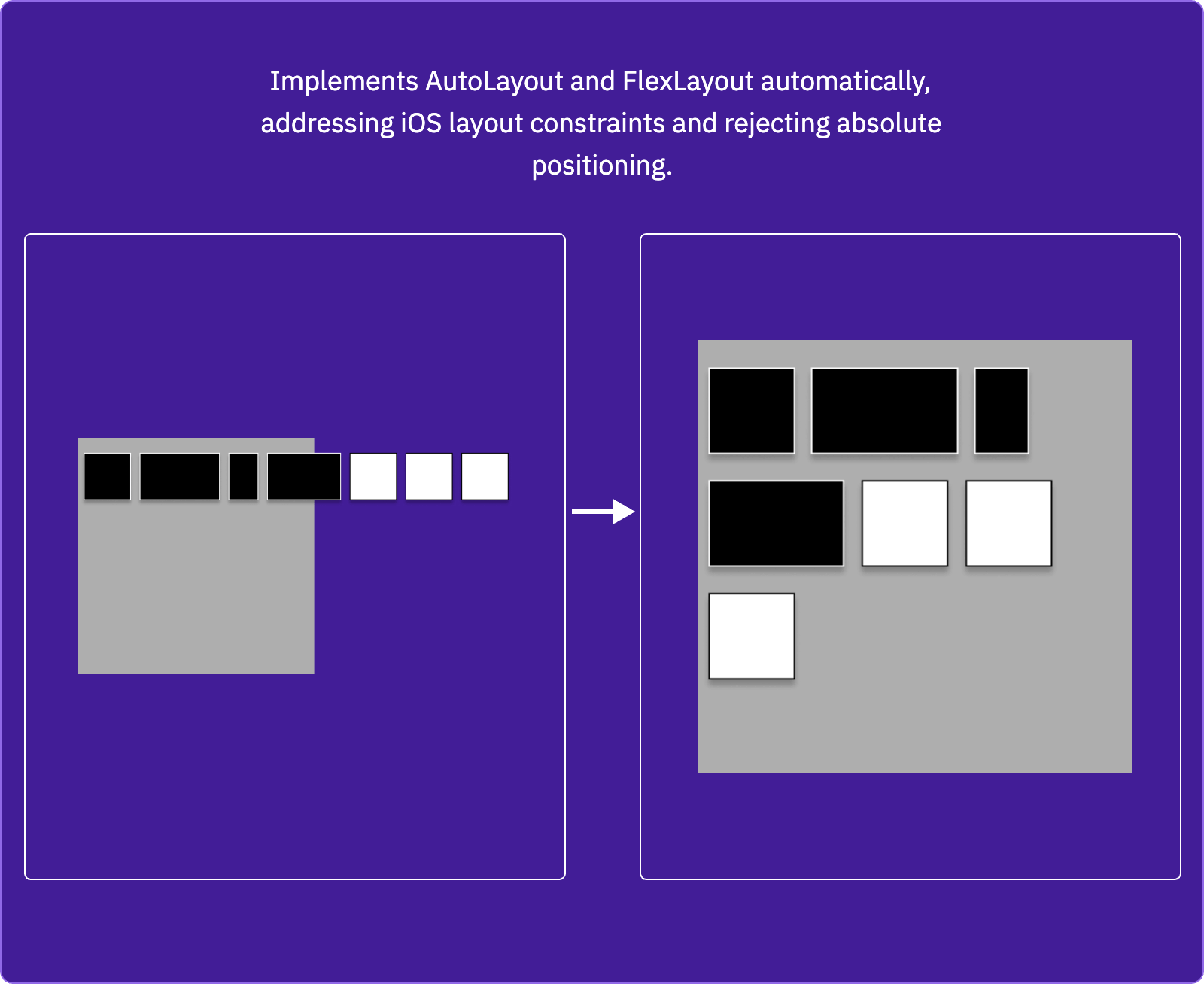
5. Automated AutoLayout
Implements AutoLayout and FlexLayout automatically, generating responsive constraint-based layouts instead of absolute positioning. This is especially valuable for iOS (SwiftUI) and cross-platform (Flutter) outputs.
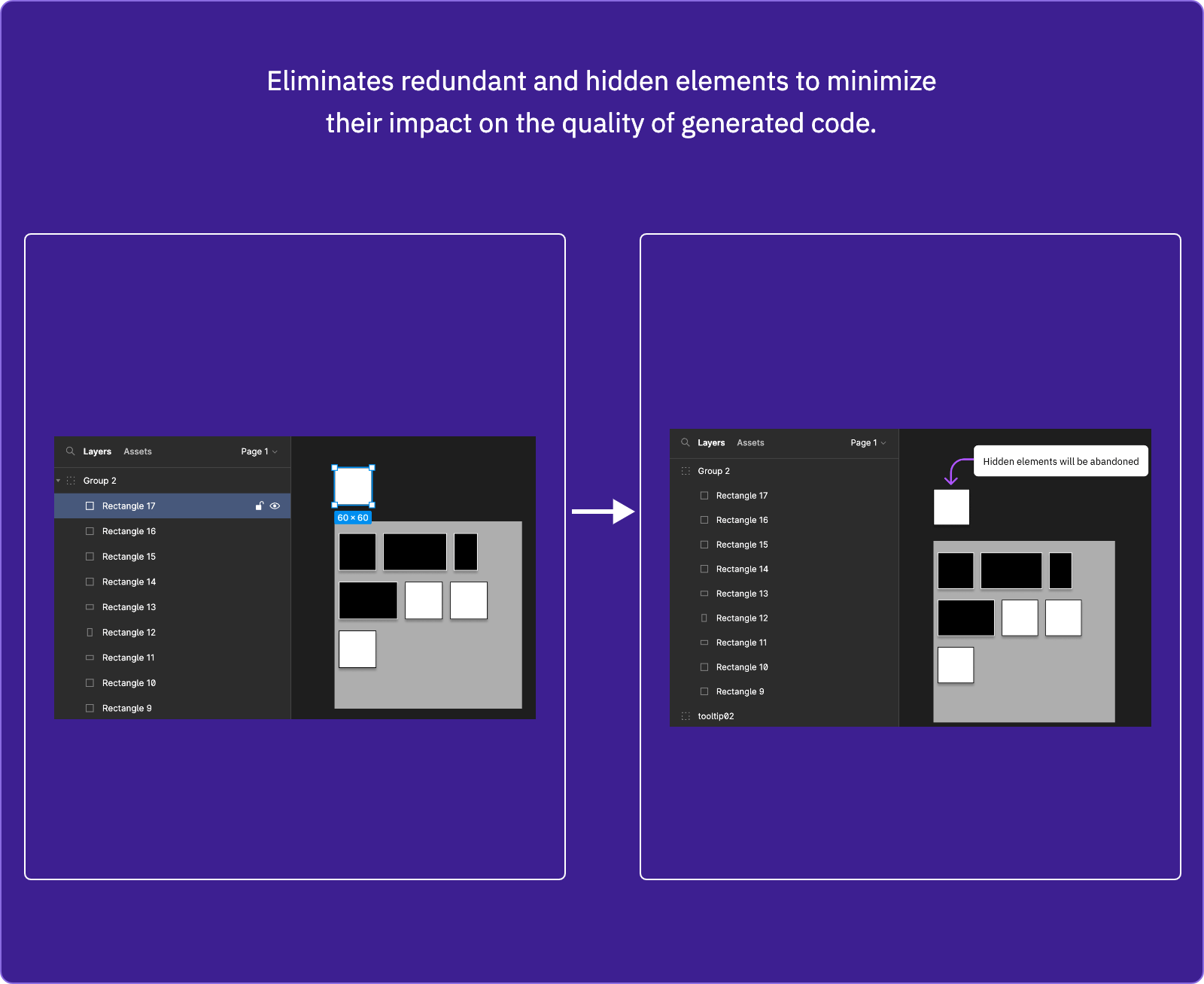
6. Useless Layer Elimination
Identifies and removes redundant, hidden, or decorative-only layers that would negatively impact code quality. This results in cleaner, lighter code with better performance.
Advanced Features
Smart Component Detection
Codia AI automatically detects common UI patterns and generates appropriate components:
- Navigation bars and headers
- Card layouts and grids
- Form elements with validation
- Modal dialogs and overlays
- List and table views
Asset Extraction
Images, icons, and other assets are automatically:
- Extracted from the design
- Optimized for web delivery
- Referenced with proper paths in the generated code
Accessibility
Generated code includes accessibility features by default:
- Semantic HTML elements (
nav,main,article, etc.) - ARIA labels and roles
- Keyboard navigation support
- Color contrast compliance
API Integration
The public OpenAPI specification focuses on visual-structure and media conversion endpoints rather than a standalone code-generation endpoint. For automated workflows, start by converting an image into structured design data, then pass that structure into your own downstream code-generation or design-import pipeline.
curl 'https://api.codia.ai/v2/open/image_to_design' \
  -X POST \
  -H "Authorization: Bearer YOUR_API_KEY" \
  -H "Content-Type: application/json" \
  -d '{
    "image_url": "https://example.com/design.png"
  }'
See Visual Struct API for image-to-design schema details, or open the API Reference for the complete endpoint list.
Troubleshooting
Common Issues
- Missing elements — Ensure all layers are visible and not hidden
- Incorrect hierarchy — Check your layer grouping in the design tool
- Styling differences — Custom fonts may need manual configuration