
Screenshot to Figma:
Turn Any Image into Editable Layers
Upload a screenshot, PNG or JPG and get a Figma design you can actually edit: real text, shapes, images and grouped layers instead of one flat picture. Use the free Figma plugin or convert right in your browser.
Figma plugins run on a computer. On your phone, try the browser version first.
5 free AI credits every month · No credit card · Works on Figma's free plan



No plugin? Convert in your browser
Built for common creative workflows
Real results
Typical screenshots, converted to editable layers
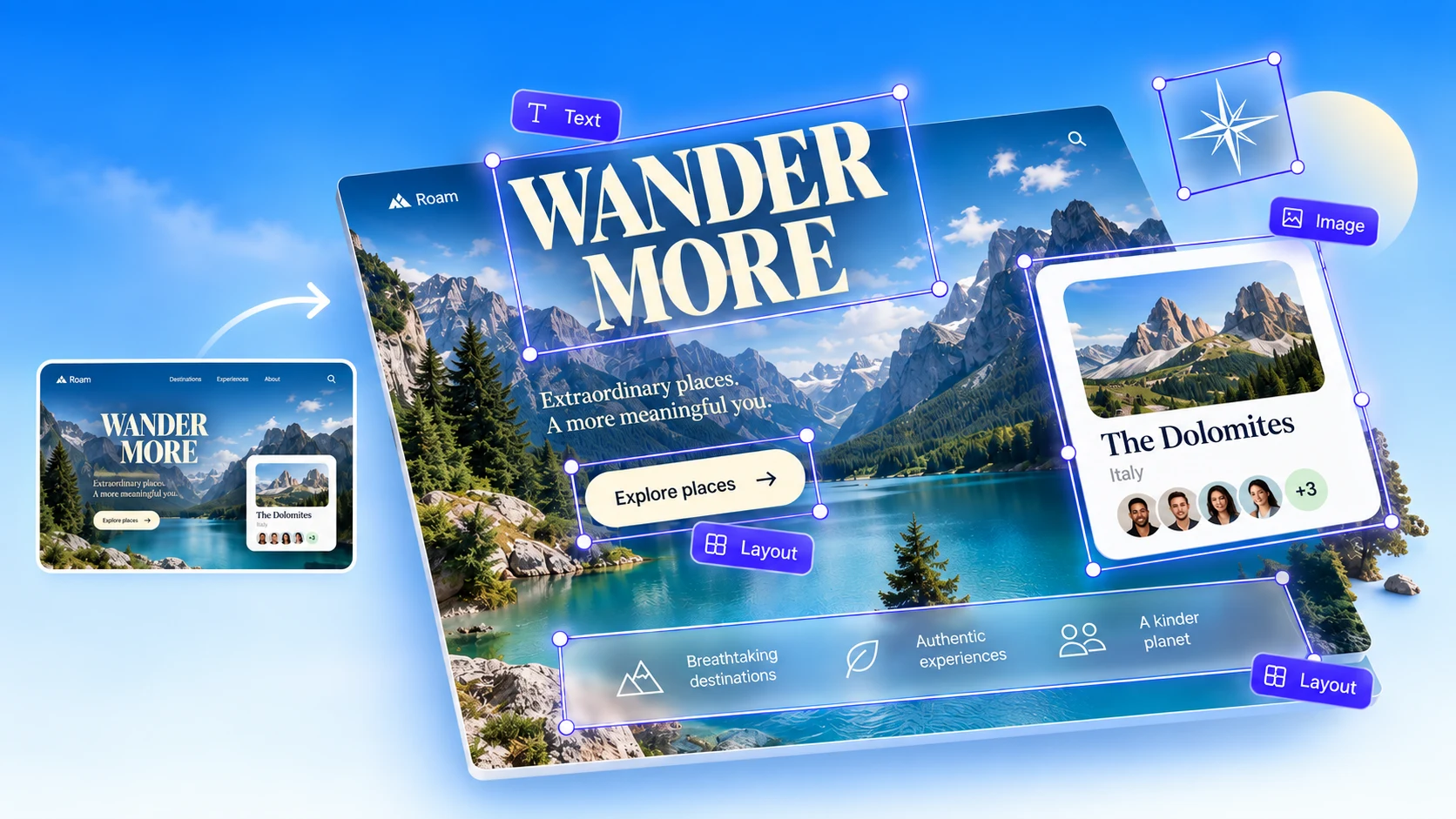
A website, a dashboard and a mobile app, each run through the same screenshot-to-design engine the Figma plugin uses. Headings, buttons, cards and photos each come back as their own layer.
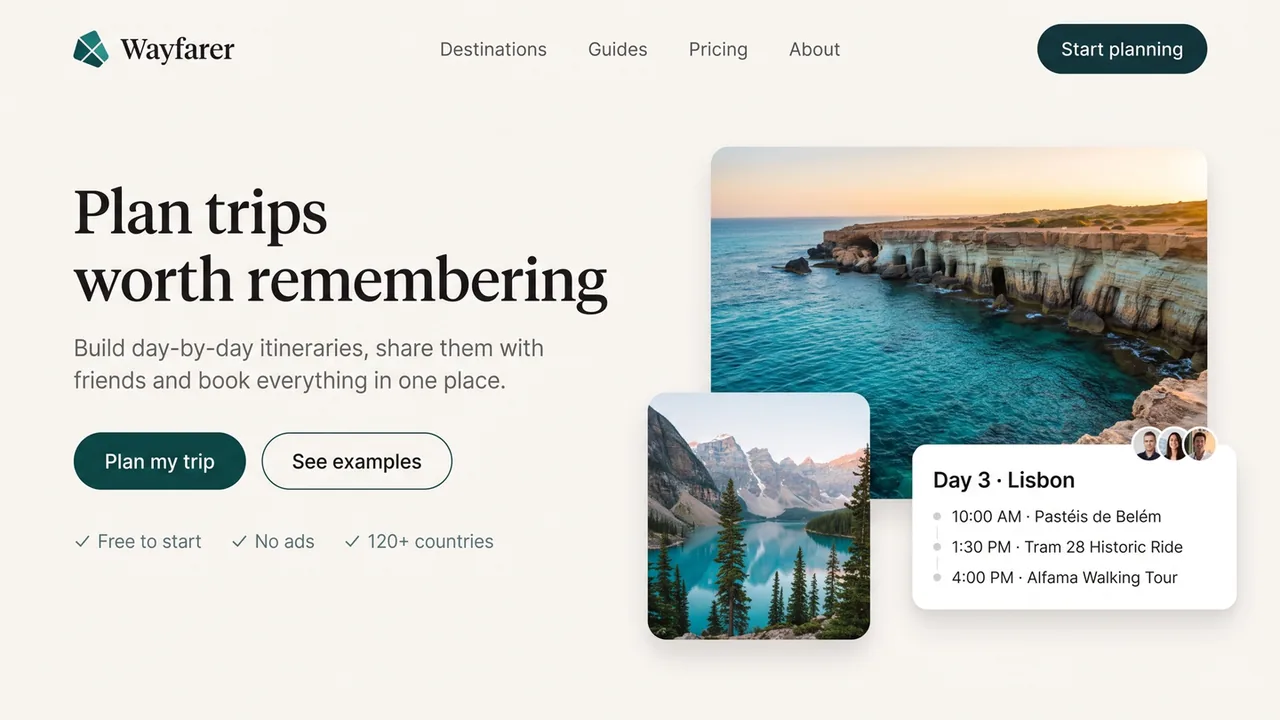
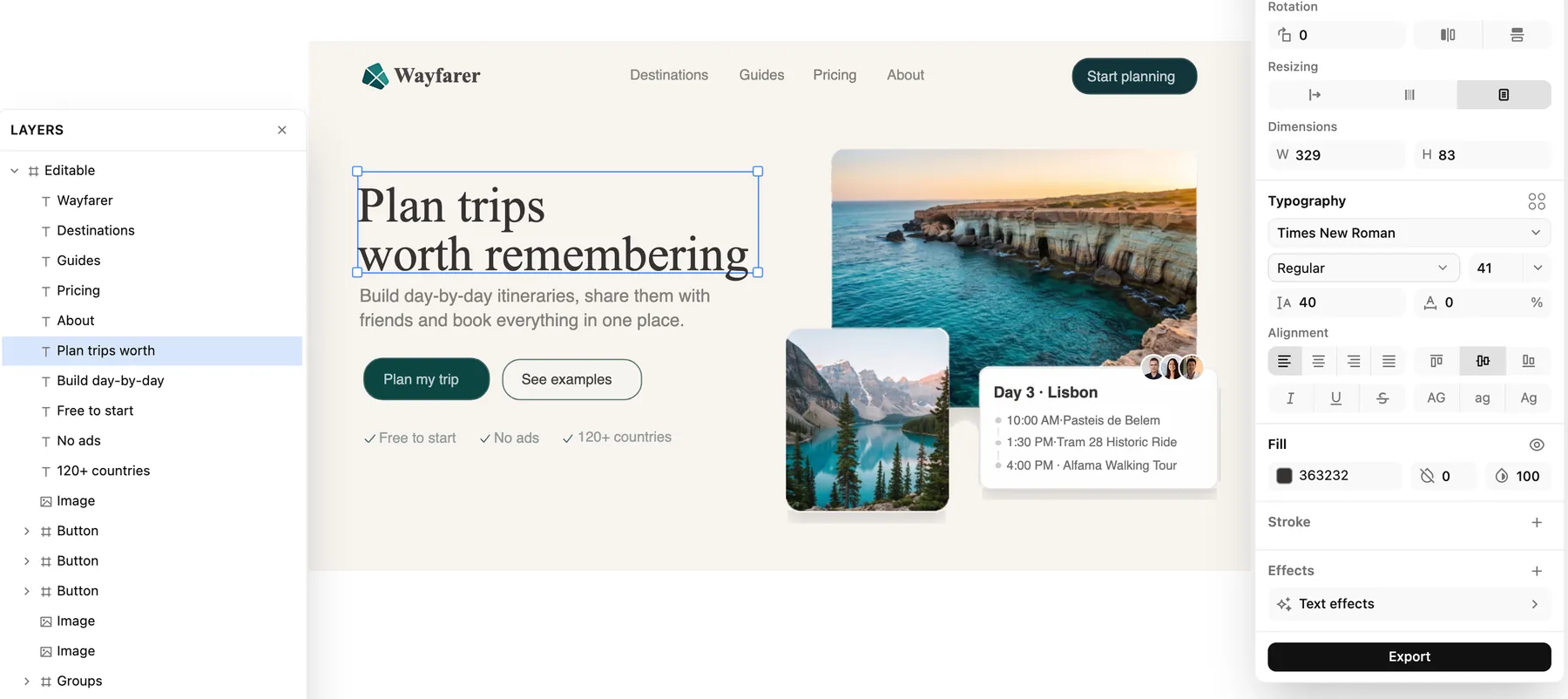
A travel landing page. Nav links, buttons, photos and the itinerary card are separate layers, and the selected headline is live text.
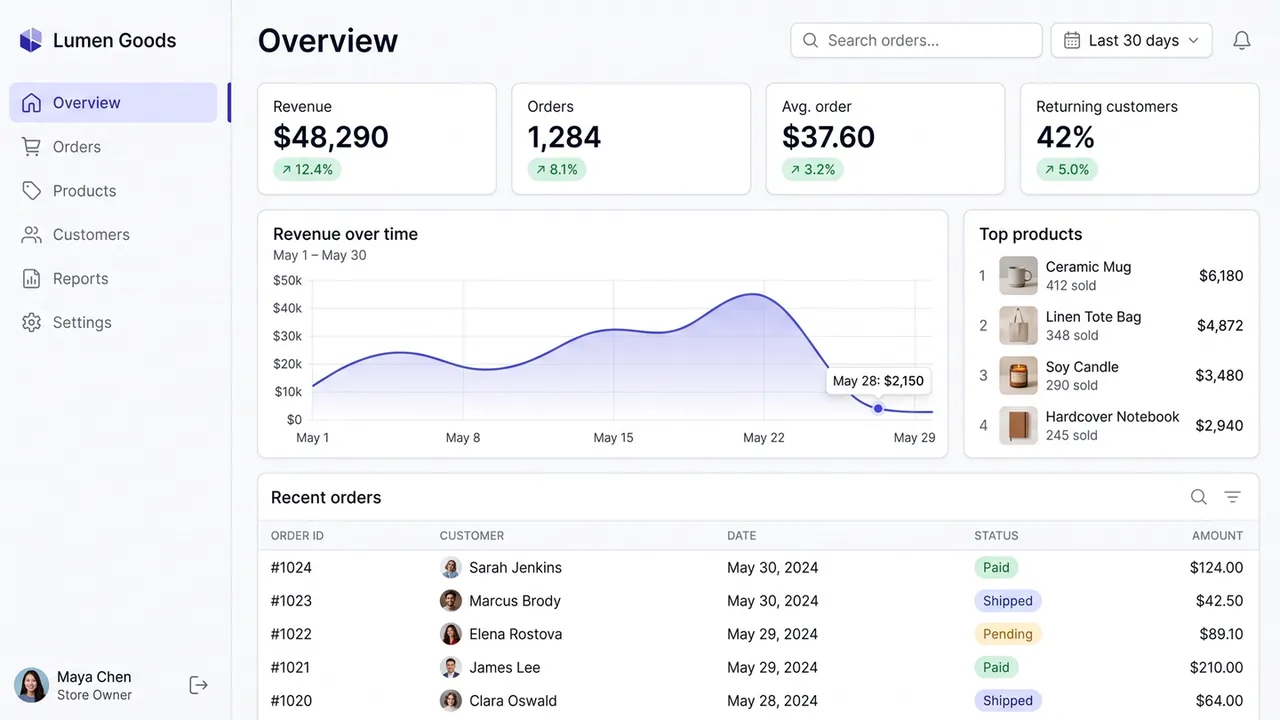
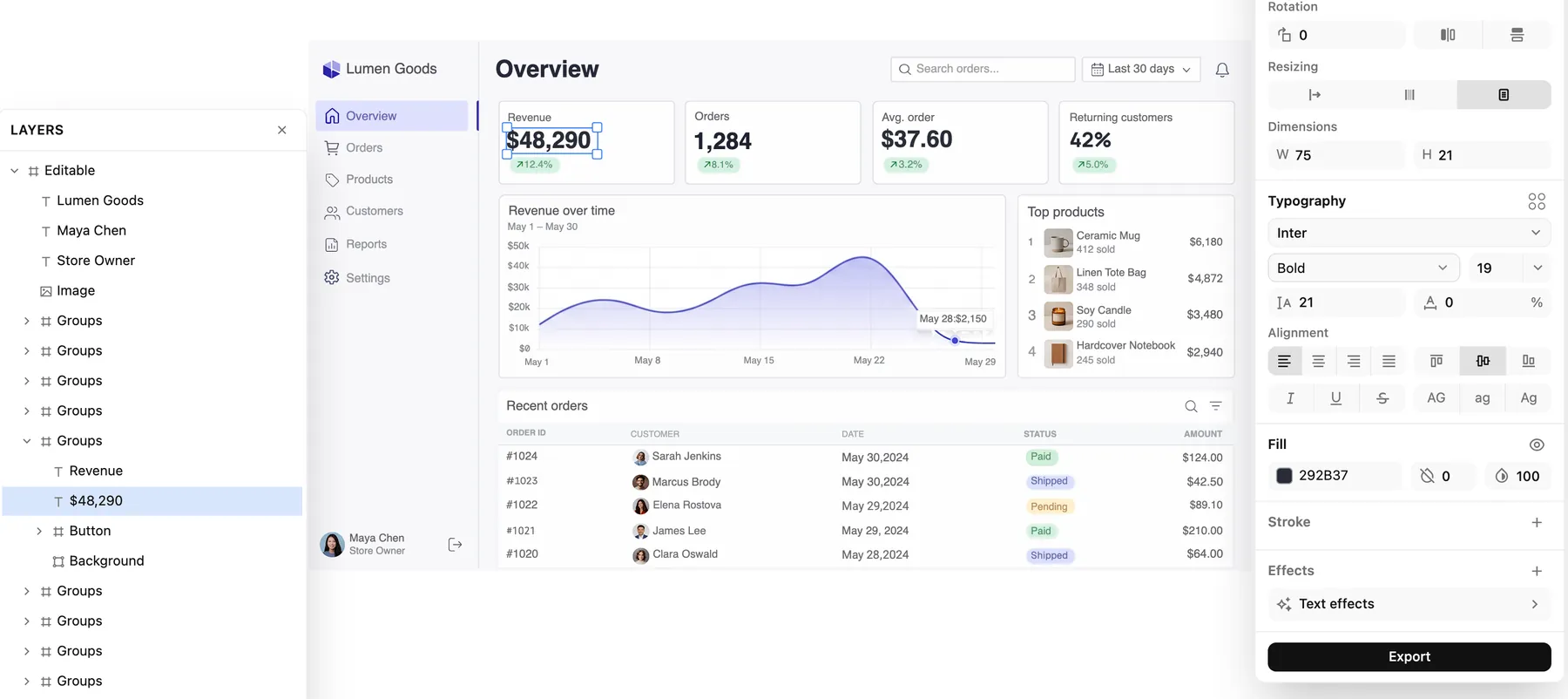
An analytics dashboard. Each KPI card is a group of text, a badge and a background, and the selected figure is live text in Inter Bold.

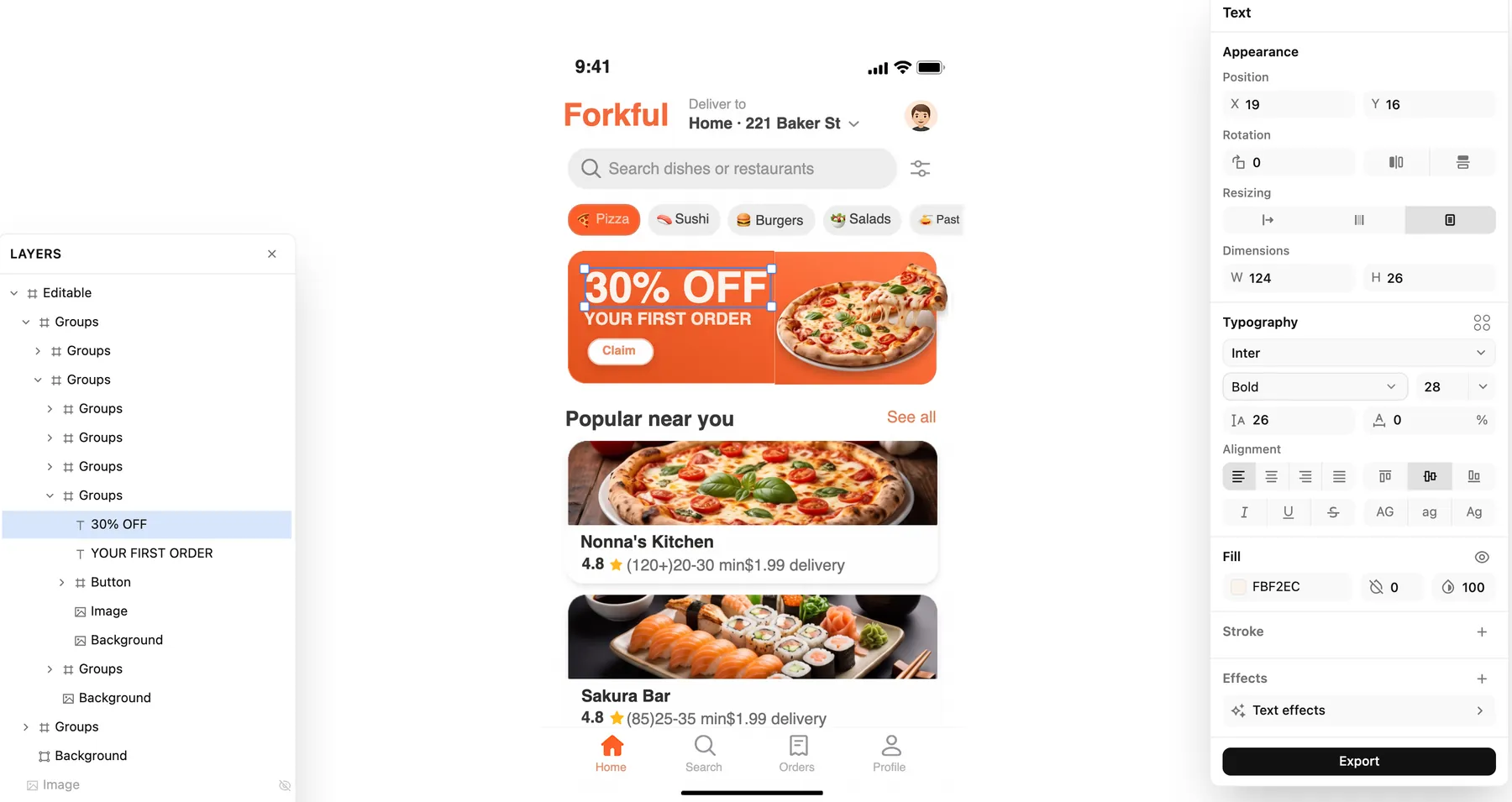
A food delivery app. The promo banner splits into its title, subtitle, button and photo, and the selected title is live text in Inter Bold.
The sample screens are fictional products generated for this demo; the conversions are real. Shown in Codia Studio with the layer panel open. The Figma plugin builds its layers from the same conversion, and results depend on the source image.
What you can convert
Image to Figma for every kind of UI
If you can take a screenshot of it, you can convert it. Codia turns PNG, JPG and WebP images of real products and mockups into Figma designs.
iOS and Android app screens
Rebuild app screens from your phone, a TestFlight build or a store listing without redrawing every component.
Websites and landing pages
Turn a captured web page into an editable layout. For a live URL, Web to Figma imports the page directly.
SaaS dashboards and admin panels
Tables, charts, sidebars and dense forms come back as editable elements, ready for a redesign.
Design references and mood boards
Turn an inspiration shot or a reference screen into layers you can study, restyle and adapt.
Legacy UI without source files
Lost the original design file? Recover an editable version from a screenshot of the shipped product.
PNG, JPG and WebP images
Any UI image works, from a quick screenshot to an exported mockup. Sharper, higher-resolution images give cleaner text.
How it works
How to convert a screenshot to Figma
Three steps in the Figma plugin. Most screens are ready to edit in minutes.
- 1
Install the free plugin
Open Codia AI Design from Figma Community and run it in any Figma file.
- 2
Upload your screenshot
Drop in a PNG, JPG or WebP: an app screen, a web page, a dashboard or a design reference.
- 3
Edit the generated layers
Codia rebuilds text, shapes, images and layer hierarchy on your canvas. Edit it like any other Figma design.
Prefer the browser?
Upload the image at the top of this page. Codia Studio opens it as an editable canvas; click Copy to Figma and paste it into your file.
What you get
Editable Figma layers, not a flattened picture
A screenshot pasted into Figma is one image. A converted screenshot is a design: every piece is its own layer.
Real text layers
Headlines, labels and paragraphs come back as editable text, so you can change copy without retyping the screen.
UI hierarchy, not loose shapes
Containers, lists, buttons and cards are grouped into a layer tree you can move, resize and restyle.
Images and icons on their own layers
Photos, illustrations and icons are separated from the background instead of being baked into it.
Fonts and multilingual text
Font detection keeps the original look, and text in many languages is recognized, not just English.
SVG output when you need vectors
Convert the same screenshot to scalable SVG for icons, illustrations and assets that must stay sharp.
Ready for design to code
A structured layer tree is a clean starting point for Codia Design to Code and other Figma-to-code tools.
Paste, trace or convert: three ways to get a screenshot into Figma
Pasting is instant but leaves you with a picture. Tracing by hand is editable but slow. Converting gives you both.
| Convert with Codia | Paste the image | Trace by hand | |
|---|---|---|---|
| Editable text | Yes, recognized as text layers | No, text is pixels | Yes, retyped manually |
| Layer structure | Grouped, nested layers | One flat image | Built manually |
| Fonts and colors | Detected from the image | Visible only | Matched by eye |
| Time per screen | Minutes, then refine | Seconds | Often hours |
What designers say on Figma Community
Excerpts from public comments on the Codia AI Design plugin page, in the commenters' own words.
Very impressed! I was skeptical, having tried other 'screenshot to figma' plugins with terrible results. This Codia plugin rapidly created an almost pixel-perfect replica of the screenshots, with all the correct vectors and layers. … The free 5 credits is more than enough to test the outputs before making a purchase decision. I'm subscribing now.We tested it today. With various screen shots. Very cool. And very simple to use.It was super helpful! Codia allows you to use a free version with pre set image formats (size for example). I recommend it!Screenshot to Figma pricing
Start free with 5 AI credits every month. Upgrade for larger screenshots, batch uploads and more credits.
Screenshot to Figma FAQ
Answers about converting screenshots and images into editable Figma designs.
More questions? Reach out and we will help.
Contact SupportRelated guides and converters
- Screenshot to Figma guideTips for cleaner conversions, from capture to final layers.
- Plugin documentationSettings, limits and troubleshooting for Codia AI Design.
- Screenshot to CanvaTurn screenshots into editable Canva designs.
- Screenshot to PhotoshopRebuild screenshots as editable PSD layers.
- Screenshot to SketchConvert screenshots into Sketch layers on your Mac.
- Web to FigmaImport a live web page into Figma from its URL.
- PDF to FigmaConvert PDF pages into editable Figma frames.
- Screenshot to design APIBatch-convert UI screenshots to JSON, SVG and Figma data.
Convert your first screenshot
to Figma for free
Install the plugin in Figma or upload an image in your browser. Every account gets free AI credits each month.
No credit card · Files not used for training · 5 free AI credits every month