
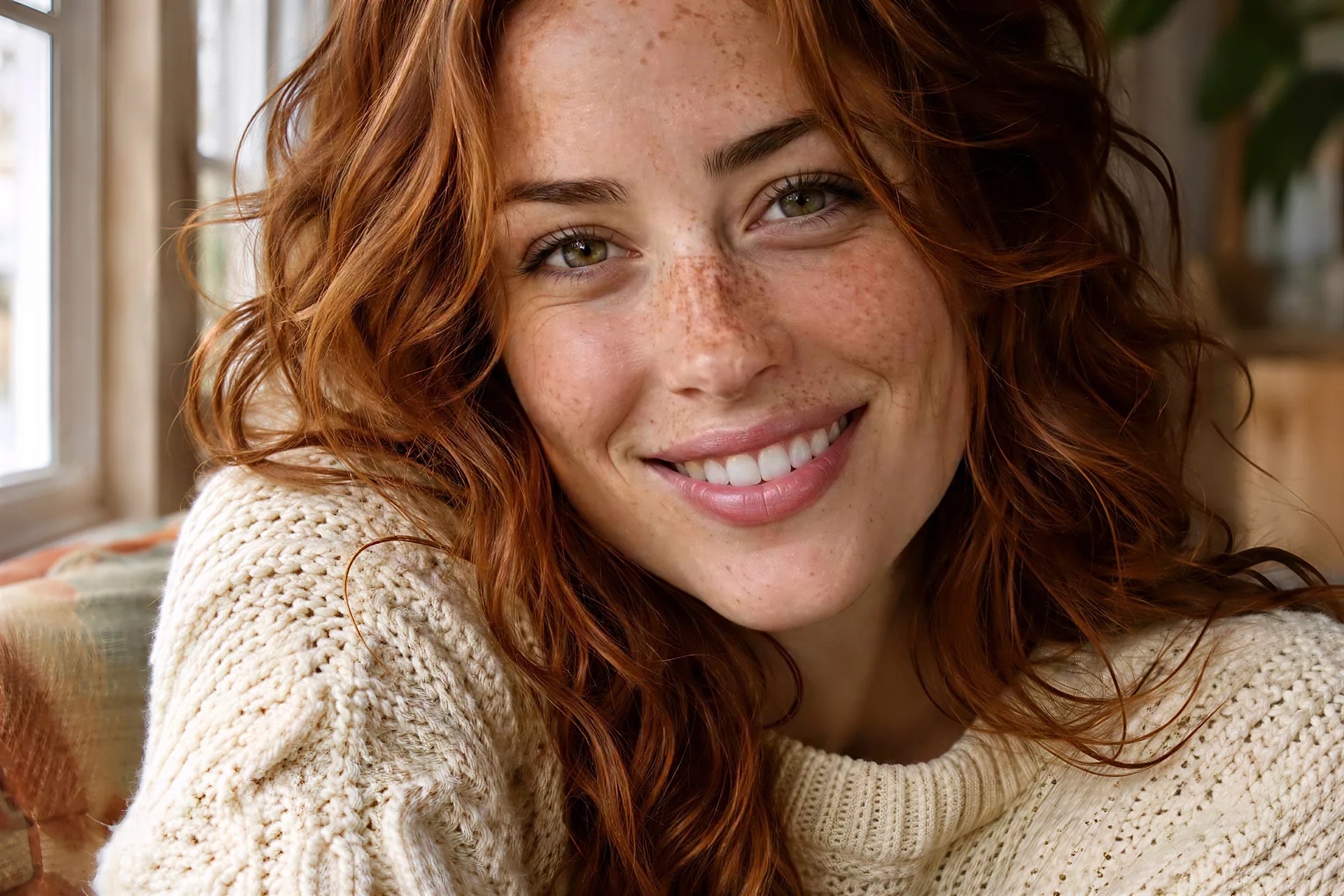
解像度
960 × 640
向下捲動睇修復對比
線上放大圖片
線上放大圖片
上传低清或模糊图片,用 AI 提高清晰度,并在 Codia Studio 中继续完善更清晰的素材。
或直接拖放圖片到頁面任意位置 · 一次最多 20 張 · 失敗免扣分
0×
無損放大,最高 4K 一次到位
0
單次批量處理相片數
0
專用模型,覆蓋相片、細節同文字
0
失敗任務扣費積分
放大細睇
2 倍同 4 倍 AI 相片放大細節對比
1×
縮圖睇落仲算唔錯。
低解像度相片嘅問題,要到印刷、裁剪或者放大先會現形。
2×
一放大就見到破綻。
左邊係壓縮色塊同模糊邊緣,右邊係模型重建嘅清晰紋理。
4×
每條細節重新還原。
毛髮、眼神同邊緣喺 4 倍尺寸下依然銳利。
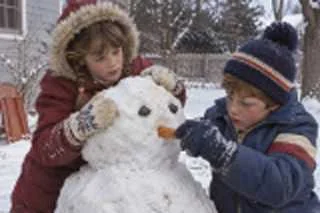
人像面部保真 AI 放大
人像更清晰,面孔唔走樣。
一般生成式放大好易將人臉畫成另一個樣。OptiClear 還原五官同膚質後會對照原圖拉返偏移細節。
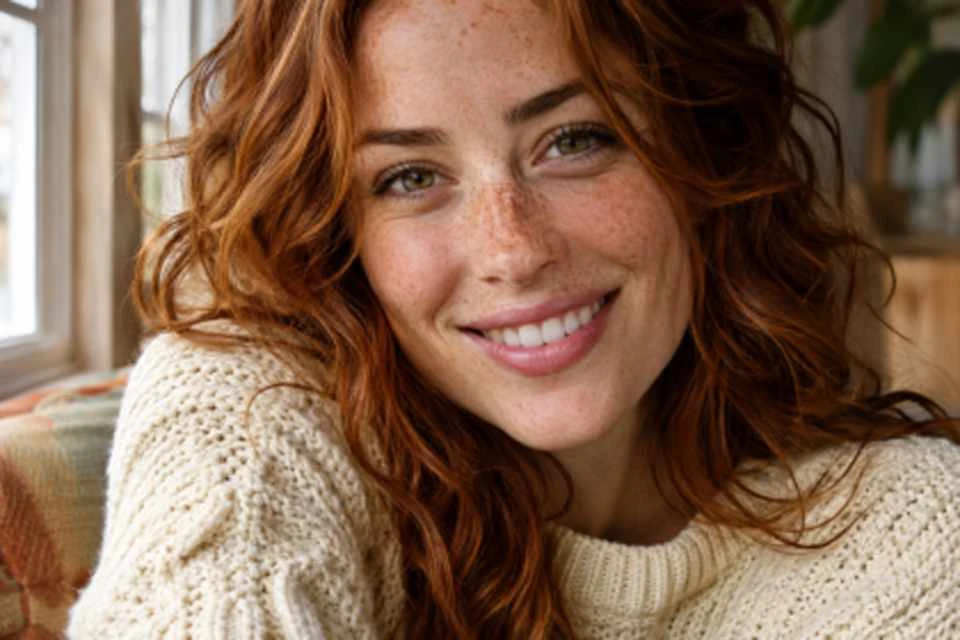
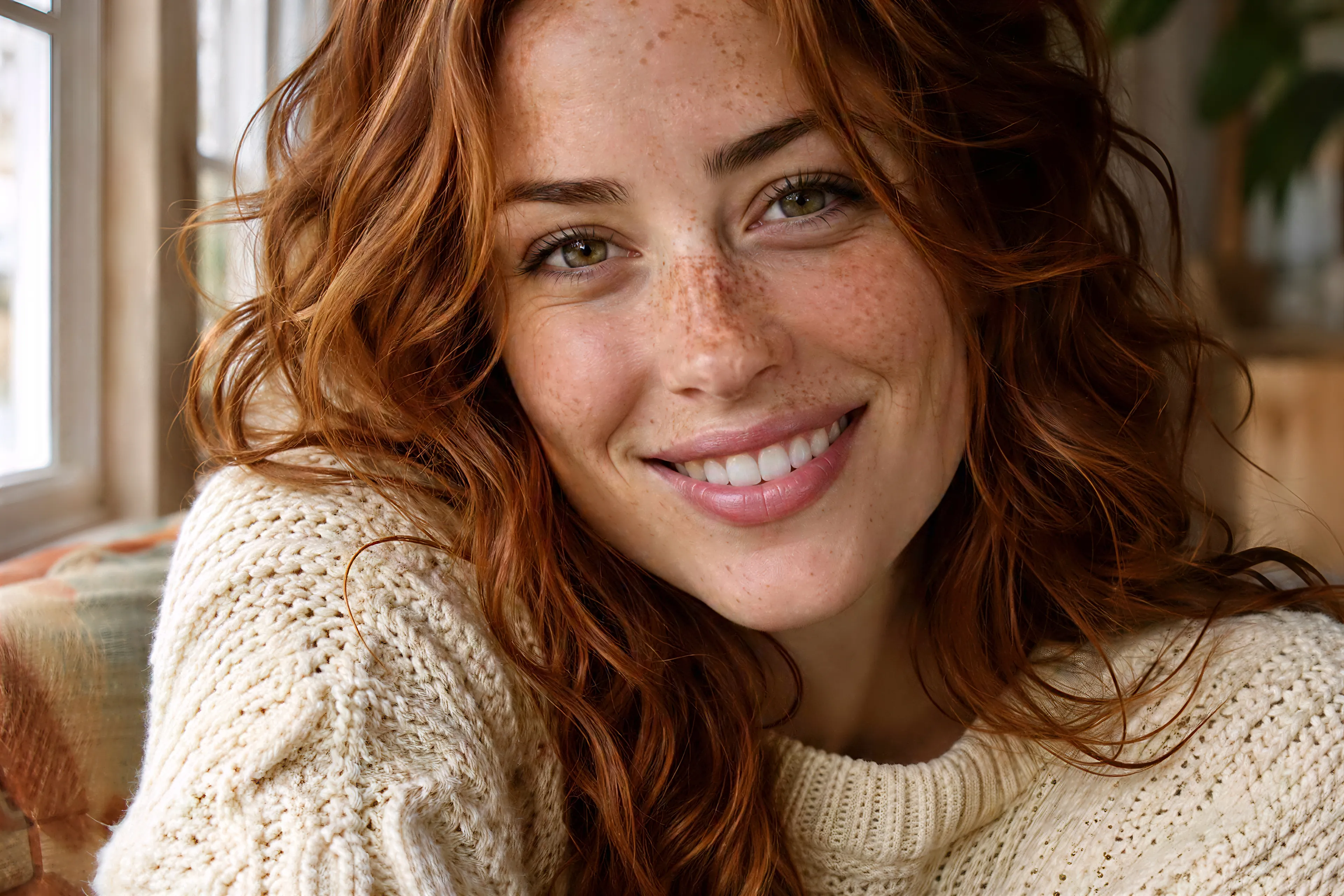
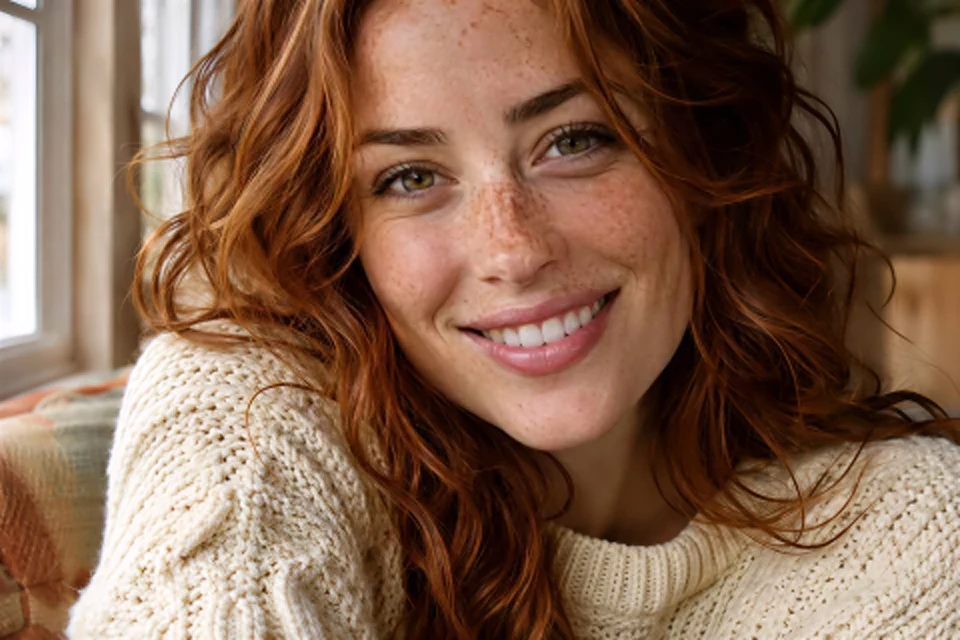 originalFace match (SSIM)0.97
Panel 03 flips between your upload and OptiClear’s result scaled back to the upload’s own detail. If a face had been redrawn, it would jump. The score compares the two faces pixel structure by pixel structure; 1.00 is identical.
No new features
Eyes, nose and mouth keep their shape and place.
Same expression
A half smile stays a half smile. No beauty filter.
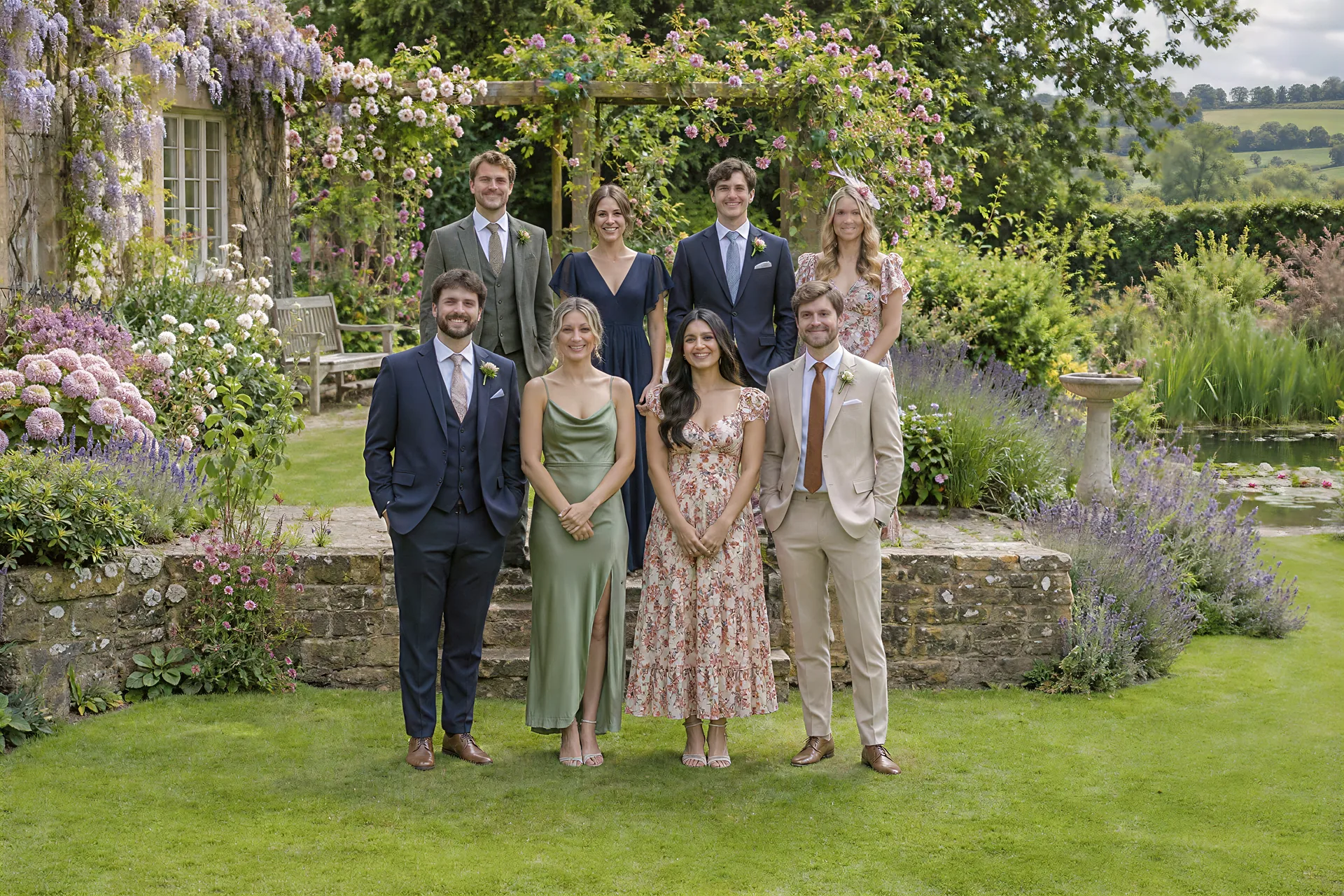
Small faces in group shots
Where most upscalers smear or invent faces, every guest stays themselves.
Glasses, beards, wrinkles
Age and character are details too. They stay.
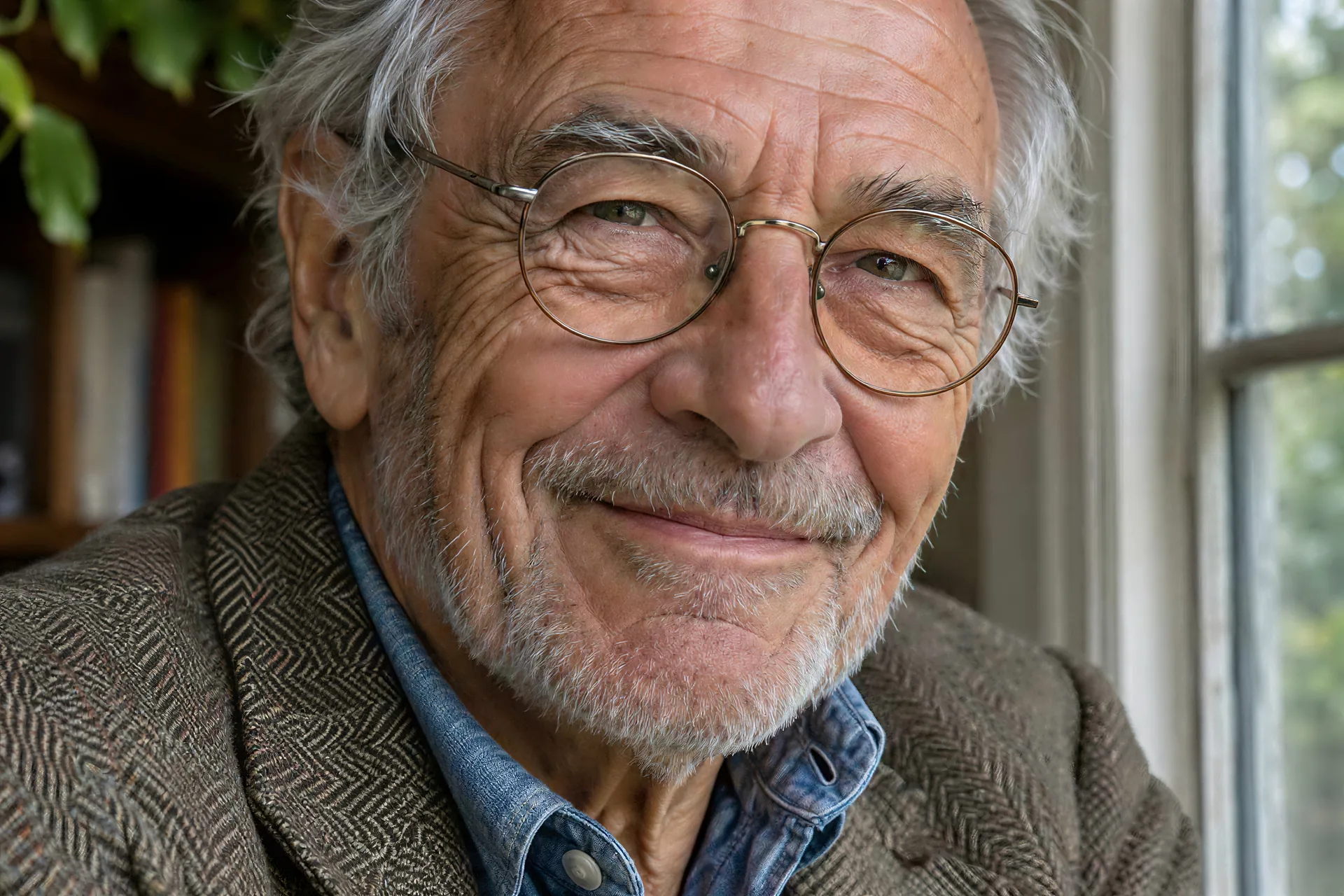 Before · 960×640OptiClear · 3840×2560
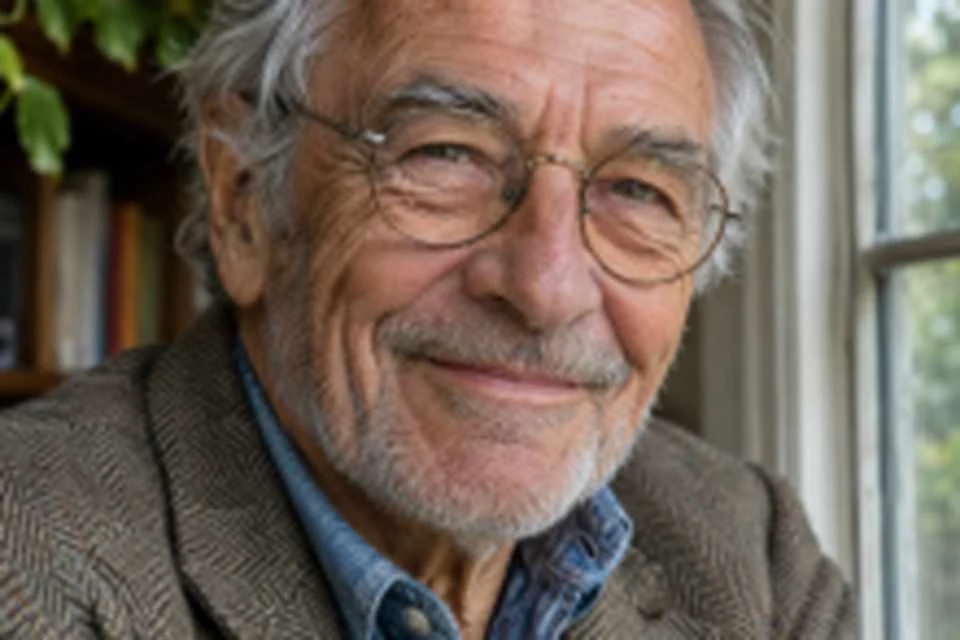
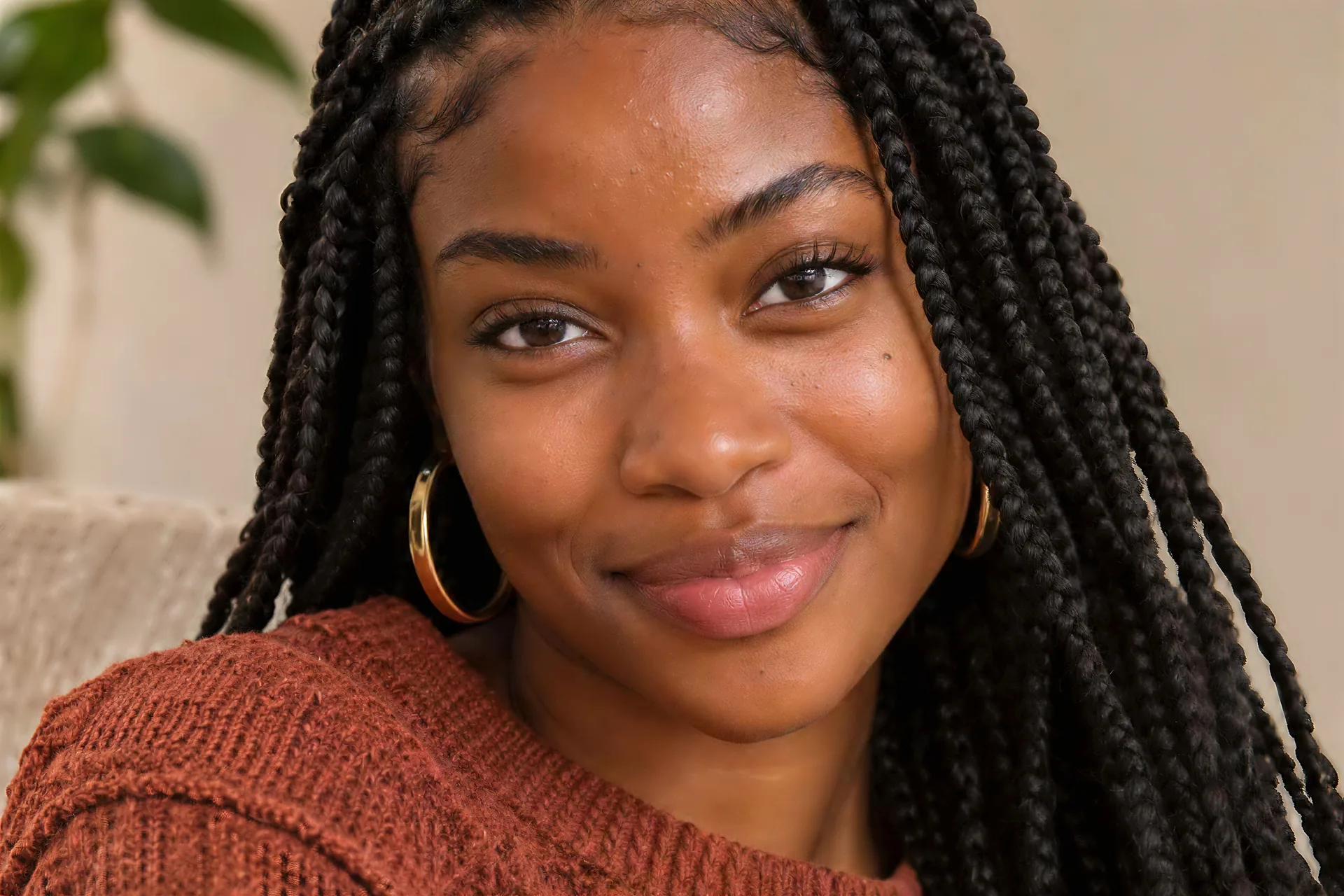 Before · 960×640OptiClear · 3840×2560
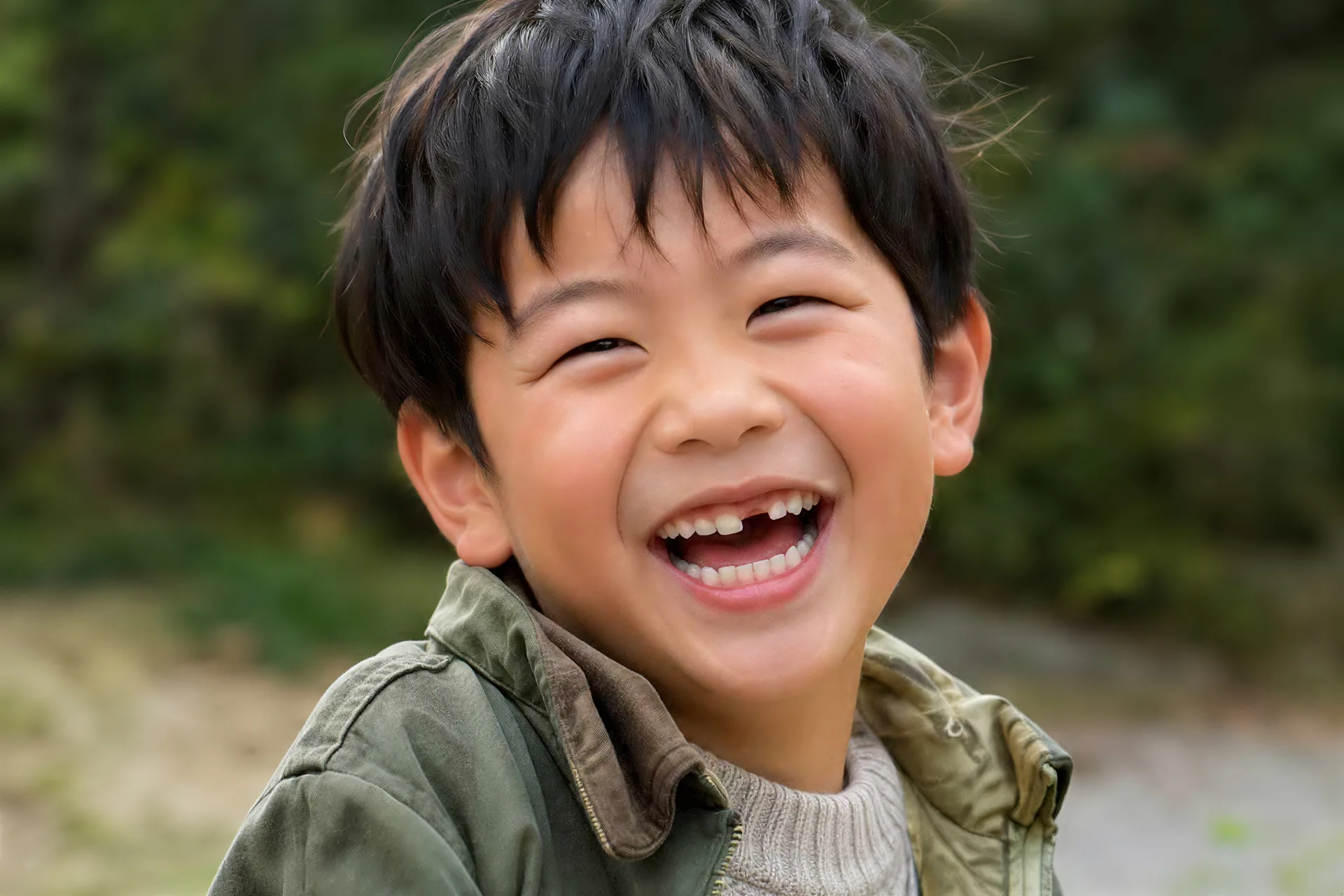 Before · 960×640OptiClear · 3840×2560
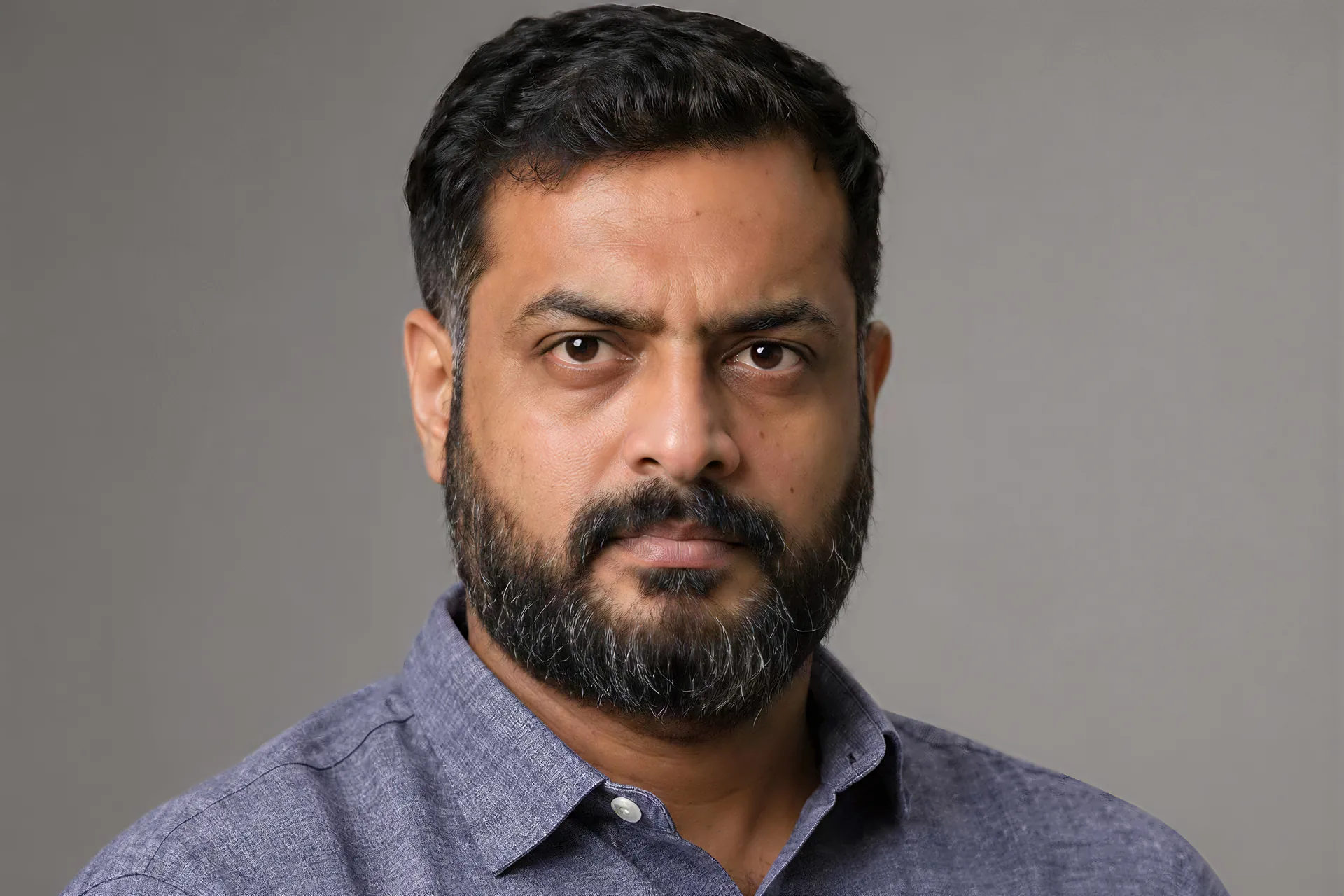 Before · 960×640OptiClear · 3840×2560
 Before · 960×640OptiClear · 3840×2560
 Before · 960×640OptiClear · 3840×2560

各類相片都啱用
產品相、舊相片同插畫,一鍵升級高清。
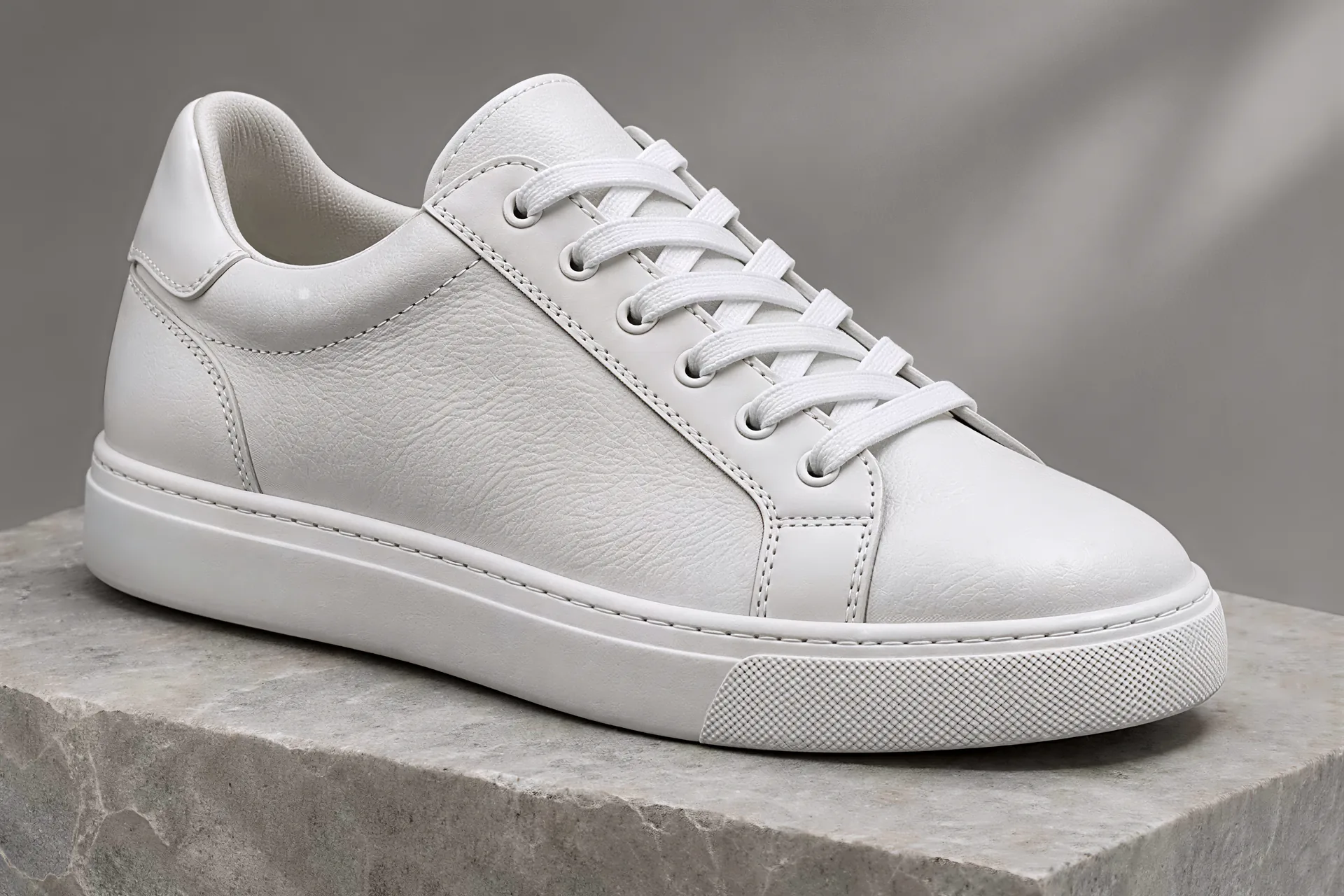 Before · 960×640OptiClear · 3840×2560
Product
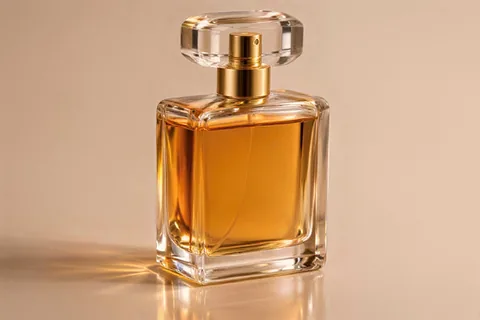
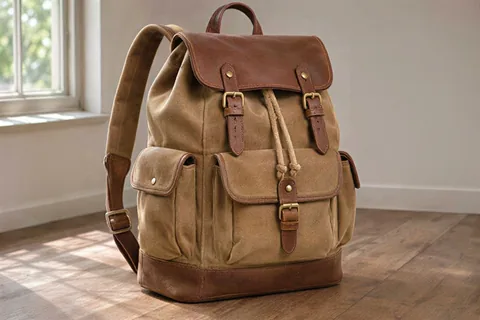
Leather grain and stitching for a product-page zoom.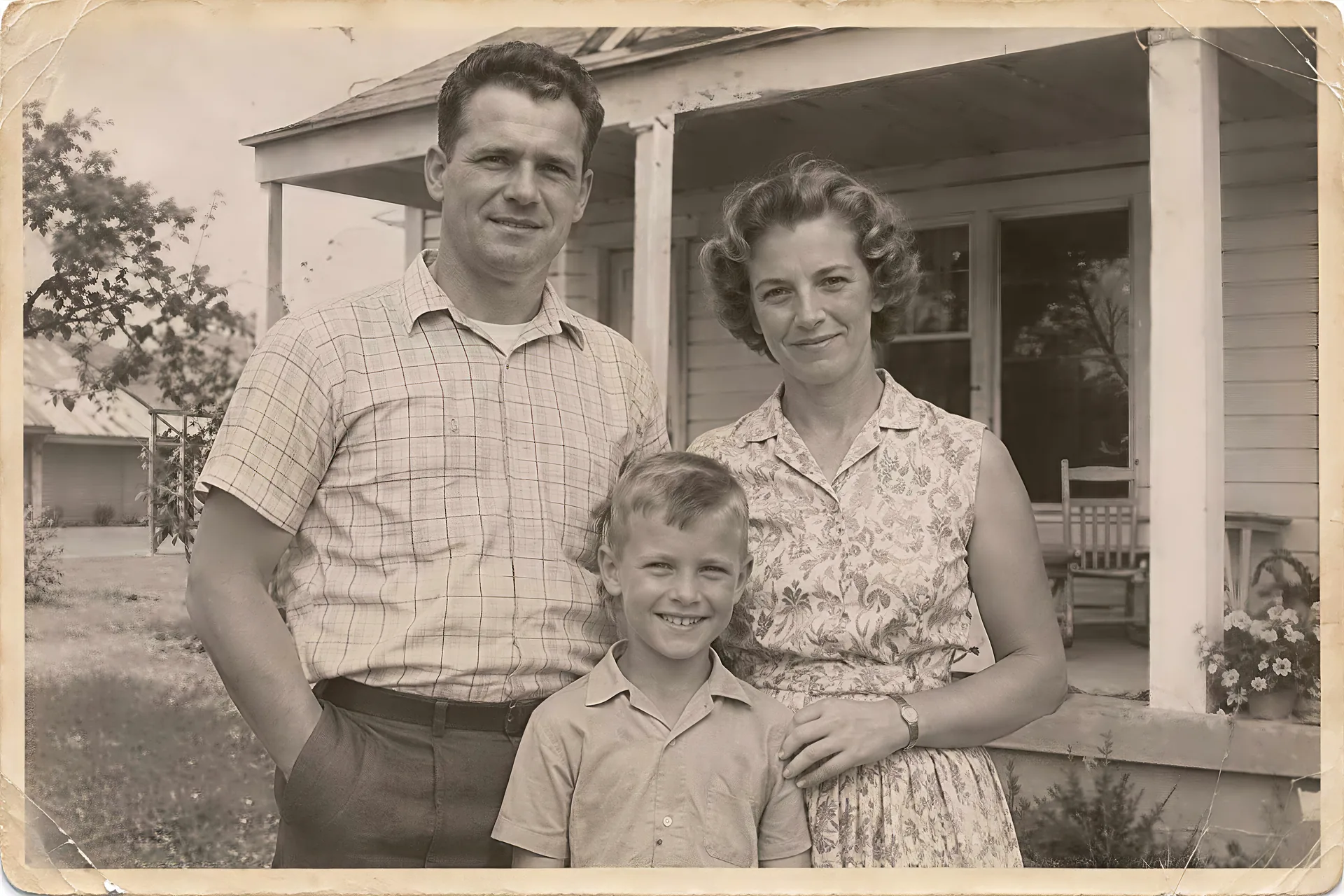 Before · 960×640OptiClear · 3840×2560
Old photo
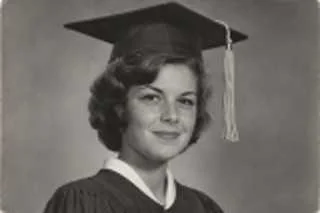
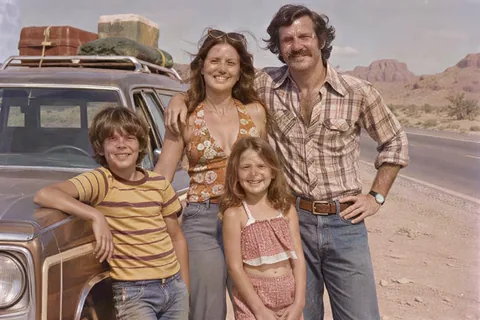
Faces and edges come back; the film character stays.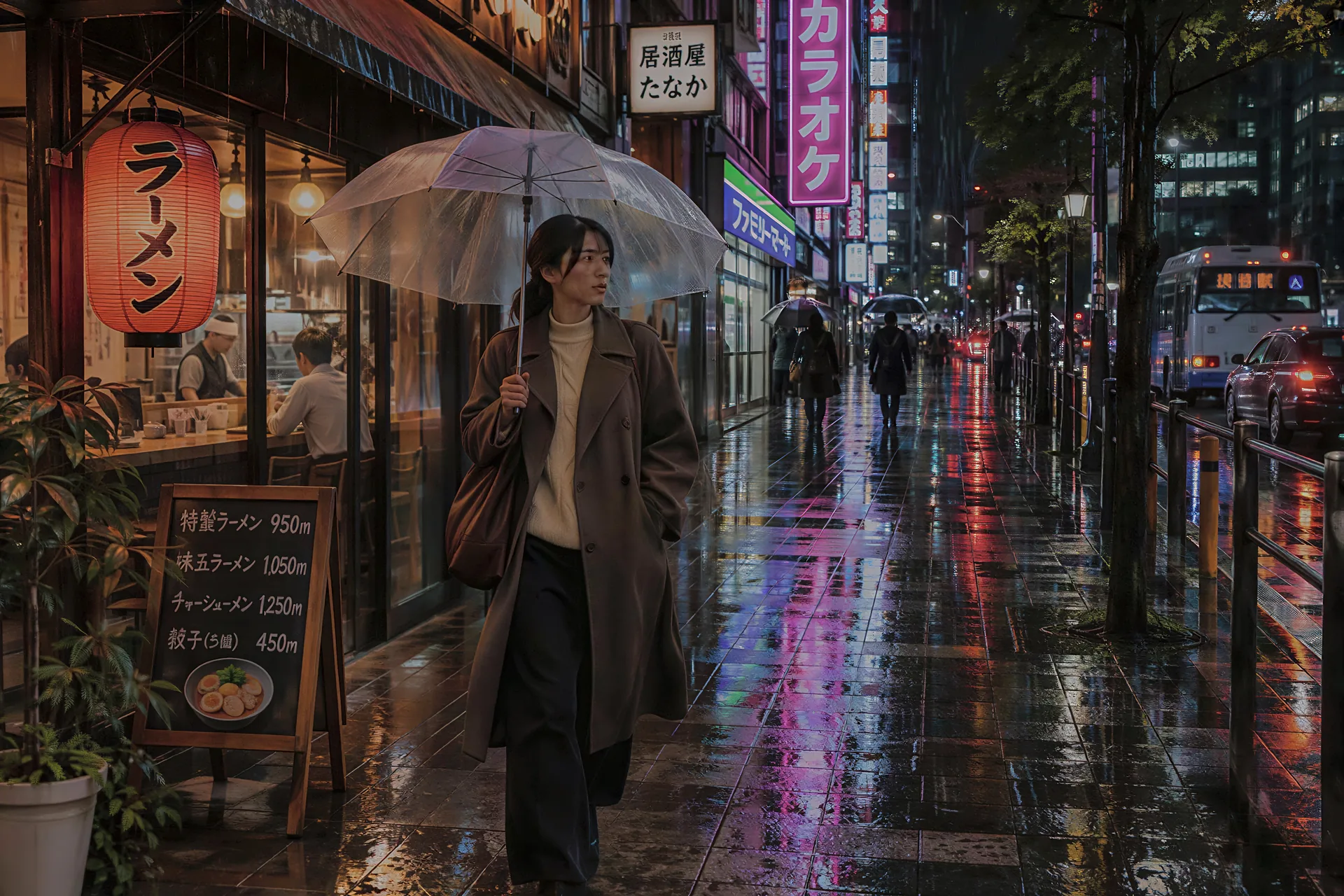 Before · 960×640OptiClear · 3840×2560
Night street
Noise cleaned before enlarging, neon stays crisp.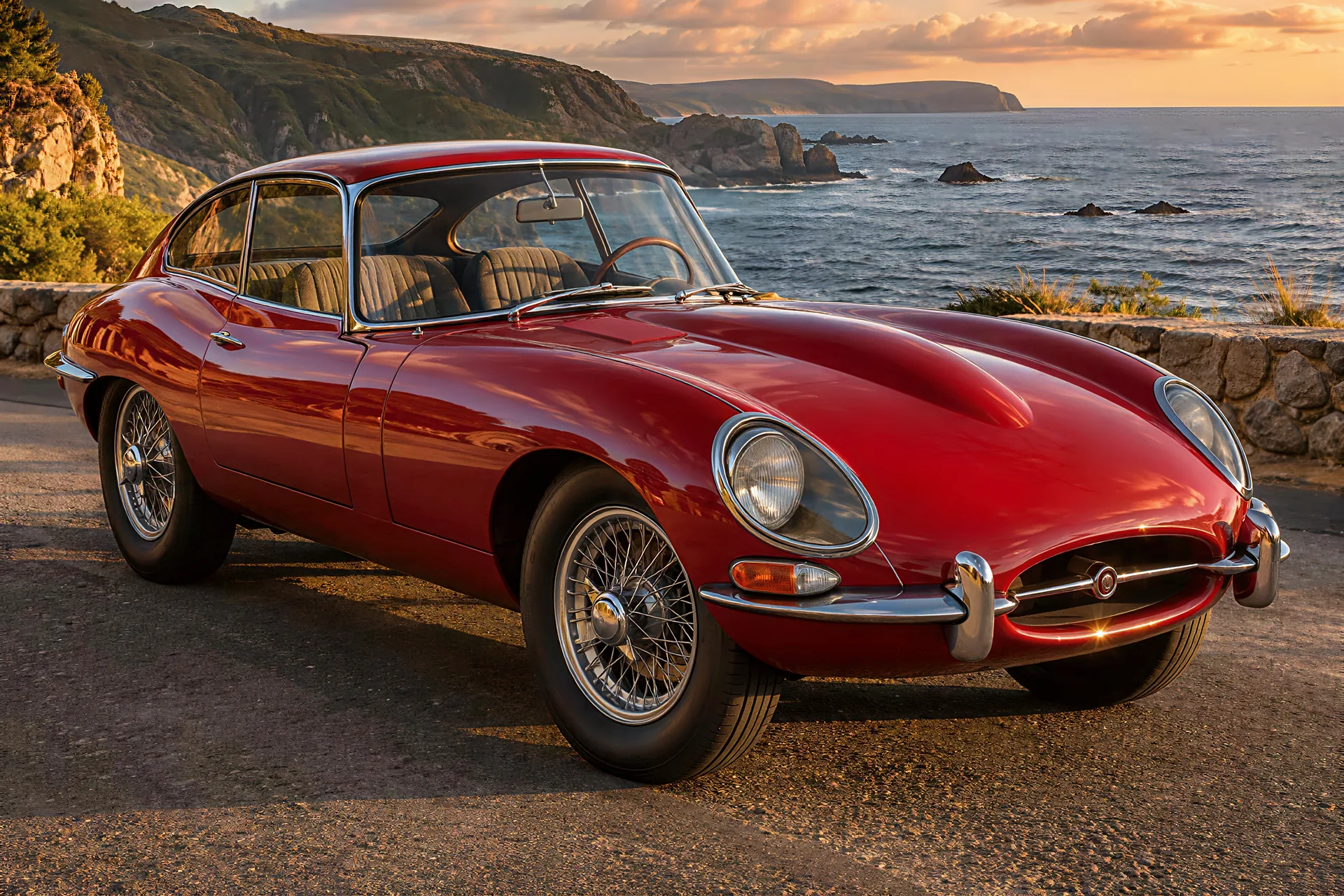 Before · 960×640OptiClear · 3840×2560
Car
Chrome, reflections and paint depth.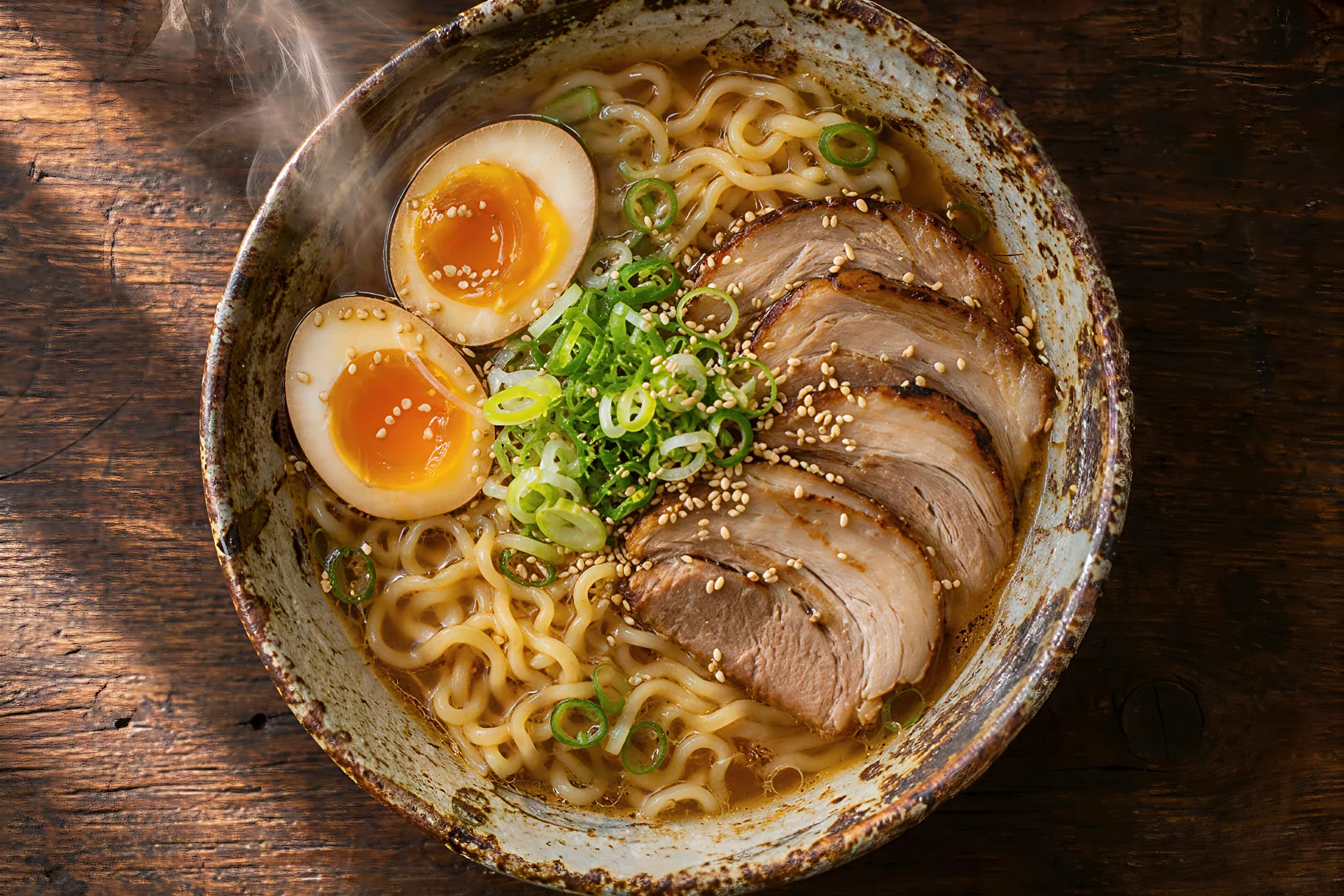 Before · 960×640OptiClear · 3840×2560
Food
Texture that makes a menu photo look edible again.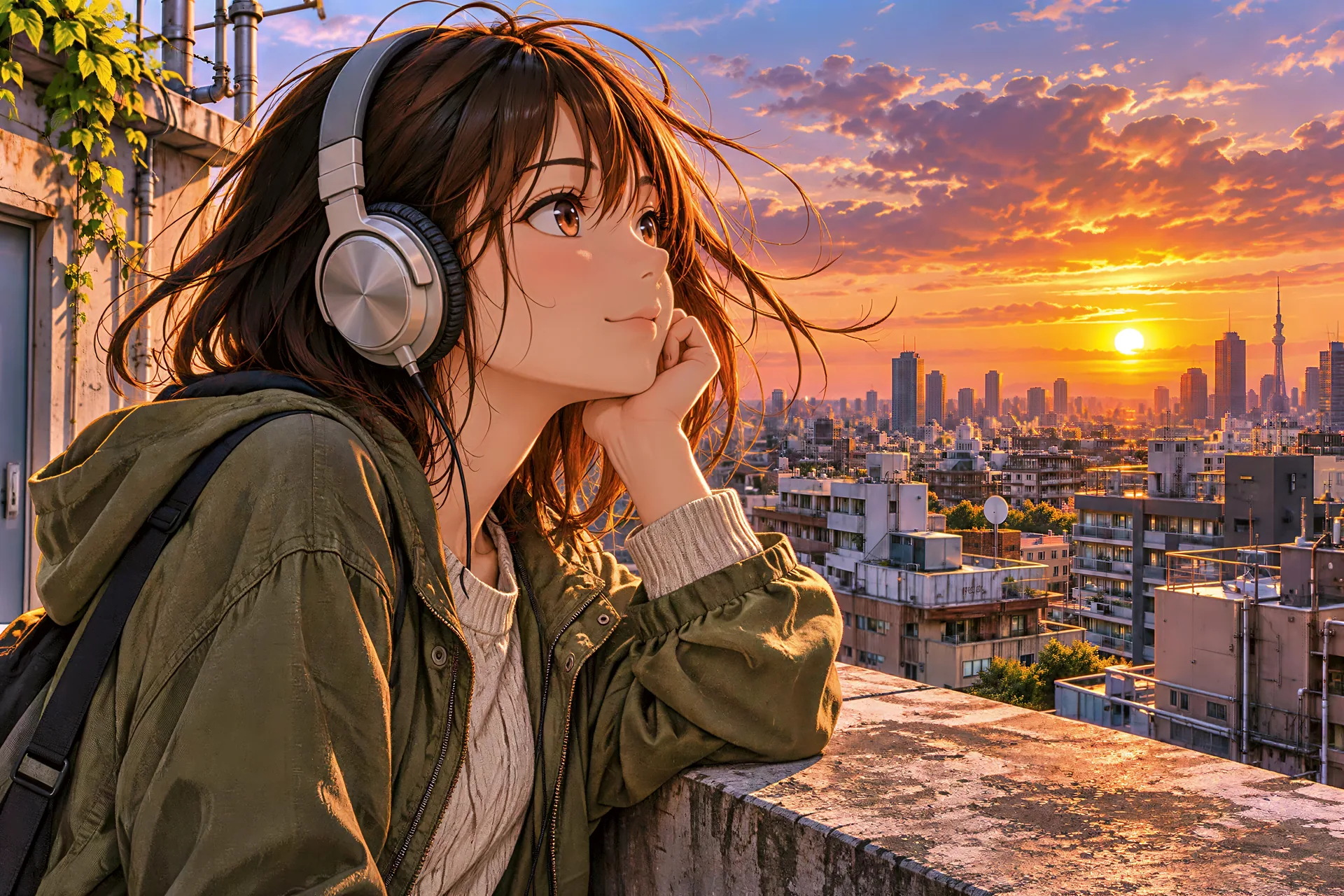 Before · 960×640OptiClear · 3840×2560
Illustration
Clean line art and flat colour, no muddy halos.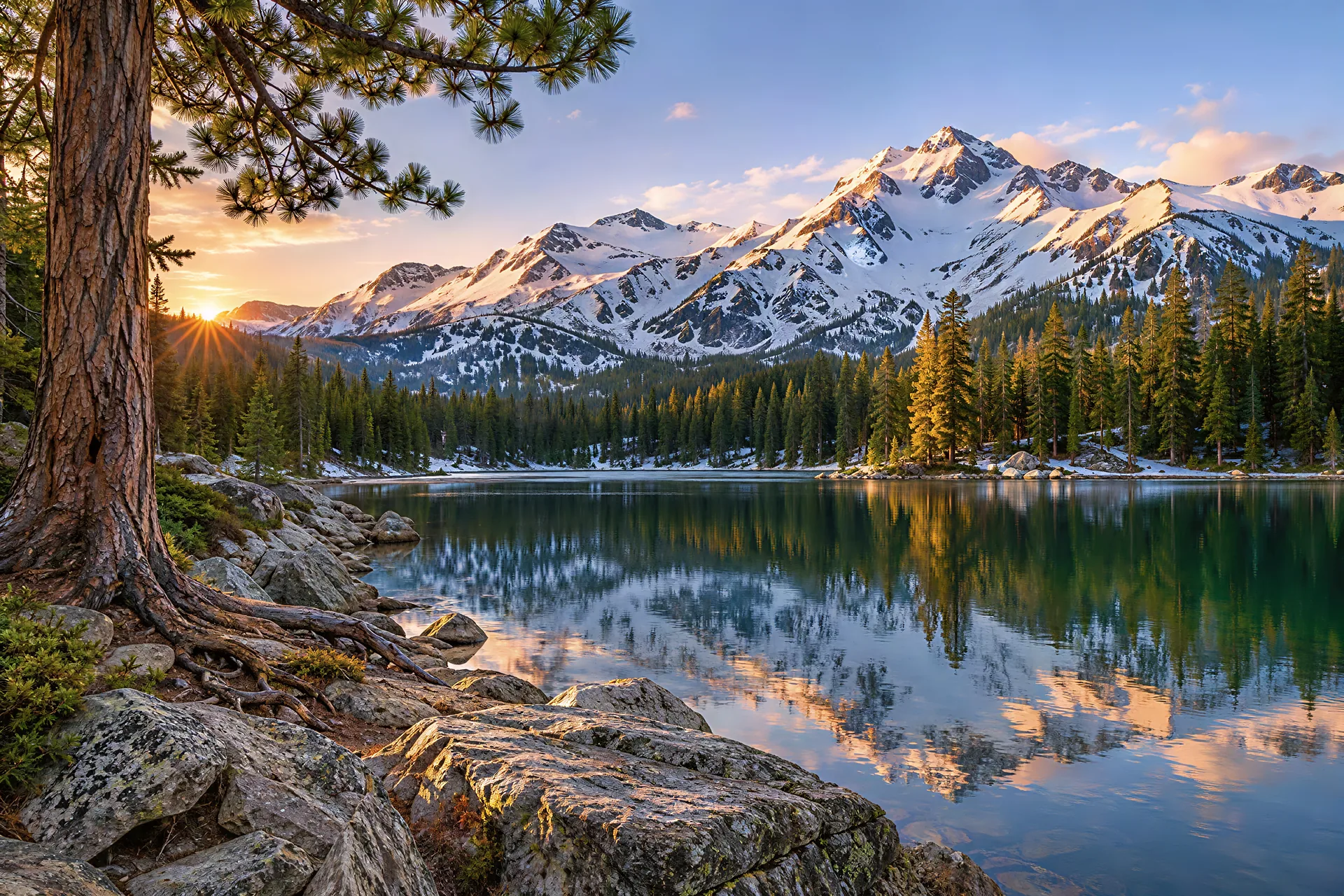 Before · 960×640OptiClear · 3840×2560
Landscape
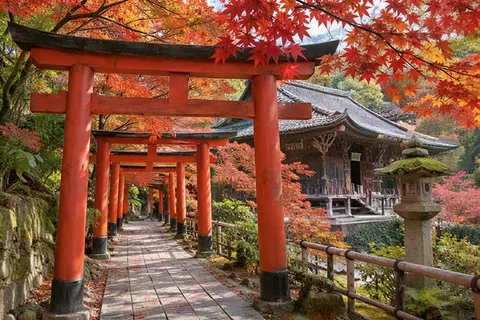
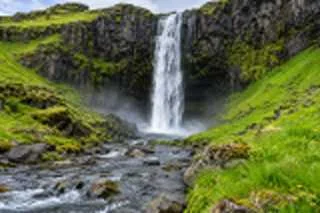
Rocks, trees and ridgelines at print size.
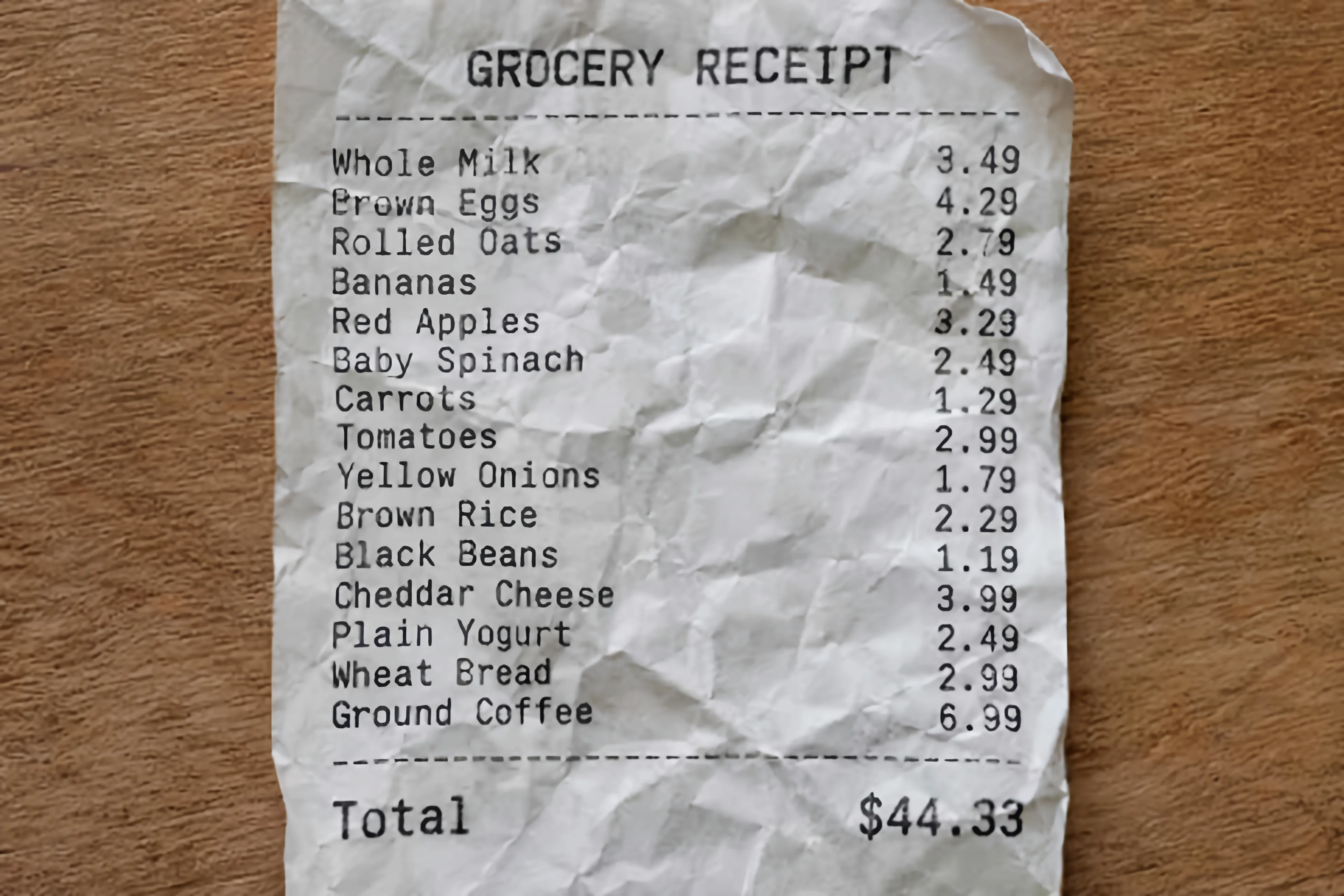
文字與截圖專用銳化
細小字體,終於睇得清。
移動放大鏡去單據上面:鏡外係原檔,鏡內係 OptiClear 2× 銳化效果。文字模型只銳化筆畫,絕唔亂估字。
批量處理
一鍵批量放大 20 張相片。
一次拖入成輯相、產品目錄或者掃描舊相,統一設定處理,逐張對比再打包 ZIP 下載。
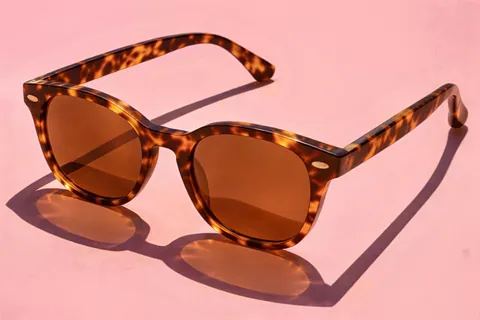
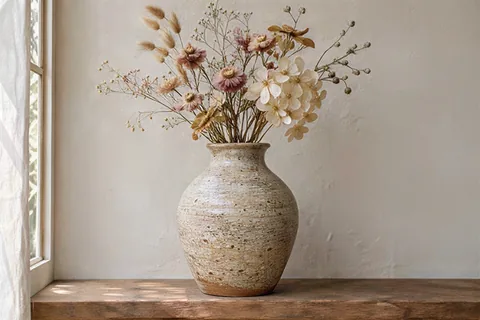

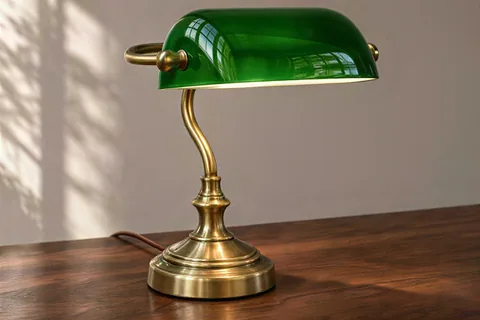
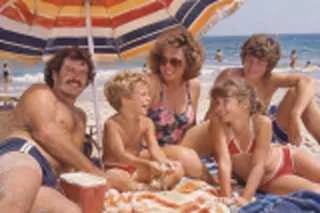
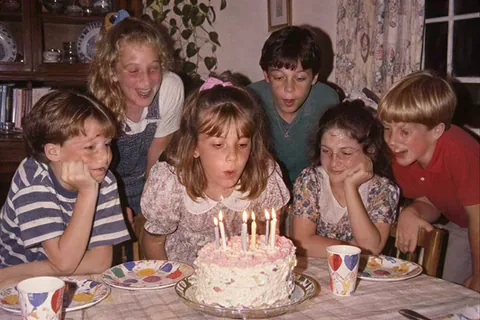
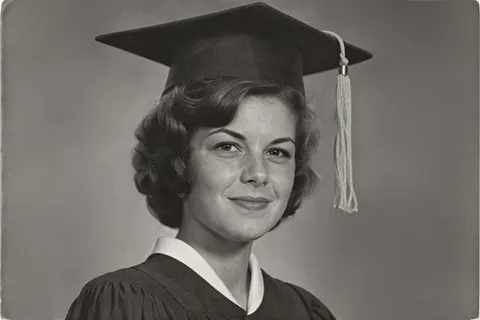
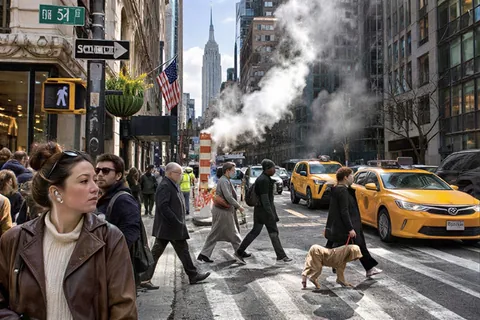
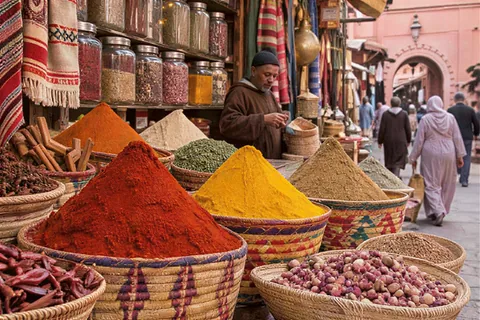
三大專用 AI 模型
針對唔同模糊情況嘅 AI 放大模型。
自動模式會智能識別每張圖揀最啱模型,你亦可以手動指定深度修復或文字圖形模式。
使用步驟
點樣用 AI 網上將相片無損放大至 4K
上載單張或最多 20 張相片
喺瀏覽器拖入 JPG、PNG 或 WebP 圖片(單張最高 30 MB),支援相片、產品圖、舊相掃描同截圖。
揀選 AI 模型同 2× / 4× 放大倍率
用自動模式智能配對,或者揀「深度修復」還原重度模糊、「文字與圖形」銳化細字,最高輸出 4K。
前後對比畫質並下載成品
逐張檢查修復前後細節,支援單張下載或整批打包 ZIP 下載,失敗完全唔扣積分。
真實直出
AI 相片放大前後真實案例。
每格都係真實壓縮圖同 OptiClear 輸出結果,滑鼠移入或拖動即可對比。
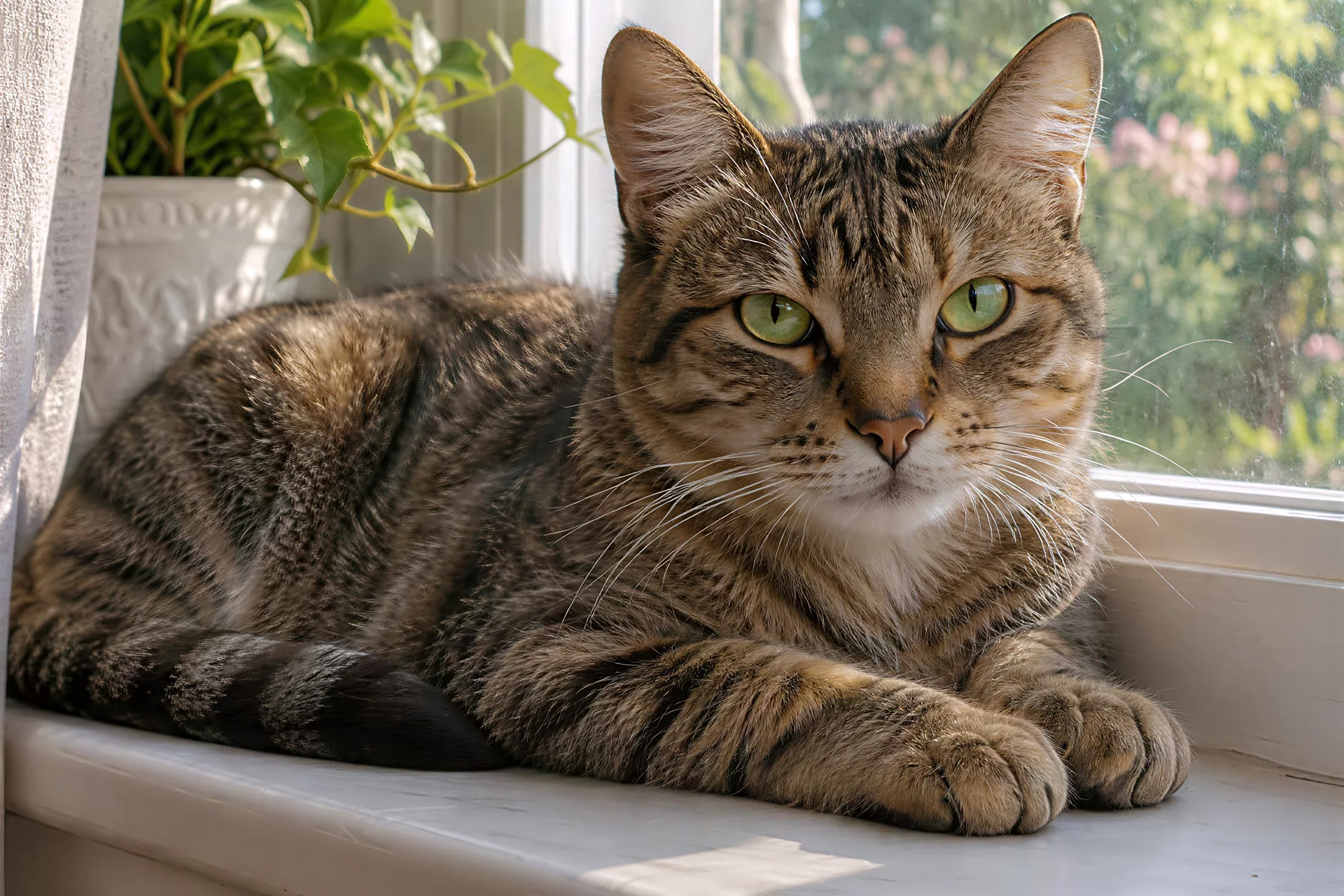 Before · 960×640OptiClear · 3840×2560
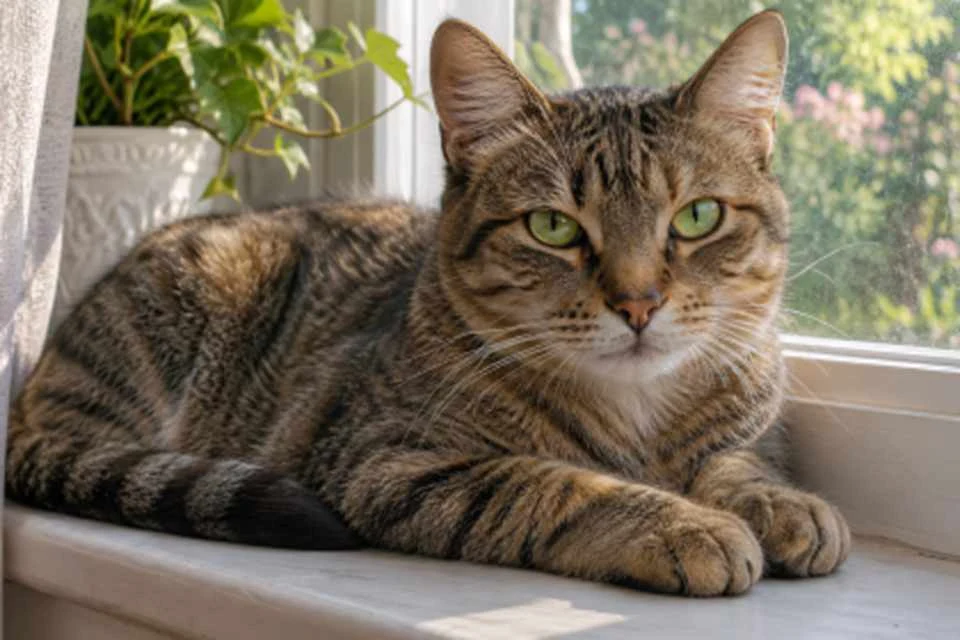
Cat
960→3840px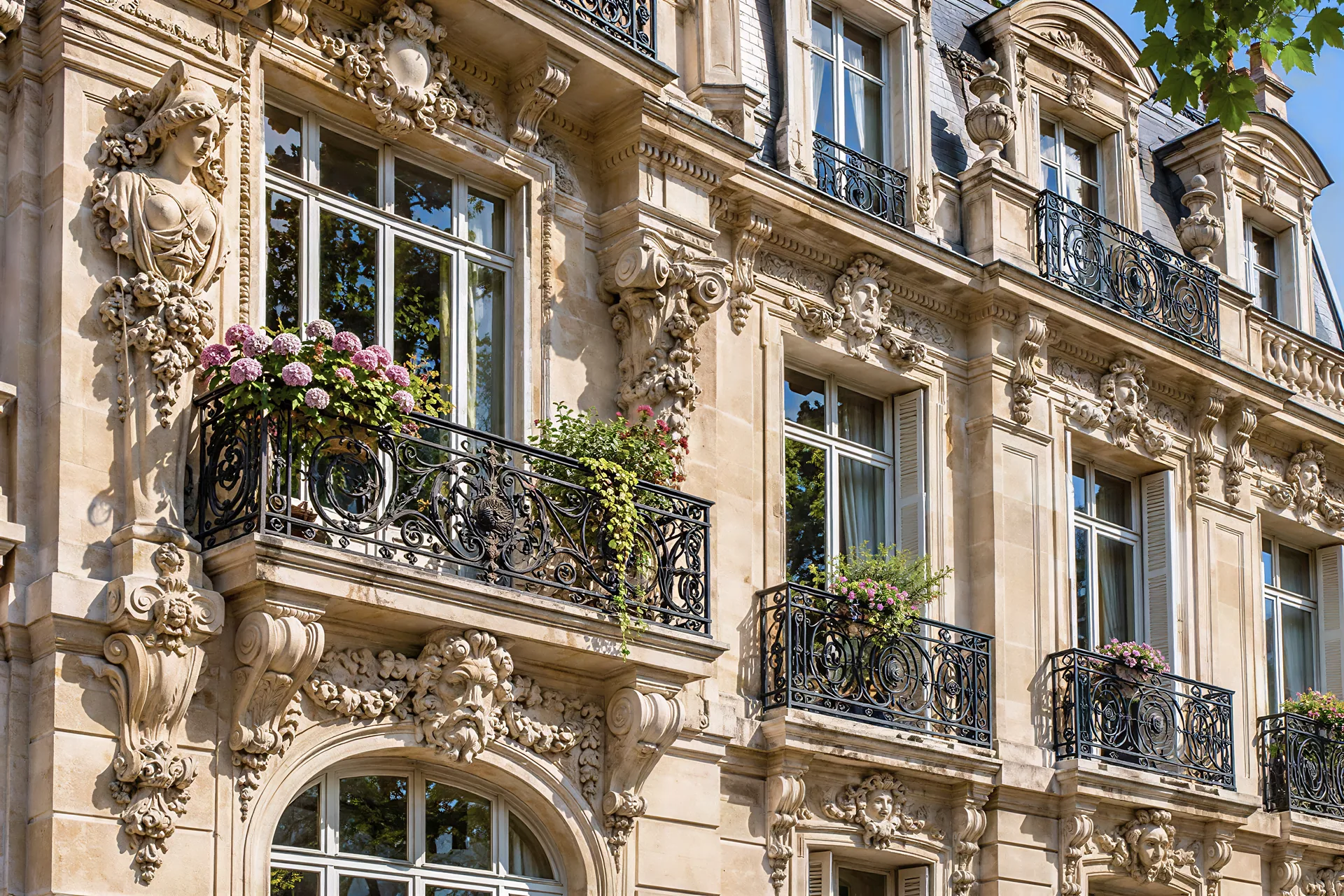 Before · 960×640OptiClear · 3840×2560
Architecture
960→3840px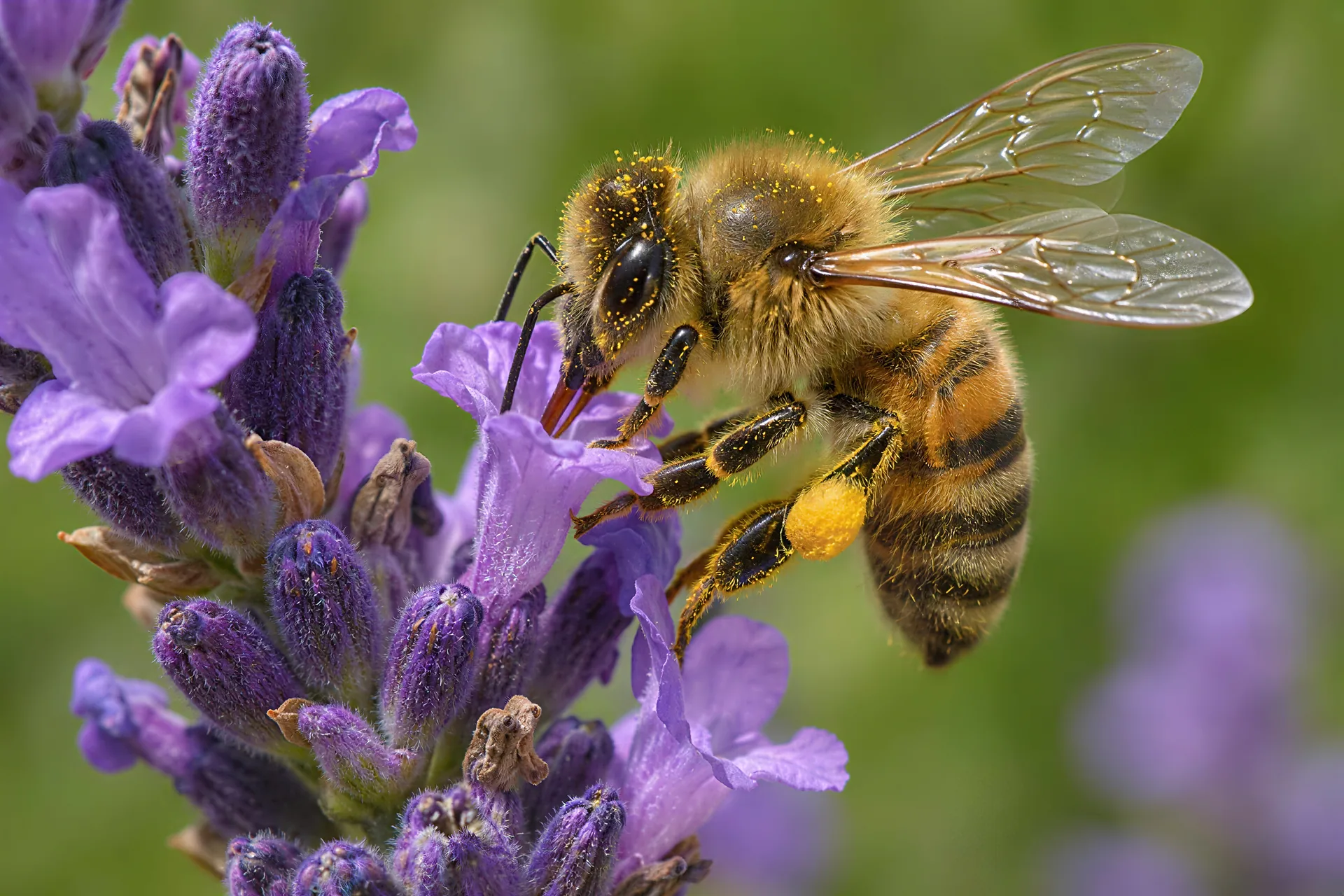 Before · 960×640OptiClear · 3840×2560
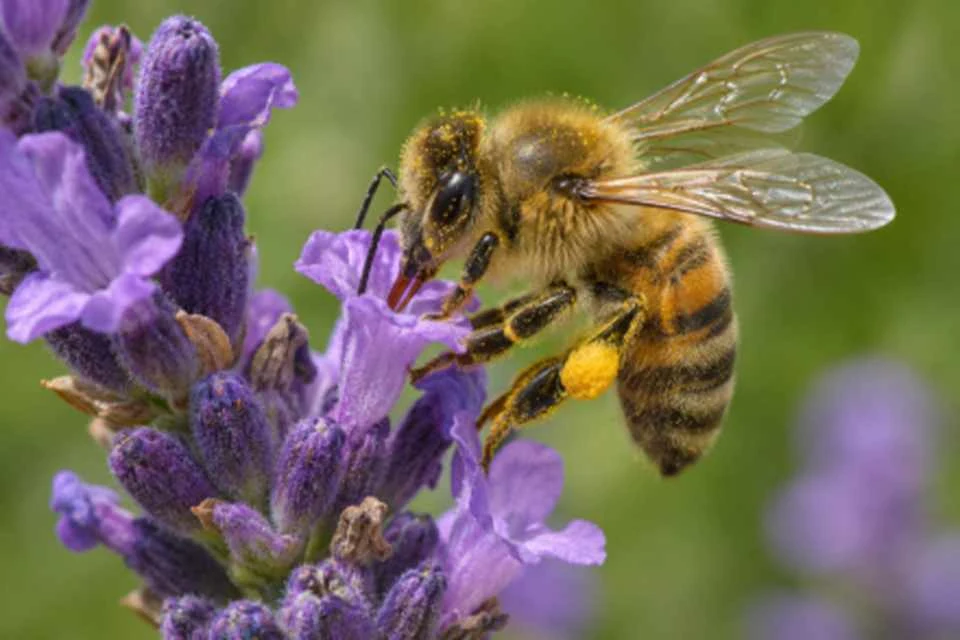
Macro
960→3840px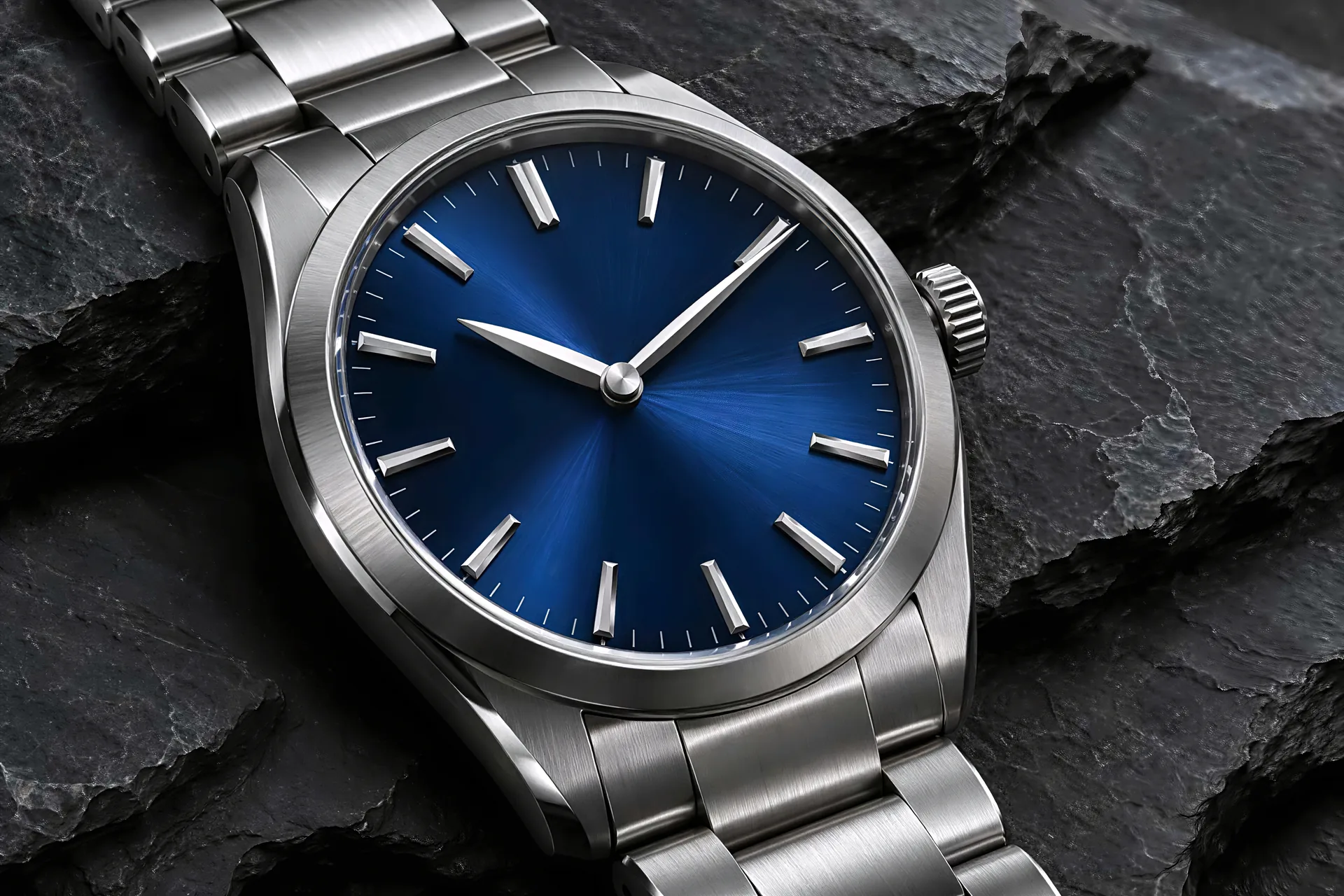 Before · 960×640OptiClear · 3840×2560
Watch
960→3840px Before · 960×640OptiClear · 3840×2560

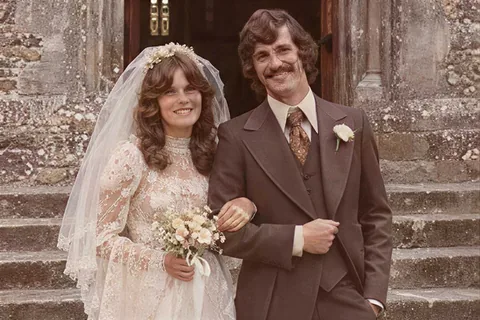
Couple
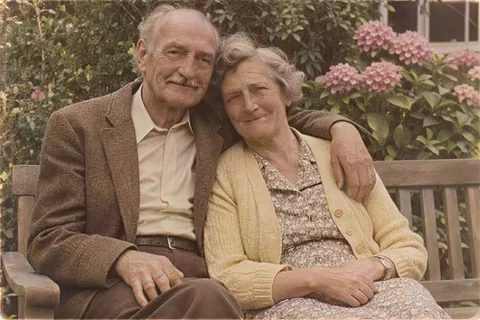
960→3840px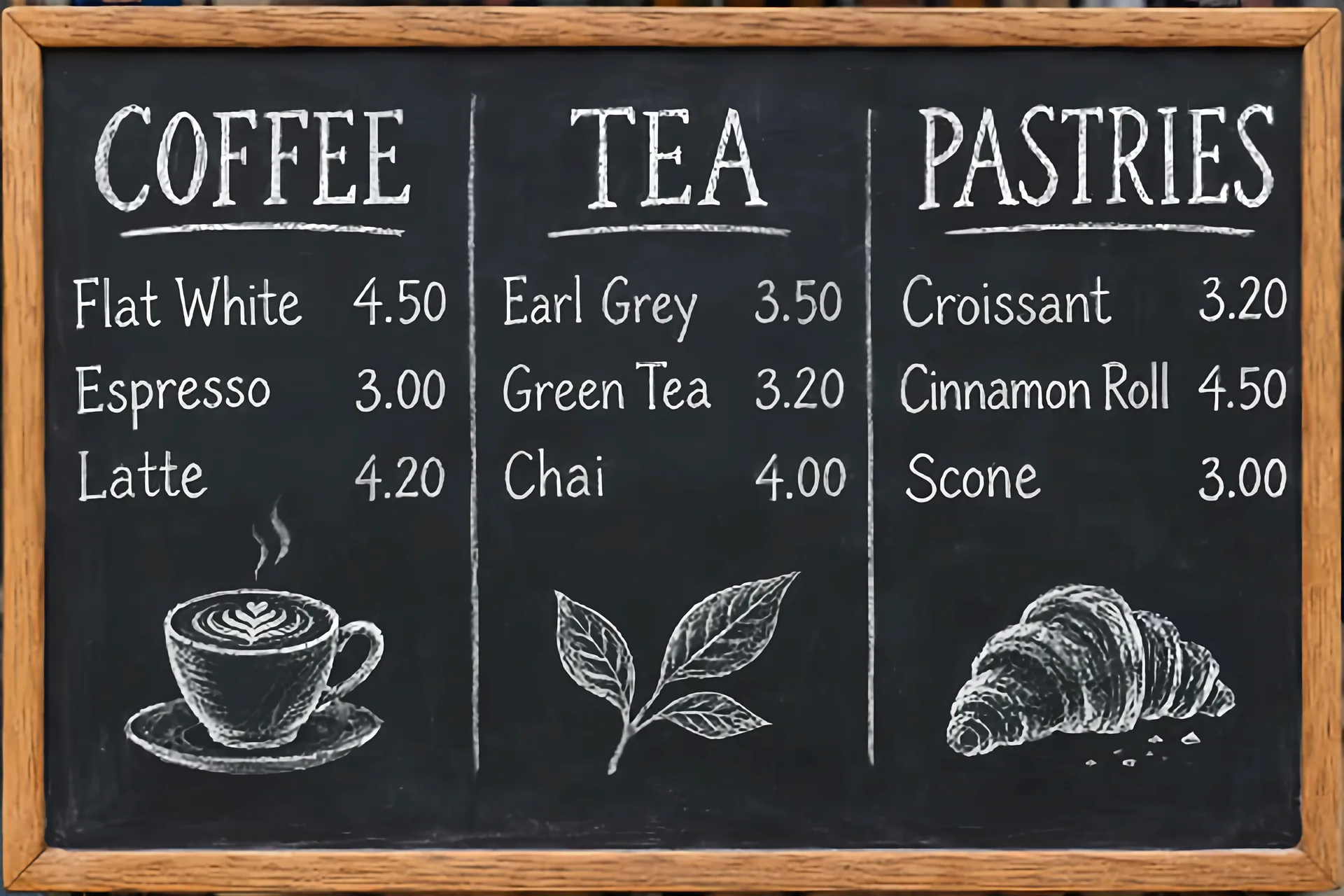 Before · 960×640OptiClear · 3840×2560
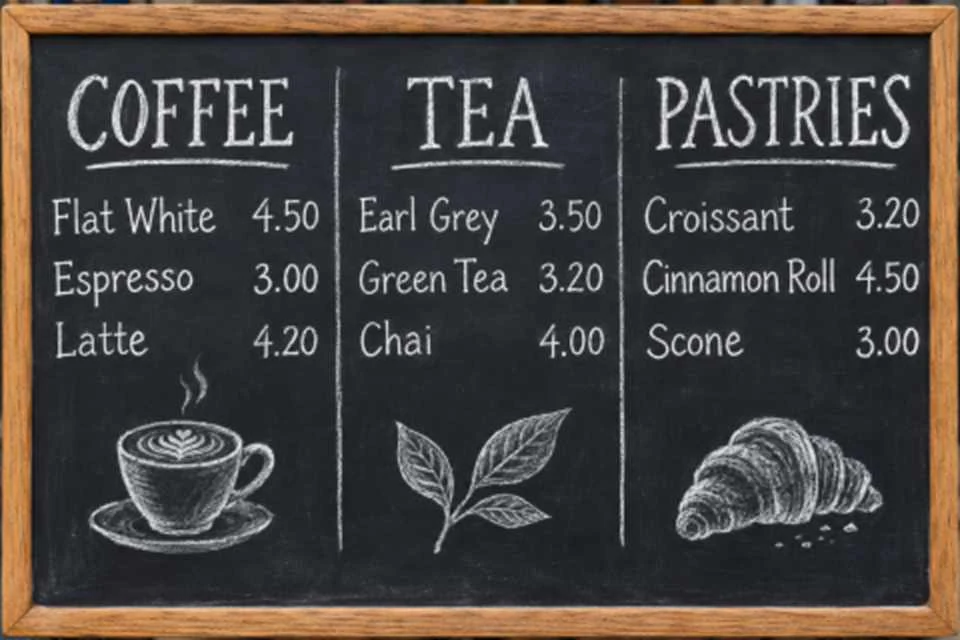
Chalkboard
960→3840px為什麼使用線上放大圖片?
這個流程可以把發軟、壓縮過或尺寸太小的圖片,準備成更適合商品頁、投影片、海報、社群圖和設計生產的素材。
線上放大圖片適合哪些圖片
適合商品照片、截圖、AI 生成圖片、簡報素材、縮圖、社群圖,以及需要更清晰版本的視覺素材。
相關 Codia 工作流
繼續使用圖層編輯、文字編輯、圖像清理、背景移除、清晰度增強和匯出等相關工具。
常見問題
線上放大圖片常見問題
可以線上使用線上放大圖片嗎?
可以。上傳圖片後,Codia 會直接在瀏覽器中開啟 Studio 工作流。
AI 處理後還能繼續編輯嗎?
可以。結果會保留在 Codia Studio 中,你可以繼續調整圖層、版式、清理細節或匯出。
支援哪些圖片格式?
支援 JPG、PNG、WebP、截圖、商品照片、AI 圖片等常見圖片格式。